 University IT
Connect Slack
| What you can do | Summarize conversations, send direct messages, create channels and post in them. |
| Sign-in method | Slack sign-in to the Stanford UIT workspace (often already authorized). |
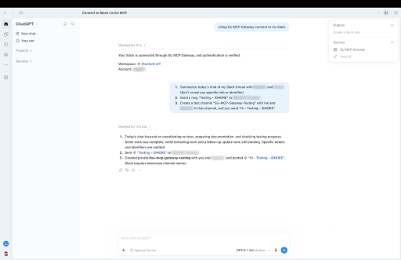
| Connect prompt | Using SU MCP Gateway connect to my Slack. |
Get started
Ask ChatGPT to connect Slack. If you've authorized Slack before, ChatGPT connects immediately and shows your workspace and account name. Otherwise, click the link, sign in to Slack, and reply "done."
Try these prompts
If you're not sure where to start, try one of these:
- Summarize today's chat in my Slack thread with Alex and Jordan (don't reveal any specific info or identifier).
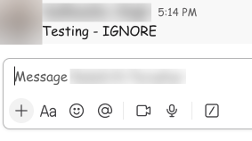
- Send a message "Testing - IGNORE" to Alex Chen.
- Create a test channel "SU-MCP-Gateway-Testing" with me and Alex in that channel, and send "Hi - Testing - IGNORE".
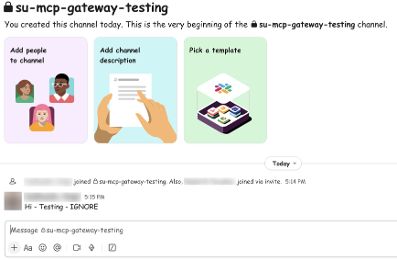
Heads up! Slack channel names must be lowercase. If you ask for "SU-MCP-Gateway-Testing", ChatGPT will create "su-mcp-gateway-testing". Messages are sent from your own account, so double-check the recipient before you send.
Last modified
