University IT
Connect Consensus
On this page:
This guide explains how to use SU MCP Gateway to connect ChatGPT or Claude to Consensus.
Capabilities, sign-in, and setup
| Topic | Details |
|---|---|
| What you can do | Search academic research and get evidence-based summaries from Consensus directly in your chat. |
| Sign-in method | Consensus API key (you paste it in once). |
| Connect prompt | Using SU MCP Gateway, connect to my Consensus. |
What you need to know
If you haven't already done so, set up SU MCP Gateway first and then come back here to connect Consensus.
- Screenshots are from ChatGPT, but the prompts, sign-in pages, and confirmation screens look the same in Claude.
- Connection links expire after 10 minutes. If yours expires, ask the assistant to connect again for a new link.
How to connect Consensus
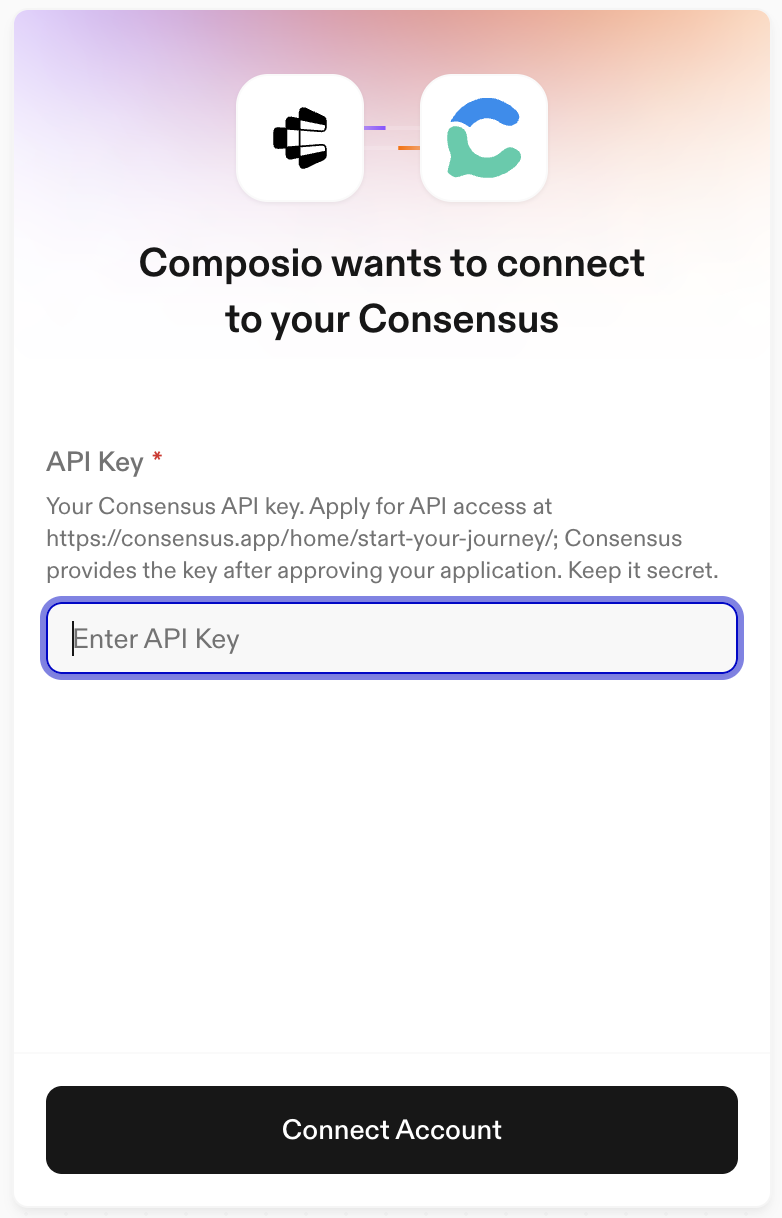
Consensus doesn't use a normal sign-in. Instead, it gives you an API key that you paste into the connection form.
- If you don't have a key yet, apply for API access on the Consensus website. Consensus sends the key after approving your application.
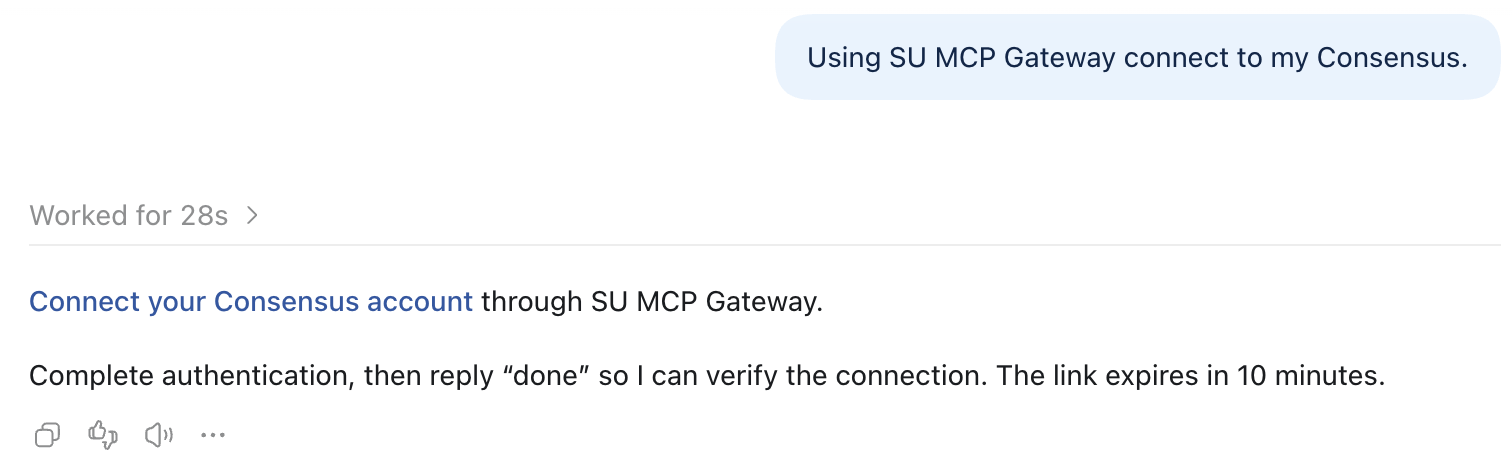
Ask ChatGPT to connect Consensus using the prompt below, then click the link ChatGPT sends you.
Using SU MCP Gateway, connect to my Consensus.- Paste your key into the API Key box and click Connect Account.
- Return to ChatGPT and reply done.
Try these prompts
If you're not sure where to start, try one of these:
- Using Consensus, find recent research on how sleep affects memory.
- Summarize what studies say about remote work and productivity, with citations.
Get help
If you need assistance, submit a help request for your tool:
- ChatGPT Edu (OpenAI)
- Claude for Education (Anthropic)
Be sure to include:
- The app you tried to connect (Consensus)
- What you typed and how the assistant responded
- A screenshot of any error (don't include your API key)
For fixes to common problems, see the troubleshooting guide.
Last modified