University IT
Connect Google Docs
On this page:
This guide explains how to use SU MCP Gateway to connect ChatGPT or Claude to Google Docs. Visit UIT's Google Drive page to learn more about Google Docs.
Capabilities, sign-in, and setup
| Topic | Details |
|---|---|
| What you can do | List your recent documents, summarize a document, create new documents with headings and text, and share them. |
| Sign-in method | Google sign-in with your Stanford Google account. |
| Connect prompt | Using SU MCP Gateway, connect to my Google Docs. |
What you need to know
If you haven't already done so, set up SU MCP Gateway first and then come back here to connect Google Docs.
- Screenshots are from ChatGPT, but the prompts, sign-in pages, and confirmation screens look the same in Claude.
- Connection links expire after 10 minutes. If yours expires, ask the assistant to connect again for a new link.
How to connect Google Docs
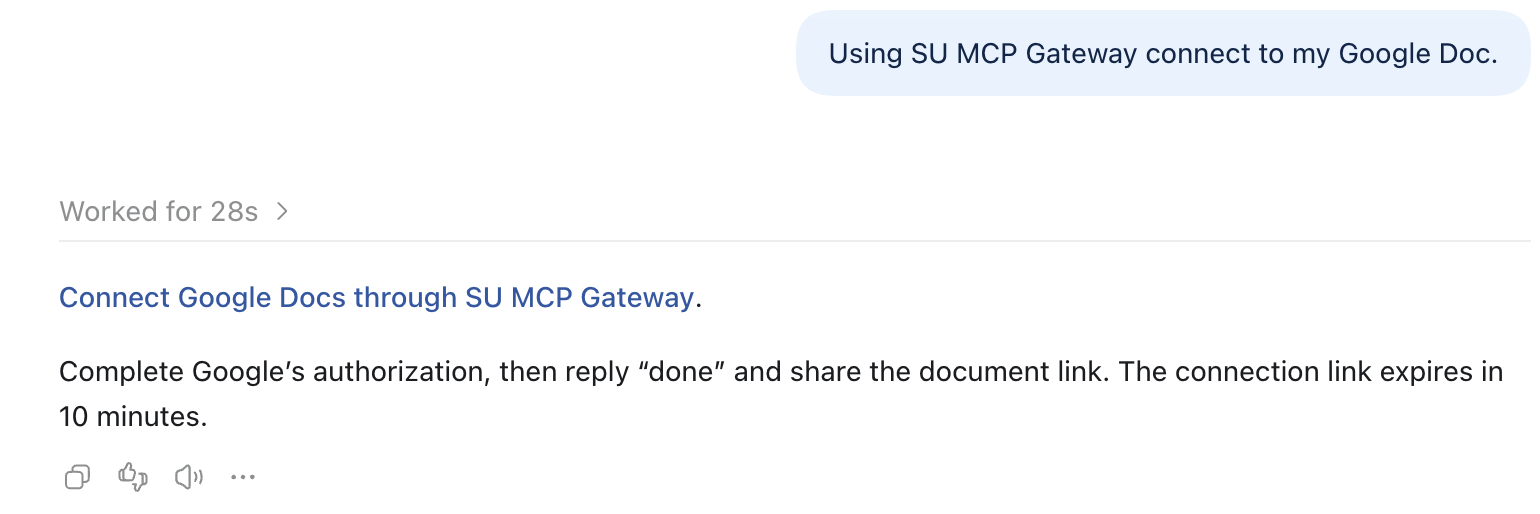
Open a new chat in ChatGPT and type the prompt below.
Using SU MCP Gateway, connect to my Google Docs.- ChatGPT replies with a blue connection link. Click it.
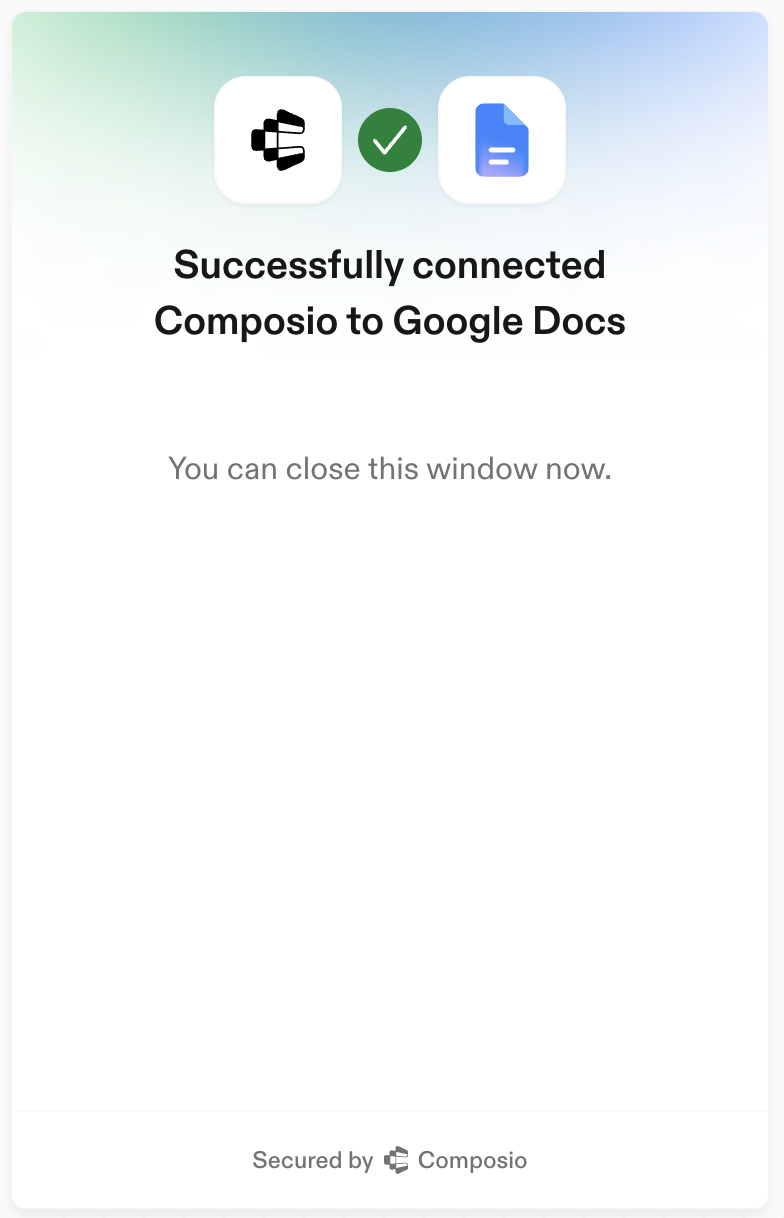
- Choose your Stanford Google account and click Continue.
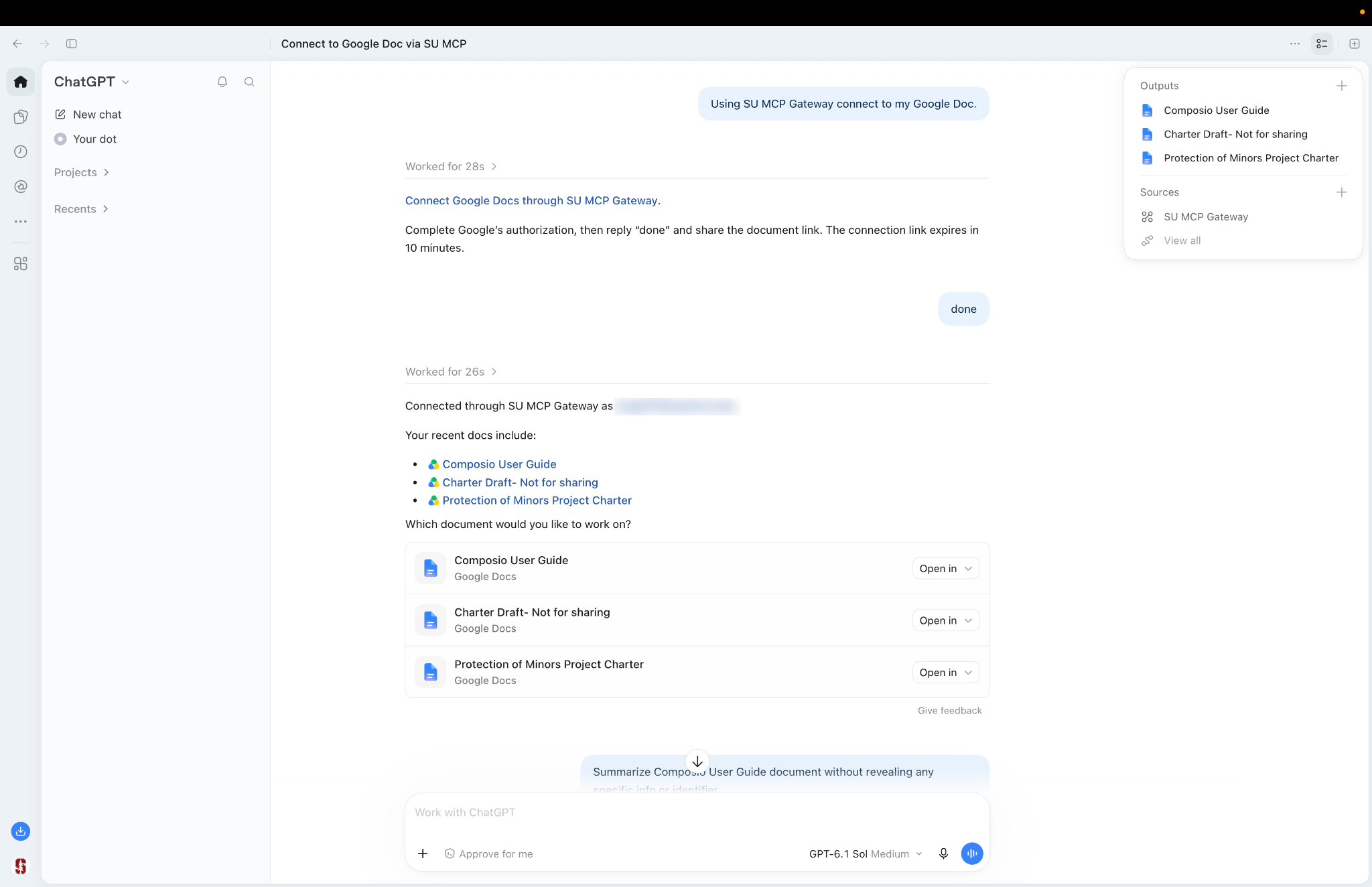
- When you see Successfully connected, close that window, return to ChatGPT, and reply done. ChatGPT confirms the connection, and you're ready to go.
Try these prompts
If you're not sure where to start, try one of these:
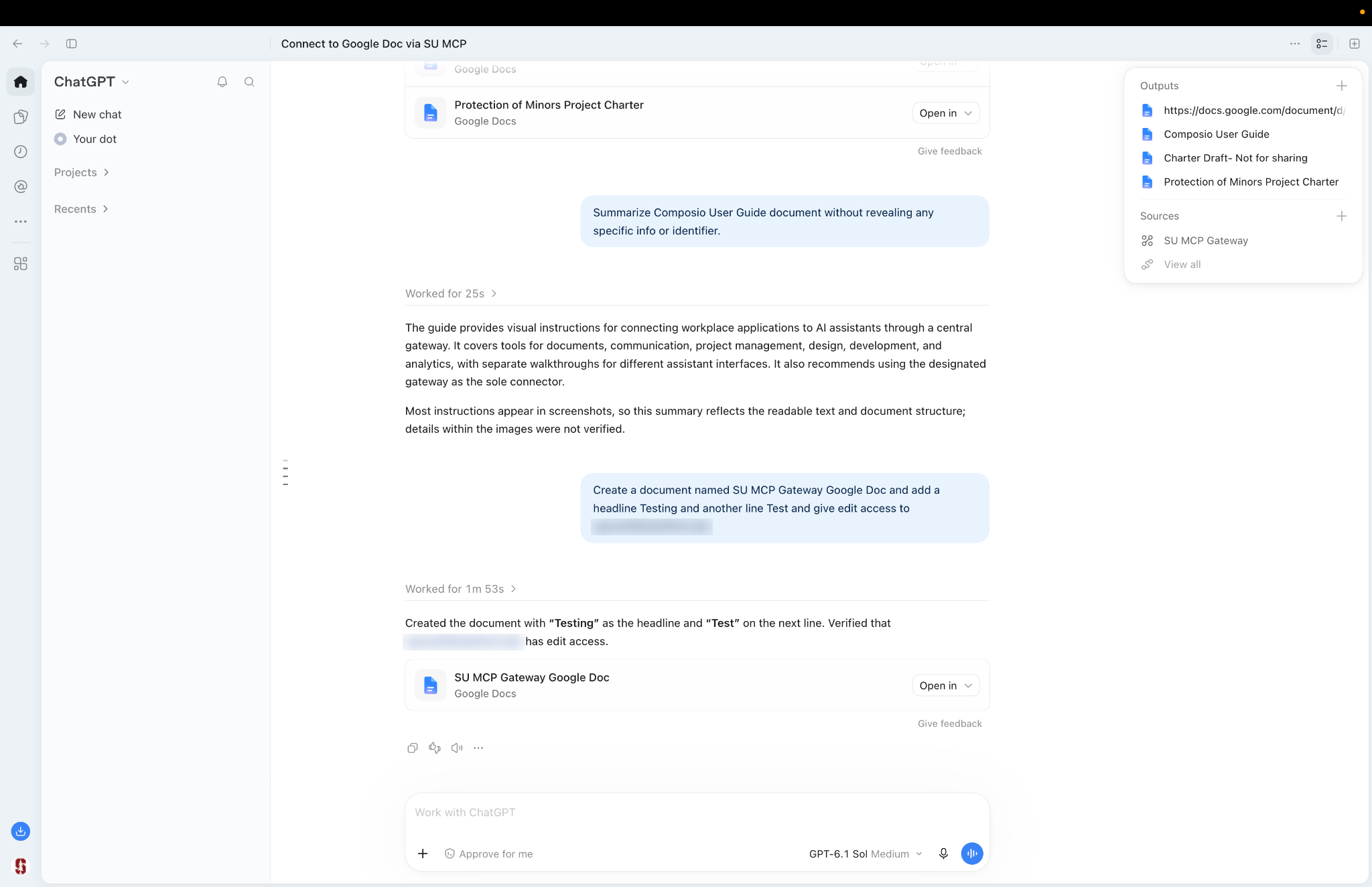
- Summarize the Project Charter document without revealing any specific info or identifiers.
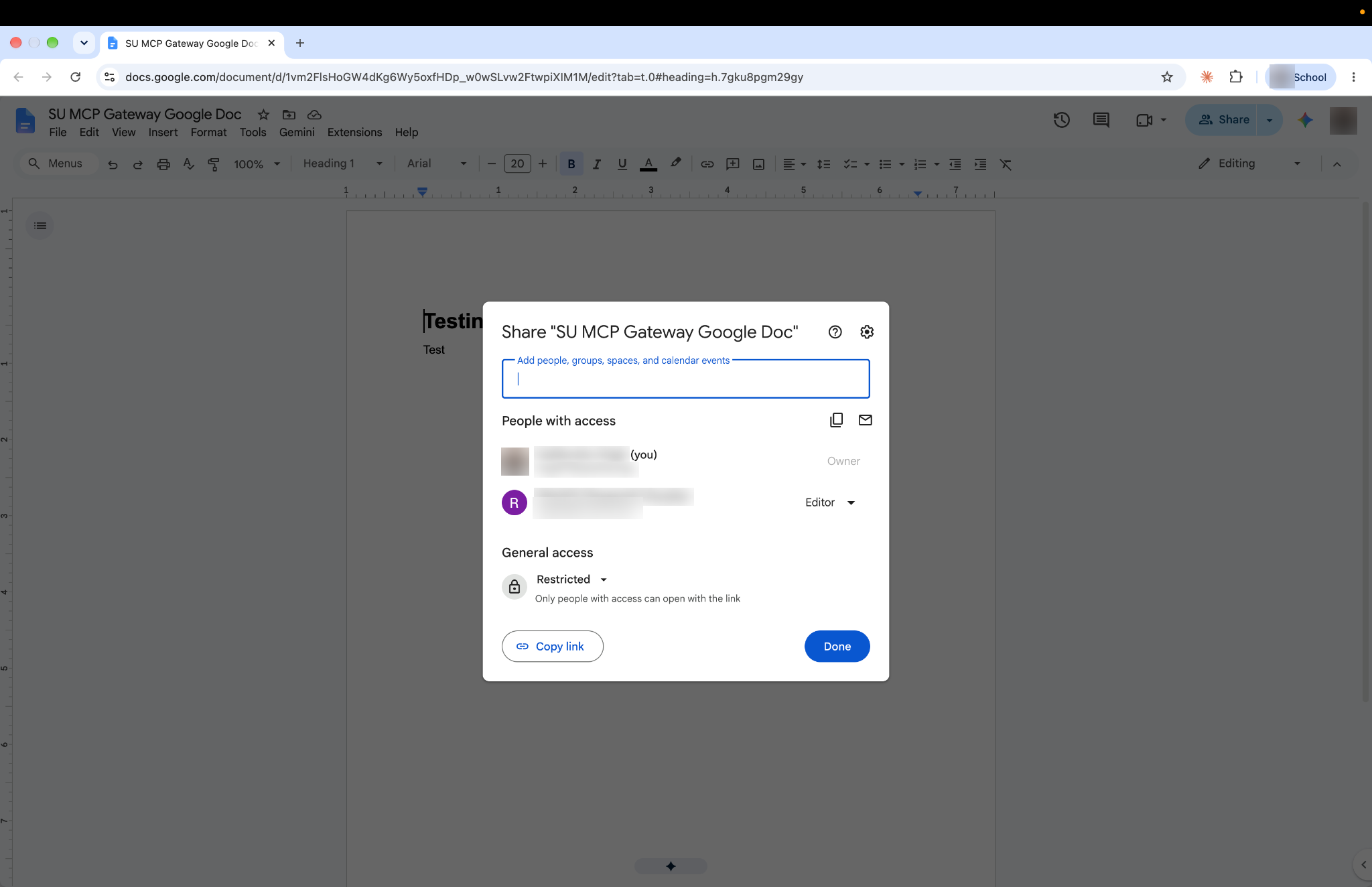
- Create a document named "SU MCP Gateway Google Doc", add a headline "Testing" and another line "Test", and give edit access to colleague@stanford.edu.
Get help
If you need assistance, submit a help request for your tool:
- ChatGPT Edu (OpenAI)
- Claude for Education (Anthropic)
Be sure to include:
- The app you tried to connect (Google Docs)
- What you typed and how the assistant responded
- A screenshot of any error
For fixes to common problems, see the troubleshooting guide.
Last modified