University IT
Connect Google Drive
On this page:
This guide explains how to use SU MCP Gateway to connect ChatGPT or Claude to Google Drive.
Capabilities, sign-in, and setup
| Topic | Details |
|---|---|
| What you can do | Find and list your files, summarize documents, create new files, and share them with colleagues. |
| Sign-in method | Google sign-in with your Stanford Google account. |
| Connect prompt | Using SU MCP Gateway, connect to my Google Drive. |
What you need to know
If you haven't already done so, set up SU MCP Gateway first and then come back here to connect Google Drive.
- Screenshots are from ChatGPT, but the prompts, sign-in pages, and confirmation screens look the same in Claude.
- Connection links expire after 10 minutes. If yours expires, ask the assistant to connect again for a new link.
How to connect Google Drive
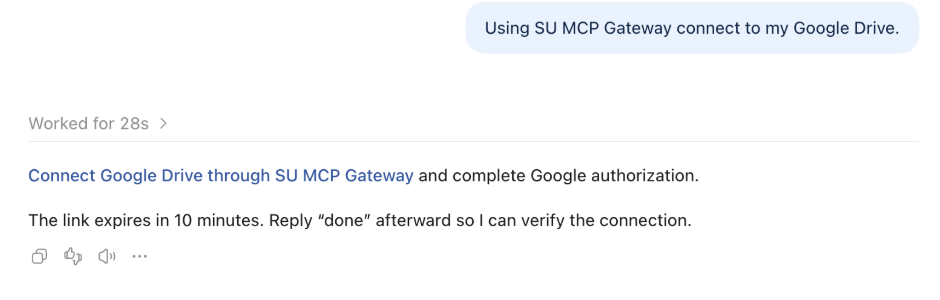
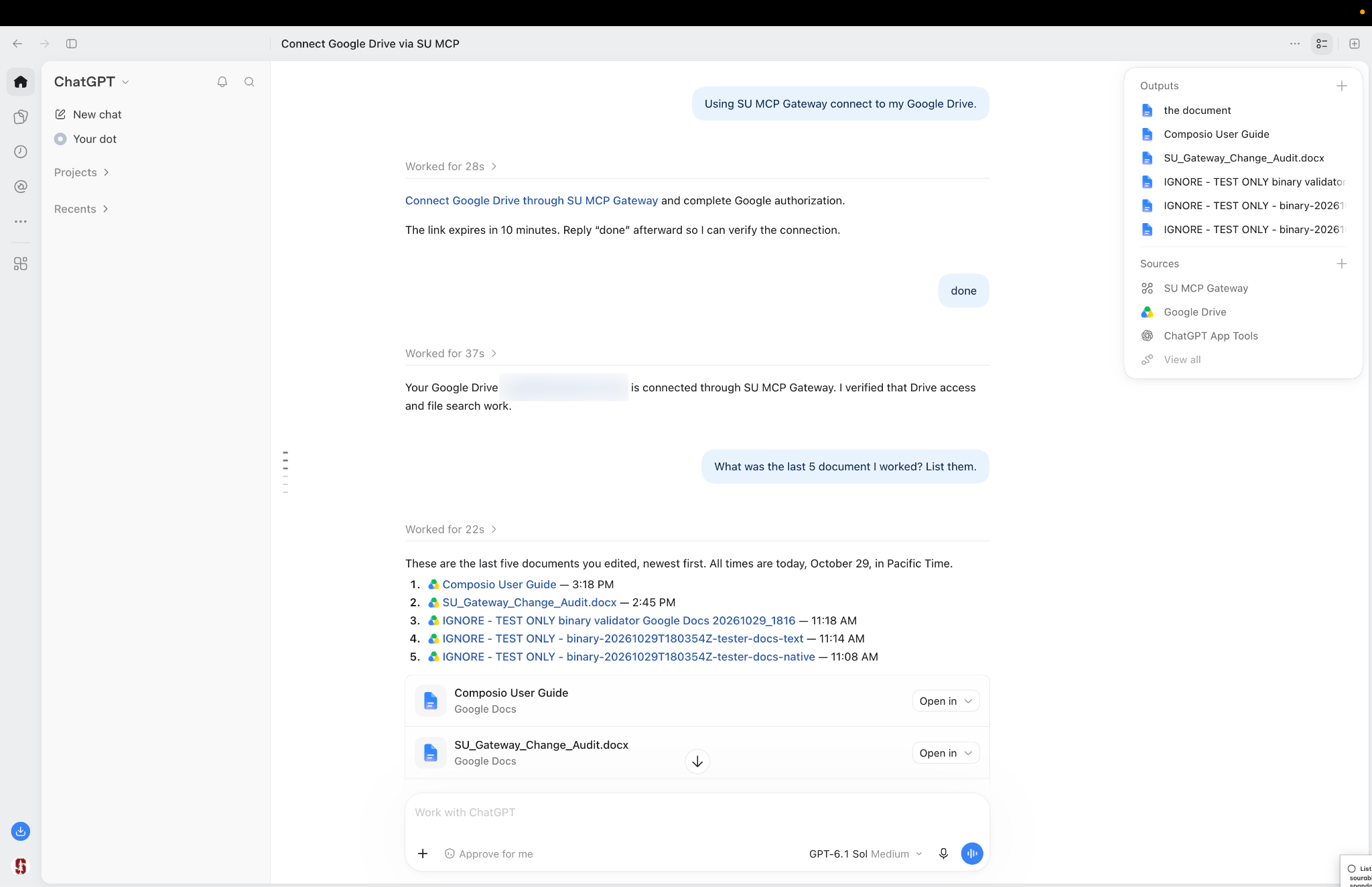
Open a new chat in ChatGPT and type the prompt below.
Using SU MCP Gateway, connect to my Google Drive.- ChatGPT replies with a blue connection link. Click it.
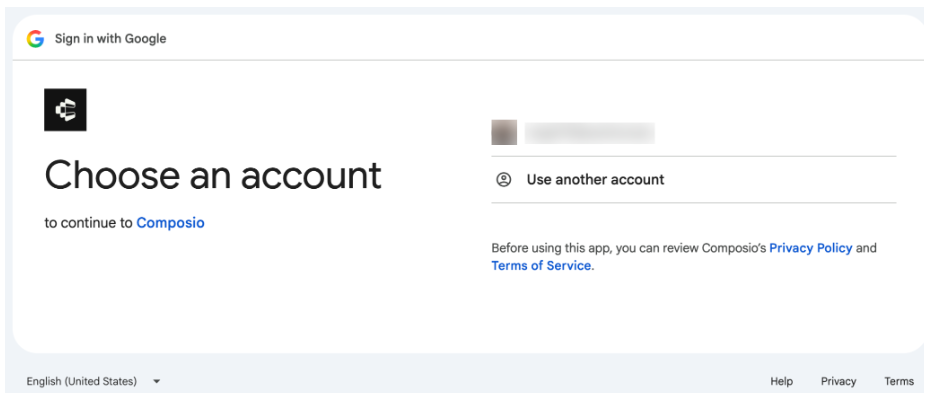
- On the Google page, choose your @stanford.edu account.
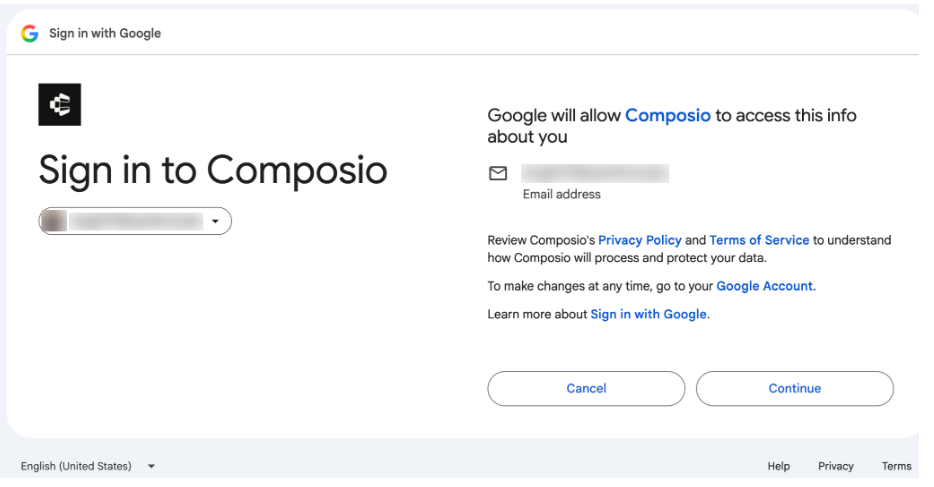
- Review the permissions and click Continue.
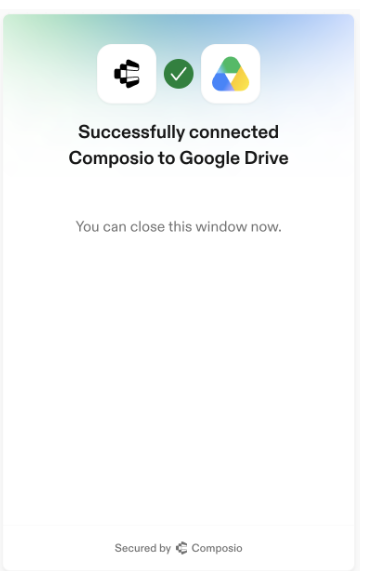
- When you see Successfully connected, close that window, return to ChatGPT, and reply done.
Try these prompts
If you're not sure where to start, try one of these:
- What were the last 5 documents I worked on? List them.
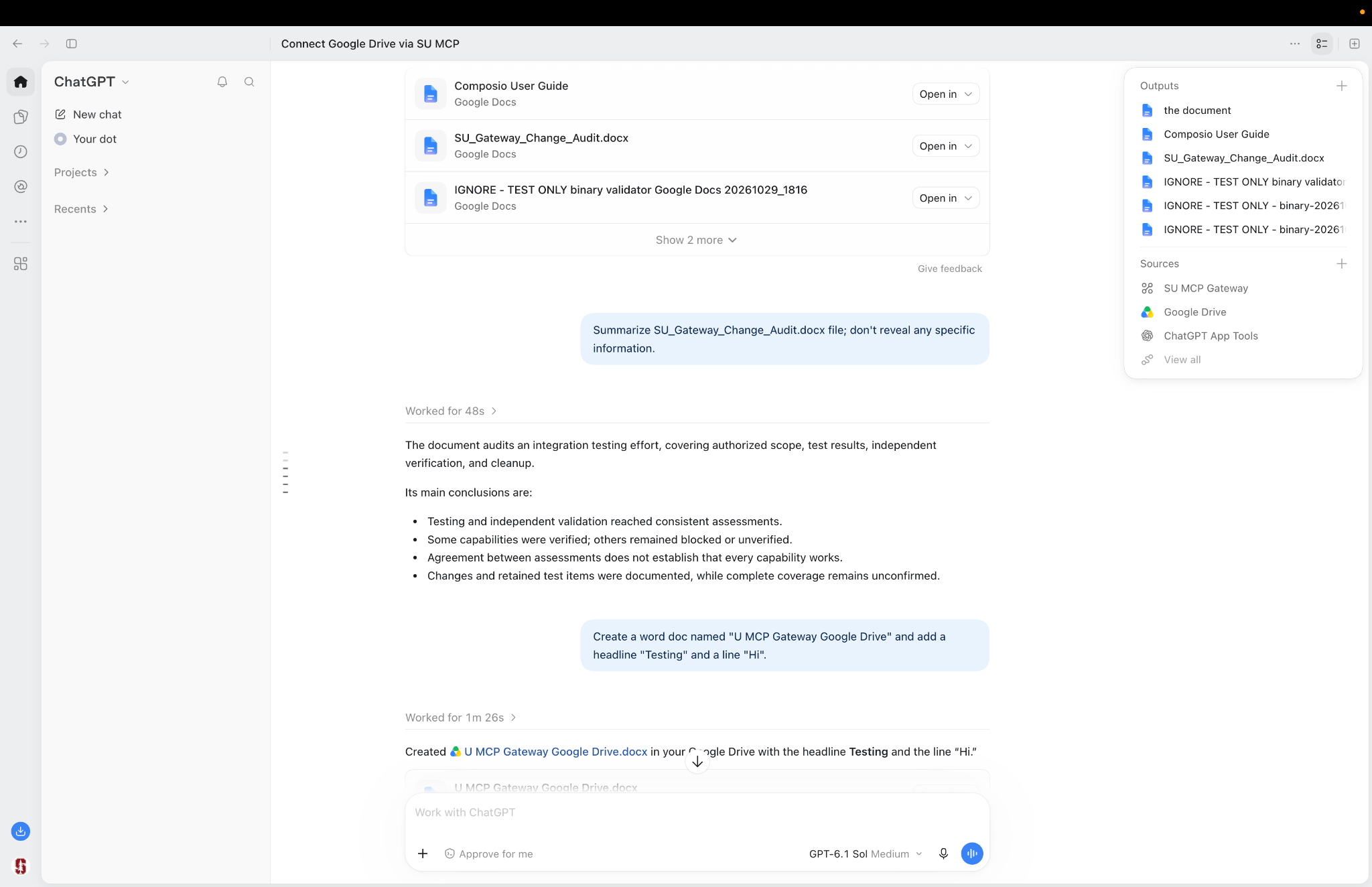
- Summarize the file Project_Plan.docx without revealing any specific information.
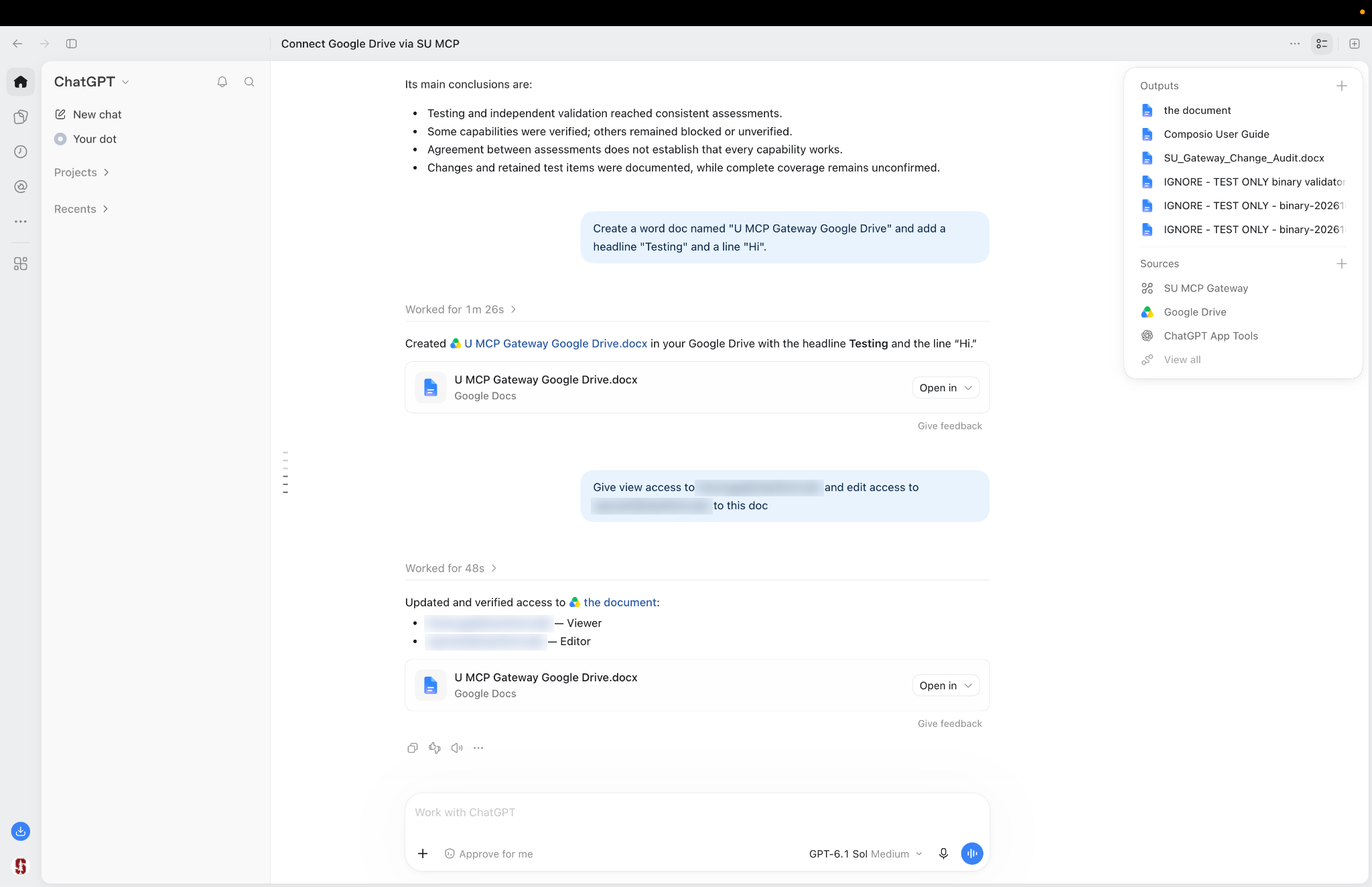
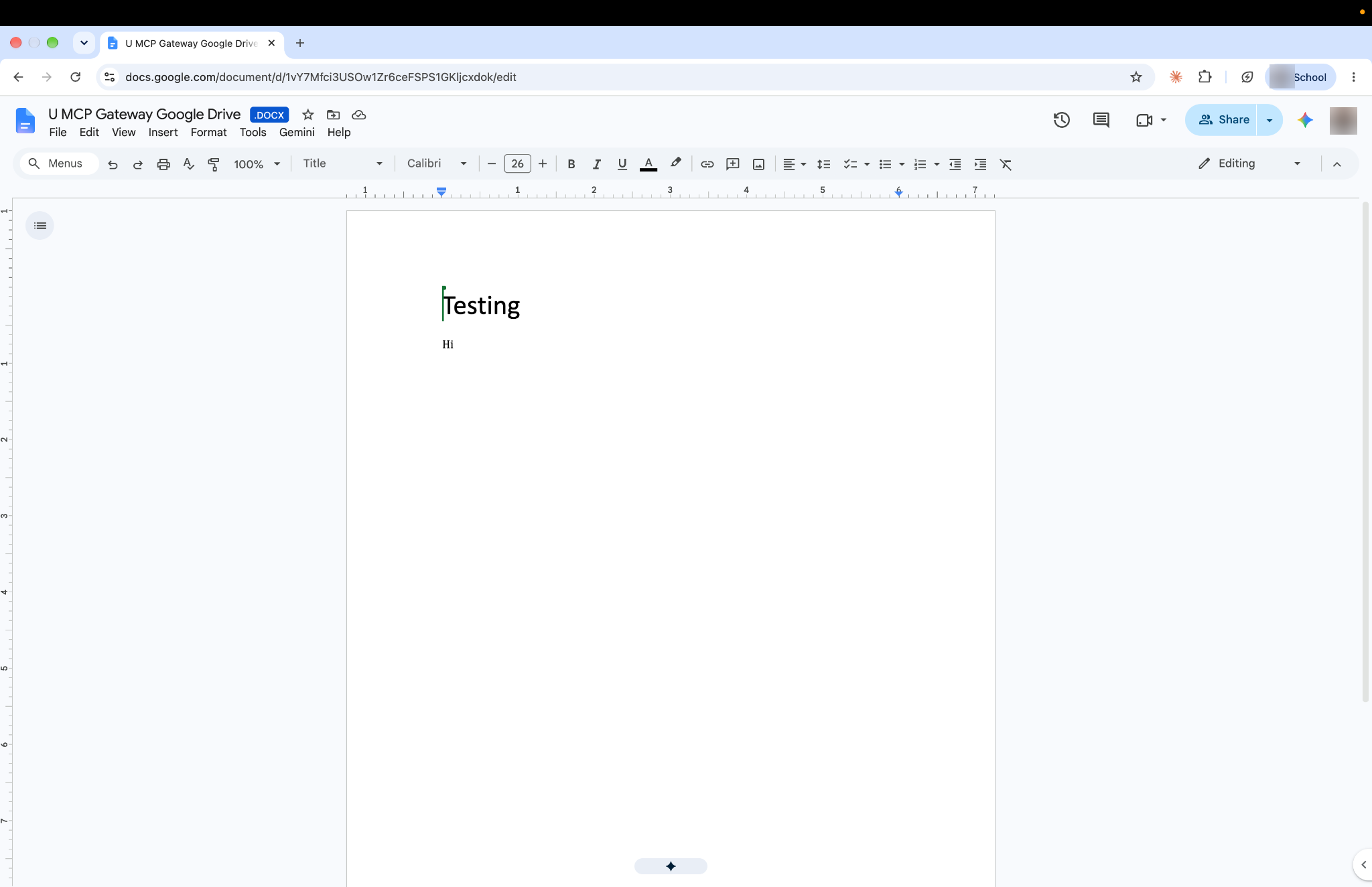
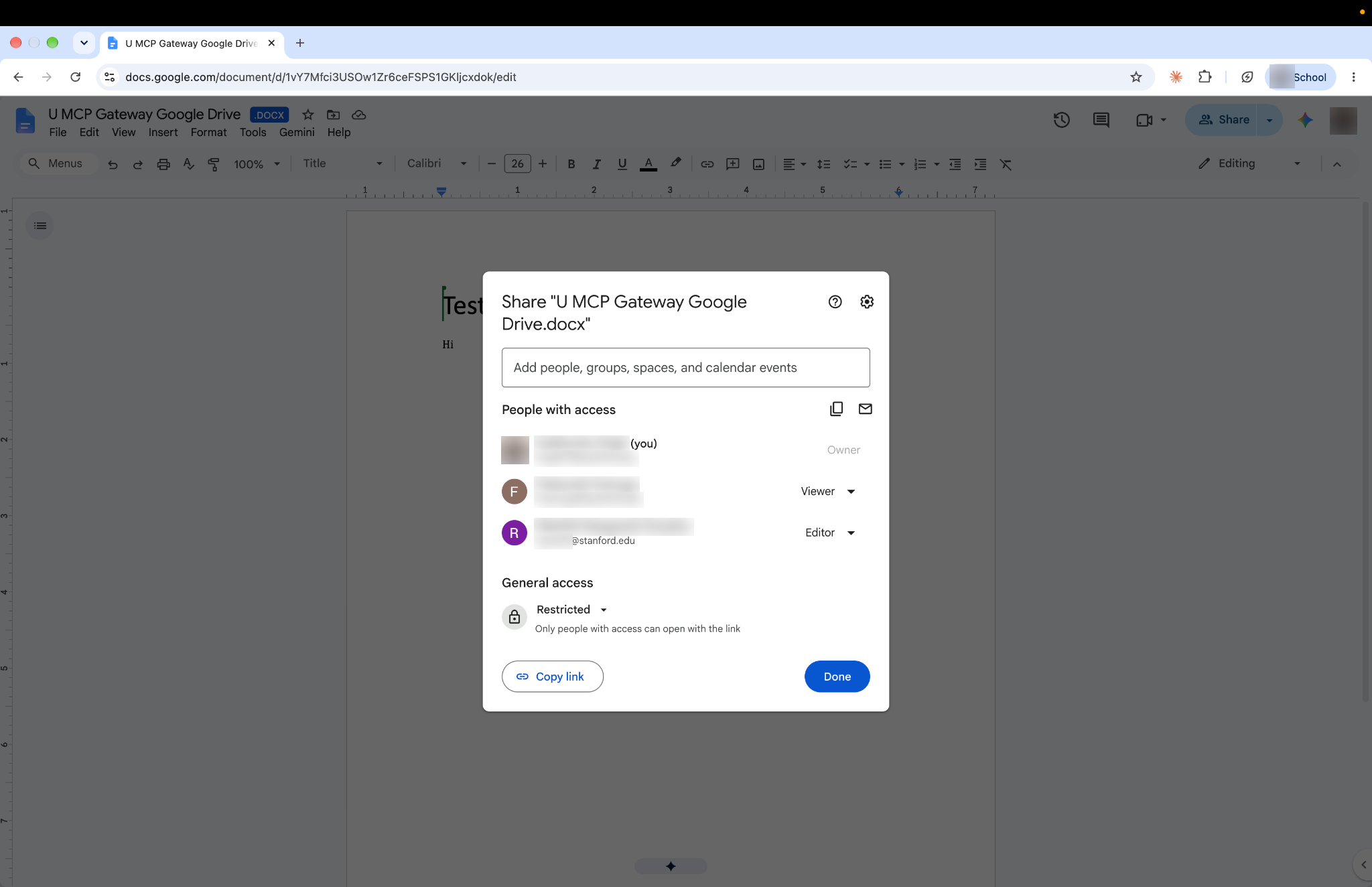
- Create a Word doc named "Project Notes" and add a headline "Testing" and a line "Hi".
- Give view access to name@stanford.edu and edit access to colleague@stanford.edu to this doc.
Tip: Use the exact file name when you ask ChatGPT to open, summarize or share a file. If several files have similar names, ChatGPT will ask you to choose one.
Get help
If you need assistance, submit a help request for your tool:
- ChatGPT Edu (OpenAI)
- Claude for Education (Anthropic)
Be sure to include:
- The app you tried to connect (Google Drive)
- What you typed and how the assistant responded
- A screenshot of any error
For fixes to common problems, see the troubleshooting guide.
Last modified