University IT
Get Started with Stanford MCP Gateway
On this page:
What is SU MCP Gateway?
SU MCP Gateway is a Stanford-managed connector that lets Claude and ChatGPT work directly with the apps you already use, such as Google Drive, Slack, GitHub, Airtable, Jira, Figma, and Tableau. (A connector is an add-on that links an AI assistant to another app.) Instead of copying and pasting between tools, you simply ask the AI assistant in plain English, and it does the work for you inside those apps.
A few things worth knowing before you start:
- Works in Claude and ChatGPT. Use whichever Stanford AI tool you prefer. The connection steps differ slightly (see below), but the prompts and app sign-in pages are the same.
- One connector, many apps. You connect SU MCP Gateway once in Claude or ChatGPT. After that, you connect each app individually by signing in with your own account.
- You stay in control. The assistant can only see and change what your own account can see and change. Nothing is shared with other people unless you ask it to share something.
- Installed by Stanford. Your administrator has already added SU MCP Gateway to Stanford's Claude and ChatGPT workspaces. You don't need to install anything.
- Secure sign-in. When you connect an app, you sign in on that app's own login page (for example, Google or Atlassian). Claude and ChatGPT never see your password.
Before you begin
Make sure you have the following:
- Claude (claude.ai or the Claude desktop app) or ChatGPT (desktop app or browser), signed in with your Stanford account. SU MCP Gateway is available in Claude for Education and ChatGPT Edu. (Learn more about UIT AI services.)
- A Stanford account for each app you want to connect (for example, your Stanford Google account for Google Drive, or your Stanford UIT Slack workspace).
- A few minutes for the first-time setup. Connecting each app takes about one minute.
Connect SU MCP Gateway in ChatGPT
You only need to do this once. If you use Claude instead, skip to Connect SU MCP Gateway in Claude.
In ChatGPT, click your profile icon in the lower-left corner and choose Settings (or Workspace settings).
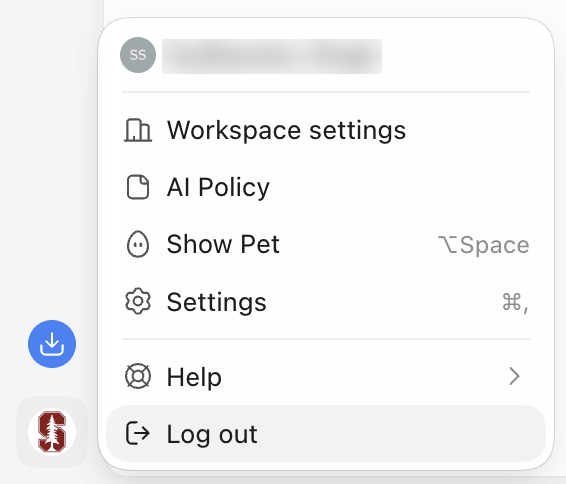
Open the file menu in the lower left to reach Settings. (Select image to enlarge.) Go to Plugins and type SU MCP Gateway in the search box. The plugin appears with the shield icon and the label Installed by your admin.

Search for "SU MCP Gateway" in the ChatGPT Plugins list. (Select image to enlarge.) Click the plugin name to open its details page, then click Connect.
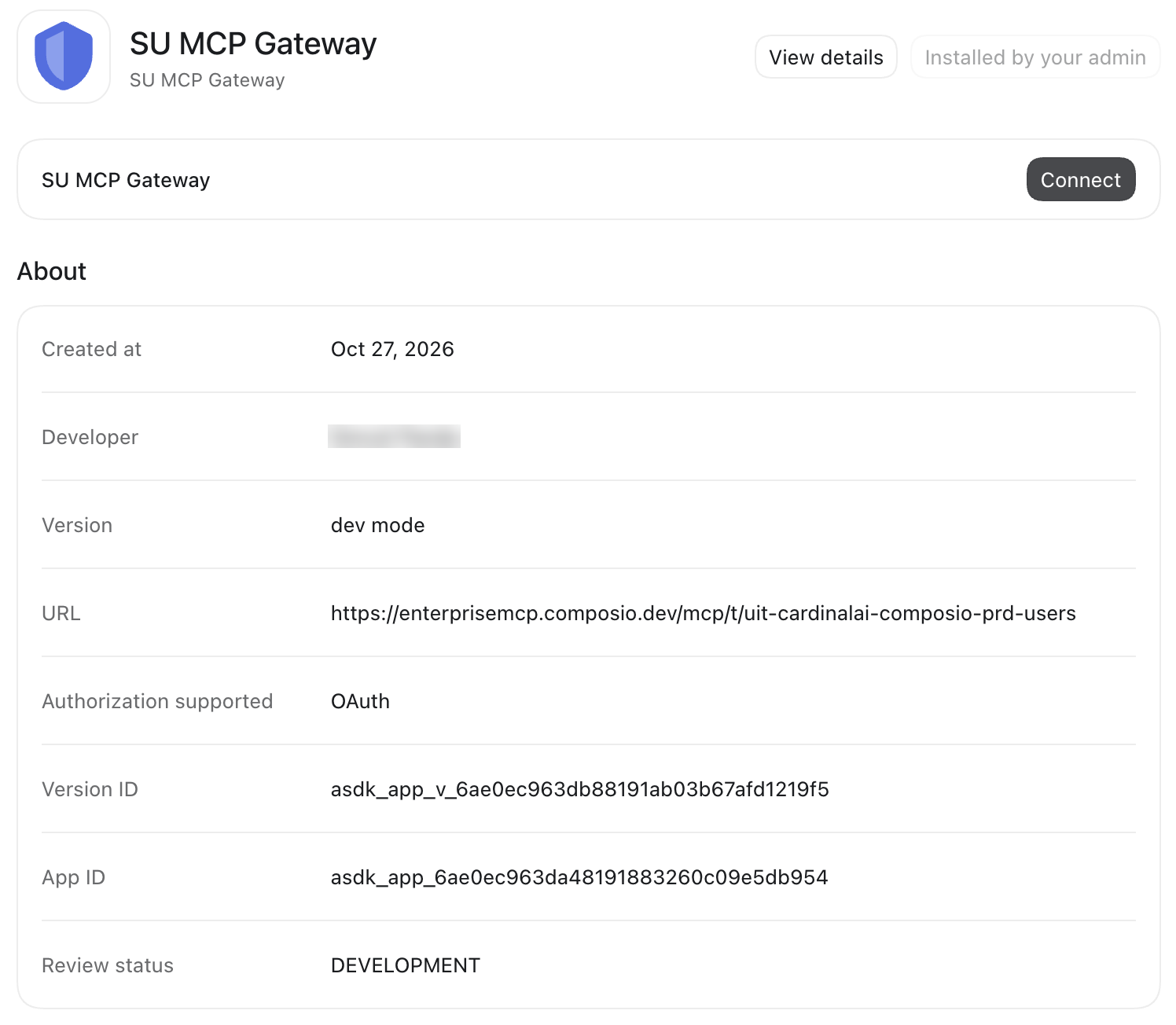
The SU MCP Gateway details page in ChatGPT. (Select image to enlarge.) - Approve the sign-in when prompted. Once connected, SU MCP Gateway appears under Sources in your chats.
Connect SU MCP Gateway in Claude
You only need to do this once. Your administrator has already added SU MCP Gateway to Stanford's Claude organization, so you just need to make sure it's connected to your account and switched on in your chat.
Step 1: Check the connector in Settings
- Open Claude (claude.ai or the Claude desktop app) and sign in with your Stanford account.
- Click your profile icon and choose Settings, then open Connectors.
- Type SU MCP Gateway in the search box. It appears under Yours with a Custom · Connector label.
If it shows a check mark and Connected, you're all set. If it shows Connect instead, click it and approve the sign-in when prompted.
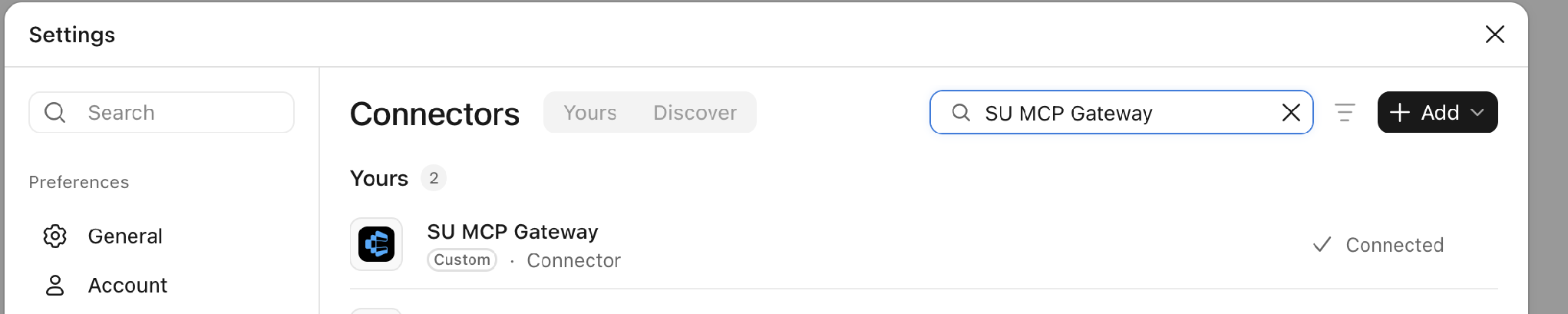
SU MCP Gateway shows as Connected in Claude Settings. (Select image to enlarge.)
Step 2: Turn it on in your chat
- Start a new chat and click the + button at the left of the message box.
- Choose Connectors from the menu.
Find SU MCP Gateway in the list and switch its toggle on (it turns blue). Leave the other connectors switched off.
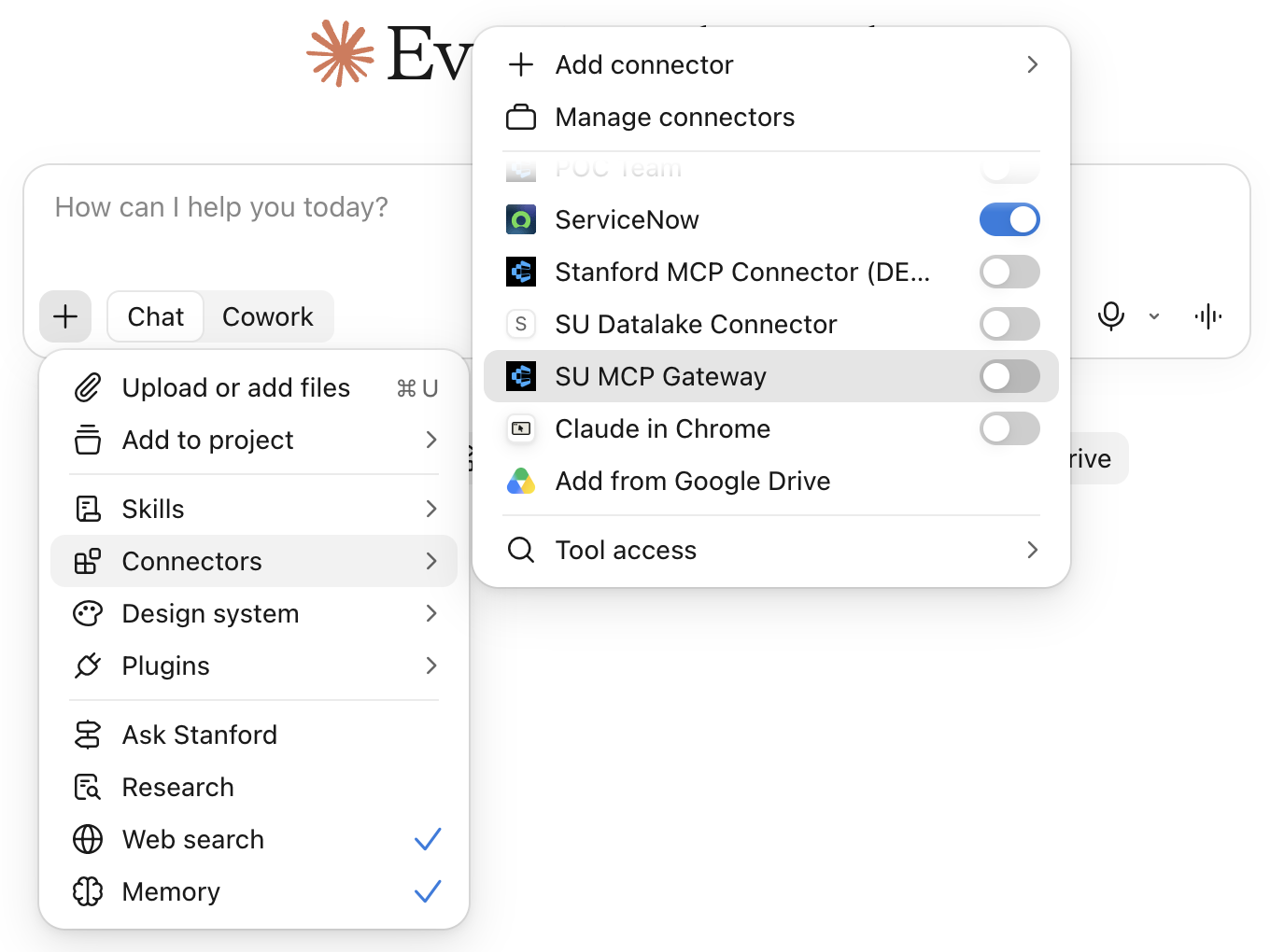
Turn on SU MCP Gateway in the Connectors menu. (Select image to enlarge.)
How connecting an app works
We've created how-to guides for connecting many of the apps you use each day. As you review the instructions, you'll see every app follows the same pattern in both Claude and ChatGPT. After the first one, the rest will feel familiar.
Start a new chat in Claude or ChatGPT and ask:
Using SU MCP Gateway, connect to my <app name>.- The assistant replies with a connection link. Click it.
- Sign in to the app with your Stanford account and approve the connection.
- You'll see a green check mark and the words Successfully connected. Close that window.
- Back in the chat, reply done. The assistant verifies the connection, and you can start asking it to do things.
Get help
If you can't find SU MCP Gateway or you'd like another app added, submit a help request for the tool you're using:
- ChatGPT Edu (OpenAI)
- Claude for Education (Anthropic)
For fixes to common problems, see the troubleshooting guide.