University IT
Connect Figma
On this page:
This guide explains how to use SU MCP Gateway to connect ChatGPT or Claude to Figma.
Capabilities, sign-in, and setup
| Topic | Details |
|---|---|
| What you can do | Confirm the connected account, look up files and projects in a team, and share files (sharing needs a quick browser sign-in). |
| Sign-in method | Figma sign-in (often already authorized). |
| Connect prompt | Using SU MCP Gateway, connect to my Figma. |
What you need to know
If you haven't already done so, set up SU MCP Gateway first and then come back here to connect Figma.
- Screenshots are from ChatGPT, but the prompts, sign-in pages, and confirmation screens look the same in Claude.
- Connection links expire after 10 minutes. If yours expires, ask the assistant to connect again for a new link.
How to connect Figma
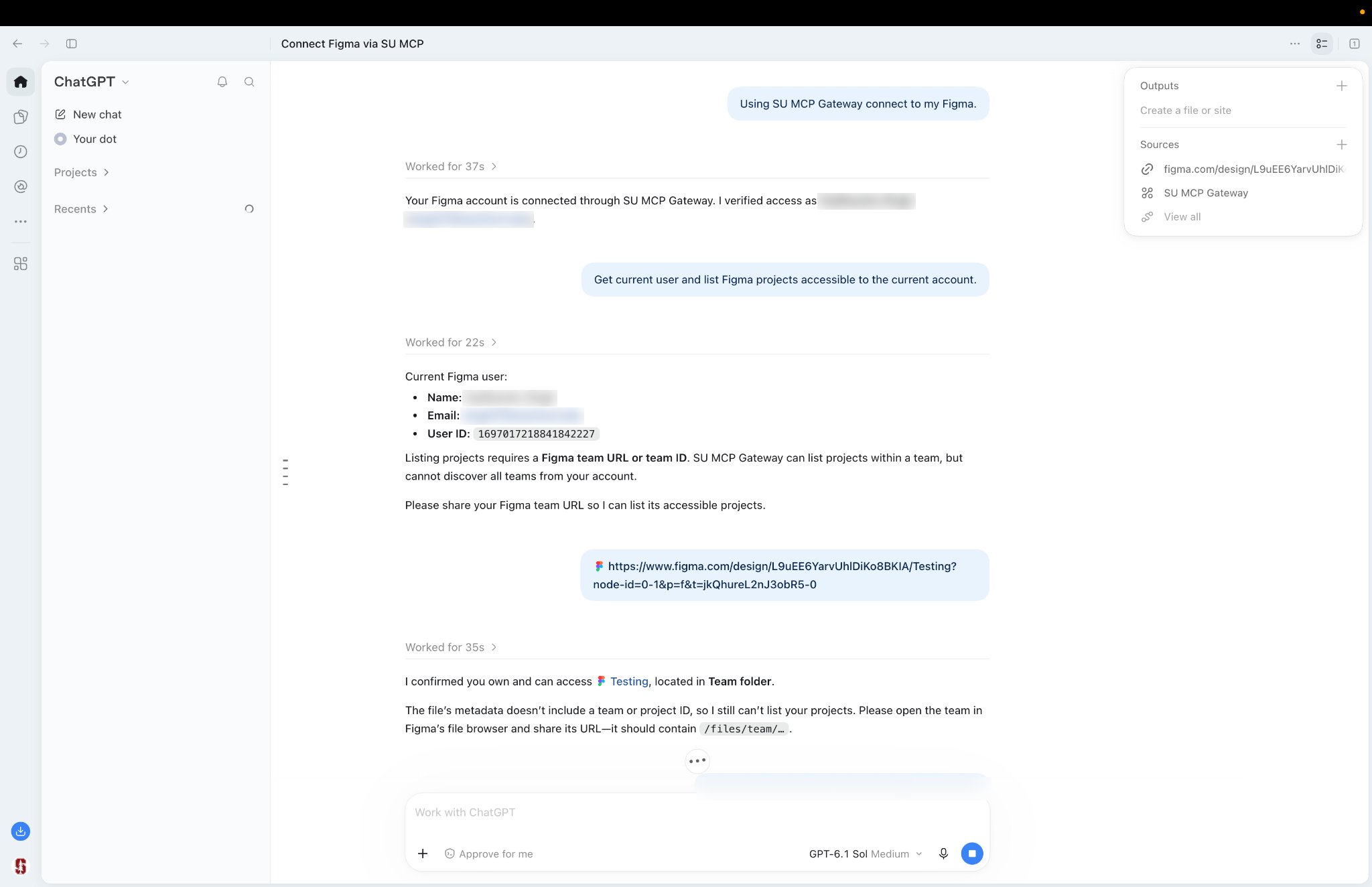
Ask ChatGPT to connect Figma. If you've authorized it before, it connects immediately and shows the name and email of the connected account.
Try these prompts
If you're not sure where to start, try one of these:
- Get current user and list Figma projects accessible to the current account.
- Share this Testing file with colleague@stanford.edu.
Tip: To list projects, paste the URL of your Figma team (it contains /files/team/). A link to a single file isn't enough for ChatGPT to find the team it belongs to.
Sharing a file
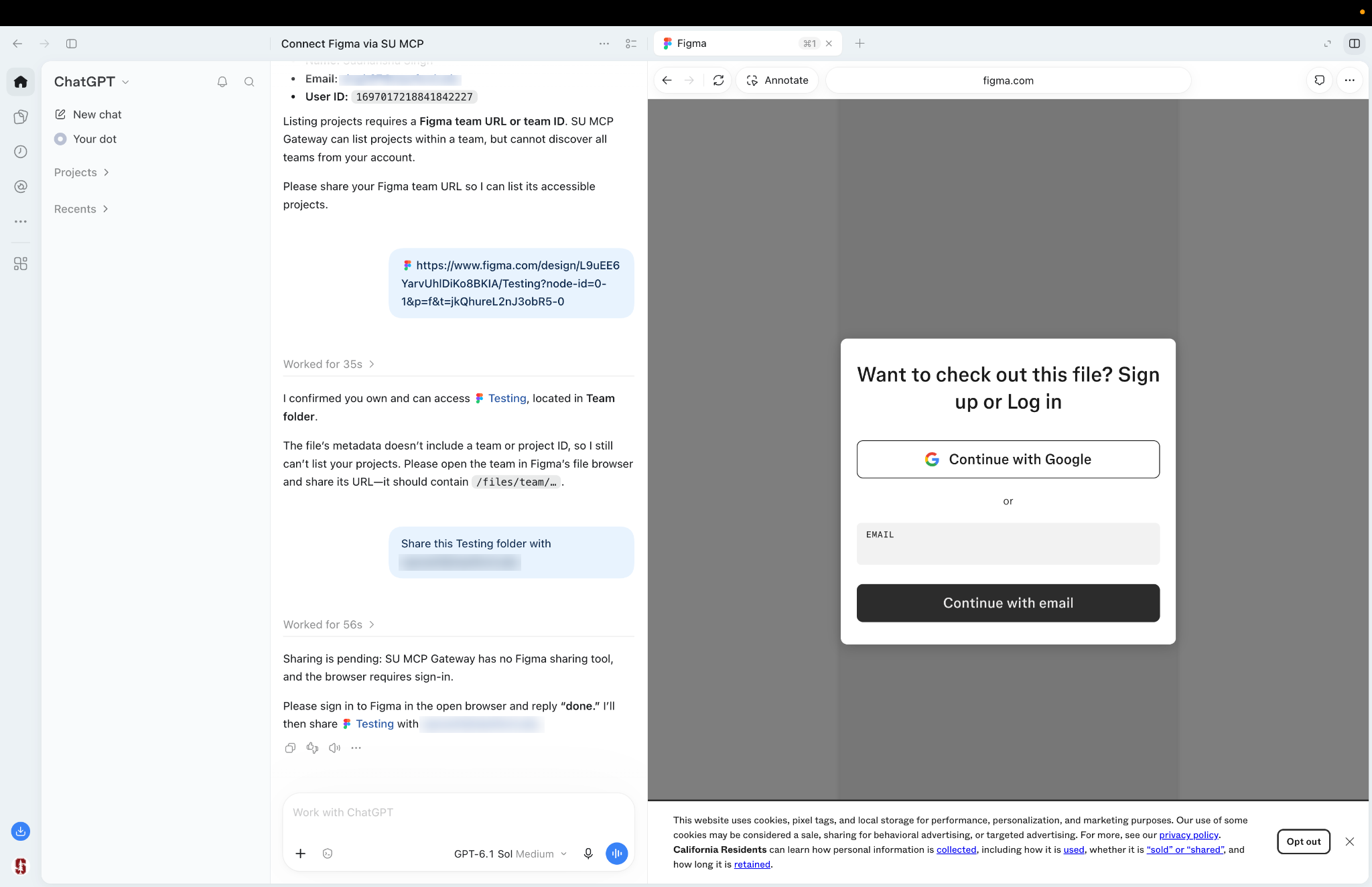
As with Airtable, sharing a Figma file requires you to sign in to Figma in ChatGPT's built-in browser:
- When the Figma page opens, click Continue with Google and sign in with your Stanford account.
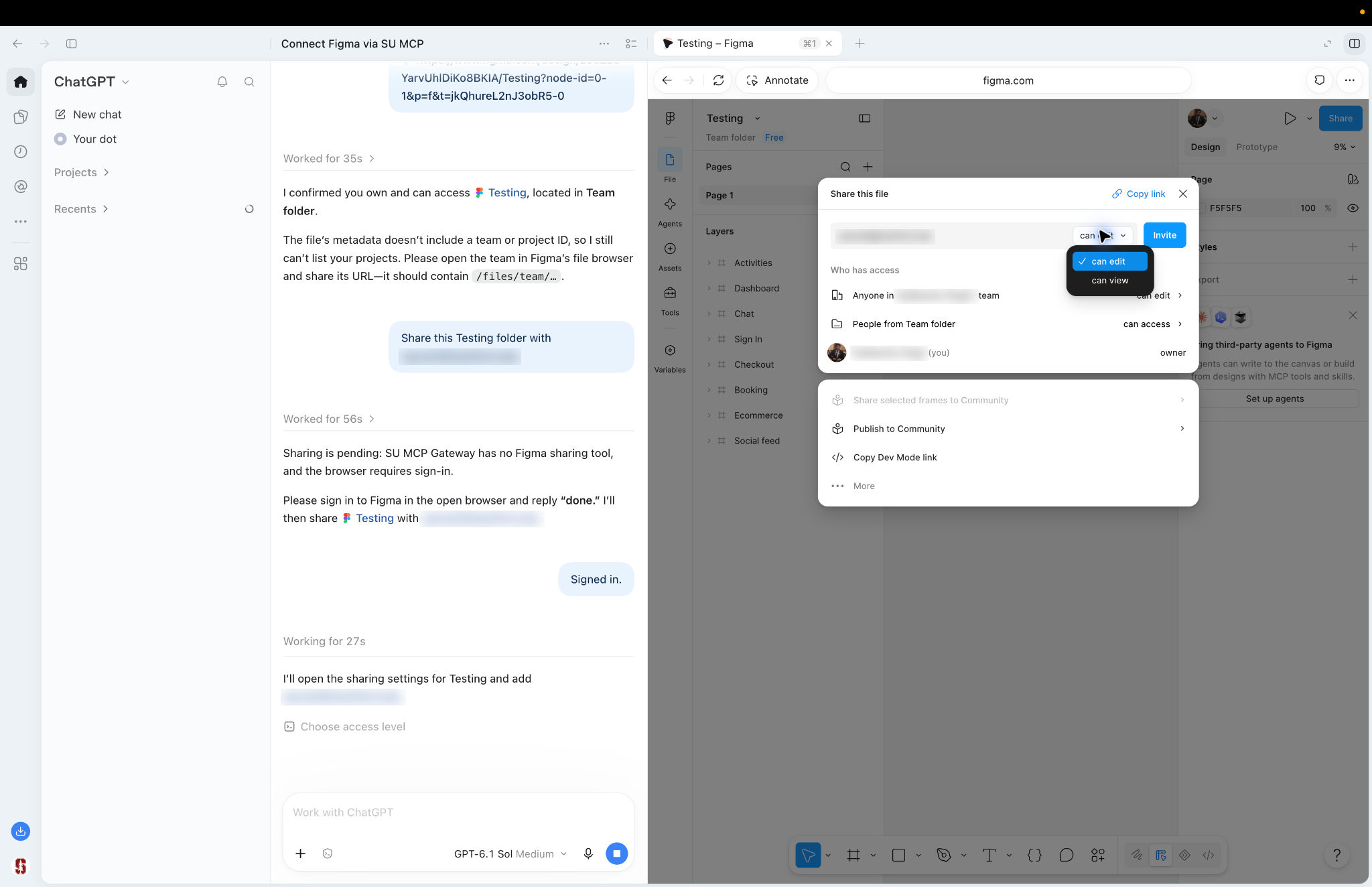
- Reply Signed in in ChatGPT.
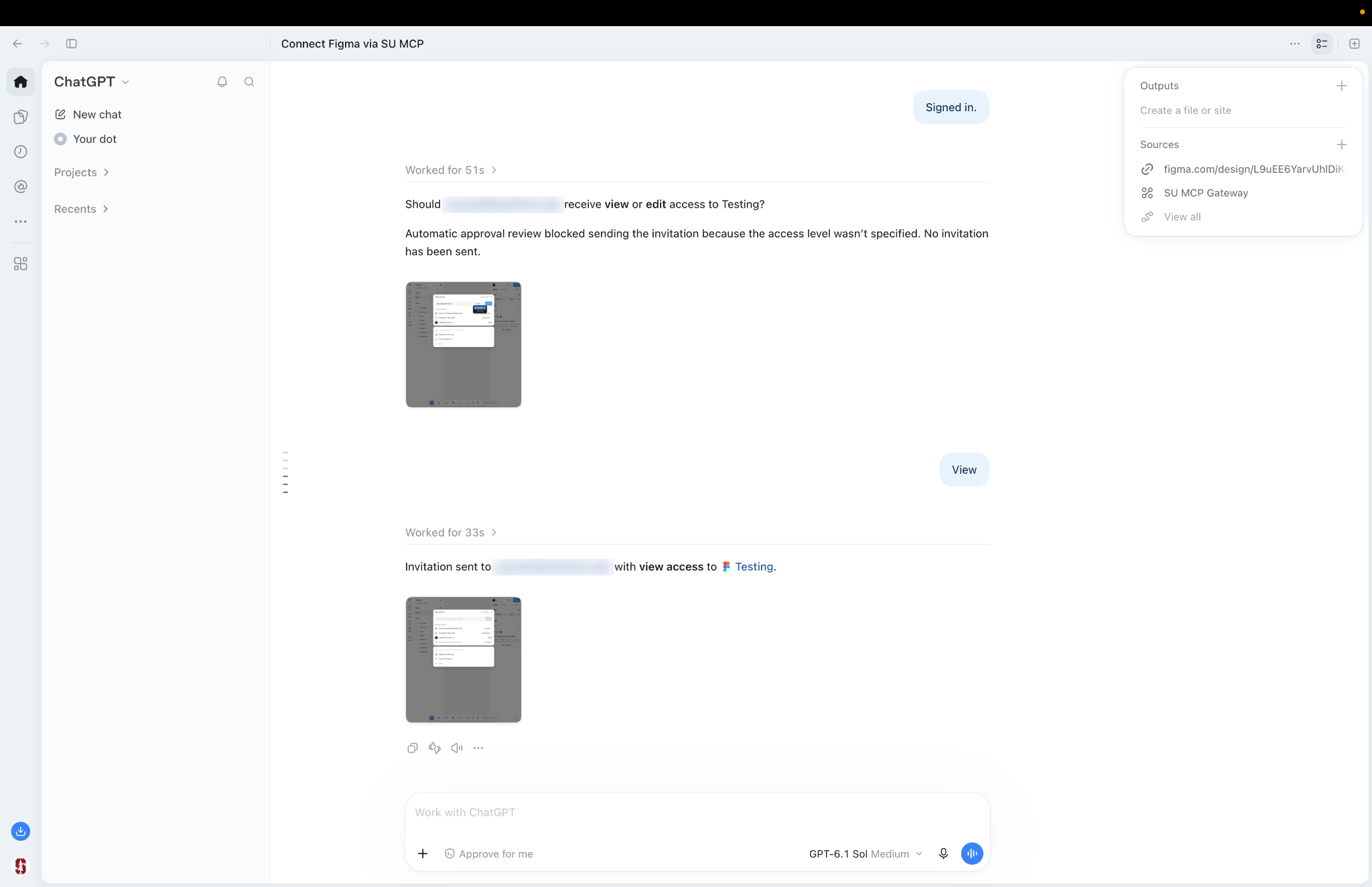
- ChatGPT asks whether the person should get view or edit access. Reply view or edit.
- ChatGPT sends the invitation and confirms.
Get help
If you need assistance, submit a help request for your tool:
- ChatGPT Edu (OpenAI)
- Claude for Education (Anthropic)
Be sure to include:
- The app you tried to connect (Figma)
- What you typed and how the assistant responded
- A screenshot of any error
For fixes to common problems, see the troubleshooting guide.
Last modified