 University IT
Stanford Slack AI
Reclaim Your Time: New Slack AI Features Arrive March 25
New AI features reshape your Slack experience
Stanford Slack has been boosted with new AI features. Cut through endless threads with instant summaries, surface answers in seconds, transform conversations into shareable content, and automate routine workflow. With less scrolling, more doing—Slack AI is your shortcut to getting work done faster.
What to know
To make the most of these new capabilities, you should know Slack AI:
- Draws information from the conversations, channels, and workspaces you have access to, including all public channels in your workspaces, even those you haven’t joined.
- Can't access private channels you're not in, external websites or databases (unless linked to Slack), or your email inbox.
- Can sometimes misinterpret tone or context or repeat inaccurate information. Always verify outputs, especially before making critical decisions or sharing widely.
- Is not a deterministic search. You and others might see different results for the same answer. If you need a precise search, the classic search feature (Ctrl+G on Windows or Cmd+G on Mac) is still your best option.
Security and privacy
- Slack AI features are built to be intuitive and easy to use, while upholding all of Slack's enterprise-grade security and compliance standards.
- Customer data never leaves a Slack-controlled infrastructure, and Slack doesn't use customer data to train its large language models.
- Slack's AI features only work with data that members have access to, meaning summaries will only display content you can already see in channels or DMs.
- Slack employs methods to attempt to reduce hallucinations. However, AI tools are helpful but not perfect. Always review AI-generated notes for accuracy and exercise caution when handling sensitive information.
- As a reminder, Stanford Slack is approved for Low and Moderate Data and High Risk Data WITHOUT protected health information (PHI). Non-PHI High Risk Data may be shared in private channels or direct messages only.
- Slack's AI Huddle Notes are approved, but the university advises against the use of third-party bots in meetings due to privacy and data security issues. Visit Stanford's Responsible AI guide to learn more.
Explore the AI features
The new Slackbot is your personal AI assistant. It searches your conversations and channels to answer questions, find files, summarize discussions, create content, brainstorm ideas, and help you navigate Slack.
When to use
- Find anything, instantly. Ask questions in plain language to locate decisions, files, or conversations — even when they're spread across multiple channels and workspaces.
- Set reminders. Tell Slackbot what you need and it will set a reminder for you, a teammate, or an entire channel.
- Catch up quickly. Get a summary of DMs, @mentions, long threads, or entire projects to follow up on.
- Create content from conversations. Transform chats into announcements, meeting agendas, project plans, or a full Slack canvas, ready to edit and share.
- Brainstorm and problem-solve. Use Slackbot as a creative partner to explore ideas, outline presentations, or work through challenges.
- Decide acronyms and context. Not sure what something means? Ask Slackbot.
What to know
- Slackbot AI works like ChatGPT or Gemini—it's a creative language model, not a precise search engine. You and others might see different results for the same query, and it could occasionally leave out important details or misinterpret tone.
- It’s great for summarizing long conversations and pulling together information, but always check the source citations before making critical decisions or sharing information widely.
- If you need exact, deterministic results, use Slack's classic search (Ctrl/Cmd + G) instead.
How to get started
Click Slackbot at the top of your screen or in the sidebar under Apps.
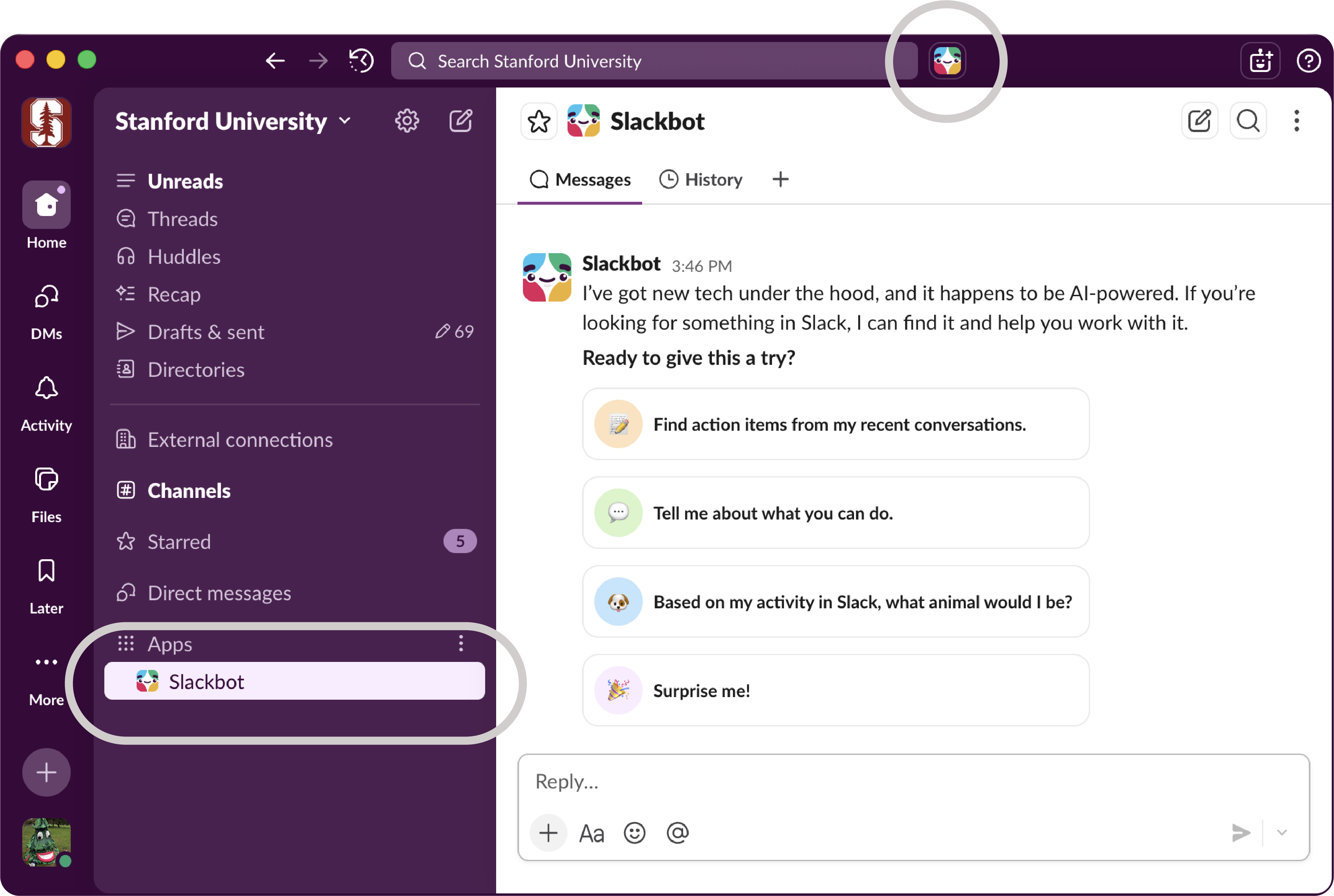
- Choose a prompt or type in your own message.
- Press enter or click the
 paper plane icon to send.
 - Learn more about how to use Slackbot.
Confused by a cryptic message? Slack AI can analyze its tone and context to help you understand what the person likely meant and what might be needed next. The same goes for unfamiliar terms. If you see a workplace acronym, technical term, or other jargon you don't know, Slack AI can search your team's conversations to give you a quick definition.
When to use
- Instantly decode acronyms, technical terms, project names, or department-specific language.
- Get help understanding the intent, tone, or meaning behind messages that seem ambiguous or confusing.
- Jump into a long conversation midway and immediately understand what a specific comment means without reading the entire history.
- Get clarity on discussion points or proposals without having to ask basic questions in the channel.
- Quickly determine if a message requires action from you or is just informational.
What to know
- AI pulls context from messages and files in your workspace, so explanations reflect how your team actually uses terms and language.
- Answers are based on conversations and aren't fact-checked, so don't rely on them for critical information.
- Your explanations are completely private—no one else knows you asked.
How to get started
- Hover over a message and click the three-dots menu (⋮).
- Select Explain message.
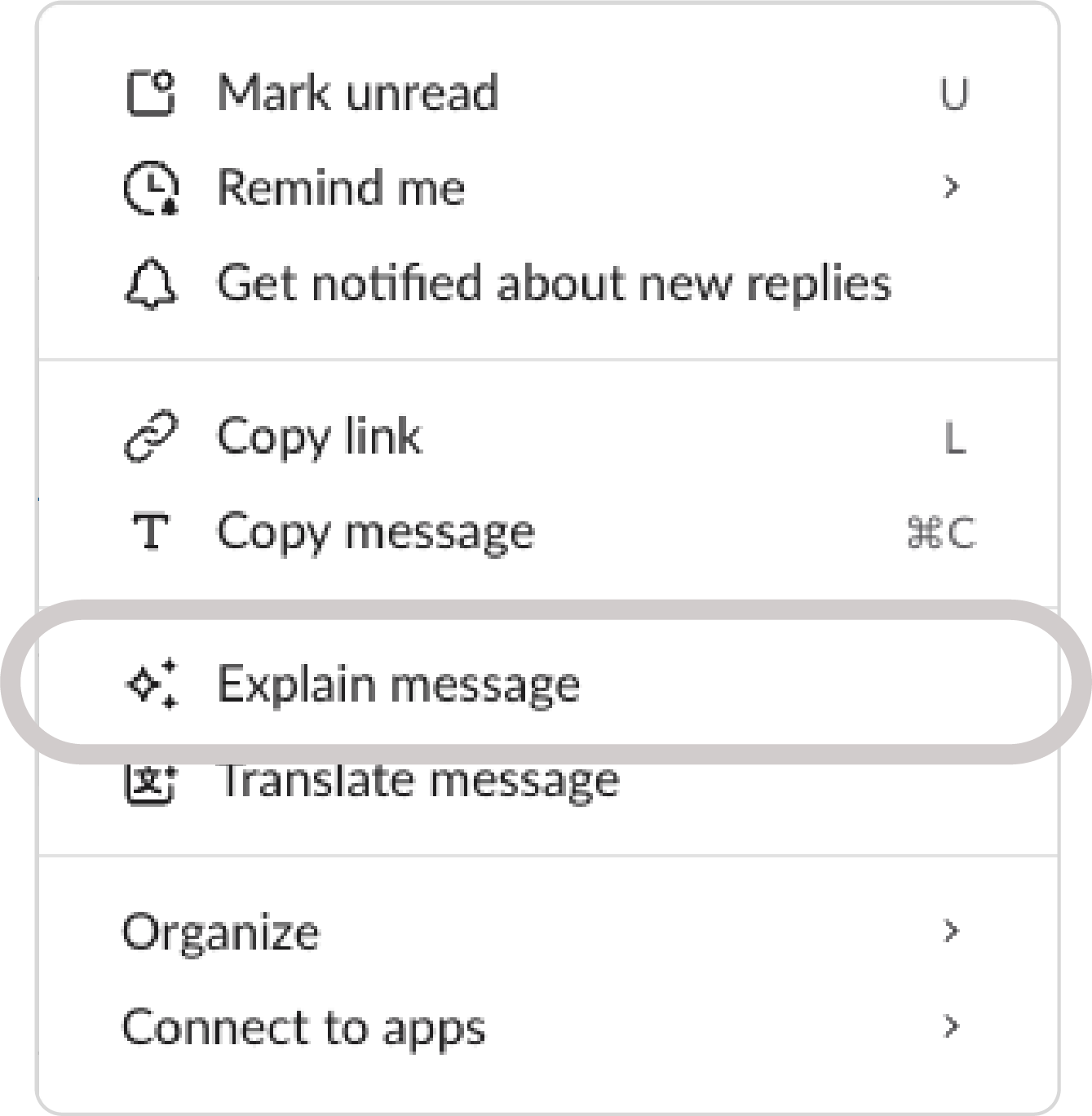
- From there, you can view sources or share the explanation.
- Learn more about Explain messages.
Stay informed on key conversations without the noise. Add any channels you want to "follow” to your daily recap. Slack AI will scan the conversations and deliver a personalized summary of the important points, ready for you each morning.
Pro tip: When you follow a channel with Recaps, you can mute it to eliminate sidebar clutter while staying informed. You'll still be notified of direct @mentions.
When to use
- To keep tabs on busy channels without being overwhelmed by notifications.
- Stay informed on important projects, committees, or groups without reading every message.
- Quickly see what’s relevant to you across multiple channels.
What to know
- Recaps give you the highlights, but for full context or exact wording, click any link in the summary to jump directly to the source message.
- You choose which channels appear in your daily recap.
- Your recap arrives each morning with updates from the previous day.
How to get started
- To set up your recaps, click Recap in the sidebar.
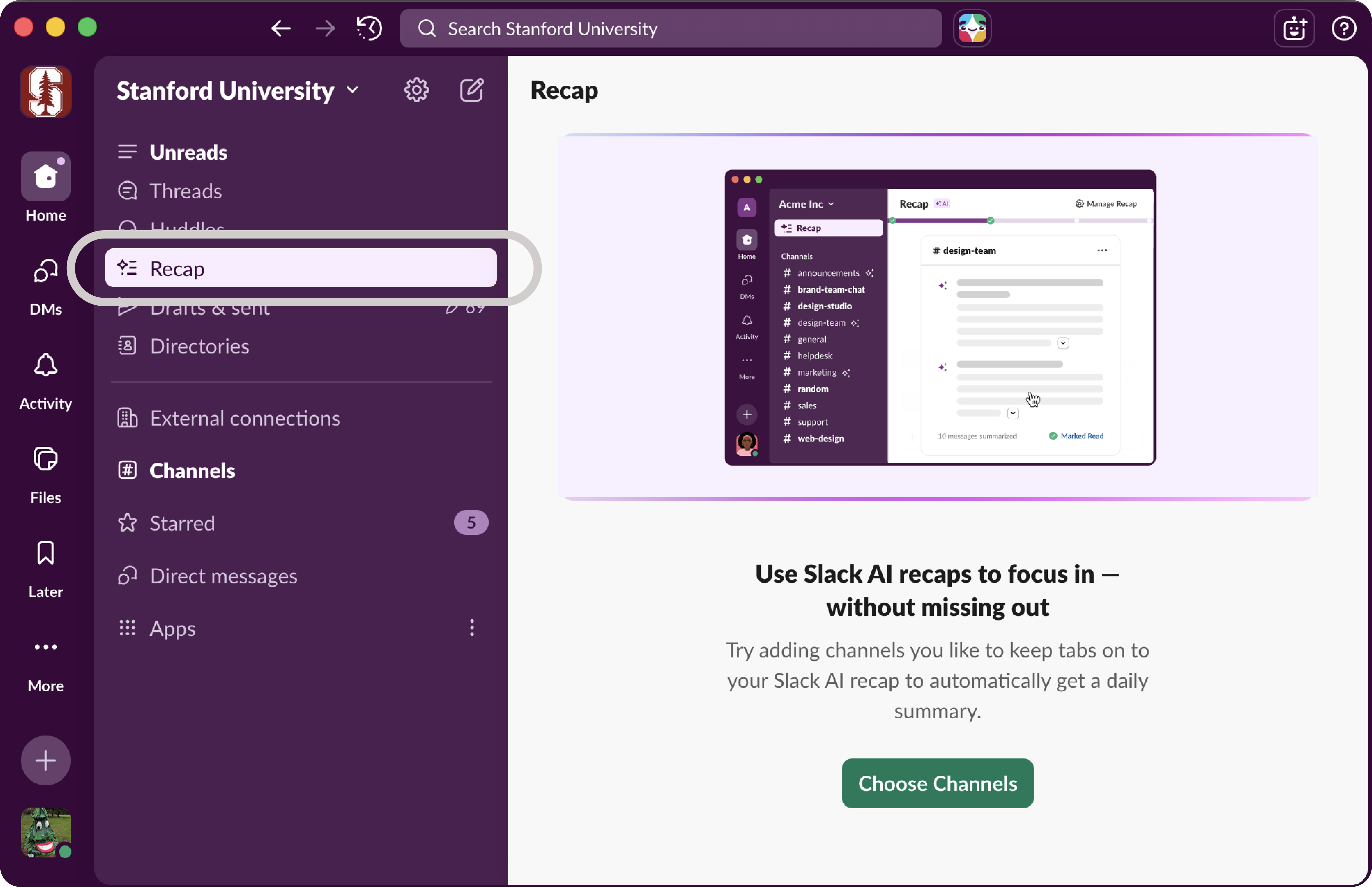
- You can then review and select channels to summarize.
- Mute channels to keep your workspace tidy.
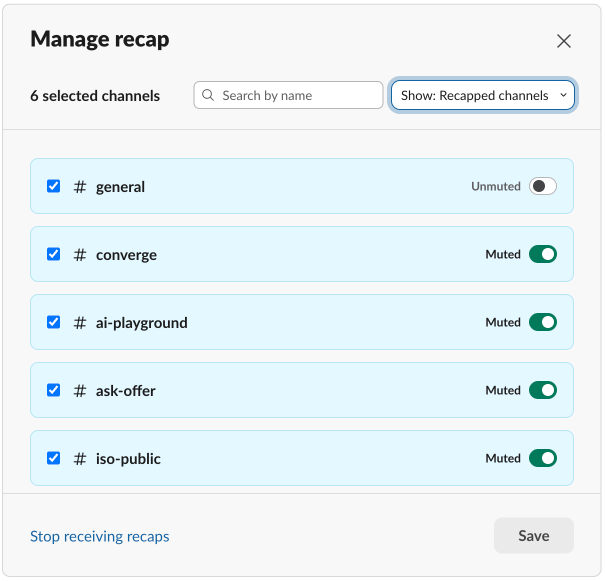
- Learn more about how to recap what you’ve missed.
- To set up your recaps, click Recap in the sidebar.
Break down language barriers right in Slack. With AI-powered translations, you can instantly translate messages into your preferred language— perfect for collaborating with international colleagues, students, or research partners.
When to use
- Quickly grasp the meaning of messages from international collaborators, visiting scholars, or exchange students without leaving Slack.
- Translate your own messages before sending to ensure clear communication with non-English speakers.
- Make everyone feel welcome by bridging language gaps in team discussions and group projects.
What to know
- Translations are done one message at a time.
- Translations are best for understanding the gist of informal conversations.
- Always verify the translation for any critical or official work.
- Proper nouns (names, places, brands) and technical terms typically will not be translated.
How to get started
- First, set your translation language in Preferences > Language & region.
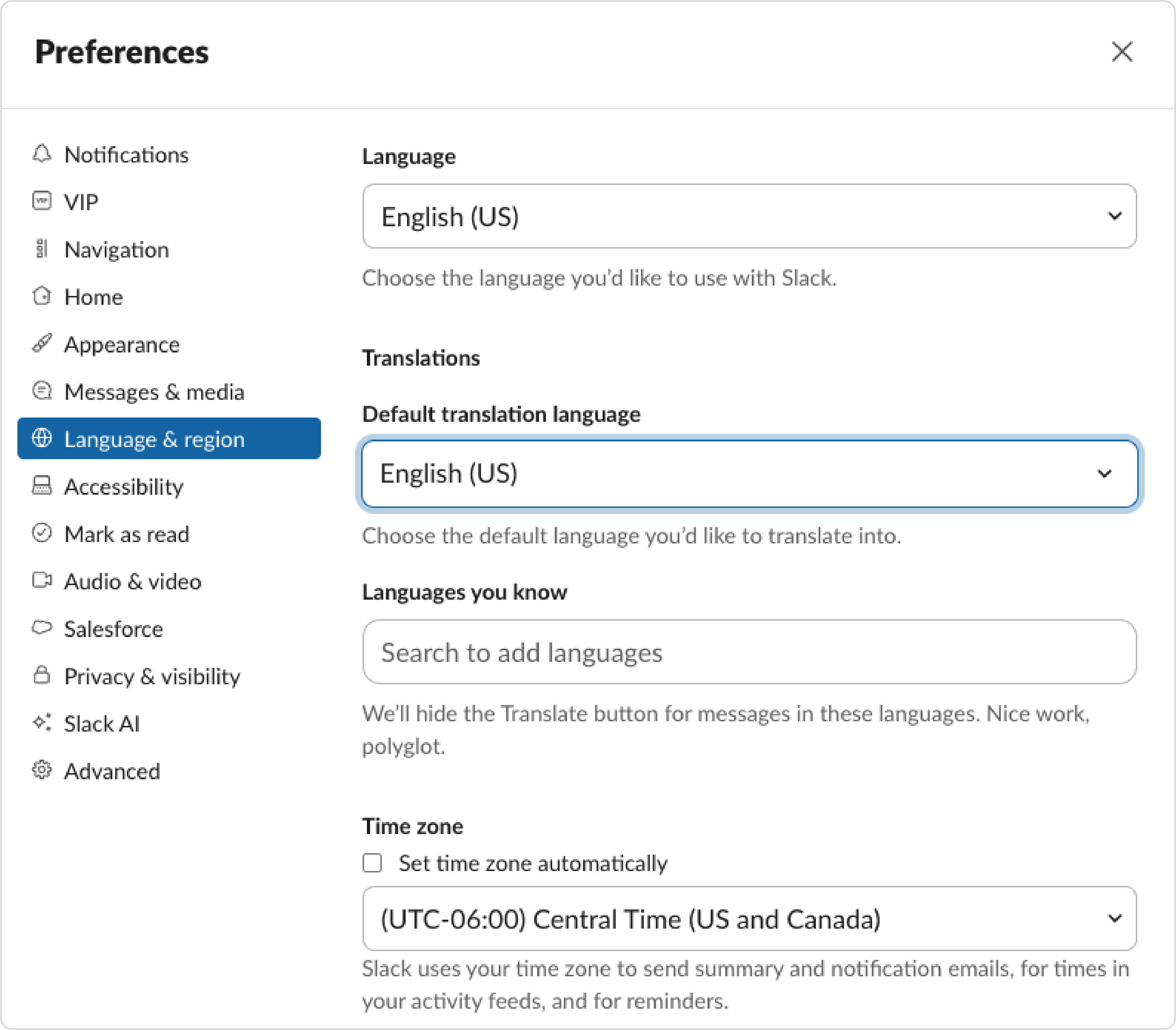
- In any message, hover over the three-dots and select Translate messages.
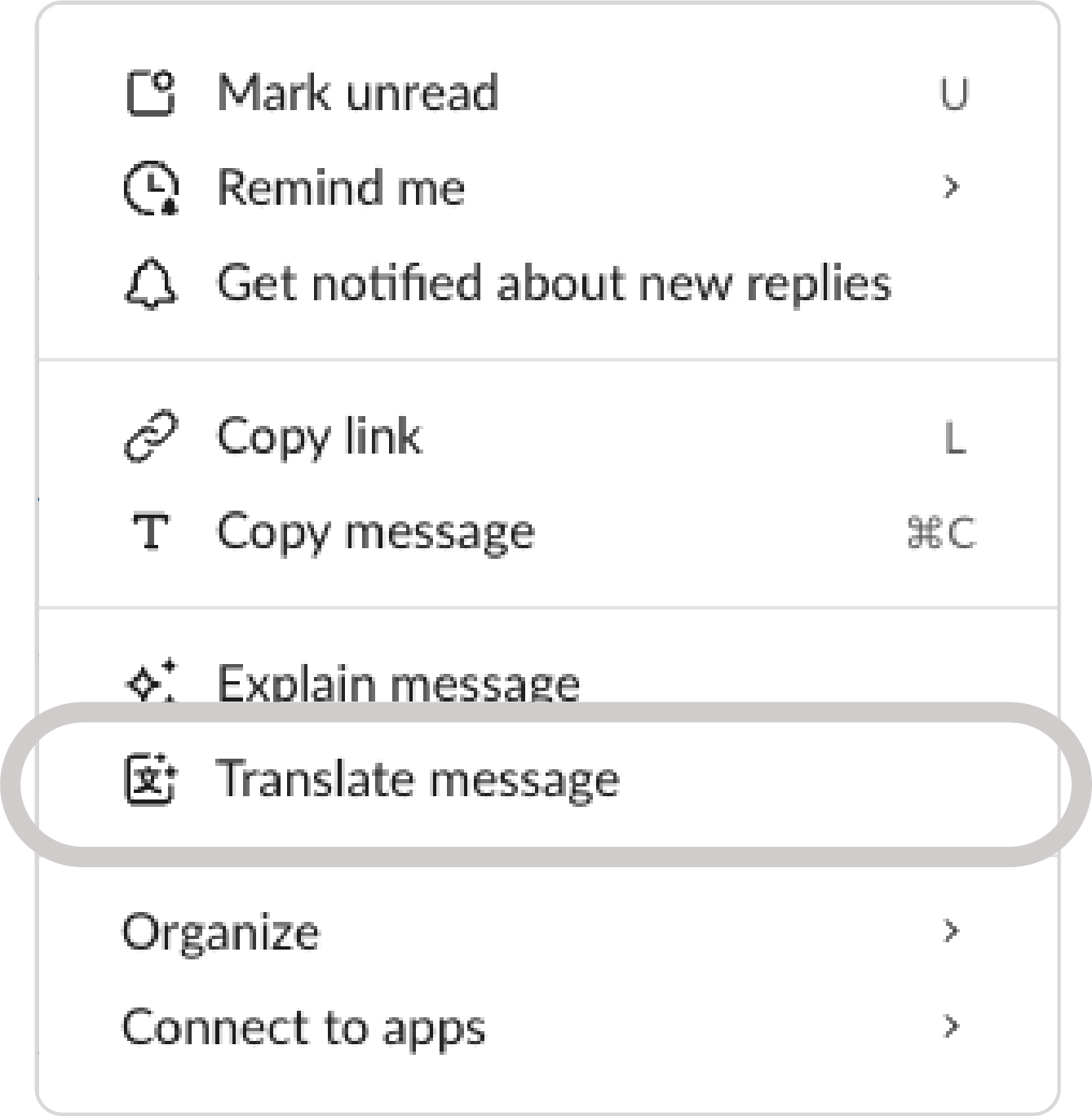
- Learn more about Slack’s “Translate messages” feature.
- First, set your translation language in Preferences > Language & region.
When files like PDFs, slides, images or text documents are shared in channels or DMs, Slack AI automatically generates a brief summary alongside the file. Anyone with access can see the key points at a glance, expand for more detail, or even translate the summary.
When to use
- Quickly decide if a document is relevant to what you need without reading every page.
- Get the key points of a long document when you're short on time.
- When you're looking through multiple files shared in a channel, summaries help you quickly identify which ones have the information you're looking for.
- Use the summary text to explain to collaborators what a file contains.
- Review key points from shared materials before discussions, presentations, or lectures.
What to know
- Summaries appear when viewing a file in Slack but disappear once you navigate away. You can always return to the file to see the summary again.
- Summaries are available for files uploaded directly to Slack but not for external links like Google Drive.
- Only people who have access to a file can see its AI-generated summary. Private or restricted files remain secure.
How to get started
- Summaries appear below a file with a
 Summarize icon.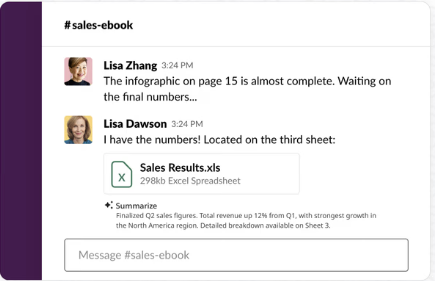
- Hover over a file to expand the summary or translate it.
- You can control your file summary preferences in Preferences > Slack AI > File summaries.
- Learn more about how to summarize files.
- Summaries appear below a file with a
Whether you're starting from scratch or building on an existing canvas, AI can help you transform ideas and and conversations into polished, shareable documents. Simply enter a prompt, and Slack AI will generate starting points for meeting notes, project plans, lecture outlines and more, so you spend less time drafting and more time refining.
When to use
- Synthesize information scattered across multiple messages into organized canvases.
- Improve the tone, clarity, and structure of drafts you've already written—great for refining meeting notes or collaborative documents.
- Pull together key concepts from group discussions, organize feedback by themes, or structure brainstorming sessions into action plans.
What to know
- When you use AI to write or edit content, it can draw from all of the messages and files in Slack that you have access to.
- Canvas owners can manage whether AI can access their canvas content (Share > Advanced Settings > Allow AI use checkbox).
How to get started
- In a new canvas, click Write with AI.
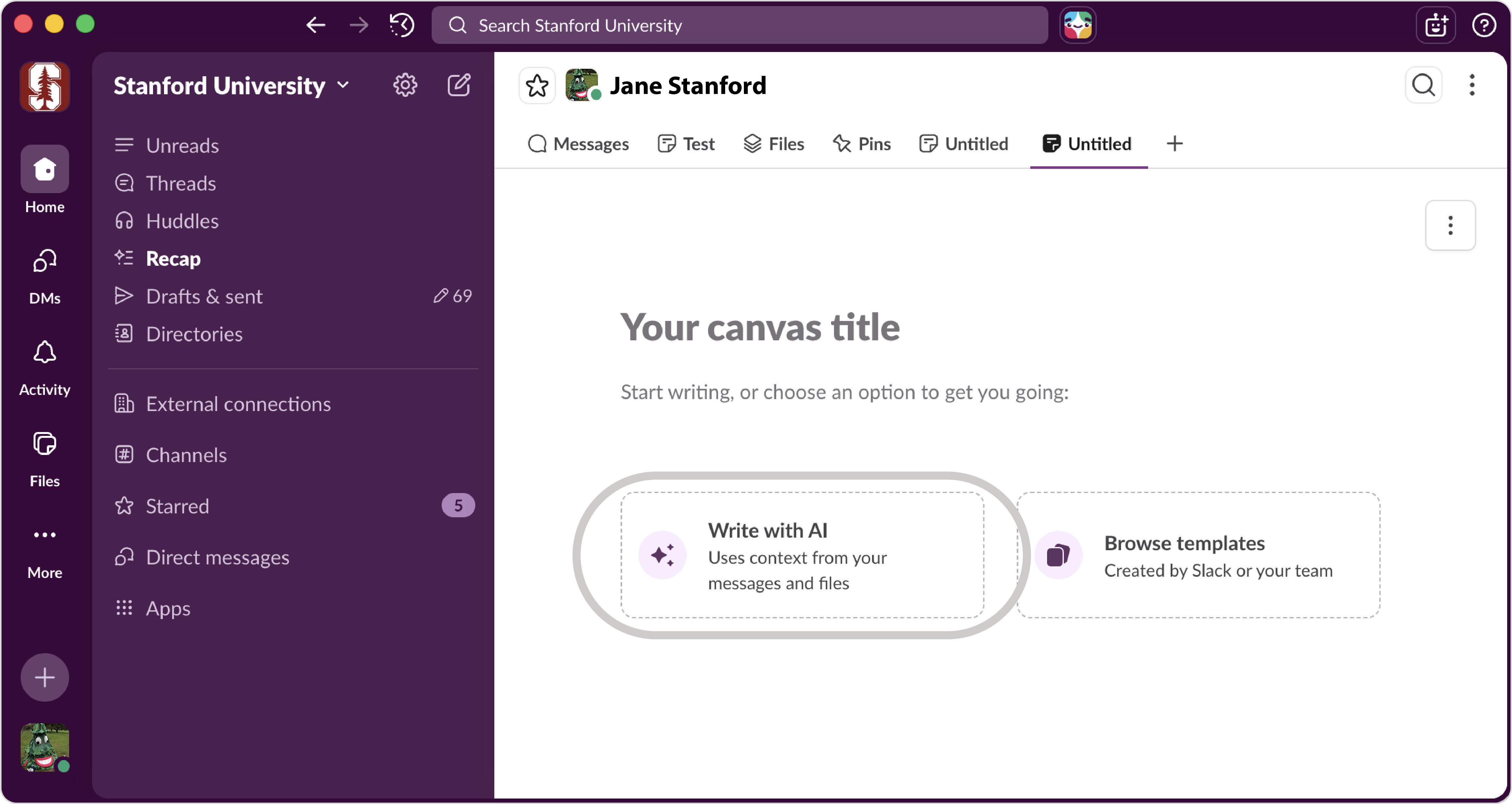
- Give it a prompt, and let AI generate the content for you.
- You can also use AI to edit existing content or add a new section.
- Learn more about AI-generated content in canvas.
- In a new canvas, click Write with AI.
A no-code tool that lets you automate routine tasks right inside your workspace. Describe what you want in plain language, like "Send a reminder to submit timecards" or “Send a welcome message to people who join a channel.” Slack will use the Workflow Builder tool to automatically generate a workflow for you to customize and publish.
When to use
- Automate weekly check-ins, status update requests, deadline reminders, or recurring announcements.
- Schedule a weekly messages asking for status or project updates.
- Set up workflows for approval processes, room reservations, equipment checkouts, reimbursement requests, or absence notifications.
- Perfect for anyone who needs workflow automation but doesn't know how to code.
What to know
- If your workflow relies on email functionality, you'll need to create a workaround. Learn more: "Important Changes to Slack Email Functionality."
- You can view workflow runs and troubleshoot issues for up to 90 days after they occur.
How to get started
- Click Tools in the sidebar. If you don't see this option, click More to find it.
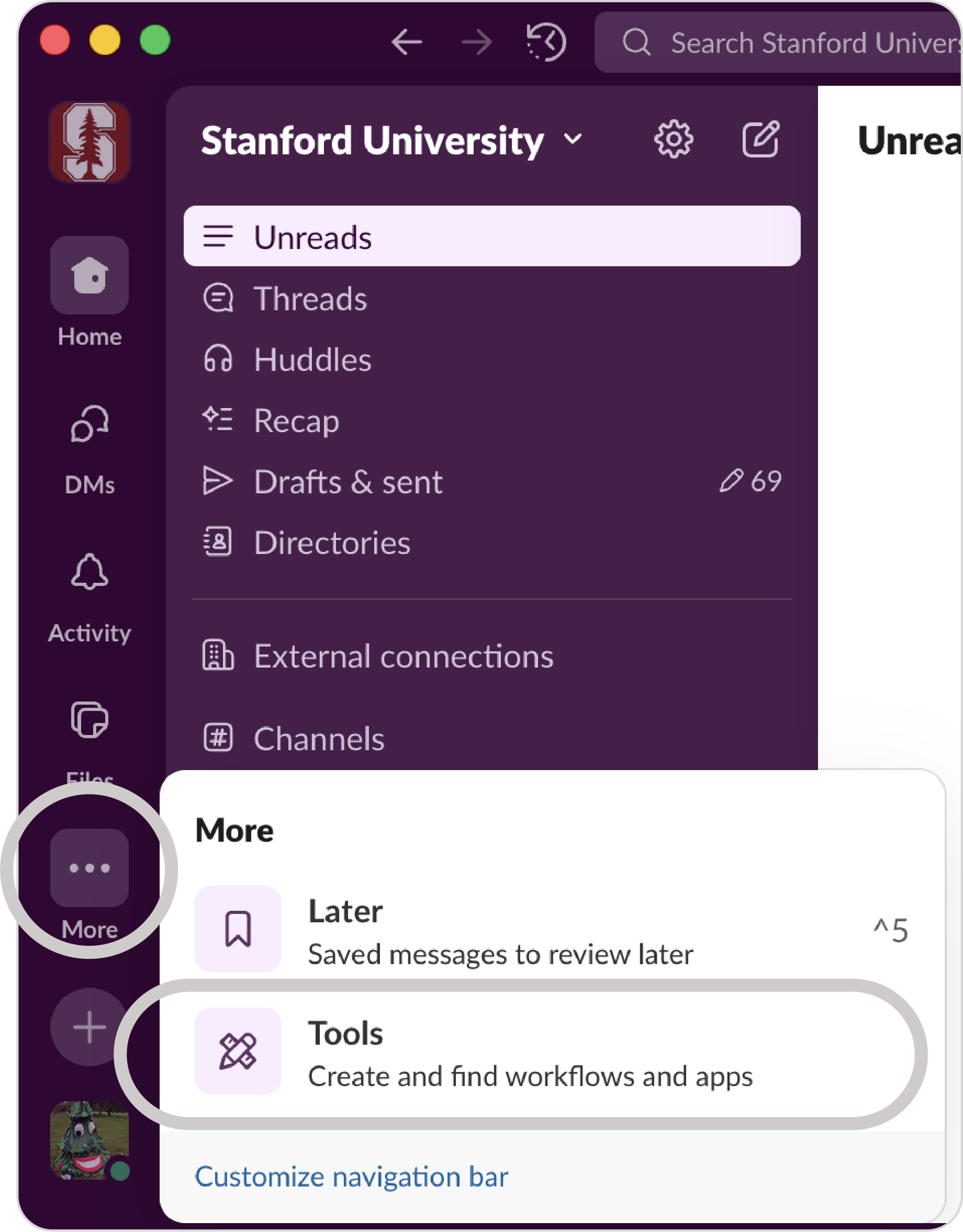
- From Workflows, click New in the top-right corner.
- Select Build Workflow or Create from template.
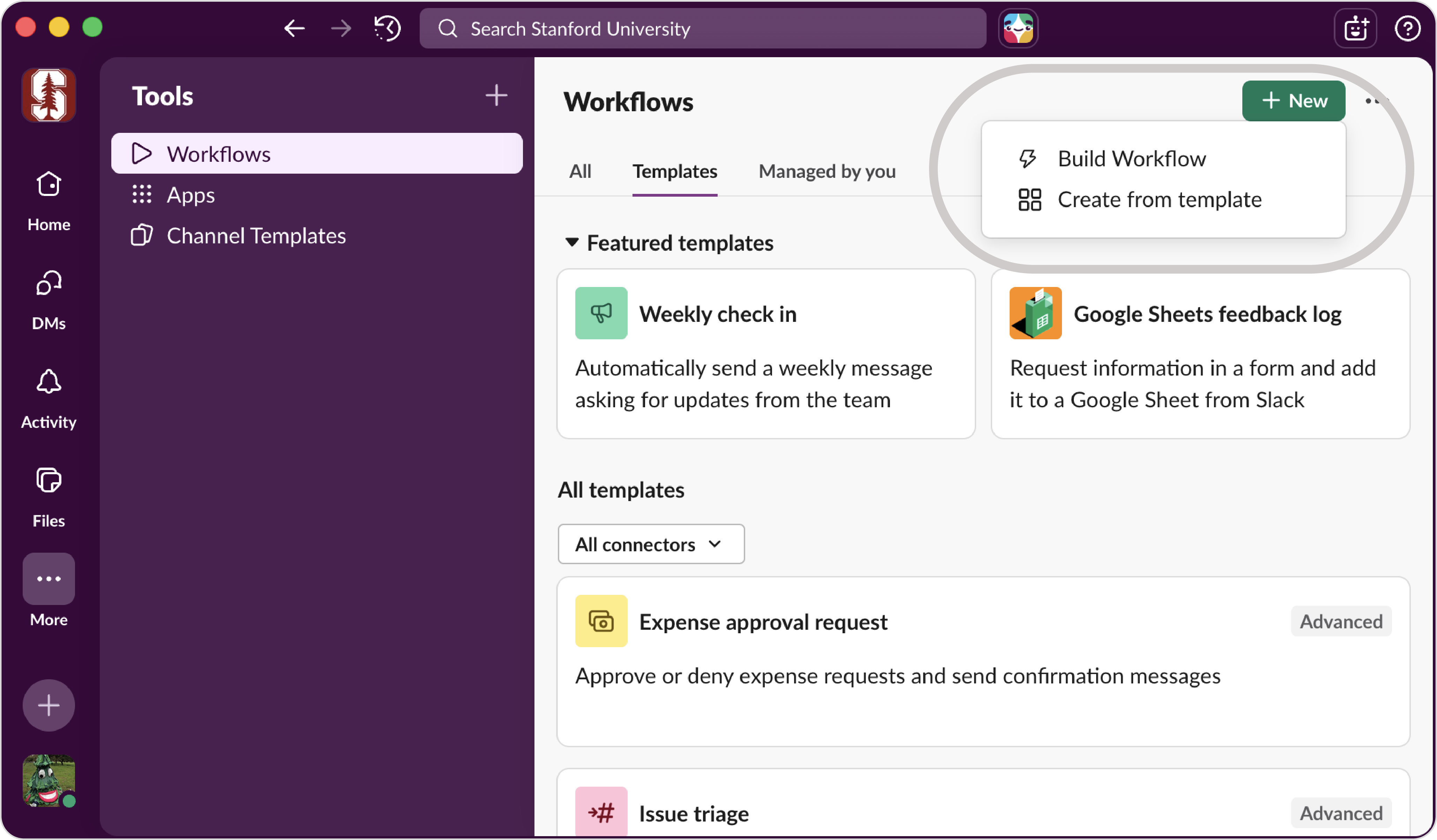
- Learn more about how to build a workflow with Slack AI.
- If you get stuck, check out the FAQs.
- Click Tools in the sidebar. If you don't see this option, click More to find it.
Leverage Slack AI to generate an instant overview of any channel, DM, or thread, whether you want to review everything from the past week or just catch up on all unread messages.
When to use
- Quickly understand what happened in channels or threads while you were on vacation, sick, in back-to-back meetings, or focused on other work.
- Onboard to a new team or project without reading weeks of messages.
- Get a quick overview of messages you need to follow up on and prioritize your responses.
What to know
- Summaries are designed to disappear after you navigate away or close the results.
- Summaries may not capture subtle points, and you cannot customize which topics are "important".
- Always use the "more detail" icon to jump to source messages for clarification.
- Customize your summary by selecting a specific timeframe (last 7 days, last month, etc.) or filtering to just unread messages.
How to get started
- Open the chat you want to summarize (channel, DM, or thread).
- Click the
 Summarize channel icon in the top right of the conversation header.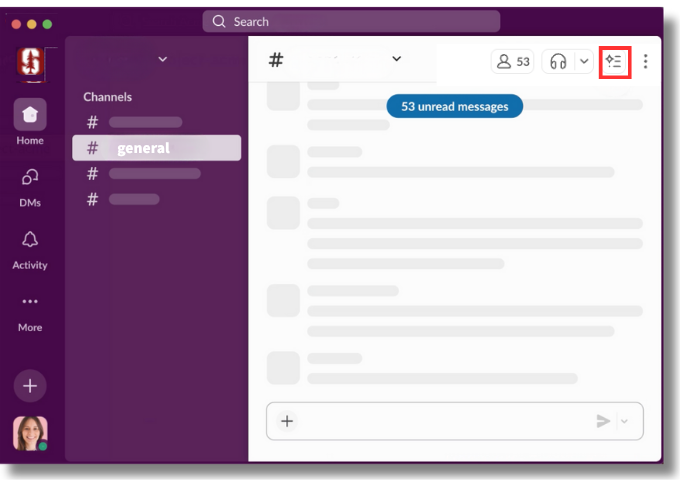
- Learn more about summarizing conversations.
When you enable AI note-taking in a Slack huddle, the audio and chat messages are automatically transcribed and summarized into organized meeting notes—including attendees, key discussion points, decisions, action items, and a full transcript. No more manual note-taking or worrying about what you missed.
When to use
- Participate actively in discussions without splitting your attention between listening and taking notes.
- Automatically capture decisions, next steps, and who's responsible for what—perfect for project meetings, committee work, or team check-ins.
- Generate meeting documentation that can be easily shared with attendees or team members who couldn't join.
What to know
- AI notes cannot be used in huddles that include external guests or participants outside your Stanford Slack workspace
- Meeting notes appear in the huddle thread immediately after the meeting ends and can be shared with anyone in the channel or DM.
- The complete meeting transcript is saved in a canvas attached to the notes, though it won't appear directly in Slack search results. You can always access it through the notes.
- Slack's AI Huddle Notes are approved, but the university advises against the use of third-party bots in meetings due to privacy and data security issues.
How to get started
- Begin a huddle in your channel or DM.
- Click the
 AI notes icon in the bottom left of the huddle window, which says AI Notes: Off.
- To turn on the feature, click Start AI Notes and Transcription and then Start Notes.
- Learn more about automatic note-taking.
Resources and support
Learn more
- To learn more about using Slack, visit Slack's help center.
- To learn more about using AI responsibly at Stanford, visit the guide.
- Learn more about Stanford Slack.
- Learn more about GenAI tools at Stanford.
Get help
If you need assistance, please submit a Help request to the Stanford Slack team.

Copyright Stanford University. Stanford, California 94305.