 University IT
New Microsoft Login + Intune FAQs
Here's a list of common questions about the School of Medicine's transition to a new Microsoft login, which includes connecting devices to Intune.
School of Medicine
Who will use the new Microsoft login?
Currently, this update is being rolled out to the School of Medicine.
This applies to anyone in the level two organization 'VAAA'. You can see the organization list on https://orgcode.stanford.edu/.
This is being rolled out to help protect Stanford Medicine's sensitive data and information. These changes will help improve the security of that data and enhance collaboration across the School of Medicine, Stanford hospitals, and other Stanford University collaborators.How will I know when I need to set up the new Microsoft login?
You'll receive an email with detailed instructions and support resources. For the School of Medicine, emails will go out the first two weeks in June.
Will this change impact how I log into hospital applications?
If you use your SUNet ID to log into hospital websites and applications like SHC Connect or SHC ServiceNow, you will use the new university Microsoft login experience for these as well.
Will I need to use a university managed device (SoM device) to access my Stanford (SUNet) email and other Microsoft services?
Yes, you will need a university managed device to access university email, Teams, and OneDrive after your enforcement date. Please note that the university allows personal devices to be enrolled and managed as well.
If you are accessing university email from an SHC or SMCH location, then your device will automatically be allowed to access those university resources.
Microsoft login (General)
Which apps or websites does the new login experience pertain to?
You'll use the new login for all cloud-based Stanford Microsoft 365 (M365) apps, including:
- Productivity and collaboration apps (Word, Excel, PowerPoint, OneDrive, Teams, Forms)
- Stanford email and calendar if you use M365 Outlook, including Outlook desktop, Outlook mobile, and Outlook on the web (webmail.stanford.edu and webcal.stanford.edu)
- Cloud services (Azure, Power BI)
- AI and creative tools (Copilot)
- Windows apps and development tools (Edge, GitHub)
- Security and management (Intune, Entra ID)
The new login will also be used for other applications or websites configured to use Stanford Microsoft authentication.
Do I need to set up the Microsoft Authenticator app?
If you have a smartphone, you should set up the Microsoft Authenticator app first. Learn more about Microsoft authentication methods.
Can I use other authenticator tools like Google Authenticator or Duo?
No. If you elect to use an authenticator app, you must use Microsoft Authenticator.
Do I have to log into each Microsoft app separately?
No. Once you sign in to your Microsoft account, you'll have access to other M365 services like Teams and OneDrive for your entire session. This single sign-in experience is specific to Microsoft apps.
Will I use Microsoft Authenticator for non-Microsoft accounts?
No, the university is adopting the Microsoft Authenticator app specifically for Microsoft logins. It will work alongside your Duo app, which you will continue to use for other Stanford services, like Slack, Zoom, and Google Drive.
Will I still use Duo?
Yes, for applications and sites that do not use Stanford Microsoft authentication, you'll continue to log in and authenticate the way you do today, using the Duo app for multifactor authentication. Learn more about the new Microsoft login experience.
Can I use Apple Watch or Android wearable devices for Microsoft Authenticator?
No. Apple Watch and Android wearable devices (such as Samsung Galaxy Watch) are currently incompatible with Authenticator's security features. However, you can mirror Authenticator notifications from your phone to your wearable device.
How will the Microsoft Authenticator app work if I don't have a mobile device?
Microsoft Authenticator requires a mobile device capable of installing current apps from the Apple App Store or Google Play Store. If you use a Mac, you have the option to use an Apple passkey instead of the app. You can also use a YubiKey security key. Learn more about Microsoft authentication methods.
I already have the Microsoft Authenticator app installed on my mobile device for another account. Can I use the same app for my Stanford account?
Yes. Like Duo, Microsoft Authenticator supports multiple accounts across different institutions, so you can add your Stanford account without removing or changing your existing setup.
I plan to use my iPhone for multi-factor authentication only and won't use it to check university email or do other Stanford work. Do I need to install Jamf on my iPhone?
No. If you're using your iPhone solely for multi-factor authentication and not to access Stanford Microsoft apps or data, it does not need to meet compliance requirements. After enforcement begins, you can continue accessing Microsoft 365 on your laptop without interruption, using your iPhone only to authenticate via the Authenticator app.
I use the macOS Apple Mail app to access my university email. Will I need to make any changes with the new login?
No. We're not making any changes to email clients — only to the authentication process. You can continue using Apple Mail as usual.
When will I see the new Microsoft login process ?
The new login should appear within 24 hours after you complete one of these step to set up your new Microsoft login.
If you don't see the new login after 24 hours, contact IT support.
What's the relationship between Microsoft Entra ID and other Microsoft services like Microsoft 365?
This new login is supported by a platform called Microsoft Entra ID.
Microsoft Entra ID (formerly Azure Active Directory) is the identity and access management service that handles authentication for Microsoft services. When you sign in to a Stanford Microsoft service, Entra ID verifies your identity and determines your permissions.
How will I know that I've successfully completed the process to set up my new login and connect devices to Intune?
It’s easy to know you’re done. Simply visit Microsoft's Company Portal to confirm that every device you use to check email or access other university Microsoft services is listed as connected to Intune. Devices will appear as either:
- Enrolled — Windows, Android, and Linux devices
- Registered — macOS, iOS, and iPadOS devices
Newly connected devices can take up to one hour to appear — so don't worry if yours isn't showing up right away.
Microsoft login (Troubleshooting)
I'm seeing a "SAML assertion is not present in the token" error when opening the My Sign-Ins page to set up or manage my Microsoft login. What should I do?
This error means your Microsoft session has gone stale. You can fix it by using the "Sign out everywhere" option in your Microsoft account, which clears your existing tokens and forces a fresh sign-in. See our step-by-step guide.
Tip: To avoid this error in the future, complete the setup process promptly without long pauses between steps.
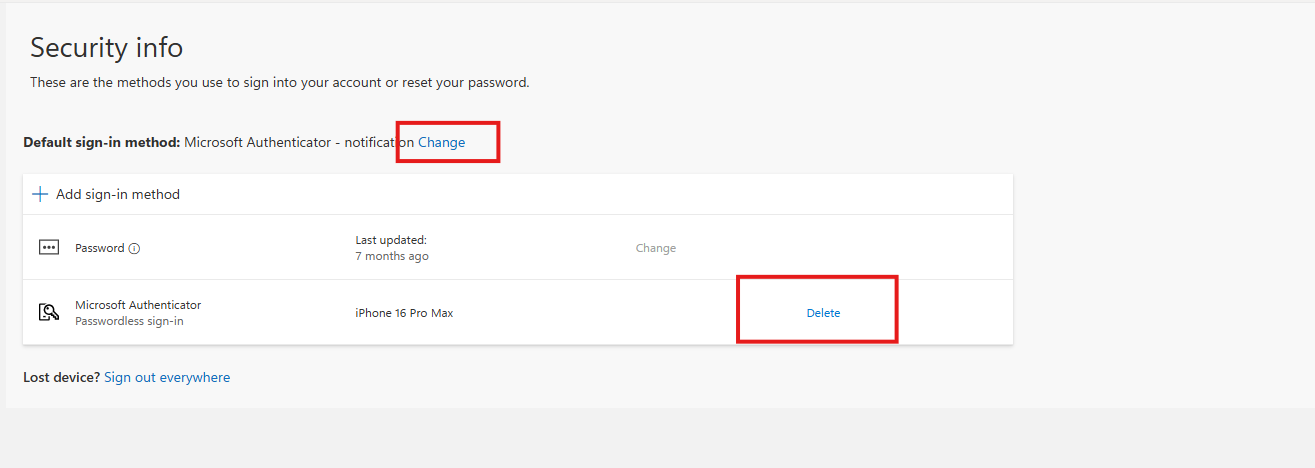
Why can't I remove my sign-in method from the My Sign-Ins page?
If the method you're trying to delete is set as your default sign-in method, you'll need to change your default first. To do this, select Change, choose your preferred method, and select Confirm.
I've set up my new Microsoft login. Why are some Microsoft third-party apps now asking me to sign in?
You may need to sign in to some apps that connect to Microsoft after you are set up with the new Microsoft login. For example, your LinkedIn in Outlook app may ask you to sign in the next time you open your Outlook calendar. This change will not affect your access to the application itself. The following apps are among those that will likely be impacted:
- Atlassian
- Calendly
- Fizz
- GitHub
- Notion
- Smartsheet
- Spark Mail
- Thunderbird
- VaultMe
What if an application takes me to Entra ID but then has me authenticate Stanford IDP as well?
If you experience an authentication "Double Hop," there is likely a specific setting in the application directing authentications to the Stanford IDP. The application owner will need to take action to adjust the setting.
I'm not receiving a verification code when I try to sign in to Microsoft. What should I do?
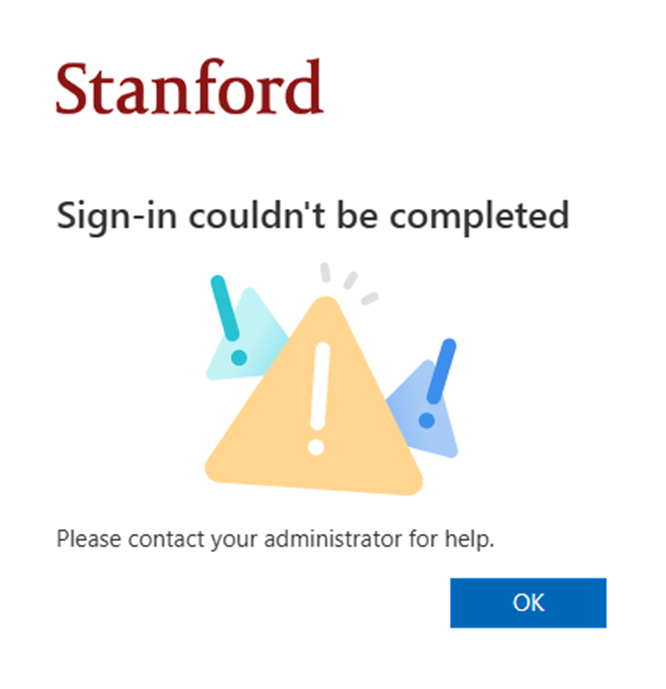
Verification codes can fail to arrive for a few reasons. You might see a message like "Sign in couldn't be completed" or "We'll help you set up another way to verify it's you." If you're unable to receive a code or complete sign-in, contact IT support.
Here are examples of error messages you might see: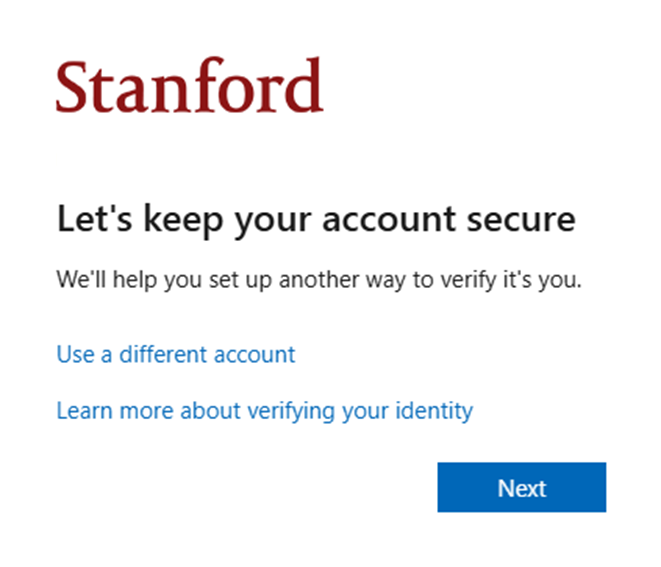
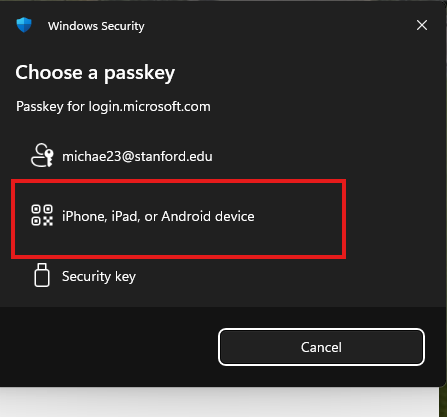
When I try to log in with my passkey, Windows is asking me to save my passkey to a USB drive. How do I log into my account?
When signing in using an application-based passkey such as Microsoft Authenticator or iCloud, select iPhone, iPad or Android device when prompted to choose a sign-in method. Always choose this option when using your passkey. The other option is intended only for YubiKey users.
I've been transitioned to the new login but I'm unable to access my account to set up Authenticator and passwordless sign-in. What should I do?
If you've been transitioned to the updated Microsoft login experience for access to Microsoft 365 services and can’t sign in, you can follow these instructions to generate a TAP to regain access. Once signed in, you can register a new passwordless authentication method to use going forward.
Intune (General)
How will I know it's time to connect my device to Intune?
Windows: Most Windows devices will enroll automatically. However, if your PC isn't eligible for auto-enrollment, you'll get a pop-up notification to launch an app to guide you through the process.
Mac: You'll see a pop-up notification when it's time to start registration.
iPhone, iPad, Linux: You can connect your iOS/iPadOS or Linux device to Intune 24 hours after you start using the new login by following the published instructions.
Which devices need to be connected to Intune?
Each device you use to access Stanford University Microsoft services (including your stanford.edu email). This may includes:
- Stanford -owned and personal laptops
- Mobile phones (iOS and Android)
- Tablets
Complete setup for all devices by July 20. After this date, non-compliant devices may lose access to university M365 services.
Important: Compliance is per device. Setting up one device doesn’t make others compliant. If you use a laptop and a phone to check your university email, both must be connected to Intune. If you don't use a device to access university Microsoft services, you are not required to connect it to Intune.
Should I verify my devices are set up correctly?
Yes! Verification ensures uninterrupted access to email and other university Microsoft services. You can quickly check compliance on the Microsoft Intune Company Portal website. (
How long after enrollment can I verify set up?
After enrollment or registration, it's recommended you allow 24 hours for device records to update.
What about Android devices?
The university already uses Intune device management for Androids. If your device is already enrolled in Intune, you will need to set up Authenticator only. For new Android devices, refer to these instructions for enroll in Intune.
Note: UIT-supported Android devices are the Google Pixel and Samsung Galaxy models listed as Stanford standard devices. Refer to Android device compatibility and support to learn more.If my Apple device is already enrolled in Jamf for device management, why does it also need Intune?
If your Mac, iPhone, or iPad is already managed by Jamf, it should be registered (not enrolled) in Intune. Registering your Mac or iOS device in Intune will connect it to the new Microsoft login for secure access to apps like Outlook and Teams.
Can I continue to use VLRE on a personally owned device that I use to access university Microsoft services?
As of July 31, 2026, all VLRE users with a School of Medicine (SoM) affiliation must enroll/register a device in Microsoft Intune and authenticate through Microsoft Entra ID to access SoM/Stanford Health Care (SHC) resources in the Microsoft environment, including email and OneDrive, to meet HIPAA requirements and Stanford Administrative Guide 1.6.2 expectations. Learn more.
How do I unenroll a personal Windows device from Microsoft Intune?
If you’re leaving Stanford, changing roles, or no longer need Stanford access on a personally owned Windows device, you can unenroll your device from Microsoft Intune by following the instructions in this guide.
Microsoft Intune (Troubleshooting)
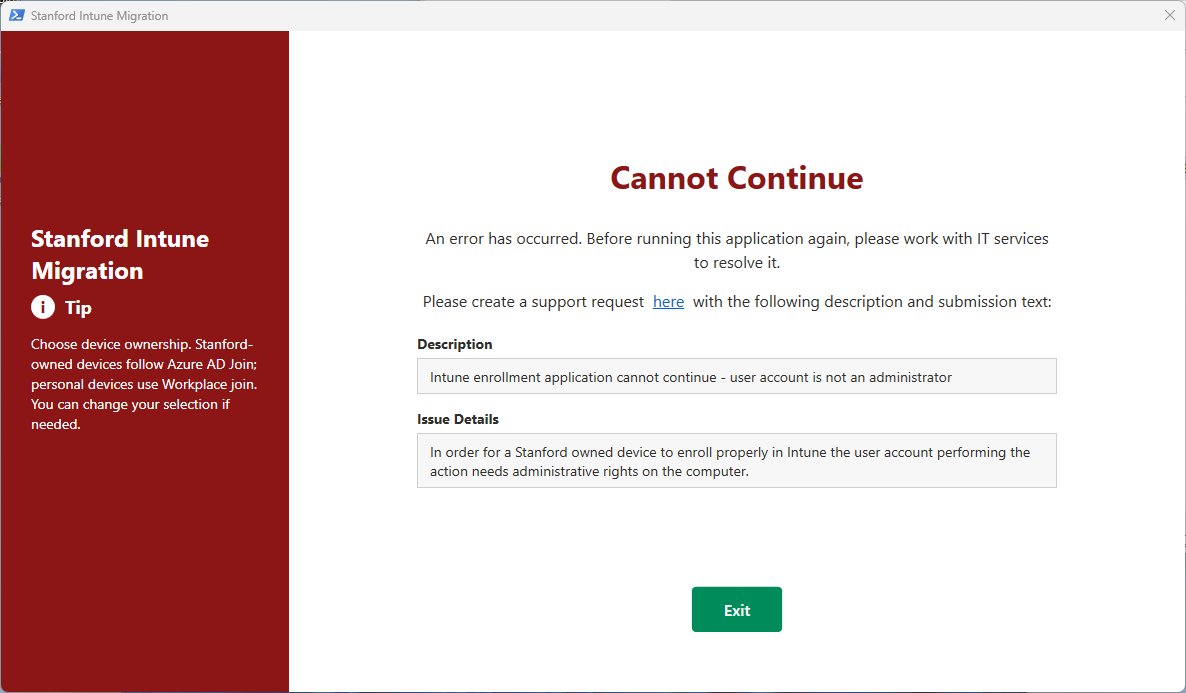
What should I do if I see a "Cannot Continue" error when enrolling my Stanford-owned Windows device in Intune using the Stanford Intune Migration app?
This usually means your account isn't set up as an administrator on this device. Submit a help request and we'll work with you to resolve it.
Why can't I access my Stanford M365 email or any other Microsoft apps on my Windows PC?
This usually happens when your device doesn't meet the university's security requirements for Stanford's Microsoft login. The best fix is to use the Company Portal app. Follow these instructions for Windows PCs to learn how to use the app to scan your computer, identify the steps needed to fix any Microsoft compliance issues, and get back into your email.
Why can't I access Stanford M365 email or any other Microsoft apps from my macOS device?
This usually happens when your device doesn't meet the university's security requirements for Stanford's Microsoft login. Follow these instructions for macOS devices to learn how to fix any Microsoft compliance issues and get back into your email.
Why can't I access my Stanford M365 email or any other Microsoft apps from my iOS (or iPadOS) device?
This usually happens when your device doesn't met the university's security requirements for Stanford's Microsoft login. Follow these instructions for iOS/iPadOS and learn how to fix any Microsoft compliance issues so you can get back into your email.
Why can't I access Stanford M365 email or any other Microsoft apps from my Linux device?
This usually happens when your device doesn't meet the university's security requirements for Stanford's Microsoft login. Follow these instructions for Linux devices to learn how to fix any Microsoft compliance issues and get back into your email.
How do I use the Company Portal website to check Intune enrollment or Microsoft compliance for my device?
Intune enrollment and device compliance can be checked in the Company Portal website. Use these instructions for the Company Portal website from any device (not just the device you're checking). If you can physically access your device, it's best to use the Company Portal app (installed on your device). Refer to these instructions for Windows: How to Remediate Windows Compliance with the Company Portal App.
When I attempt to sign into Stanford Microsoft using Firefox I get an error. What should I do?
To avoid sign-in errors with Microsoft Office 365 applications, you must configure Firefox to support device compliance on Mac and Windows devices. Refer to these instructions to learn how.
When I attempt to sign into my Stanford email using Thunderbird, I get an error. What should I do?
To avoid sign-in errors once device compliance enforcement beings, please make sure you are running the latest version of Thunderbird. Thunderbird users will need to make sure they are on version 153 or later to continuing signing into their university email.
When I attempt to sign into Stanford Microsoft on my Windows device, I am getting an error message stating: "Your credentials could not be verified." What should I do?
You can resolve the "Your credentials could not be verified" Windows sign-in error by connecting directly to a campus network or following the temporary workaround steps or permanent resolution steps below. Follow the instructions in the How to Resolve "Your Credentials Could Not Be Verified" Error to learn more.
Privacy and settings
Why is this required, and does it apply to me?
The new Microsoft login (Microsoft Entra ID) and device registration (Microsoft Intune) protect Stanford's email, Teams, OneDrive, and other Microsoft 365 services. At each sign-in, they confirm that both the account and the device meet a School of Medicine security baseline before access is granted. This is often called conditional access or device trust.
It applies to everyone with School of Medicine Microsoft 365 access, including faculty, staff, and students. The check protects the access itself. Any account that can reach the School of Medicine email can also reach information that needs protecting, whatever your own work involves, so the same baseline is applied to every account and device.
The change also brings the School of Medicine onto a current, vendor-supported sign-in and device foundation that replaces older in-house components and matches what many peer institutions now use.
What do we gain from this, and what are the trade-offs?
It is fair to ask what this change buys, and what it costs. Here is the honest version of both.
What improves
- Sign-in becomes passwordless and harder to phish. You approve each sign-in with the Microsoft Authenticator app, a passkey, or a security key instead of typing a password, which closes off the most common way university accounts get stolen.
- You sign in less often. On a computer that is set up, platform credentials (Platform Single Sign-On or Windows Hello for Business) keep you signed in across Microsoft and Stanford services, so there are fewer repeated prompts during the day.
- Access checks the device, not only the password. At each sign-in the system confirms the device is encrypted, patched, on a supported version, and registered with/managed by Stanford before it reaches university data, so a stolen password by itself is no longer enough to get in.
- The information you and your colleagues rely on is better protected, because only known, healthy devices can reach School of Medicine email and files.
- The School of Medicine moves onto a current, vendor-supported foundation that replaces older in-house components.
What it asks of you
- You set up the new login and register the devices you use for university email, including a personal phone if you use it for email. Setup is one-time and but keeping your devices registered is an ongoing requirement.
- A device that does not meet the security bar can be blocked from university Microsoft 365 until it is brought up to date.
- On a Stanford-owned device, Stanford can see configuration and inventory information, as described below, and never your personal content. On a personal phone, the footprint is limited to the work apps.
How is my device set up?
How a device is set up depends on what kind it is:
- Windows, Android, and Linux devices are enrolled in Intune, which manages them directly.
- Apple devices (Mac, iPhone, and iPad) are managed through Jamf, Stanford's established Apple management service, and then registered in Intune so they can meet the access requirement.
In every case the purpose is to confirm the device meets a security baseline. If you use a personal phone for university email, you will register it so it can pass that check.
Setting up access does not give Stanford a view into your personal content. The next question covers exactly what is and is not visible.
What can Stanford see, and not see, on my devices?
Some limits are built into Intune itself, so they hold no matter how Stanford configures the service. On any device and any enrollment type, Stanford cannot see your personal email, your text messages or call history, your photos, your web browsing history, the contents of your personal files, or your passwords.
Stanford-managed device Personal device Model, serial, OS version, encryption, and compliance status Yes Yes Installed-app inventory (the list of apps, not their contents) Names of all installed apps For personally owned Windows and Linux devices, only the names of the Stanford ("managed") apps that Stanford deploys; your personal apps are not listed Personal email, texts, photos, browsing, files, passwords No No On Windows and Linux devices classified as personal, Intune reports only the names of the work and school apps that Stanford deploys, not your personal apps. On all other device types, including Stanford-owned Windows and Linux devices, the full list of installed app names is collected. In both cases this is a list of names, not a view into what is inside the apps. Compliance itself is a pass or fail health check (is the disk encrypted, is the operating system patched, is it a supported version), not a view into what you do. Stanford does not monitor how you use your apps, and there is no keystroke or screen monitoring.
On Apple devices, the configuration is applied through Jamf, and Intune's role is the registration and security check.
Does Stanford track my location?
No. There is no continuous location tracking, and no setting that streams your whereabouts to Stanford.
Intune does have a one-time Locate device action, and it is limited by design. It works only on supervised or corporate-owned devices (for example, a supervised iPhone in Lost Mode or a corporate-owned Android). An administrator triggers it manually for one specific device, and it is not offered for personally-owned devices. It would be used only as part of responding to a report of a lost or stolen device, and like other administrative actions it is recorded in an audit log.
What about my files in OneDrive and SharePoint?
Device management does not browse, read, or remotely delete the contents of your OneDrive or SharePoint. Those files live in the Microsoft 365 cloud, and device registration controls access to them, not inspection of them.
A few related points:
- Even an app-level removal of Stanford data takes out only the locally synced work data from the app. It does not open or read your files, and your files stay in the cloud.
- Some automated content scans do run (for example for PHI, and possibly for SSN, PCI, or employee data when something is shared broadly). These send a notification to the data owner and the Information Security Office. No person is reading your files.
- Microsoft does not use your data for advertising, marketing, or profiling, and does not sell it.
If a device is removed from management or wiped, what happens to my personal data?
There are three different actions, and they are often confused.
Removing company data (sometimes called Retire) is the normal step when a device leaves management. It takes out Stanford's apps, profiles, and access, and leaves your personal data in place.
An app-level removal on a personal phone takes Stanford data out of the work apps only. Your personal apps and data are left alone.
A full wipe resets the device to factory state and erases everything on it. Device owner consent must be provided or approved by the security and/or privacy offices. Actions like these can be performed only by a limited number of authorized staff, and they are recorded in an audit log.
What specific settings is Stanford using on my devices?
- Apple device settings (Mac, iPhone, iPad) are documented on the Jamf service page.
- Windows settings are currently documented on the BigFix service page and are moving to Intune as that migration proceeds.
A combined Intune configurations and retrieved properties page, covering Windows, Android, and Linux, along with the registration checks applied to all devices, is in progress and will be linked here.
Area Current posture What we check (compliance) Disk encryption (BitLocker or FileVault), a supported and patched operating system, and Stanford managed device. These are pass or fail signals used to grant access. What we configure Security baselines and the profiles needed for secure access, such as Wi-Fi, and VPN settings, along with required security software. What we collect (inventory) Hardware and operating system facts, encryption and compliance state, and managed-app inventory. See complete lists linked above. Who can act, and accountability Actions are limited to authorized endpoint staff under role-based access with logging. What we do not enable Continuous location tracking. What are Stanford's rules for using these tools?
Being able to manage a device and being permitted to use that ability are two different things, and both are limited. For device management, Stanford collects only what it needs to confirm a device meets security requirements for access, not your personal content. The compliance and conditional-access checks only determine whether a device may connect; they do not monitor your activity.
Stanford's collection, handling, and use of electronic information are governed by binding institutional policy in Chapter 6 of the Stanford Administrative Guide. The sections most relevant here are Privacy and Access to Electronic Information (6.1.1) and the Computer and Network Usage Policy (6.2.1). Under those rules, any administrative access is permitted only for a legitimate operational purpose, only to the minimum extent necessary, and only by authorized staff under role-based access, with all actions recorded in an audit log. Stanford does not use your data for advertising or profiling.
How will I be notified, and what happens to my access, if Microsoft services have a major outage or security incident?
University IT maintains a formal emergency response and communications process, which is activated for confirmed security incidents, data breaches, or critical system outages. Notification begins as soon as an incident is confirmed and scales with its scope and impact. University IT provides regular status updates, relevant details, and any available workarounds until normal service is restored.
For an incident with campus-wide impact, Stanford's Emergency Operations Center (EOC) may issue emergency notifications to the broader community, for example, through AlertSU or the public emergency page at emergency.stanford.edu, neither of which requires a login or depends on Microsoft login. Today, only the university's Microsoft services sign in through Microsoft login, while systems such as the IT status and Help pages still use your SUNet ID through SAML Authentication, so you could still reach them and submit a Help request.
Could my device be erased, or my data accessed?
Device management follows the Stanford Administrative Guide. Under Privacy and Access to Electronic Information (6.1.1), Stanford accesses a user's information without their consent only in limited circumstances, and doing so requires authorization from one or more senior university officials named in the policy, with a record kept for review. A full factory erase is a deliberate action, generally reserved for university-owned devices that are lost, stolen, or compromised, and not for the routine management of a personal device. The policy also commits Stanford to using minimally invasive device-management tools.
Who is responsible for this?
This program is run jointly by the School of Medicine, UIT, and the Information Security Office, with sponsorship from university and Stanford Medicine leadership.
Do I have to do this, and what about exceptions?
Yes. Registering your devices is required to keep using your university Microsoft 365 services, including email, Teams, and OneDrive. Enrollment is being rolled out to the School of Medicine in groups, and each group is notified ahead of its enforcement date. Once your group's date has passed, access to Microsoft 365 depends on having completed setup, so it is best to finish well before then. Exceptions are limited, time-bound, and handled case by case, for example for certain clinical workflows, and usually by helping you get onto a compliant device rather than removing the requirement.
What are the source references for this information?
Microsoft Learn
- What your organization can and cannot see
- Privacy and personal data in Intune
- Data collection in Intune
- Data security and sharing in Intune
- Locate device
- Discovered apps
- Retire (remove company data)
- Wipe (factory reset)
- Selective wipe
- MAM and app protection FAQ
- Device compliance
- Conditional access
- Windows update rings
Stanford UIT
New or lost device
I have a new phone. How do I set it up with Authenticator?
Do not remove Authenticator from your old device until you have completely set up your new device. Microsoft will continue to use your old device for authentication until the new phone is fully configured with passwordless sign-in.
To ensure you don't lose access to your account during the switch, complete the entire setup process on your new iOS or Android device, including enabling passwordless authentication. You can then follow these steps to remove an Authenticator account from your old device:
I've lost my phone that had the Authenticator app set up. What should I do?
If your phone is lost or stolen, you need to take immediate action to protect your Stanford account and data.
- First, report the lost or stolen device right away using Stanford's Take Action for Lost or Stolen Devices process.
- Once you have a replacement device, submit a Help request to get Microsoft Authenticator set up on your new phone using your Temporary Access Password.
More resources
- New Microsoft Login + Intune: Guide for School of Medicine
- Transitioning to a New Login for Microsoft
- Stanford Intune Device Management Guide
- For additional assistance, contact SoM Entra ID / Intune support using any of the options listed below:
- SoM TDS Service Desk: Call (650) 725-8000 (option 7), available 6:00 a.m. - 10:00 p.m., 7 days a week. Hours have been expanded to handle increased demand.
SoM Tech Bar: Schedule an appointment at the location nearest you.
