 University IT
How to Move Your Stanford Microsoft Account to Your Work Profile (Android)
To prevent issues accessing university Microsoft services after the enforcement of conditional access on your enrolled Android device, review this guide.
Overview
Your Android Work Profile keeps your work apps and data separate from personal apps and data.
If you are using your Stanford login with Microsoft apps, like Outlook, Teams, or OneDrive, installed on the personal side of your Work Profile on your Android, you'll need to take action. After conditional access is enabled for your Stanford Microsoft login, these apps will no longer work with your Stanford Microsoft account in your Personal Profile. To prevent issues, follow the steps below to move your Stanford Microsoft account to your Work Profile.
If you don't have Outlook or other Office apps installed in your Personal Profile, no action is needed. You will not experience any issues.
How to move your Stanford Microsoft apps
These steps apply to all Stanford Microsoft apps installed on your device in your Personal Profile.
Step 1: Check your personal profile
After your Android device is enrolled, your apps are split into two tabs at the top of your app screen: Personal and Work. Tap the Personal tab to view your personal apps. Check whether Stanford Outlook or any other Stanford Microsoft Office applications are installed in your Personal Profile.
- If you don't have Outlook or other Office apps installed in your Personal Profile, no action is needed. You will not experience any issues.
- If you do have Outlook installed in your Personal Profile, continue to complete the actions in Step 2.
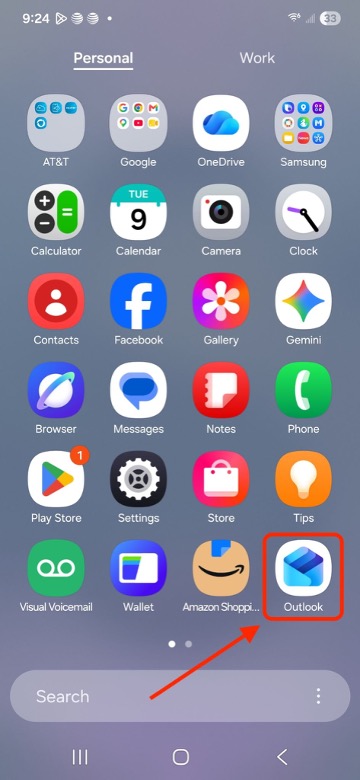
Step 2: Remove Stanford Microsoft accounts from your personal profile
- In your Personal Profile, open the Microsoft Office app you want to move (e.g. Outlook).
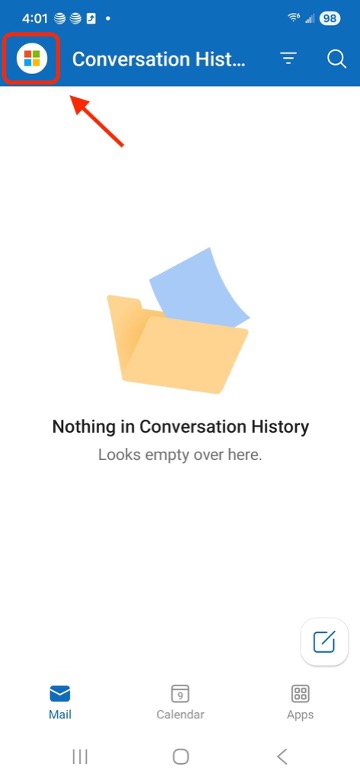
- Select the Microsoft logo to open the sidebar.
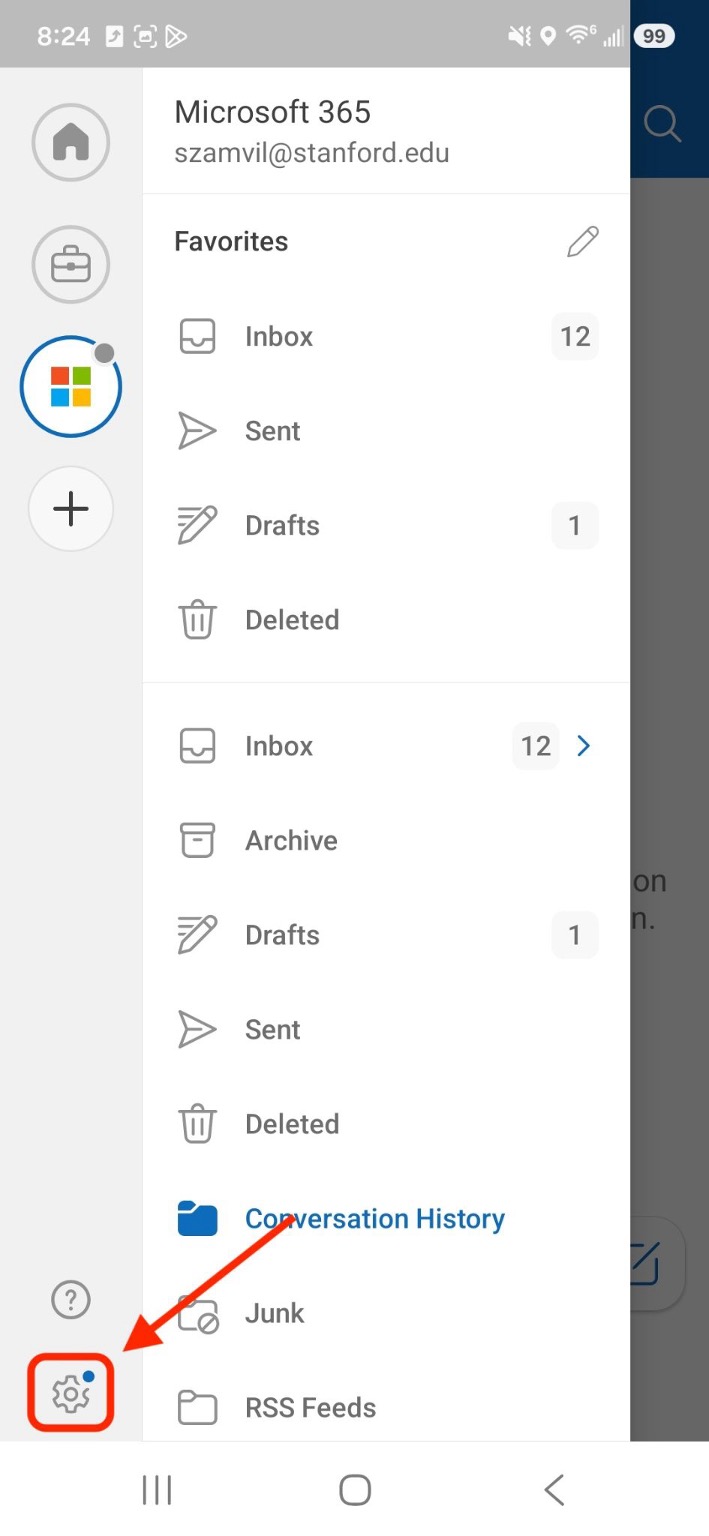
- Select the gear icon in the bottom left to open Settings.
- Select Accounts under General in the list of options.
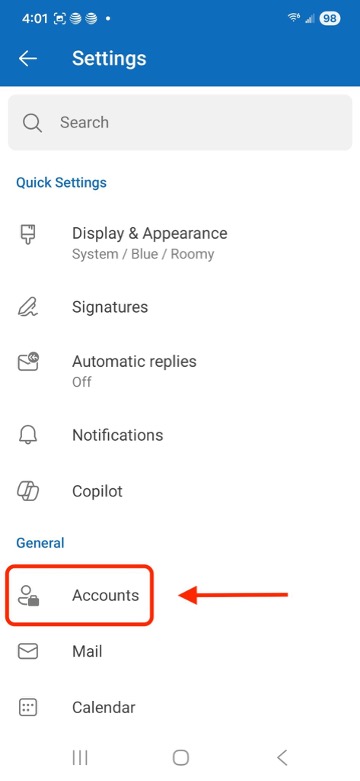
- Check if you have an @stanford.edu account listed.
- If not, no further action is needed.
- If so, select your @stanford.edu account.
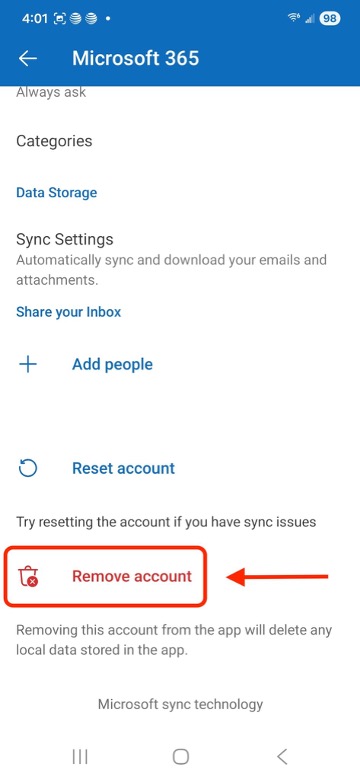
- Scroll to the bottom and select Remove account.
Step 3: Add your Stanford Microsoft account to your Work Profile
- In your Work Profile, open the Office app (e.g., Outlook).
Need to get an app? Additional apps are available in the Work Profile Google Play Store.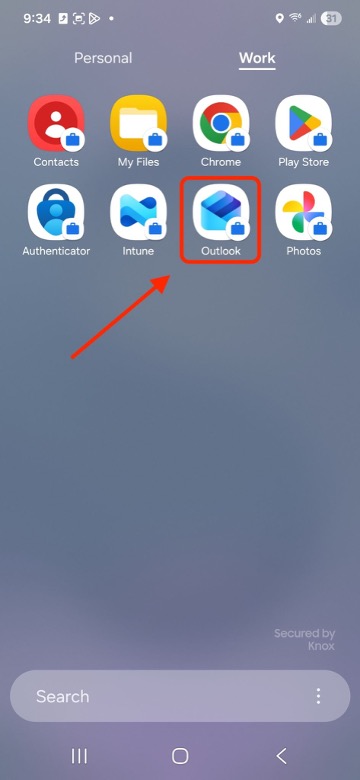
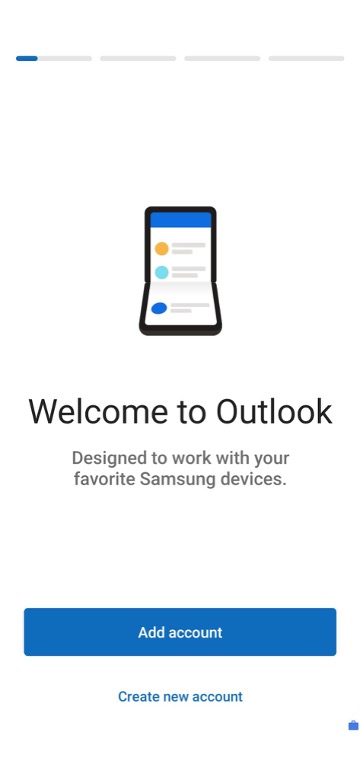
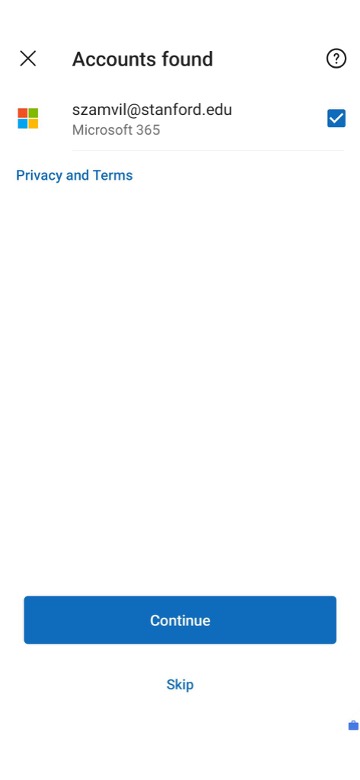
- Follow the prompts to add your @stanford.edu account.
- Repeat steps 2 and 3 for any remaining Microsoft Office apps on your Android device (such as Teams, Word, Excel, or OneDrive).
