 University IT
Automatic Enrollment for into Microsoft Intune for Windows Devices
These instructions are for the School of Medicine community.
The university offers an automated Intune enrollment process for eligible Stanford-owned Windows devices.
What you need to know
Once you’ve set up your new Microsoft login using the Microsoft Authenticator app (for iOS or Android) or another approved authentication method, wait 24 hours for the system to update. Then connect your device to one of the following Stanford networks for at least one hour and your device will enroll in Intune automatically:
- On campus: Stanford network
- Off campus: Cisco Secure Client VPN for Windows
Step-by-step instructions
After setting up your new Microsoft login, wait 24 hours for the systems to update. Then proceed through these steps:
- Logout or restart your computer.
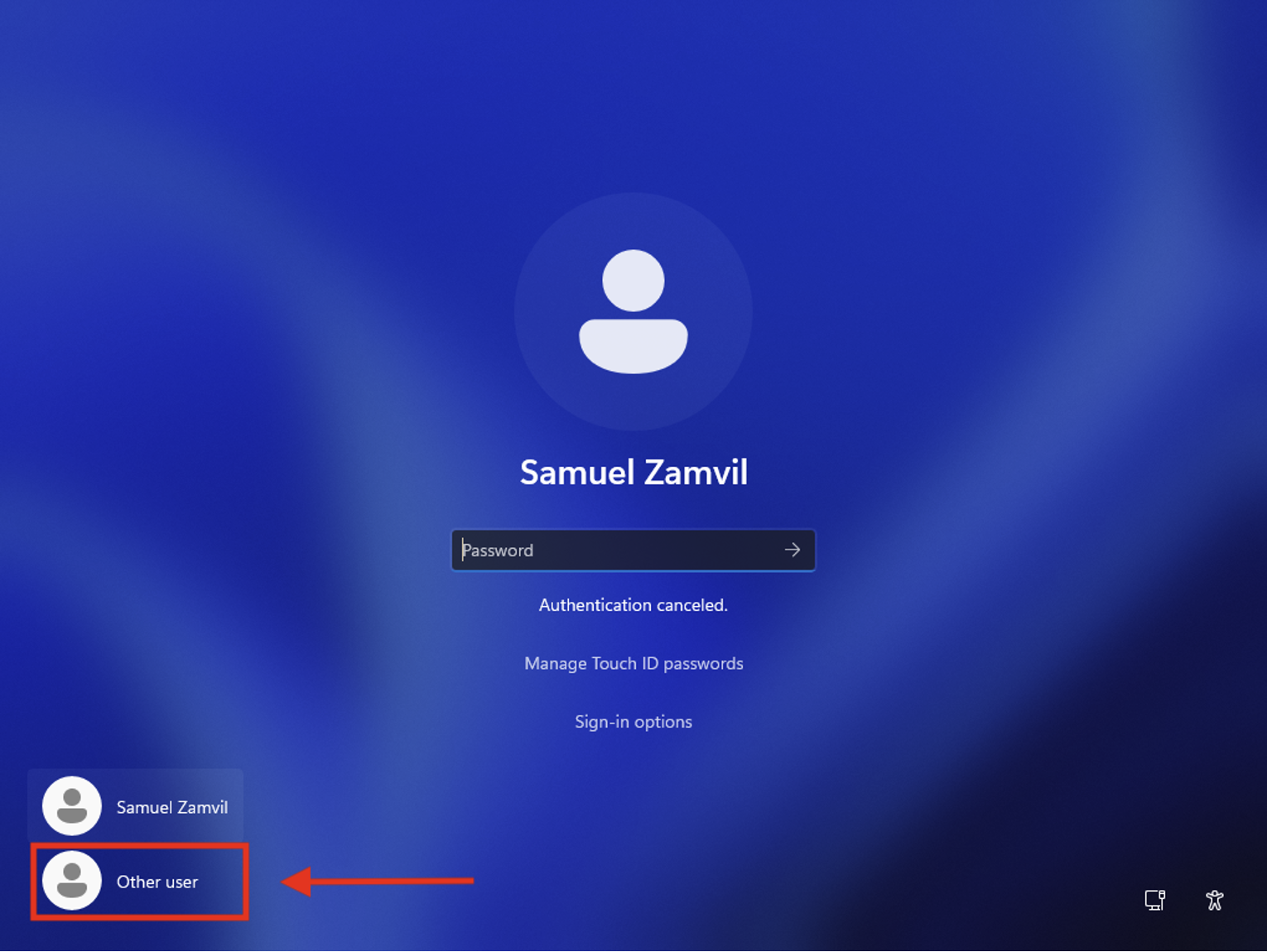
- On the login screen, select Other users from the bottom left corner.
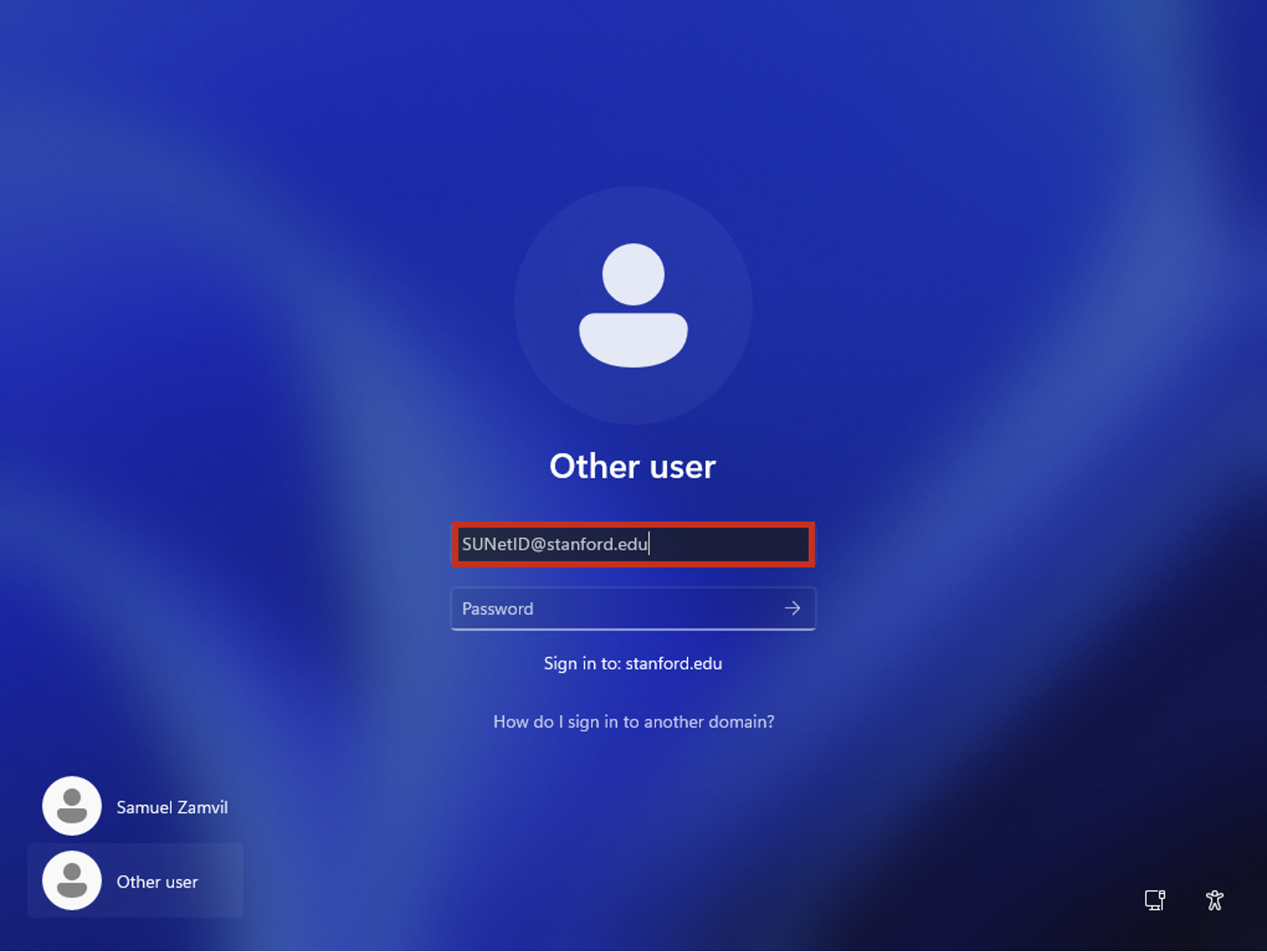
- On the new screen, login using your SUNet credentials making sure to use the @stanford.edu suffix.
- After log in, connect your device to the Stanford network by choosing one of the following options:
- On campus: Connect directly to the Stanford network.
- Off campus: Connect using Cisco Secure Client VPN for Windows to su-vpn.stanford.edu
- Remain connected to the Stanford network or VPN for at least one hour. You must stay connected so your device can receive the necessary enrollment configuration.
- Once you have stayed connected for at least one hour, restart your computer to complete the enrollment process.
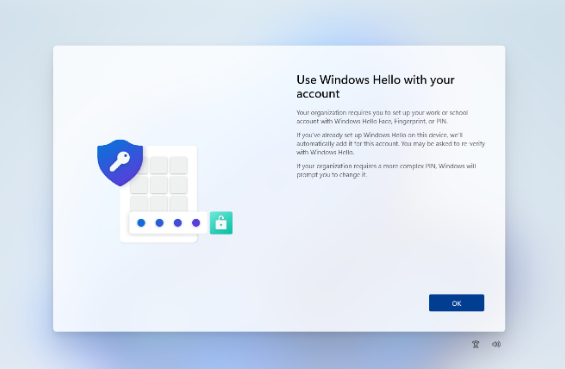
- On your next login, you may be prompted to set up Windows Hello. This step is optional and appears only on some devices. If you are prompted, follow the on-screen prompts to create your PIN (and set to fingerprint or facial recognition, if your device supports it.) Follow the on-screen prompts to complete this setup.
If you set up Windows Hello
If you set up Windows Hello, complete these additional steps.
- Log off from your current session, or restart your computer.
- At the login screen, connect to the Stanford network before signing in:
- On campus: Confirm you are connected to the Stanford network.
- Off campus: Connect to the Cisco Secure Client VPN for Windows (su-vpn.stanford.edu) using the VPN option available on the login screen.
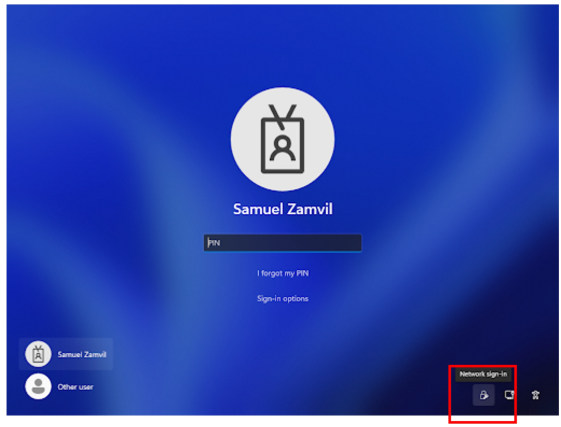
- Once connected, sign in with your new Windows Hello PIN or biometric.
Important: If you set up Windows Hello and then sign in while not connected to the Stanford network (on campus or via VPN), you may see a "Your credentials could not be verified" error. If this happens, follow the How to Resolve "Your Credentials Could Not Be Verified" Error guide to get signed in.
What's next
Wait at least one hour after completing enrollment, then verify your device's registration on the company portal web site.
See also
- How to Verify Windows/Android/Linux Device Setup on the Company Portal Website
- How to Check and Remediate Device Compliance on Windows
- How to Configure Firefox for Device Compliance for macOS and Window
Need more help?
- For answers to common questions, review the FAQs.
- For additional assistance, contact SoM Entra ID / Intune support using any of the options listed below:
- SoM TDS Service Desk: Call (650) 725-8000 (option 7), available 6:00 a.m. - 10:00 p.m., 7 days a week. Hours have been expanded to handle increased demand.
- SoM Tech Bar: Schedule an appointment at the location nearest you.
