 University IT
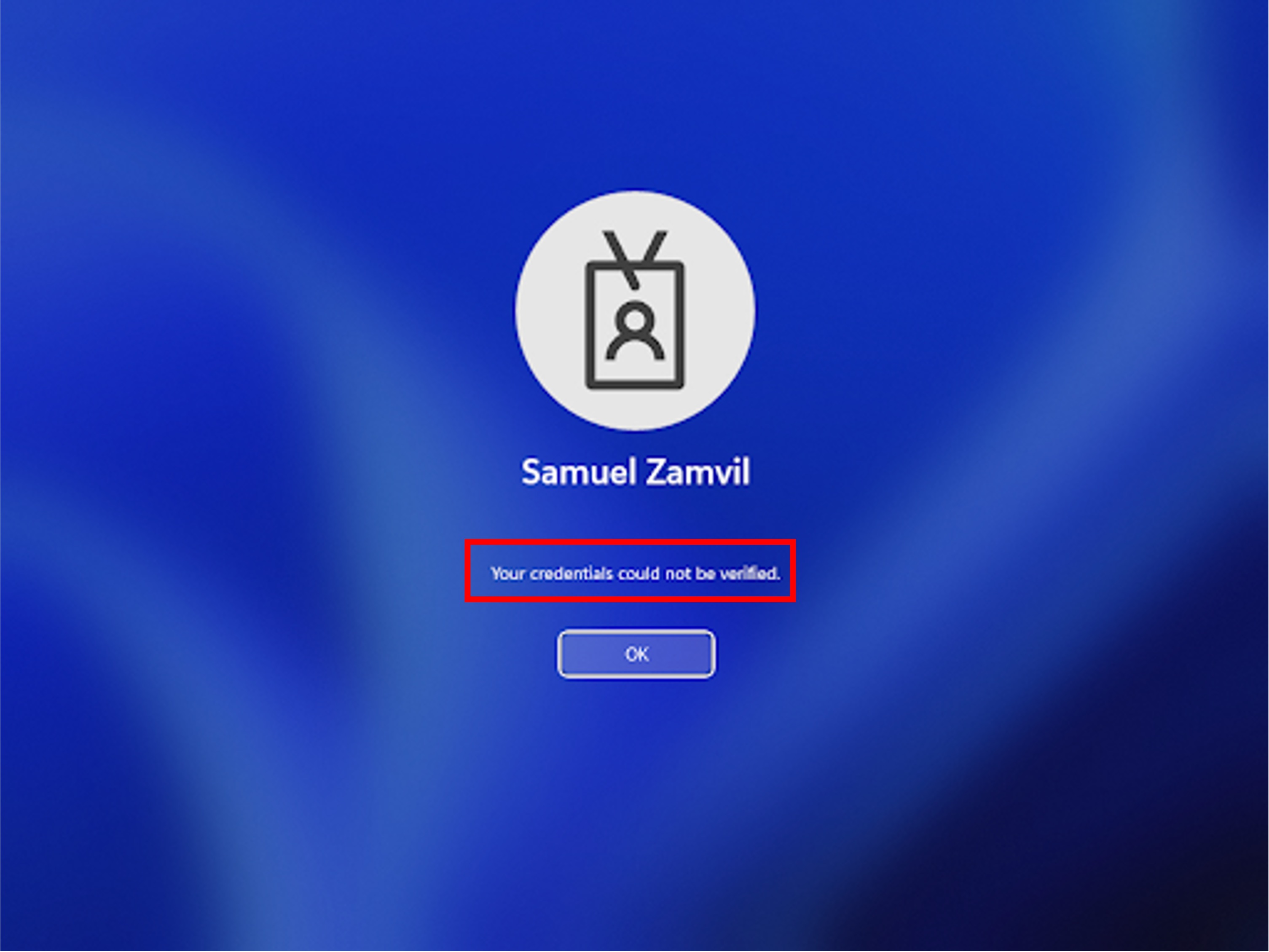
How to Resolve "Your Credentials Could Not Be Verified" Error
These instructions are for the School of Medicine.
You can resolve the "Your credentials could not be verified" Windows sign-in error by connecting directly to a campus network or following the temporary workaround steps or permanent resolution steps below.
How to resolve the issue temporarily
To apply a temporary workaround:
- On the login screen, select Sign-in options.
Click the key icon to select password authentication.
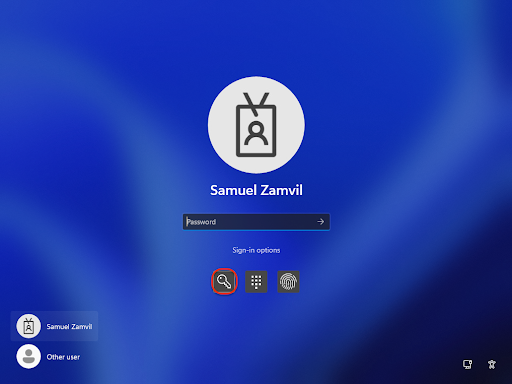
- Sign in using your SUNet password.
How to resolve the issue permanently
To apply a permanent resolution:
- Install Stanford VPN (if not already installed).
- Sign out of your user account.
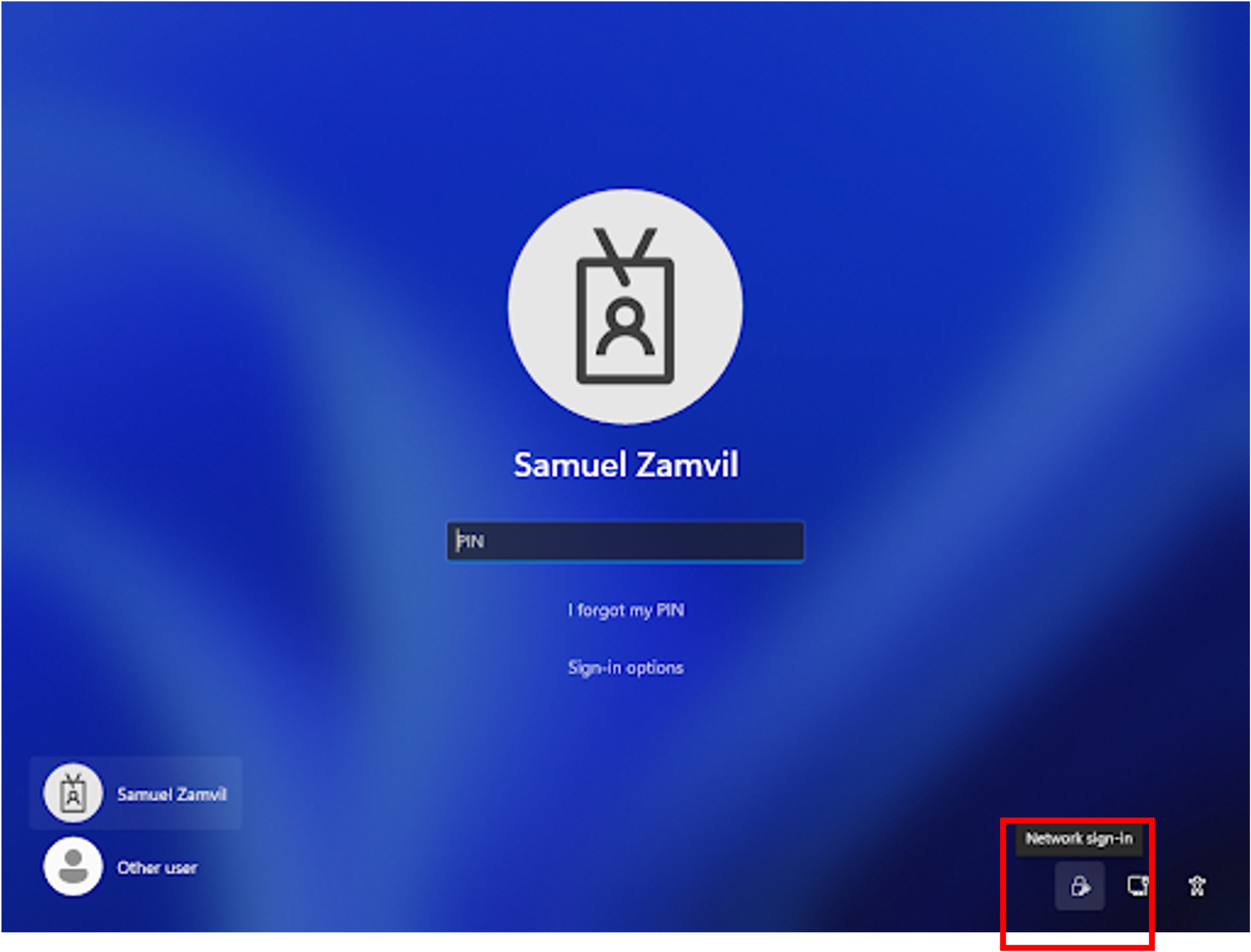
- Complete biometrics (if prompted), then select Sign-in options. In the lower-right corner of the screen, click the key icon that displays Network sign-in when you hover over it.
Click Connect in the Cisco Secure Client window that opens. If su-vpn.stanford.edu is not pre-filled, enter that URL before clicking Connect.
(Note: You may see an error indicating the authentication type is not supported. This is expected behavior and can be safely ignored by clicking OK.)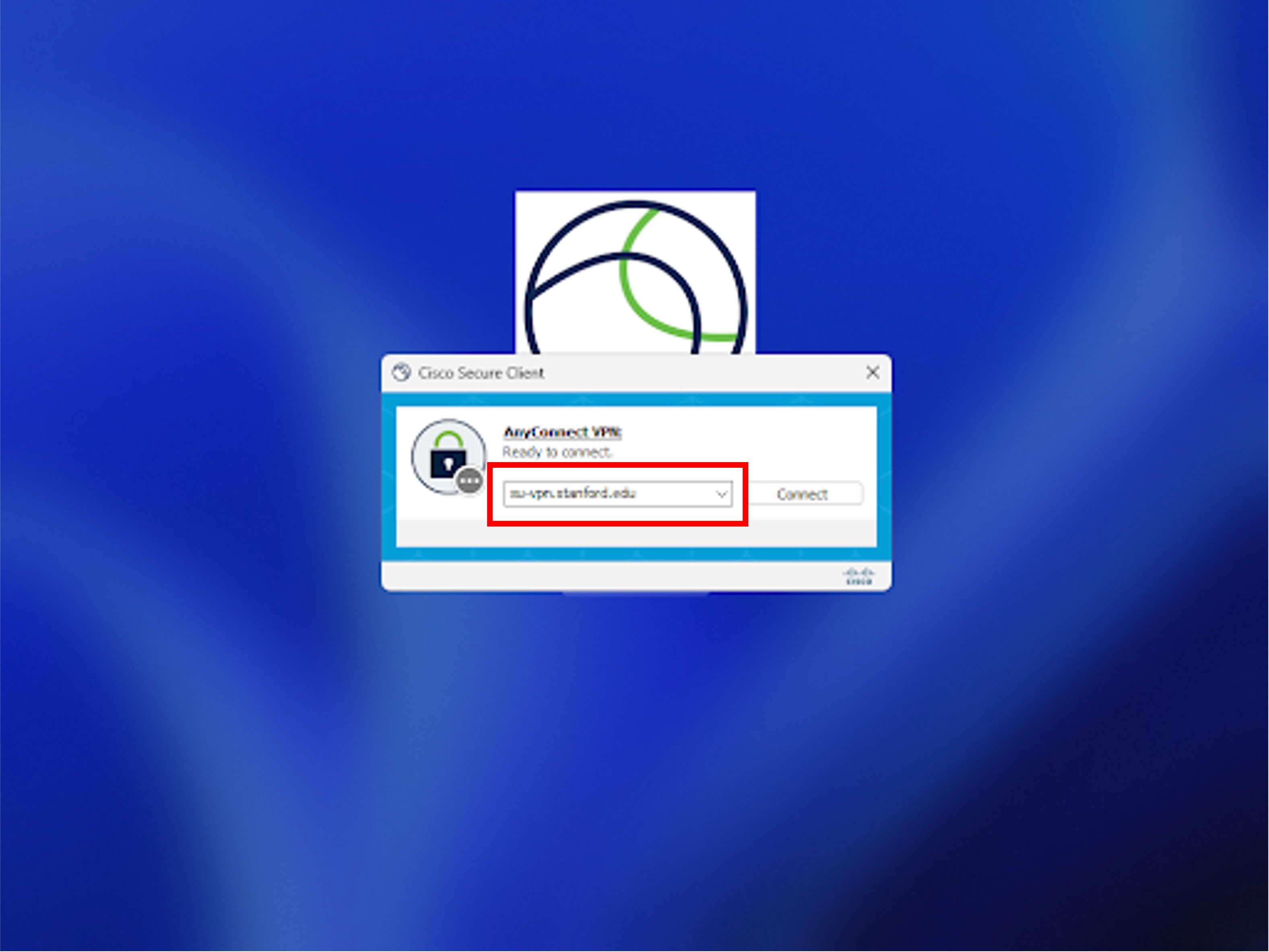
- Choose Stanford or Stanford-Full as the VPN group from the dropdown menu (if not already selected).
- Sign in to VPN using your SUNet credentials.
- Once connected to VPN, sign in to Windows using your biometric or PIN credentials. Important Note: Signing in with your username and password will not resolve the "Could not be verified" error. You must use biometric or PIN authentication after connecting to VPN.
Need Help?
If you encounter any issues during this process, please submit a Help Request to Stanford UIT.
