 University IT
How to Set Up Your Microsoft Login with Authenticator (iOS)
These instructions are for the School of Medicine community.
What is Microsoft Authenticator?
The Microsoft Authenticator app lets you sign in to your Stanford Microsoft account by approving a request on your phone — no password needed. Learn more about this new login experience.
Before you begin: Set aside time to complete
You'll need:
- Your laptop or computer
- Your iOS or Android device
- 15 minutes to finish the setup
Tips and reminders
- Internet connection: Ensure your phone has WiFi or cellular data.
- Keep both devices handy: You'll switch between your computer and smartphone during setup.
Ready to get started?
Click each step to view instructions. Icons show whether you'll complete that step on your mobile phone or computer.
Finish all 4 steps to complete your login setup with Authenticator
Allow up to 24 hours after completing setup for the new login method with Authenticator to appear.
Step 1: Install the "Microsoft Authenticator" app on your iPhone.
Download and install the Microsoft Authenticator app on your phone. The mobile app is free.
- On your Apple iOS device, install from the App Store: Get Microsoft Authenticator
- If your phone already has the Self Service app installed (Stanford-managed devices), you can install from there instead: selfserviceios://appInstall?apps=com.microsoft.azureauthenticator
Step 2: On your computer, add the Authenticator app as a new sign-in method.
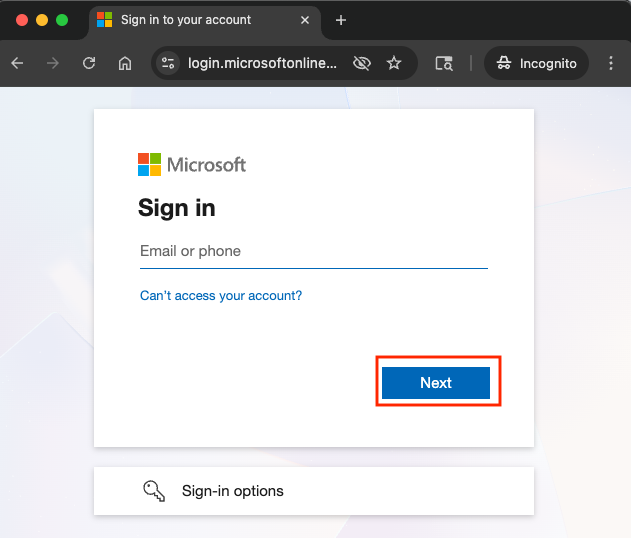
- Open a new incognito window or private browser session and go to: https://mysignins.microsoft.com/security-info.
(Why incognito? This allows Authenticator to work with Cardinal Key.) - Sign in with your university email in the format: <your sunetid>@stanford.edu and select Next. You'll be prompted through the familiar Stanford login (Shibboleth).
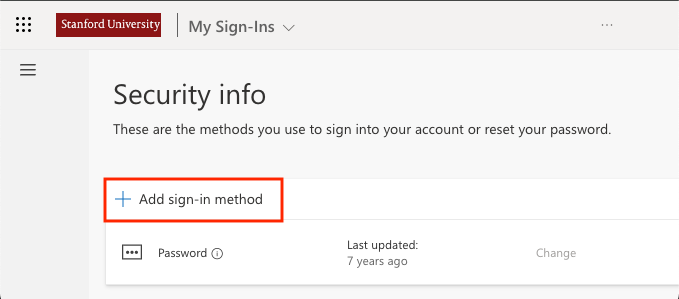
- On the "Security info" tab, select +Add sign-in method.
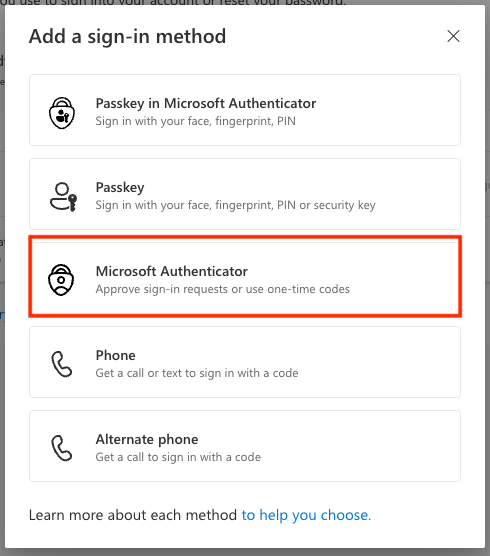
- Under "Add a sign-in method," select Microsoft Authenticator from the drop down.
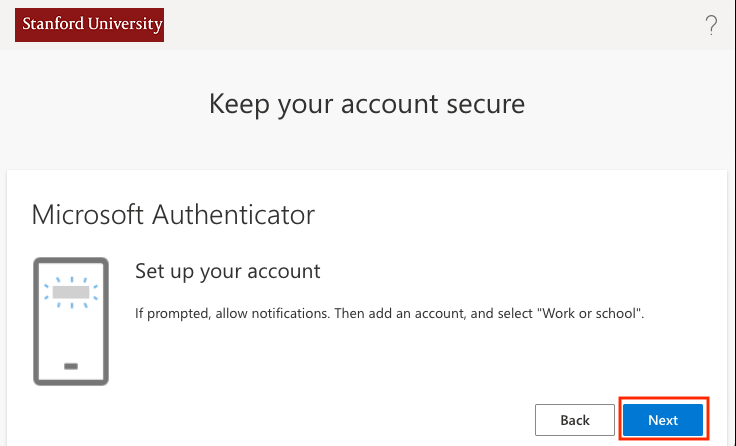
- Click Next, then proceed through the prompts until a QR code is displayed.
- Keep this window open! A unique QR code will be generated for you. You'll scan it with your phone in the next step.
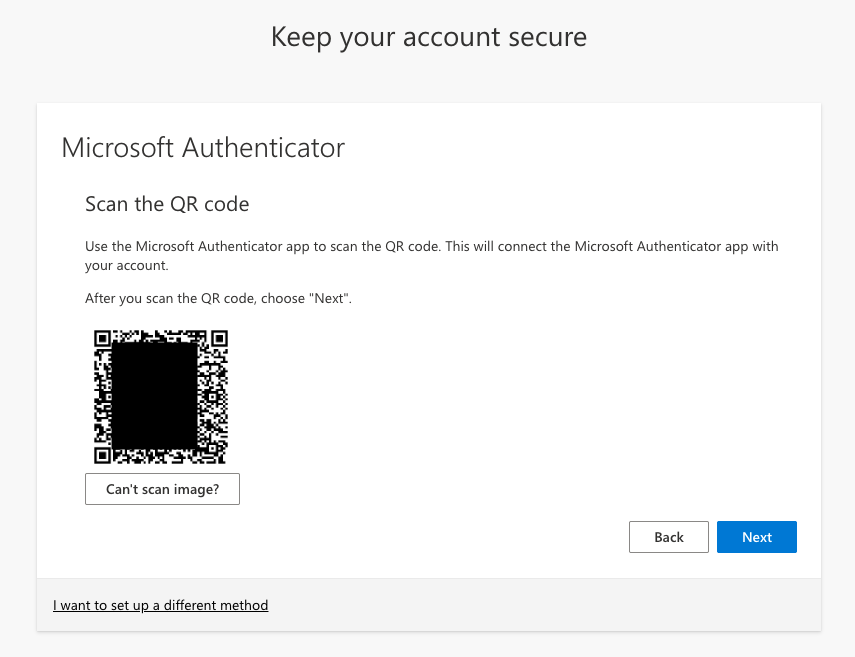
- Now it's time to switch to your phone.
- Open a new incognito window or private browser session and go to: https://mysignins.microsoft.com/security-info.
Step 3: Scan the QR code to add your Stanford account to Authenticator.
- Unlock your phone and open the Microsoft Authenticator app.
If prompted, allow notifications (required for passwordless sign-in). Tap + in the upper right to add an account.
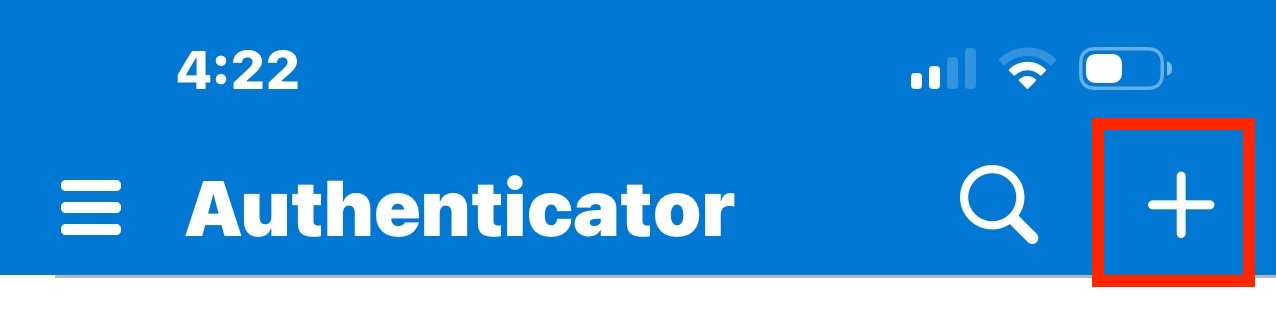
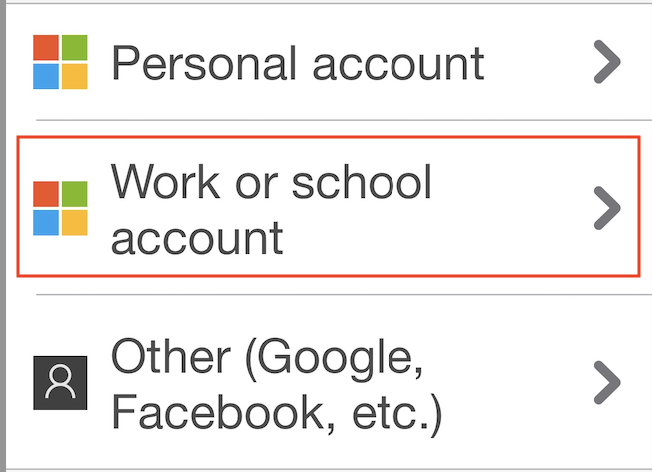
- Select Work or school account.
- Select Scan QR code.
If prompted, allow camera access so the Authenticator app can scan the QR code.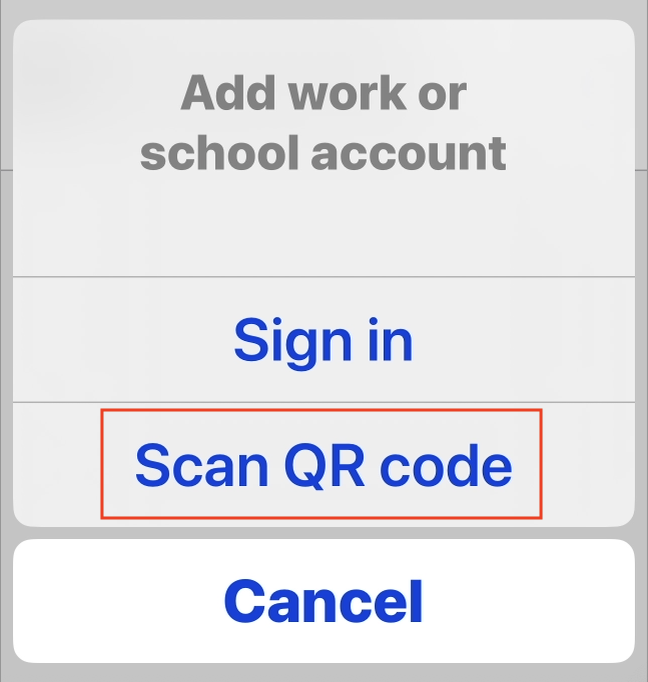
Point your iPhone camera to the QR code on your computer screen. The app will automatically detect it and add your account to Microsoft Authenticator.
TIP: QR code won't scan? Increase your computer screen brightness or clean your phone's camera lens. Still not working? Click "Can't scan image?" on your computer and enter the code manually.On your computer, you'll see a number displayed (example: 73).
Enter this number on the Authenticator app on your phone when prompted.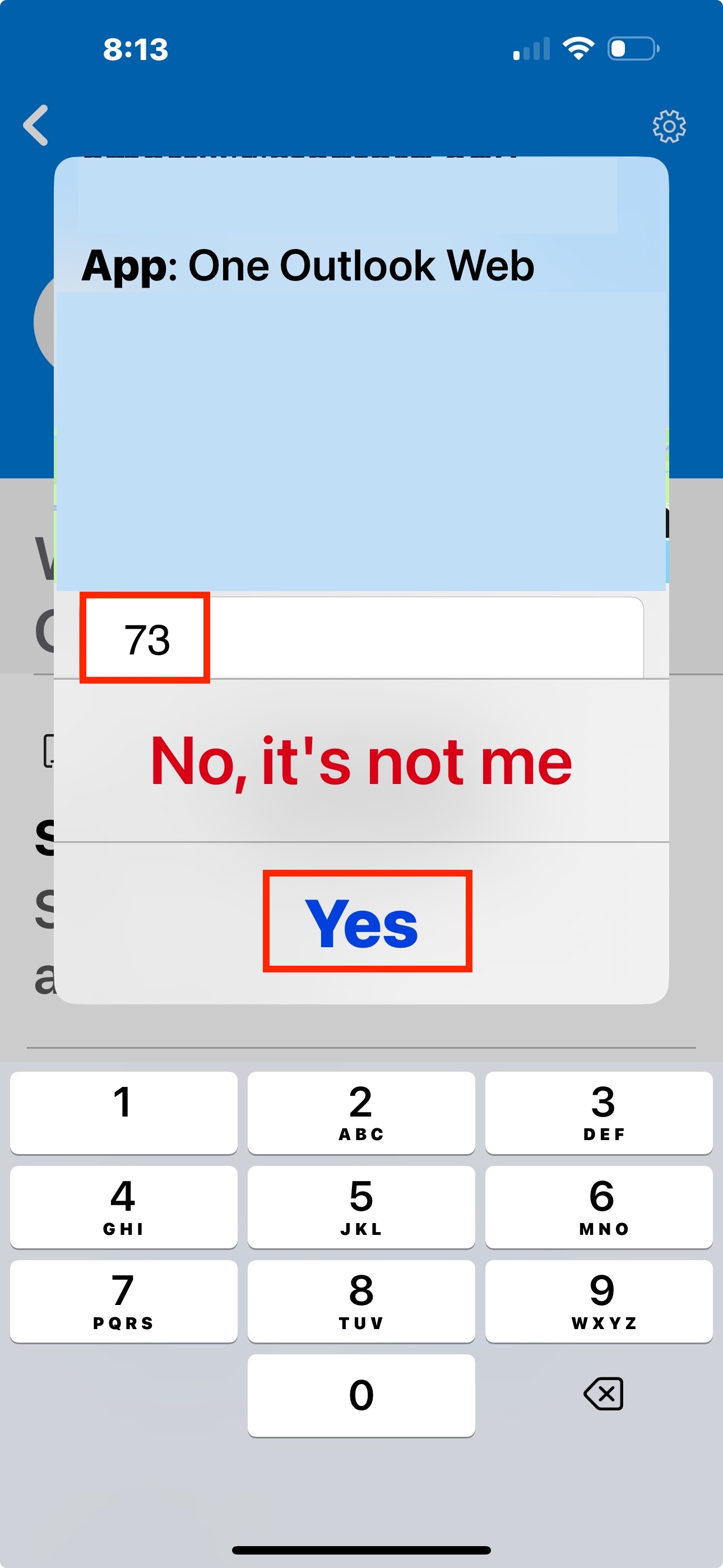 TIP: Don't stop here! Your account is added but you must keep going to register your phone as a trusted device and enable your passwordless login. Setup isn't complete until you finish Step 4.
- Unlock your phone and open the Microsoft Authenticator app.
Step 4: Enable passwordless sign-in within the Authenticator app.
- If not already open, open the Microsoft Authenticator app on your iPhone.
- Tap your Stanford University account (sunetid@stanford.edu).
Tap Set up passwordless sign-in requests.
TIP: Don't see this option? It only displays if your Stanford account is added to Authenticator with sign-in notifications enabled. To verify, check that "Sign-in notifications" appears under "WAYS TO SIGN IN" on the account screen. If it's missing, try re-adding your account.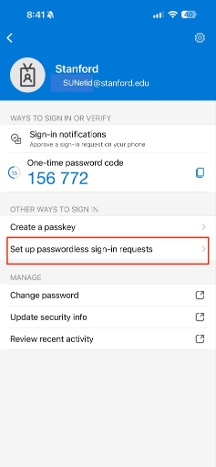
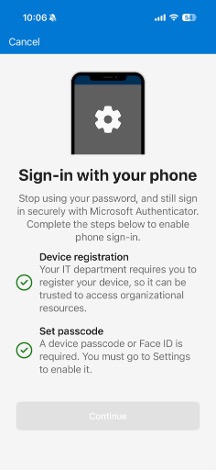
Select Continue. This will begin the registration process.
TIP: If "Set passcode" shows a hollow icon rather than a green checkmark, your iPhone does not have a passcode or Face ID set up. Go to Settings> Face ID & Passcode to set one up. When done, return to Authenticator and tap Continue.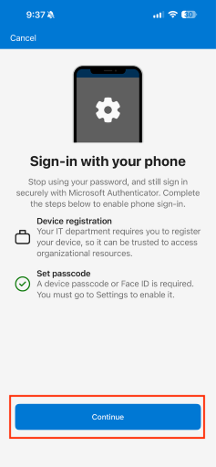
Follow the on-screen instructions to register your device.
TIP: Registering your device is not the same as device management. Stanford cannot view your personal data, install or remove app, track your location, or wipe your device. Registration only confirms the device belongs to you so sign-in requests can be sent to it securely.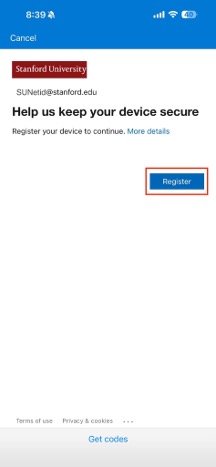
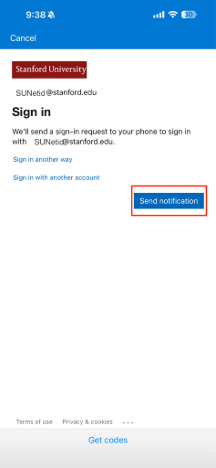
- Authenticator will ask you to verify your identity to complete registration. Tap Send notification - this sends a request to your phone. Approve it in the Authenticator app when it arrives.
- When both "Device registration" and "Set passcode" show a green checkmark, setup is complete. This typically takes under two minutes. Authenticator will return you to your account screen automatically. If the screen does not advance on its own, tap Continue.
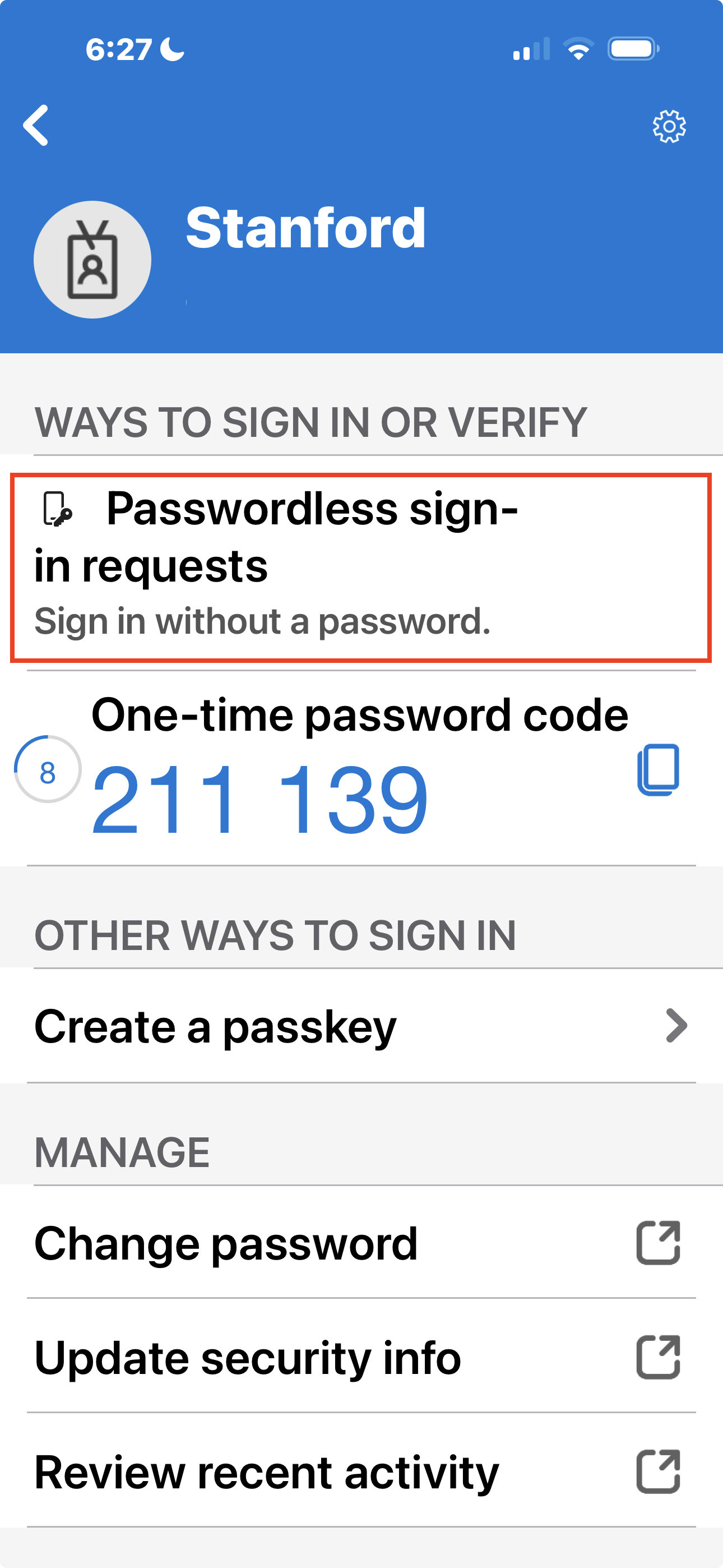
- Once registration completes and Microsoft Authenticator returns you to the account screen, you'll now see "Passwordless sign in requests" listed under ways to sign in.
- Our system will update within 24 hours. You'll know you've successfully completed the process when you sign in to your Stanford Microsoft account on a browser or app, and instead of entering a password you'll receive a notification on your iPhone. Open Authenticator, review the sign-in details, and tap Approve.
What happens next?
Once you sign into your Stanford Microsoft account using the new login process, you'll be ready to connect all the devices you use to check email (and access other university Microsoft services) to Microsoft Intune. If you check email with both your laptop and phone, be sure to connect both devices in Intune.
Wait 24 hours before connecting your devices to Intune, unless you are prompted to start sooner.
If you don't see the new login process appear 24 hours after completing setup, contact your local IT support.
Troubleshooting Tips
Didn't get the notification? Check that your phone is connected to Wi-Fi or cellular data. Also, ensure you have allowed notifications for the Microsoft Authenticator app in your phone's settings.
Not receiving prompts when signing in? Confirm that Authenticator has notification permissions on your iPhone: go to Settings > Notifications > Authenticator and make sure Allow Notifications is on. Also check that you're signing in from a browser or app that supports modern authentication — older apps using basic authentication won't trigger a phone prompt.
Need more help? Check out our Troubleshooting FAQs.
More options
The Microsoft Authenticator app supports both passkeys and YubiKeys. After you complete the steps to set up passwordless login with the app, you can choose to setup either option based on your security and convenience needs.
Get help
For additional assistance, contact SoM Entra ID / Intune support using any of the options listed below:
- SoM TDS Service Desk: Call (650) 725-8000 (option 7), available 6:00 a.m. - 10:00 p.m., 7 days a week. Hours have been expanded to handle increased demand.
- SoM Tech Bar: Schedule an appointment at the location nearest you.
