 University IT
How to Create Your Apple Passkey
These instructions are for the School of Medicine community.
Setting up a passkey from your Mac and syncing it to iCloud will allow you to use Touch ID or Face ID or system password on your macOS and iOS devices to complete the Microsoft login process. This document will walk you through how to set up a passkey from a Mac. Once established it will sync to iCloud and you can use it from any other Mac or iPhone that syncs to the same iCloud account.
This guide covers setup from a Mac. iCloud is the documented path, but any major password manager will also work. For setup with a different manager, refer to that provider's documentation.
Before you start
We recommend setting up Microsoft Authenticator before adding a passkey. Authenticator works from any computer you sign in to, and having a second method means you can still access your account if this Mac is unavailable.
Requirements
- A Mac running macOS Sonoma (14.0) or later - check your version
- Apple ID signed into iCloud with Password sync enabled - check and enable iCloud
- Safari browser, or Chome, Edge, Firefox, or Opra with the Apple Passwords extension installed - get Passwords extensions
How to create your Apple Passkey
- Open the Safari web browser and go to https://mysignins.microsoft.com/security-info. Sign in to your Microsoft account if prompted.
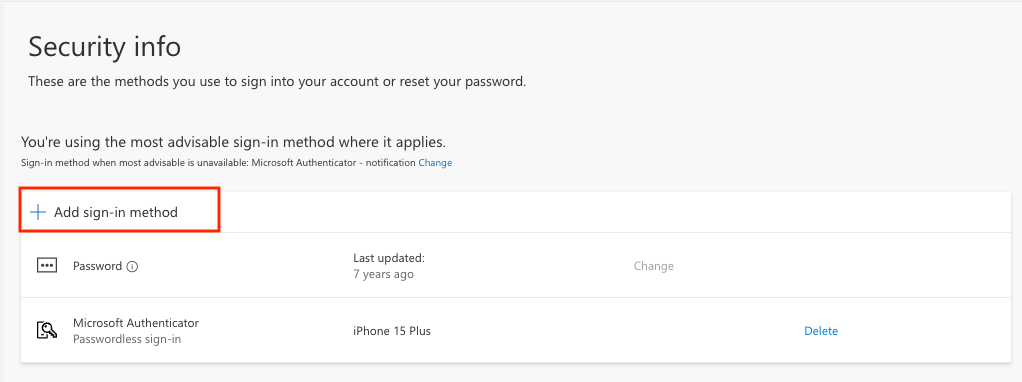
Note: Safari works natively. For Chrome, Edge, or Firefox, the Apple passwords extension must be installed before you begin. - Click Add Sign-In Method.
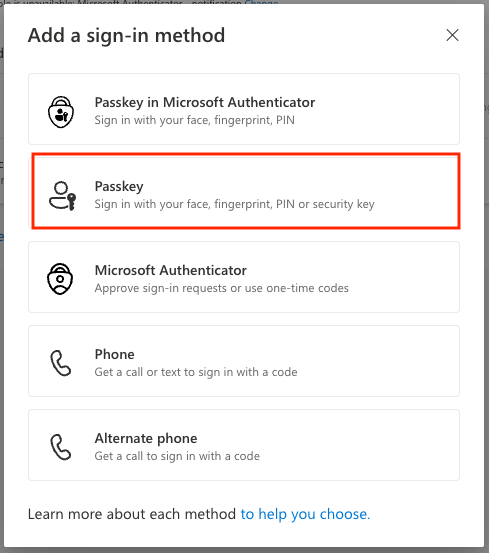
- Select Passkey from the choices presented.
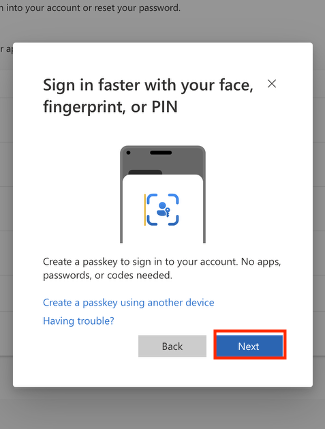
- When the information screen is displayed, click Next.
- On the following screen, click Next again.
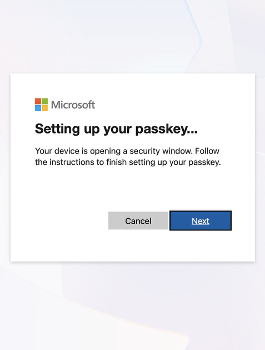
- When prompted for where to save the passkey, select Save in Passwords and verify your identity when prompted. This may be Touch ID, your Mac login password, or another credential depending on your device setup.
Note: These steps save your passkey to iCloud. Other password managers may also be available. If you choose a different manager, refer to that provider's documentation for the remaining steps.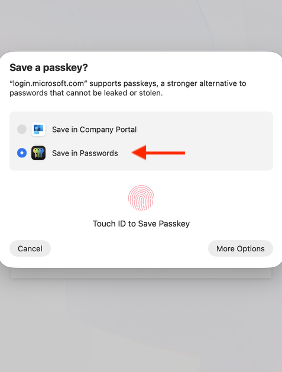
- When prompted, enter a name for the passkey.
Example: <yoursunetid>iCloud Passkey.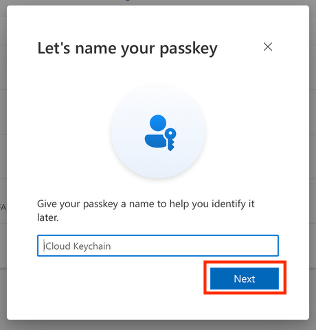
- Upon completion of these steps, the passkey has been created.
Log in with your passkey
- When prompted to sign in, you may be taken directly to the passkey screen. If not, select Other ways to sign in and then choose Face, fingerprint, PIN, or security key.
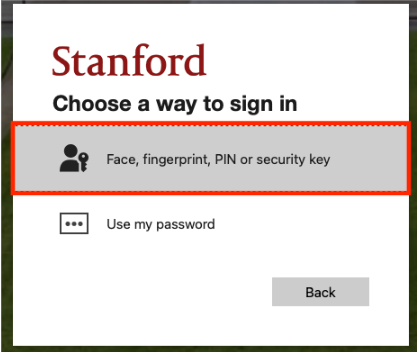
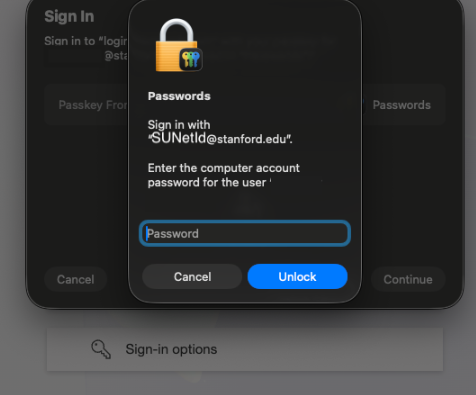
- When prompted, verify your identity. On a Mac with Touch ID, tap the Touch ID button. If Touch ID is not available, your Mac will prompt you for your Mac login password or PIN.
Touch ID workflow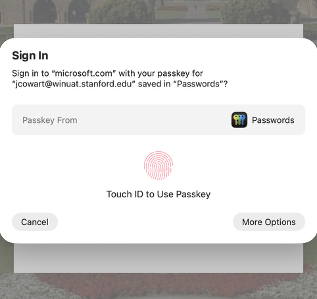
Non Touch ID workflow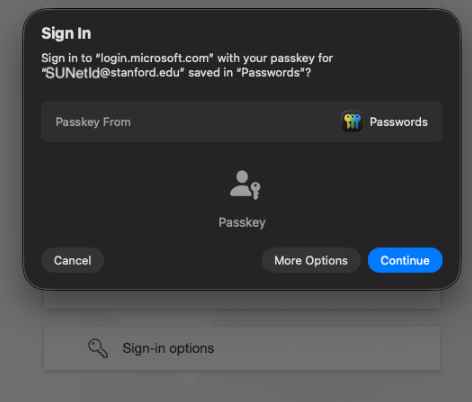
What happens next?
Once you sign into your Stanford Microsoft account using the new login process, you'll be ready to connect all the devices you use to check email and access other university Microsoft services to Microsoft Intune. (If you check email with both your laptop and your phone, be sure to connect both devices)
Please wait at least 24 hours before connecting your devices to Intune. If you are prompted to start sooner, you may proceed.
If you don't see the new login process appear 24 hours after completing set up, contact SoM Entra ID / Intune support using any of the options listed below:
- SoM TDS Service Desk: Call (650) 725-8000 (option 7), available 6:00 a.m. - 10:00 p.m., 7 days a week. Hours have been expanded to handle increased demand.
- SoM Tech Bar: Schedule an appointment at the location nearest you.
