 University IT
How to Verify Device Setup on the Company Portal Website
These instructions are for the School of Medicine community.
To access Stanford's Microsoft resources (like Outlook, OneDrive, and Teams), your device must be compliant with university security requirements.
You can confirm your device's status on the Microsoft's Company Portal website. Depending on your device type, it will either be enrolled in Intune (Windows, Android, or Linux) or registered in Intune (macOS, iOS, and iPadOS).
Enrolled vs.registered
Use the chart below to confirm the requirement for your device type. For a full explanation, see the Stanford Intune Device Management guide.
| Device type | Enroll in Intune | Register in Intune |
|---|---|---|
| Windows | Enroll in Intune | |
| Android | Enroll in Intune | |
| Linux | Enroll in Intune | |
| iOS/iPadOS | Register in Intune | |
| macOS | Register in Intune |
Your device must be set up in Intune
Your device will only appear on the company portal website after you have successfully completed the one-time Intune setup process for the device you want to add. If you haven't already done this, follow the directions below for your device type.
- Enroll your Windows, Android, or Linux device.
- Register your macOS or iOS/iPadOS device.
Verify Intune enrollment
Follow these steps to check if your device is enrolled in Intune.
- Open your preferred web browser on any device with internet access. (You do not need to use the device you are verifying.)
- Navigate to the Microsoft Company Portal website at https://portal.manage.microsoft.com/devices.
- Sign in using your <sunetid@stanford.edu> account.
- Locate your device in the device list. Devices are displayed by their assigned device name. If you are unsure of your device name, you can find it in your device's system settings:
- Windows: Settings > System > About
- Android: Settings > About Phone or About Device
- Linux: Settings > Details or Settings > About
- Select your device from the list to view its details.
- Verify that the management information displays correctly based on your device platform:
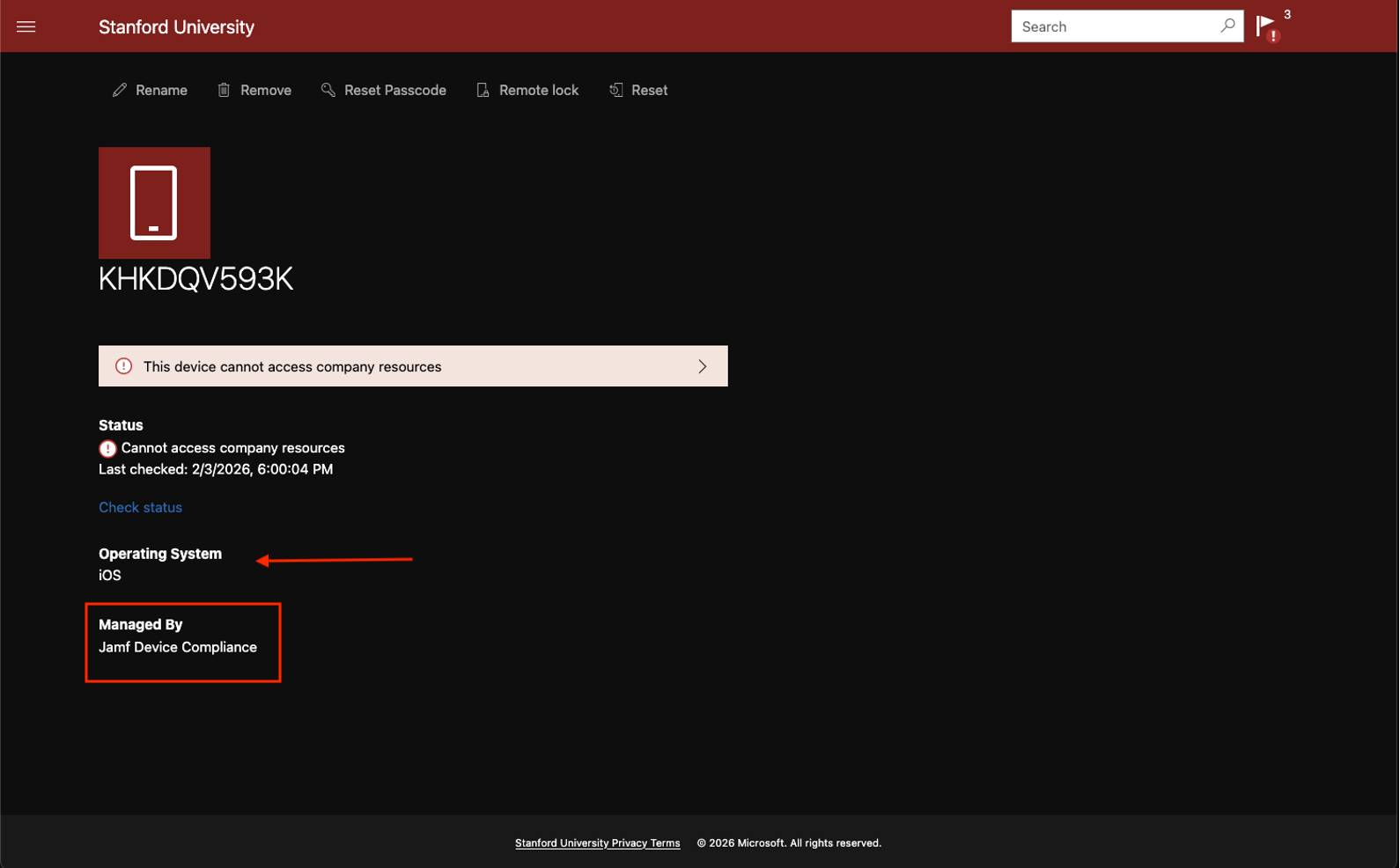
- macOS and iOS/iPadOS: The device details should display "Managed by Jamf Device Compliance" indicating successful integration with Jamf Pro.
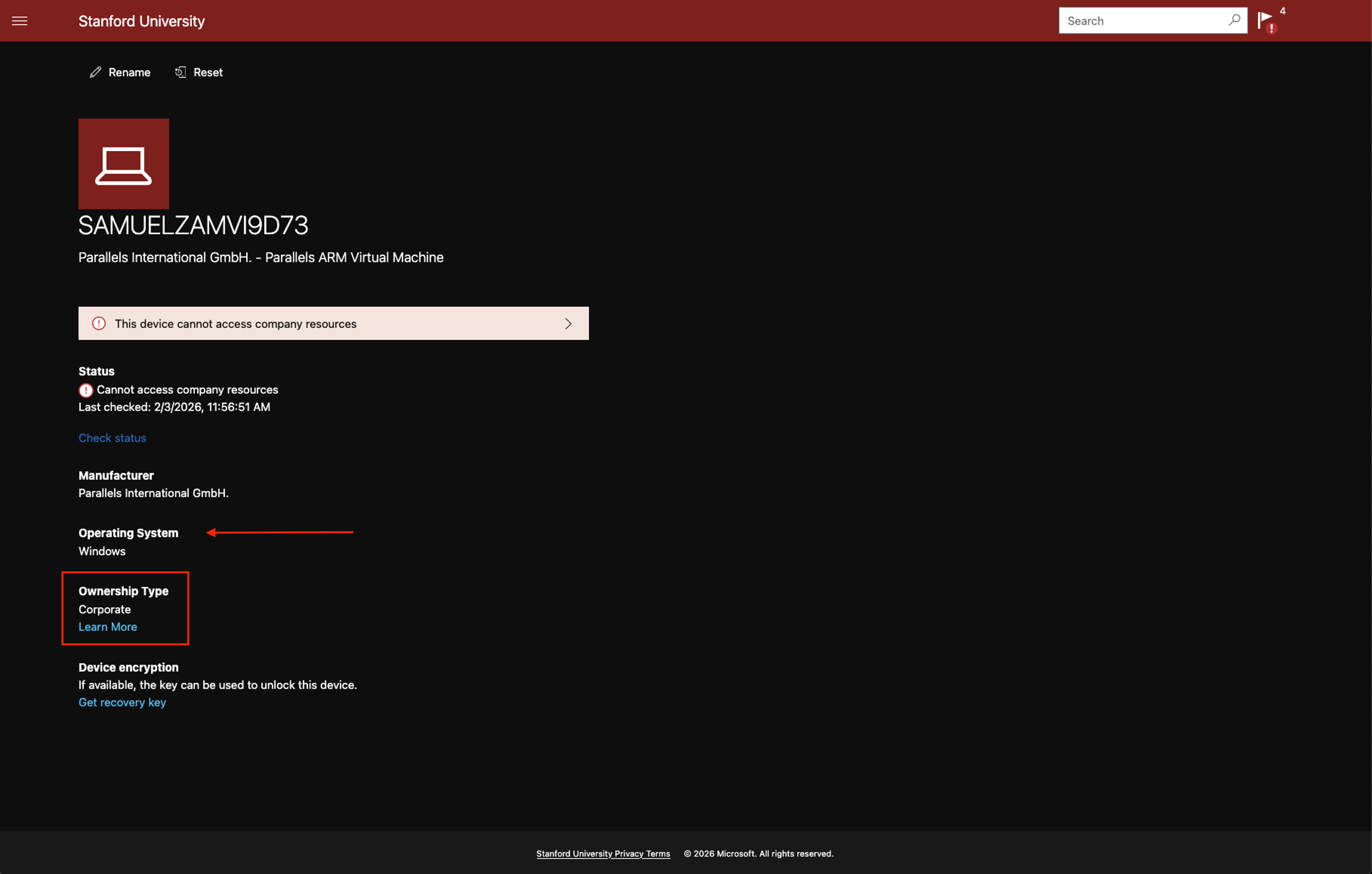
- Windows, Android, Linux: The device details should display an "Ownership Type" field. These platforms will not show a "Managed by" designation.
- macOS and iOS/iPadOS: The device details should display "Managed by Jamf Device Compliance" indicating successful integration with Jamf Pro.
Check Compliance
For Windows and Linux
- While you can use the 'Check status' button on the Company Portal website, this method can be inconsistent and may not accurately trigger a reassessment of your device.
- To ensure your status is updated correctly, please use the Company Portal app:
For macOS and iOS
- Detailed compliance information isn’t available for macOS, iOS, and iPadOS devices on the Company Portal web site.
- We recommend that you use the following resources to check that your device is compliant:
Follow these steps to verify that your device meets the university's compliance requirements.
- Follow steps 1–5 under “Verify Intune enrollment” to view the device details on the Company Portal website.
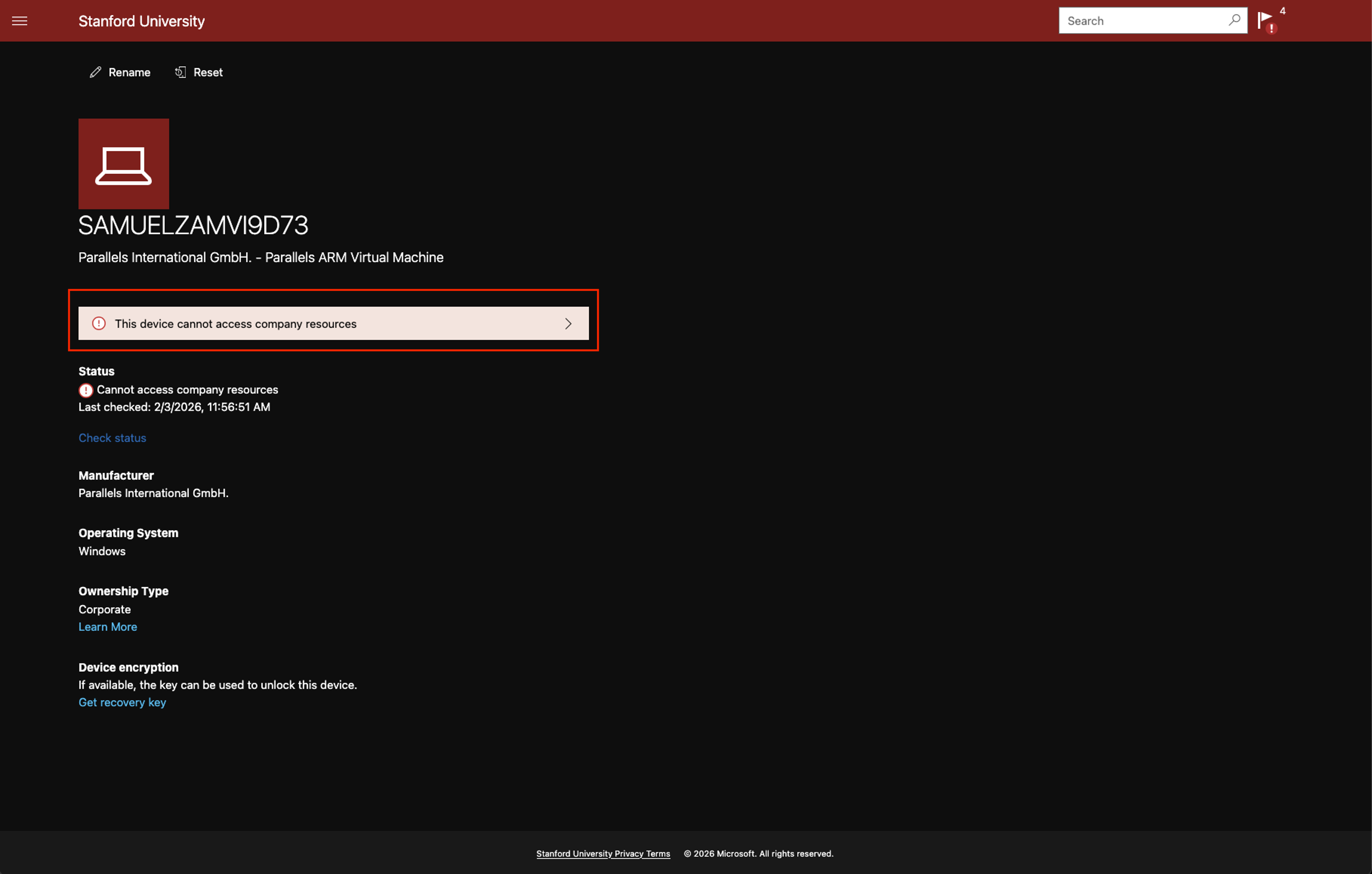
- If you see a message like “This device cannot access company resources” or “This device will soon be unable to access company resources,”click the carrot icon to the right to view the list of issues.
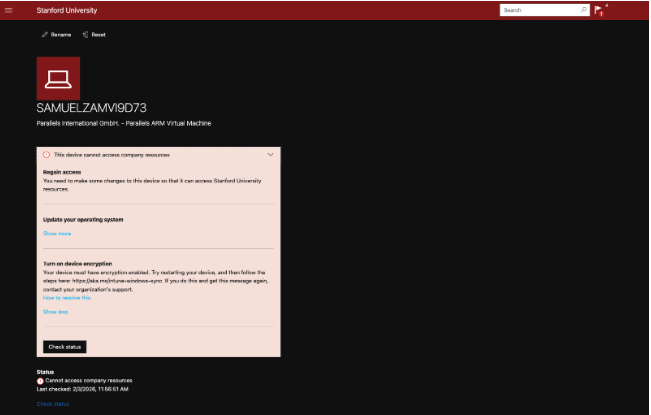
Specific compliance issues will be shown. Clicking the “Show more” option will expand the box and provide a description of the issue and recourse.
If your device doesn't appear in the Company Portal
Device records may take up to one hour to appear in the Company Portal following enrollment or registration. If the device does not appear after this time, please escalate the issue to your local IT support team.
Supported browsers
These browsers support Microsoft authentication. See also "How to Configure Firefox for Device Compliance for macOS and Windows."
| Operating Systems | Browsers |
|---|---|
| Windows 10+ | Microsoft Edge, Chrome, Firefox 91+ |
| Windows Server 2025 | Microsoft Edge, Chrome |
| Windows Server 2022 | Microsoft Edge, Chrome |
| Windows Server 2019 | Microsoft Edge, Chrome |
| iOS | Microsoft Edge, Safari |
| Android | Microsoft Edge, Chrome |
| macOS | Microsoft Edge, Chrome, Firefox 133+, Safari |
| Linux Desktop | Microsoft Edge |
See also
- How to Check and Remediate Windows Device Compliance with the Company Portal App
- How to Remediate macOS Device Compliance to Access Microsoft
- How to Remediate iOS and iPadOS Device Compliance to Access Microsoft
- How to Check and Remediate Linux Device Compliance with the Intune Portal App
Need help?
- For common issues, review the FAQs.
- For additional assistance, contact SoM Entra ID / Intune support using any of the options listed below:
- SoM TDS Service Desk: Call (650) 725-8000 (option 7), available 6:00 a.m. - 10:00 p.m., 7 days a week. Hours have been expanded to handle increased demand.
- SoM Tech Bar: Schedule an appointment at the location nearest you.
