 University IT
Transitioning to a New Login for Microsoft
Modernizing your login experience
The university is rolling out a modern, more secure login to better protect your Stanford Microsoft 365 (M365) account and the university data you work with. It will also make it easier and safer for you to collaborate with colleagues across the entire Stanford community.
When will you use it? Once you set up the new M365 login, you'll be prompted to use it whenever you sign into Stanford Microsoft services, including email if you use M365 email.
What won't change? For everything else—like Google, Zoom, Slack, and the Cisco VPN—your login will not change. You'll sign in just like you always have.
| Applications and sites transitioning to the new Stanford Microsoft authentication include: | Stanford authentication remains unchanged for non-Microsoft applications and sites, including: |
|---|---|
|
|
At a glance: Login with the Microsoft Authenticator app
To set up the new process, many of you will install the Microsoft Authenticator app on your phone. This app works alongside your Duo app, but doesn't replace it. You'll still use Duo for other (non-Microsoft) university and hospital logins.
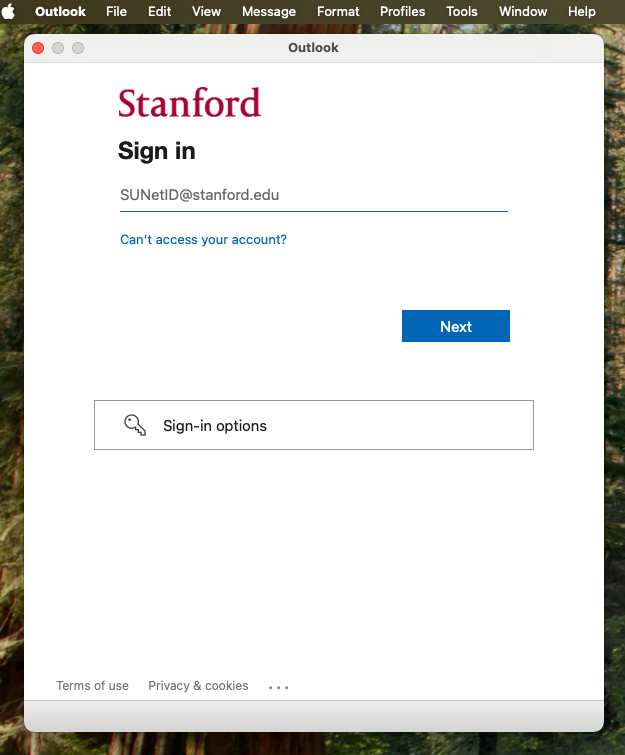
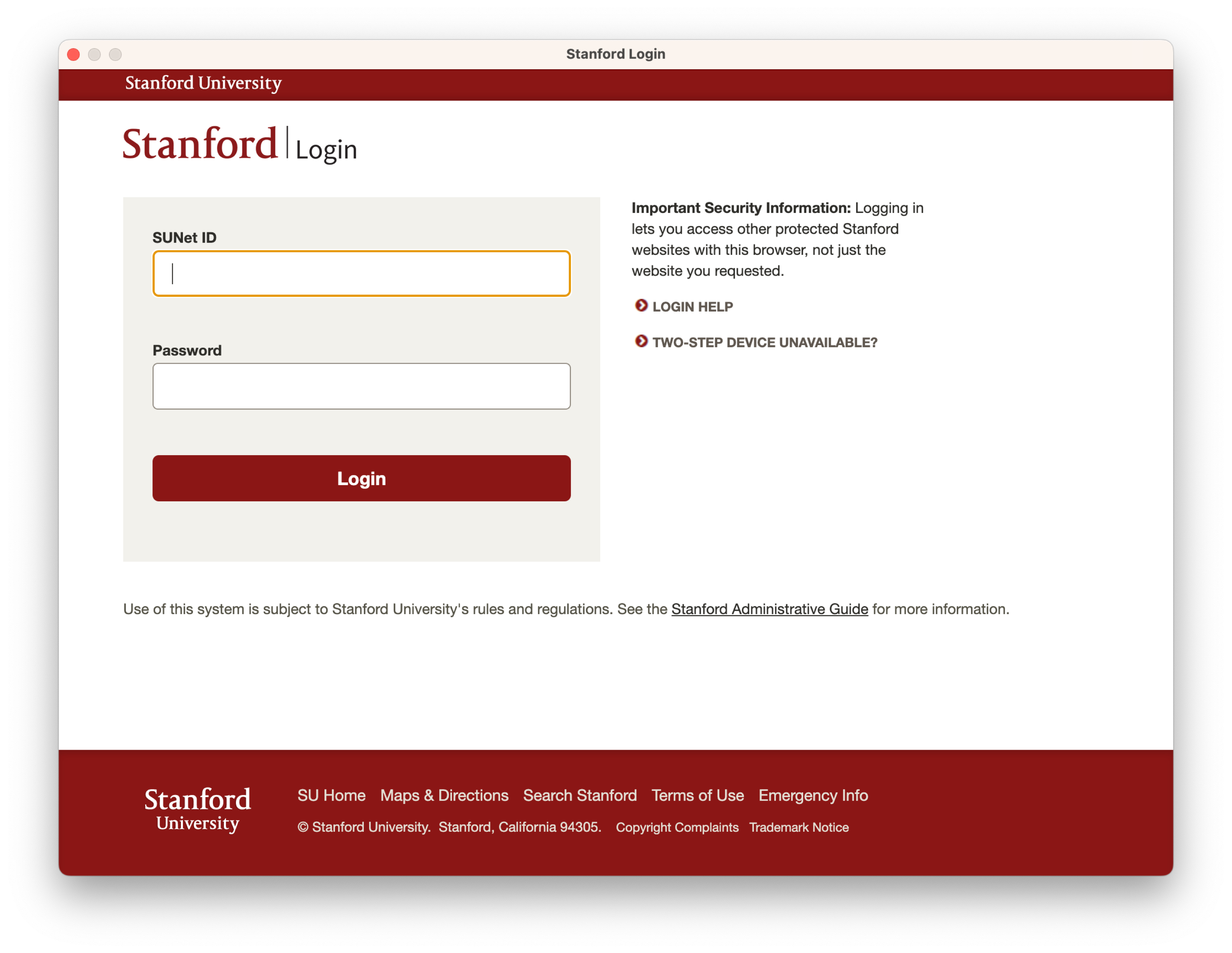
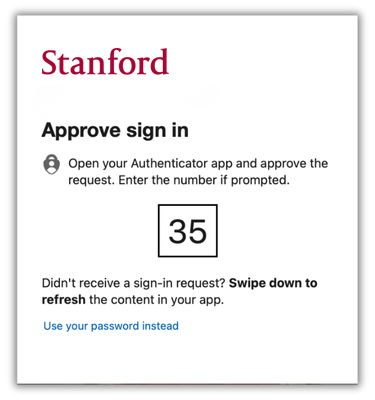
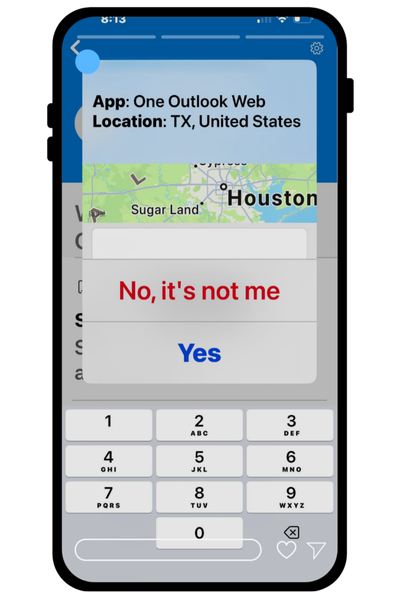
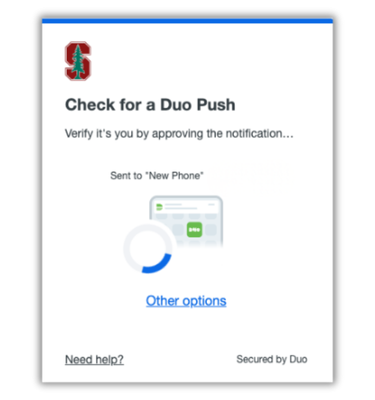
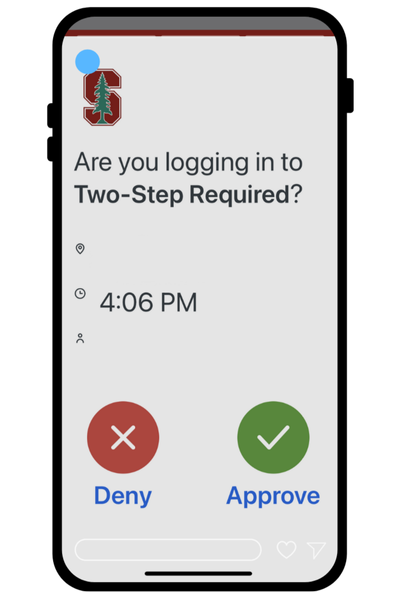
Check out the table. See how your Stanford Microsoft login experience with Authenticator compares to your login with Duo.
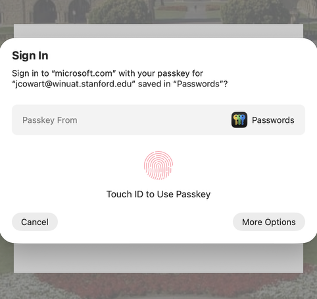
macOS users: If your device has Touch ID, you can create an Apple passkey instead of installing the Authenticator app. Visit the section below to learn more about how Apple passkeys work.
| Feature | For Stanford Microsoft apps | For other Stanford apps and web sites |
|---|---|---|
| Login screen | Stanford Microsoft login screen
| Stanford login screen
|
| Username | SUNetID@stanford.edu | SUNet ID |
| Passwordless login |  Supported by Microsoft Authenticator |  Supported by Cardinal Key |
| Two-step authentication | Using Microsoft Authenticator What you see on your computer
What you see on your mobile device
| Using Duo What you see on your computer
What you see on your mobile device
|
| Single sign-on | Log in once with the Microsoft login to access multiple Microsoft applications throughout the day | Log in once with the Stanford login to access multiple websites and applications throughout the day |
If you work on a Mac, you can add an Apple passkey that syncs to iCloud after setting up Authenticator. This lets you sign in to Microsoft using Touch ID or your Mac’s login passcode, with no need to pick up your phone.
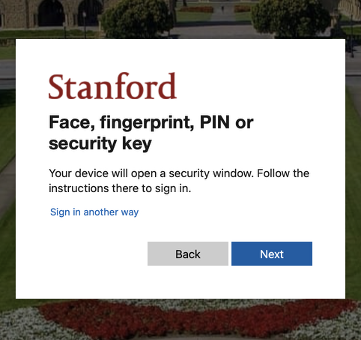
Check out the table below to see how your Stanford Microsoft login experience with an Apple passkey compares to your login with Duo.
| Feature | For Stanford Microsoft apps | For other Stanford apps and web sites |
|---|---|---|
| Login screen | Stanford Microsoft login screen
| Stanford login screen
|
| Username | SUNetID@stanford.edu | SUNet ID |
| Passwordless login |  Supported by Apple iCloud | Supported by Cardinal Key |
| Two-step authentication | Using Passkey What you see on your computer
Complete Touch ID process
| Using Duo What you see on your computer
What you see on your mobile device
|
| Single sign-on | Log in once with the Microsoft login to access multiple Microsoft applications throughout the day | Log in once with the Stanford login to access multiple websites and applications throughout the day |
Getting started is simple. Before you log in for the first time, you'll do a quick, one-time setup of the Microsoft Authenticator app on your mobile device. (If you use a Mac with Touch ID, you can set up a passkey instead of the app.)
Navigate to the School of Medicine guide to learn more about setting up your new login.
The FAQs have moved to: New Microsoft Login + Intune FAQs
If you have questions or need support, contact SoM Entra ID/Intune support using any of the options listed below:
- SoM TDS Service Desk: Call (650) 725-8000 (option 7), available 6:00 a.m. - 10:00 p.m., 7 days a week. Hours have been expanded to handle increased demand.
SoM Tech Bar: Schedule an appointment at the location nearest you.
