 University IT
How to Register an iOS/iPadOS Device in Intune
These instructions are for the School of Medicine community.
Complete a quick registration to connect your device to the new Microsoft login, giving you secure access to Stanford Microsoft apps like Outlook and Teams. You'll continue to use Jamf for mobile device management.
Step 1: Ensure your device is enrolled in Jamf
- If you currently use your iPhone or iPad for Stanford work, it is likely already enrolled.
- If your device is not enrolled, follow these Jamf enrollment instructions on the iOS or iPad device you wish to register.
Step 2: Download the Authenticator app; set up a passwordless login
Before registering your iOS or iPadOS device in Intune, you must install the Microsoft Authenticator app on your device.
- Be sure you completed Steps 1 through 4 on this guide to set up your passwordless login before proceeding.
- If you've already set up Microsoft Authenticator on your primary device (such as your iPhone), you do not need to set up passwordless sign-in on additional Apple devices like an iPad if you will not use the device for passwordless sign-in. Instead, simply download the Authenticator app (step 1 only) and follow the instructions below to register the device in Intune to meet compliance requirements.
Step 3: Register your iPhone or iPad
Please allow up to one hour for a device's compliance status to be updated after completing registration.
Wait 24 hours after you set up your new Microsoft login. Then, choose one of the following two methods to begin registration:
Option A: Direct Link (Safari users)
- On your iPhone or iPad, click this link: selfserviceios://registerdc.
- When prompted, select Open.
Option B: Self-Service App
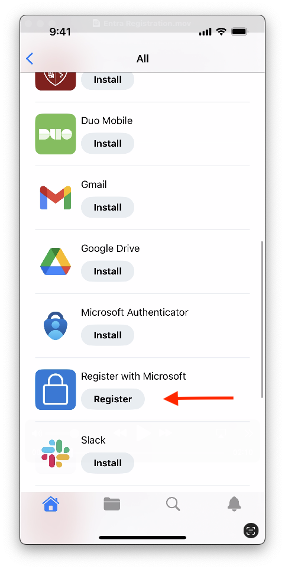
- Open the Self-Service app.
- Select All.
- From the list, select Register with Microsoft.
Authenticate and complete registration
- After initiating registration, you will be automatically redirected to the Microsoft Authenticator app.
Select your SUNetID@stanford.edu account from the list.
TIP: If this device was not used for Microsoft Authentication and your account isn't listed, click + icon in the upper right and login with your SUNetID@stanford.edu email address to continue the registration process.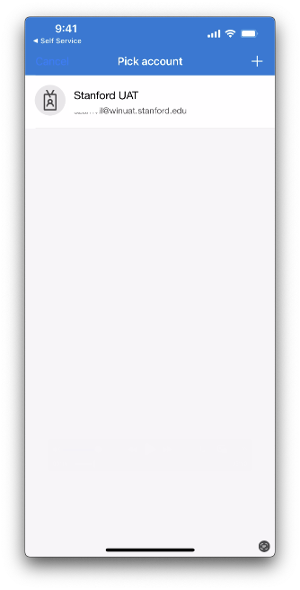
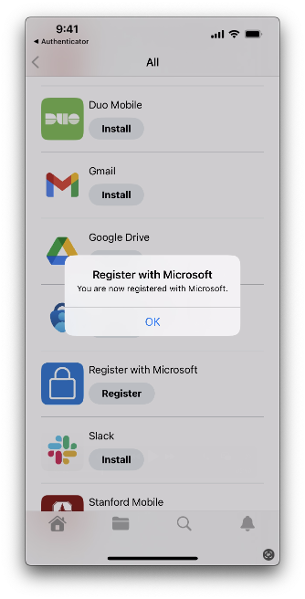
- After selecting your account, you will be redirected back to the Self Service app.
- A confirmation dialog will appear with the message: "You are now registered with Microsoft."
What's next
Wait at least one hour after completing registration, then verify your device's registration on the company portal website.
See also
Need help?
- For answers to common questions, review the FAQs.
- For additional assistance, contact SoM Entra ID / Intune support using any of the options listed below:
- SoM TDS Service Desk: Call (650) 725-8000 (option 7), available 6:00 a.m. - 10:00 p.m., 7 days a week. Hours have been expanded to handle increased demand.
- SoM Tech Bar: Schedule an appointment at the location nearest you.
Last modified
