 University IT
How to Check and Remediate Linux Device Compliance with the Intune Portal App
These instructions are for the Stanford Medicine community.
Can't access your Stanford Microsoft 365 email or other Microsoft apps on your Linux device? It may be because your device doesn't meet university compliance and security requirements.
Your device must be enrolled in Intune
This is required. To access Stanford Microsoft 365, including your Stanford email in Outlook, you must enroll your Linux device in Stanford's Intune device management system. Enrollment is the first step in ensuring your device is secure and compliant.
Not enrolled yet? Follow the instructions in to enroll a Linux device.
Intune Portal App vs Company Portal website
When you enroll in Intune, the Intune Portal app automatically installs on your device. You can use this app to check your compliance status and resolve any issues. While you can also check compliance using the Company Portal website, we recommend using the app.
Use the app (recommended)
- The Intune Portal app is device-specific and better for troubleshooting issues on your device.
- When you open the app and click Check access, it forces your device to sync and can actively solve compliance issues.
Use the website
- The Company Portal website is accessible from anywhere, but only shows your device's last reported status.
- Use the Company Portal website when you cannot physically access your device.
Check your Linux device compliance status using the app
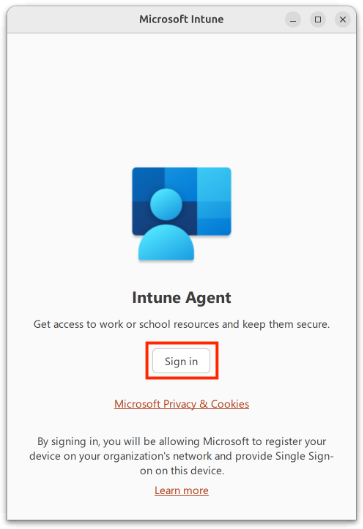
- Open the Intune Portal application on your device. This can either be done in the shell by typing intune-portal or by opening the app drawer and selecting the application.
- Select Login
- Any compliance issues will be listed on this page, including instructions on how to resolve it.
Review university compliance requirements
The Company Portal app checks your device against these criteria used to measure compliance:
- Operating system (OS) version: Device Compliance currently requires a minimum OS version for the following Operating Systems:
- Ubuntu: 22.04
- Red Hat Enterprise Linux: 8.0
- Device encryption: Your Linux device must be encrypted.
- Last report time: Your device must check in regularly with Stanford management systems to ensure that security controls are up to date.
Fix specific compliance issues
Instructions for resolving each compliance issue. will be provided within the Company Portal app. Below are important considerations and additional instructions for specific issues you may encounter.
Encryption Issues
University IT (UIT) only supports devices that have been encrypted during operating system installation. While devices can be encrypted after initial installation of the operating system, UIT will not be able to provide direct support.
For additional information, please refer to the Intune documentation: https://learn.microsoft.com/en-us/intune/intune-service/protect/compliance-policy-create-linux#device-encryption
Sync Issues (Sync your device with Intune)
If you see a syncing issue, it's most likely because your device has been offline for an extended period of time. Connecting to the internet should resolve the issue. However, you can force a sync by opening the Intune Portal app and signing in.
If your device has been connected to the internet for more than 24 hours and you’ve logged into the Intune Portal application and it displays a “Sync your device with Intune” message, please contact your local IT staff to investigate the issue.
Important considerations about timing
- Please note that compliance changes can take several hours to complete.
- Using the "Check access" button in the Intune Portal application can expedite the check-in and evaluation process, but the time it takes for compliance status to update may still vary.
Need help?
If you encounter any issues during this process, please submit a Help request.
