 University IT
How to Create a Temporary Access Pass (TAP) for Your Microsoft Account
A Temporary Access Pass is a limited-time passcode that enables you to securely sign into your Stanford Microsoft account when your primary authentication method is unavailable.
If you've been transitioned to the updated Microsoft login experience for access to Microsoft 365 services and can’t sign in, you can generate a TAP to regain access. Once signed in, you can register a new passwordless authentication method to use going forward.
Step 1: Generate your Temporary Access Pass
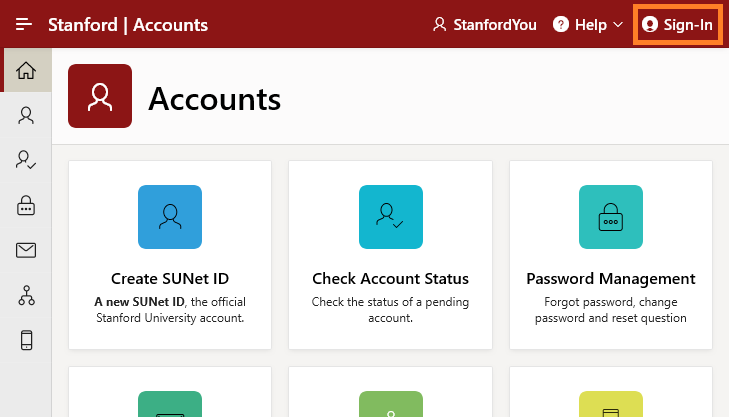
From any device, go to Stanford Accounts (accounts.stanford.edu). Select the button to sign in at the top right of the page.
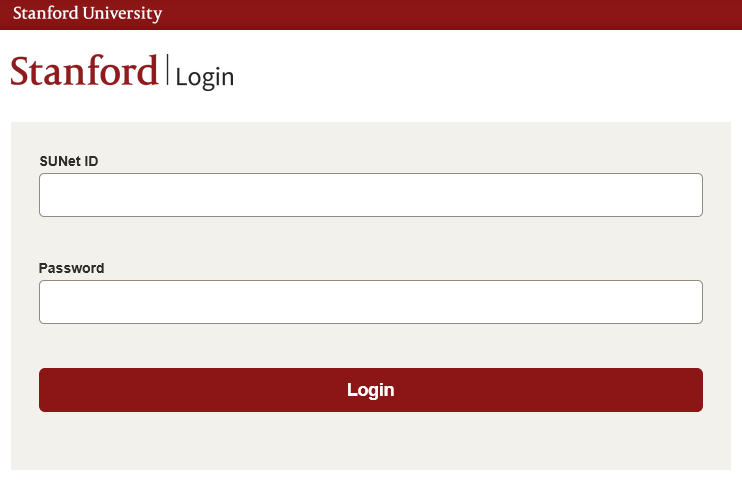
Sign in with your SUNet ID and password. Approve the Duo two-step when prompted.
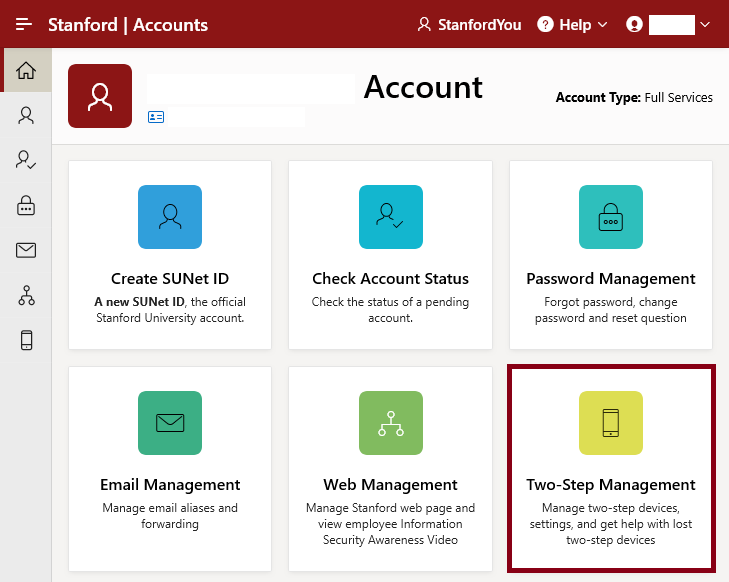
Select the Two-Step Management tile.
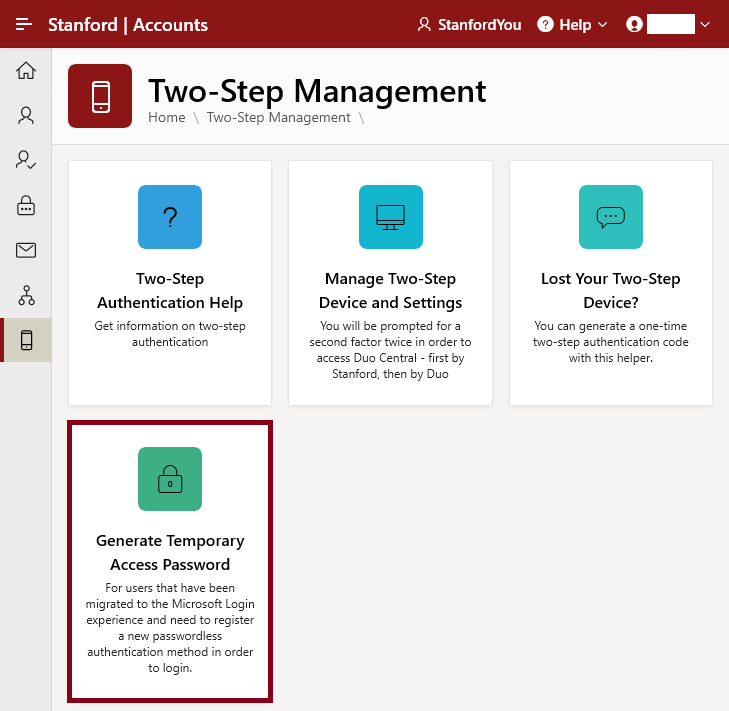
Select the Generate Temporary Access Password tile.
An 8-digit TAP will be generated. Leave this window open. You’ll need to copy the code in the next step.
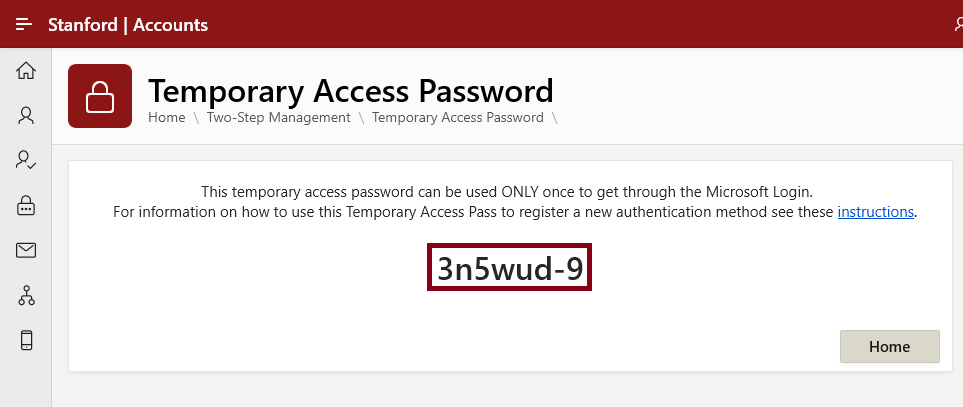
Note: Do not close this window until you have completed Step 2.
Step 2: Sign into Microsoft
- Open a new browser window and go to: https://mysignins.microsoft.com/security-info.
Enter your university email in the format: <your sunetid>@stanford.edu and select Next.
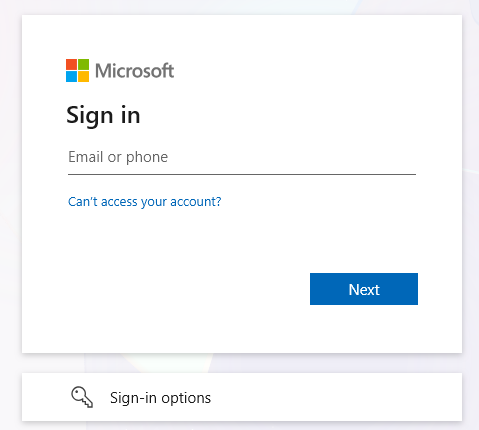
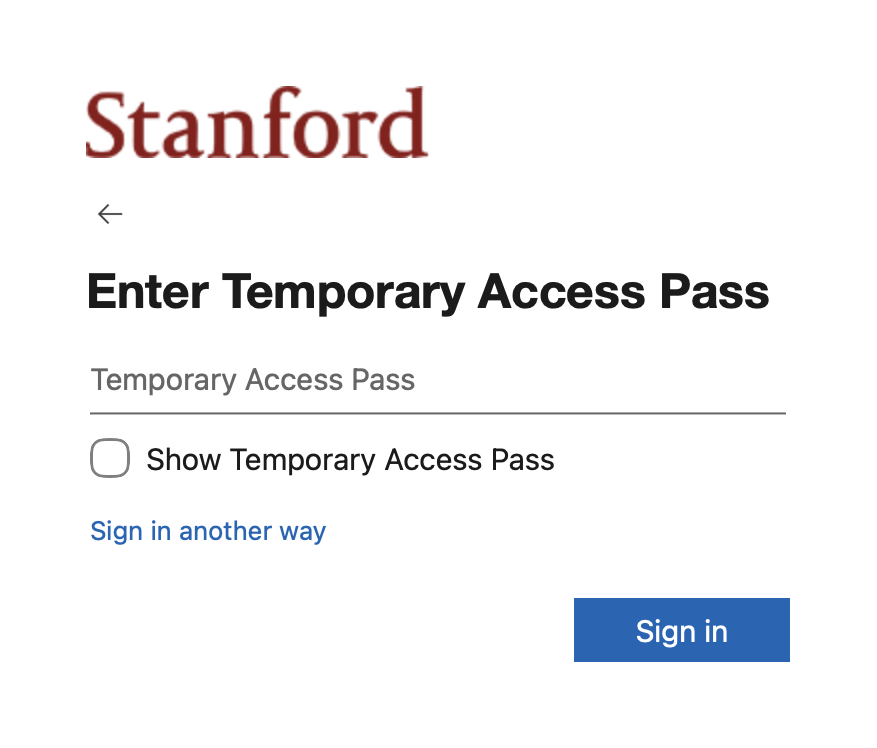
When prompted, paste your 8-digit TAP into the Temporary Access Pass field and select Sign in.
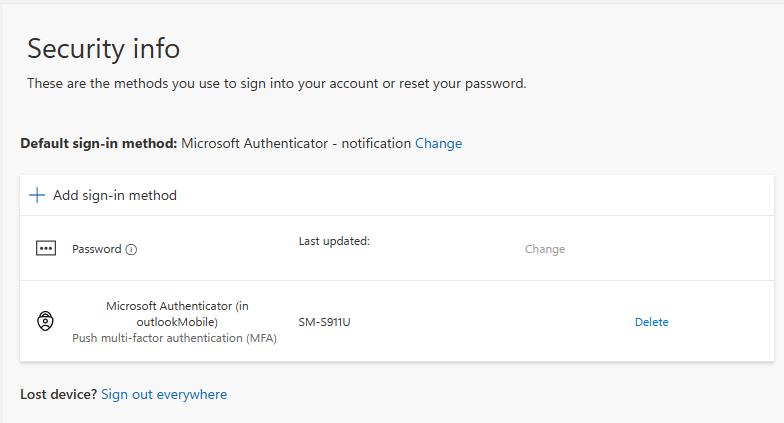
You are now signed in to Microsoft’s Security info page.
Step 3: Complete your authentication set up
Follow the instructions for your device to complete your Microsoft login setup. Start at Step 2, Substep 3:
- How to Set Up Your Microsoft Login with Authenticator (iOS)
- How to Set Up Your Microsoft Login with Authenticator (Android)
Learn more or get help
Want to learn more about Microsoft authentication in the School of Medicine? Compare and choose authentication options.
For additional assistance, submit a support request for Office 365 Entra ID.
