 University IT
New Microsoft Login + Intune: Guide for School of Medicine
Starting June 2026, the School of Medicine is transitioning to a new, modern login system for your university Microsoft 365 apps, like Outlook email, Teams, and OneDrive. This will better protect your account and data and make collaboration easier and safer.
What’s changing
- Your login: After a one-time setup, you’ll use a new passwordless login for university Microsoft services. Your login for other services like Google, Zoom, and Slack stays the same.
- Your security: The new system includes an extra layer of protection called Microsoft Intune, which works quietly in the background to make sure your device is safe before you access university data.
Learn more about the new Microsoft login.
Here's your roadmap
To start, set up your new Microsoft login. Then, connect your devices to Intune using the instructions for each device type. Finally, verify connected devices on the Company Portal site.
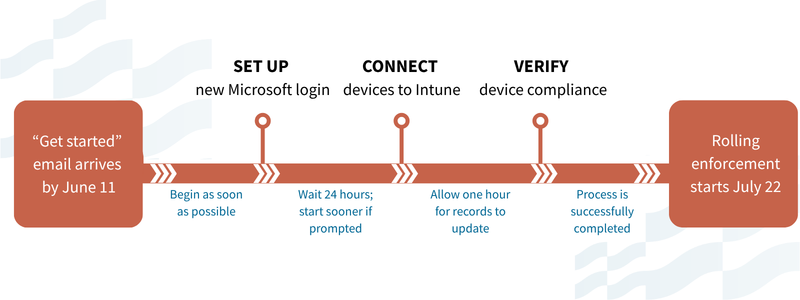
Your new Microsoft login requires you to set up an authentication method — a way to verify your identity when accessing university Microsoft apps. You'll access your new login when you sign into university Microsoft apps or websites about 24 hours after you complete your setup.
Start here: Authenticator with passwordless sign-in
Set up the Microsoft Authenticator app first — it works for nearly everyone and is the method Stanford recommends. Your new login is passwordless: instead of typing a password, you'll approve sign-ins by matching a number shown on your screen in the app. Setup has two required parts: installing the app and then turning on phone sign-in inside it. The guides below walk you the steps for both.
Additional sign-in methods
If you've set up Authenticator with passwordless sign-in, you're done — nothing below is required. These optional methods are for people with a specific need or preference, like signing in without a smartphone or adding a physical key. Our guide explains how to choose.
Optional: Apple passkey
Prefer signing in from your Mac? An Apple passkey lets you sign in with Touch ID, Face ID, or your Mac login password — a faster option for day-to-day use. Set up Authenticator with passwordless sign-in first, then add an Apple passkey for convenience. This option requires an Apple account with iCloud.
Optional: YubiKey
Prefer a physical key? A YubiKey is a security key you plug in or tap, protected by a PIN. Set up Authenticator with passwordless sign-in first, then add a YubiKey if it fits your needs. This option requires a FIDO2-capable key (YubiKey 5 series or newer).
Learn more about the new loginCompare authentication methods
Once your login is set up, connect every device you use for email and other university Microsoft services to Intune, including your phone if you check email on it.
Timing-wise, when you start depends on your device. Some devices will prompt you to get started, while others need about 24 hours after you set up your login. Check the instructions specific to your device to see what to expect.
Windows
Most Windows devices will automatically enroll in Intune. If your device isn't eligible for auto-enroll, you'll get a prompt from BigFix to launch an app that will guide you through the enrollment process.
Apple
macOS and iPhone devices need a quick one-time registration to connect to Intune. To start, look for a pop-up notification on your Mac. On your iPhone, open the Self Service app.
Linux
Install Microsoft Edge and enroll your device in Intune. (Tested on Ubuntu 24.04.3 LTS and Red Hat Enterprise Linux (RHEL) 9.6.)
Android
If you're currently using an Android for Stanford work, it should already be enrolled. Otherwise, follow these instructions to enroll your device.
When you're done, it's recommended that you check to see all your devices you use to access university email and other Microsoft services are connected to Intune,
To do this, visit Microsoft's Company Portal website. Devices will show up as "enrolled" in Intune (Windows, Android, or Linux) or "registered" in Intune (macOS, iOS, and iPadOS).
Newly connected devices can take up to one hour to appear in the Company Portal, so don't worry if you don't see yours right away.
Your device must meet all university compliance and security requirements to access Microsoft resources.
- Transitioning to a New Login for Microsoft
- Stanford Intune Device Management Guide
- FAQs
- For additional assistance, contact SoM Entra ID / Intune support using any of the options listed below:
- SoM TDS Service Desk: Call (650) 725-8000 (option 7), available 6:00 a.m. - 10:00 p.m., 7 days a week. Hours have been expanded to handle increased demand.
SoM Tech Bar: Schedule an appointment at the location nearest you.
