 University IT
How to Use a YubiKey With Your Microsoft Account (Windows)
These instructions are for the School of Medicine community.
On this page:
Start with Microsoft Authenticator
Most people only need Microsoft Authenticator on their phone — it's the standard way to sign in to Microsoft 365 at Stanford and should be set up first. If you haven't set up Authenticator yet, start with by following guide to set up Authenticator on an iOS or Android device.
When to add a security key
A YubiKey is a good fit if using a phone to sign in isn't practical for you. This might be because you don't carry a smartphone, you work in a clinical or lab setting where phones aren't allowed, you have limited cell or Wi-Fi coverage, or an accessibility need makes the Authenticator app difficult to use. Some people also just prefer a sign-in method that doesn't depend on their phone.
If that sounds like you, the steps below walk you through adding a YubiKey to your Microsoft account.
Before you begin
You'll need:
- A FIDO2-compatible security key (e.g., YubiKey 5 series). Not sure which YubiKey you have? Learn the make and model at yubico.com/genuine.
- A PIN set on the key (or be ready to create one during setup)
- A working sign-in method already on your account (Authenticator or password, depending on your cohort's status) to complete the initial sign-in at mysignins.microsoft.com
Set up your YubiKey
- On your computer, open a new incognito/private browser window and navigate to https://mysignins.microsoft.com/security-info. If prompted to use Cardinal Key, cancel the prompt.
- Enter your username in the following format: <your SUNetID>@stanford.edu.
- Complete the sign-in process - the steps may vary depending on your previously configured authentication methods.
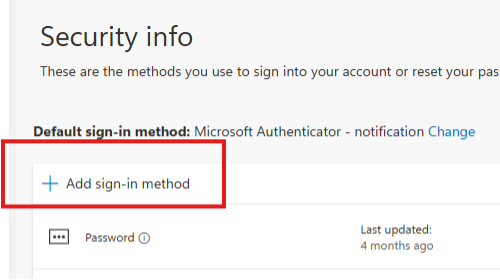
- You should be taken directly to the Security info page for your account. At the top of the list of sign-in methods, you should be able to select + Add sign-in method.
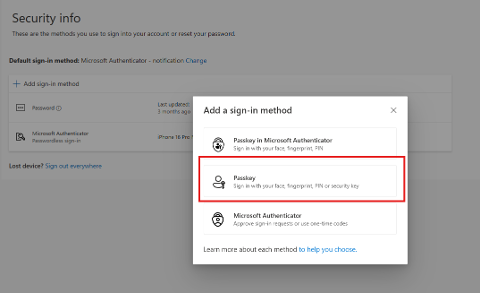
- Choose the option for Passkey (Sign in with your face, fingerprint, PIN, or security key).
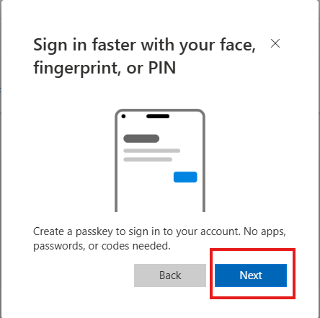
- When the "Sign in faster with your face, fingerprint, or PIN" prompt appears, select Next.
- Microsoft will guide you through several prompts before opening a Windows Security dialogue.
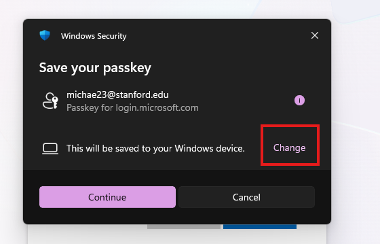
- At "Save your passkey," the passkey defaults to "This Windows device." Select Change so you can save it to your YubiKey instead.
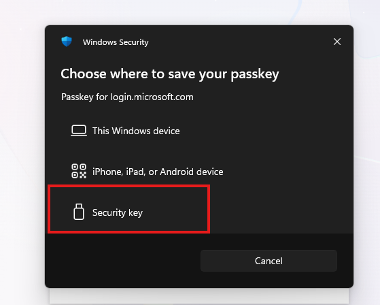
- At "Choose where to save your passkey," select Security key.
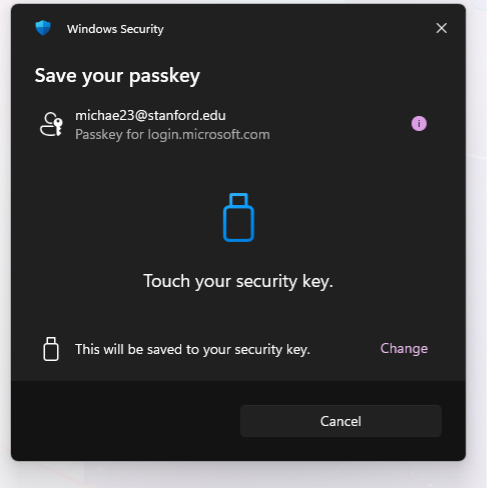
- When the "Save your passkey" window asks you to "Touch your security key," tap the gold sensor on your YubiKey.
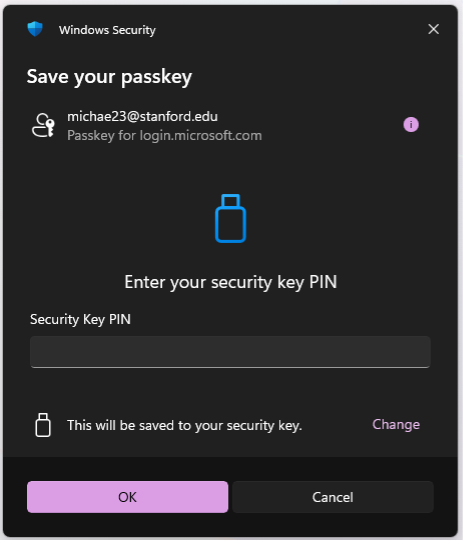
- At "Enter your security key PIN," type your YubiKey PIN and select OK. (If you haven't used this YubiKey before, you'll be prompted to create a PIN first.)
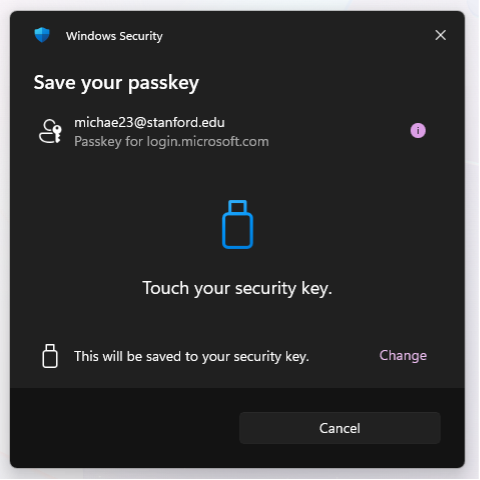
- When prompted to Touch your security key again, tap the sensor a second time to confirm.
- When prompted, enter a name for your passkey that helps you identify it later.
Suggested format: <your SUNet ID> YubiKey
When finished, select Next.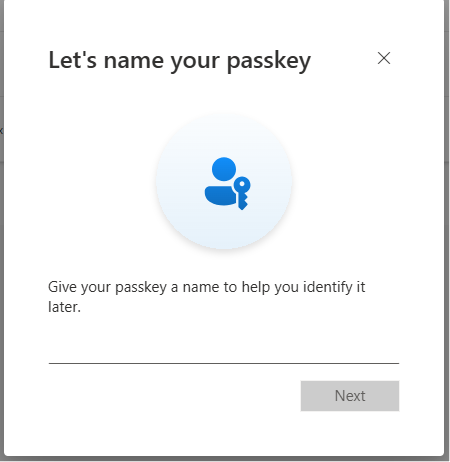
- Microsoft will confirm the addition. Your security key will now appear in your list of sign-in methods.
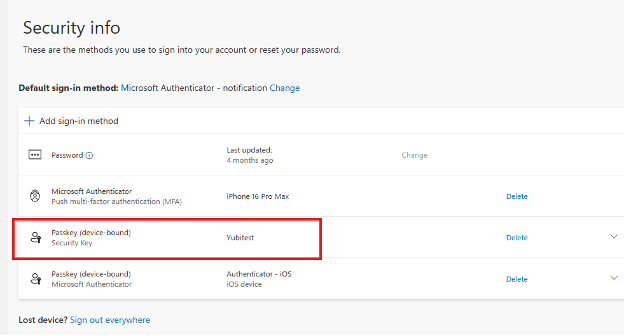
How to log in to Microsoft using a Yubikey from a Windows device
- On your computer, open a new incognito/private browser session and go to https://outlook.office365.com. If your browser attempts to use Cardinal Key, cancel out of it.
- Enter your username as <your SUNetID>@stanford.edu.
- Select Face, fingerprint, PIN or security key.
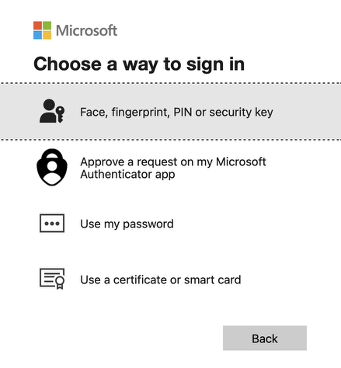
- Select Security key.
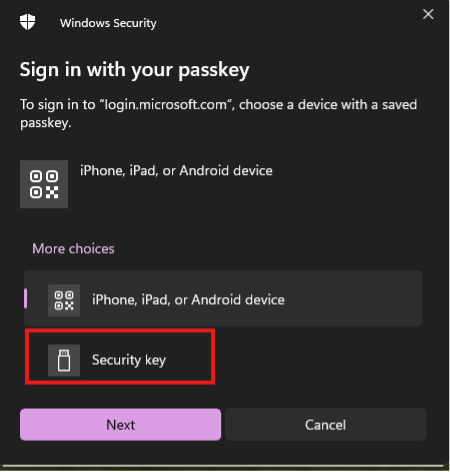
- Insert and authenticate your YubiKey.
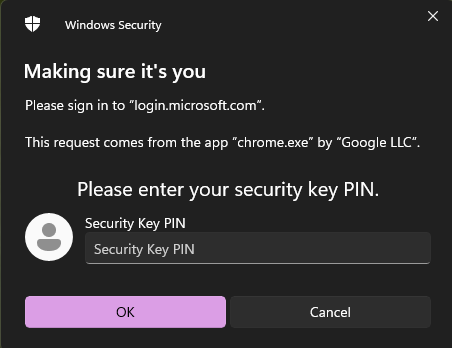
- After physically touching the YubiKey, you should be put directly into Outlook.
What happens next?
Once you sign into your Stanford Microsoft account using the new login process, you'll be ready to connect all the devices you use to check email and access other university Microsoft services to Microsoft Intune. (If you check email with both your laptop and your phone, connect both devices)
Wait 24 hours before connecting your devices to Intune, unless you are prompted to start sooner.
If you don't see the new login process appear 24 hours after completing set up, contact SoM Entra ID / Intune support using any of the options listed below:
- SoM TDS Service Desk: Call (650) 725-8000 (option 7), available 6:00 a.m. - 10:00 p.m., 7 days a week. Hours have been expanded to handle increased demand.
- SoM Tech Bar: Schedule an appointment at the location nearest you.
