 University IT
How to Resolve a SAML Sign-In Error with “Sign Out Everywhere”
If you see the error AADSTS500082: "SAML assertion is not present in the token" when opening My Sign-Ins or registering a new authentication method, your Microsoft session has gone stale.
- Why it happens: When you sign into Microsoft, the system issues a token that confirms your identity and keeps you signed in. Over time, these tokens can expire, and when they do, the page can't verify your identity, causing the SAML error.
- The fix: Using Sign out everywhere clears your existing tokens across every device and application. The next time you sign in, Microsoft issues fresh tokens, which clears the SAML error.
Who this is for
Follow this guide if you see the AADSTS500082 SAML error when trying to view or register your authentication methods, most commonly:
- On your phone, when opening My Sign-Ins from the Microsoft Authenticator app.
- On a computer, when an existing My Sign-Ins browser session has expired.
How to recognize this error
You'll see a message similar to: Sorry, but we’re having trouble signing you in.\nAADSTS500082: SAML assertion is not present in the token.
A Troubleshooting details panel may appear beneath the error message, listing a Request ID, Correlation ID, and Timestamp. If the issue needs to be escalated to the IT Service Desk, they'll need these details, so note them before proceeding.
What “Sign out everywhere” does
This option signs your account out of every active session, across all your devices and applications, and revokes all tokens previously issued by Microsoft Entra. It does not change your password, delete your sign-in methods (such as Microsoft Authenticator or passkeys), or remove your account. You'll simply be prompted to sign in again the next time you open an app or browser session.
If you prefer not to use this option, you can first try removing your account from Authenticator:
Before you begin
- Save any unsaved work, as you'll be signed out of all applications.
- If the My Sign-Ins page itself is showing the error, open it in a private/incognito browser window first (or a different browser).
- Have your sign-in credentials and your second factor (Microsoft Authenticator, passkey, or other method) ready as you'll need to sign back in.
- Wait a few minutes after signing out before signing back in.
How to "Sign out everywhere"
- Open a web browser and go to the Microsoft My Account security page at https://mysignins.microsoft.com/security-info.
- Sign in with your work or school account, if prompted.
- On the Security info page, locate the Lost device? Sign out everywhere prompt at the bottom of the list of sign-in methods.
- Select Sign out everywhere.
- When asked to confirm, confirm that you want to sign out of all sessions. Entra will revoke all tokens issued to your account.
- Wait a few minutes, then return to My Sign-Ins (or the Microsoft Authenticator app) and try registering your authentication method again.
Note: The “Sign out everywhere” link appears at the bottom of the Security info page, beneath your list of sign-in methods: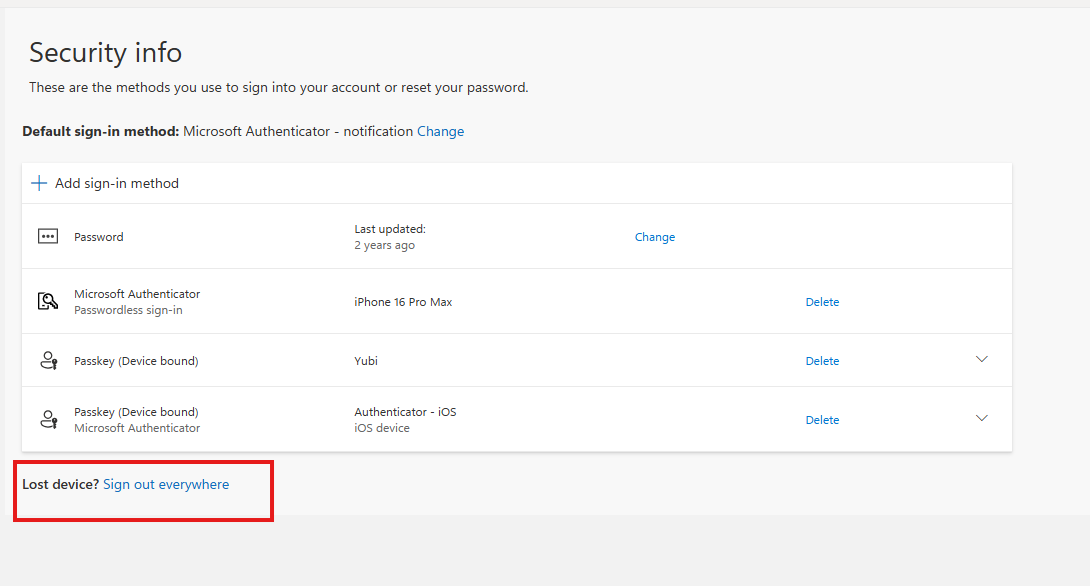
After signing out
When you sign back in, Microsoft will issue new tokens and the SAML error should no longer appear. You may be prompted to re-approve sign-in and to complete multi-factor authentication — this is expected.
Once you are signed back in, continue setting you your authentication method using the guide for your device:
- Set up Authenticator on iOS
- Set up Authenticator on Android
If the error persists
If the SAML error still appears after signing out everywhere and signing back in:
- Close all browser windows
- Clear your browser cache and cookies.
- Try again.
If the problem continues, contact the IT Service Desk and provide the following from the Troubleshooting details panel:
AADSTS500082 error code
- Request ID
- Correlation ID
- Timestamp
A few things to keep in mind
- Signing out everywhere does not change your password or remove any of your registered sign-in methods.
- All devices and apps will require you to sign in again, so expect to re-authenticate on your phone and other devices.
- It may take a few minutes for the sign-out to take effect across all services.
