 University IT
How to Use Duo Push for Multifactor Authentication (MFA)
Duo Push is the recommended multifactor (previously called two-step) authentication method because it is the easiest and quickest way to authenticate.
- A Push notification is sent to your device and all you have to do is tap Approve to authenticate.
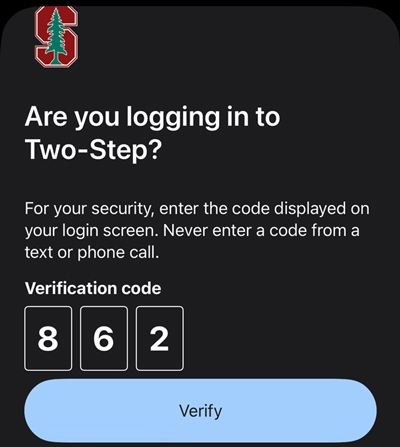
- Some departments will be prompted to enter a Verified Duo Push, or three-digit code shown on the login screen, instead of only selecting Approve.
Note: Internet or cellular access is required to use this method.
The following devices support Duo Push notification to verify your identity:
How to use Duo Push notifications
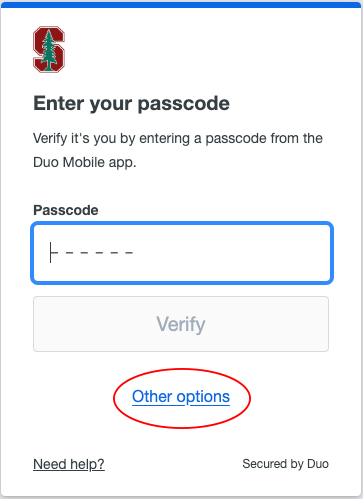
1. If you are using a browser that you previously used to authenticate, you will be presented with the last-used authentication method. If Duo Push was your last-used authentication method, a login request will be sent to your device.
- If Duo Push was not your last used authentication method, Other options.
- In the Other options menu, select the Duo Push option.
2. Open the Duo Mobile app on your device. If you see a banner at the top indicating a pending request, tap it to continue.
Note: Once a Push notification is sent, you have 60 seconds to approve the request.
3. Tap Approve to authenticate.
If you get a request you were not expecting, tap Deny.
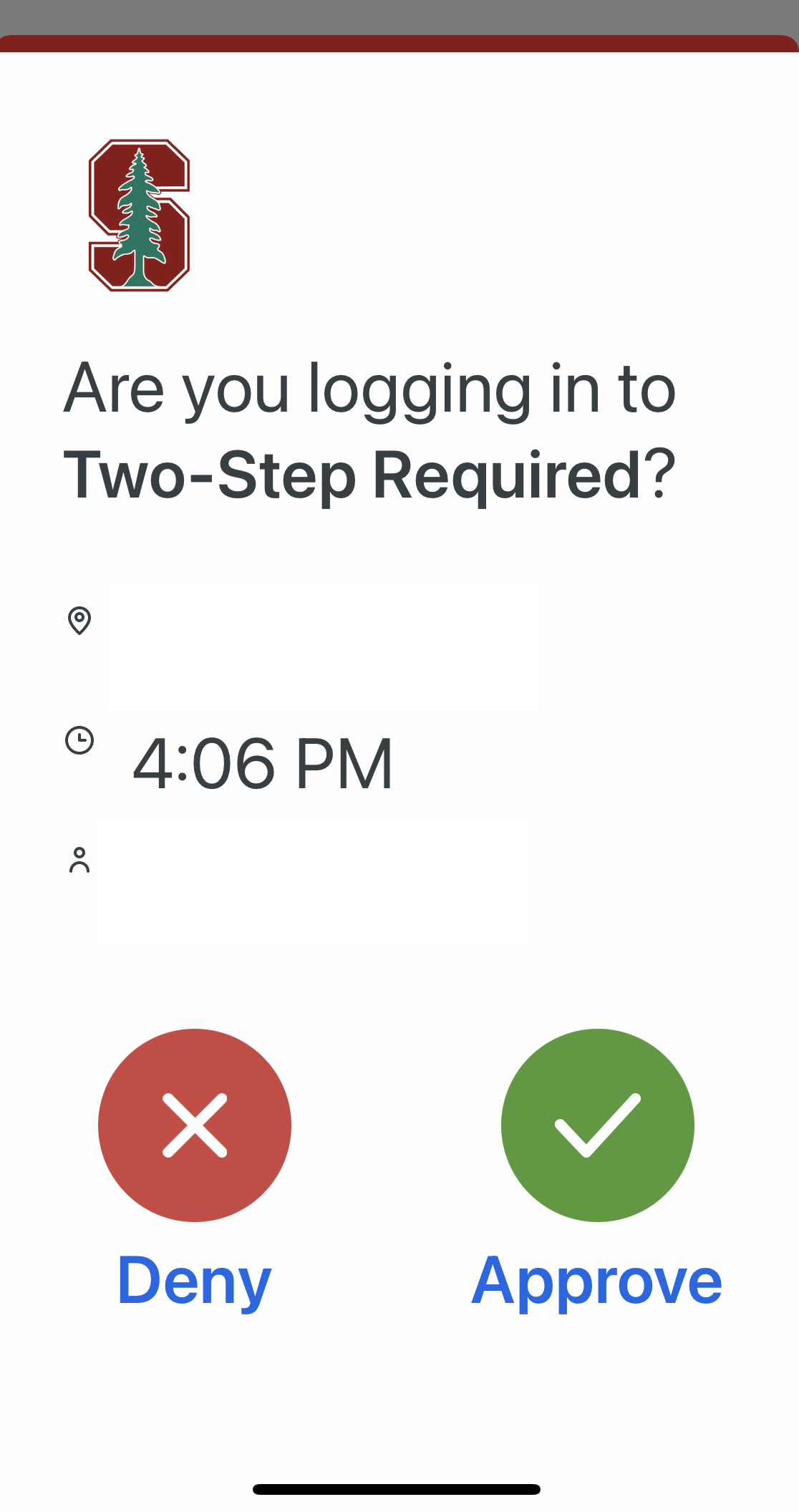
- Some departments will be prompted to enter a Verified Duo Push, or three-digit code shown on the login screen, instead of only selecting Approve.
4. Once you have authenticated, you might see a screen that asks if you want to trust the browser. You’ll have the option to select “Yes, trust browser.” This takes the place of the “Remember Me” screen.
- If you click Yes, trust browser, the browser will automatically remember you, and you will not be prompted to authenticate for that application or service for the next 90 days.
- If you select No, do not trust this browser, you will still authenticate and continue onto your desired site; however, you will be prompted to re-authenticate each time you log into an application on that browser.
- Remember, public or shared computers shouldn’t be saved as trusted browsers.
