University IT
Captions and Transcripts In Canvas
Videos added to a Canvas Page should include captions. Accurate captioning is essential for students who are deaf or hard-of-hearing. Additionally, captions can provide a learning benefit to all students, particularly if watching videos in a quiet or noise-restricted environment (e.g., library, open-space, etc.).
- Captions should be provided for video presentations.
- Transcripts should be provided for audio-only recordings or podcasts.
Caption and Transcript Tutorial
Please watch the video below for a step by step review of how to add captions to a video (or a transcript for audio files) in Canvas.
How To Add Captions Or Transcripts In Canvas
Adding Captions In Canvas
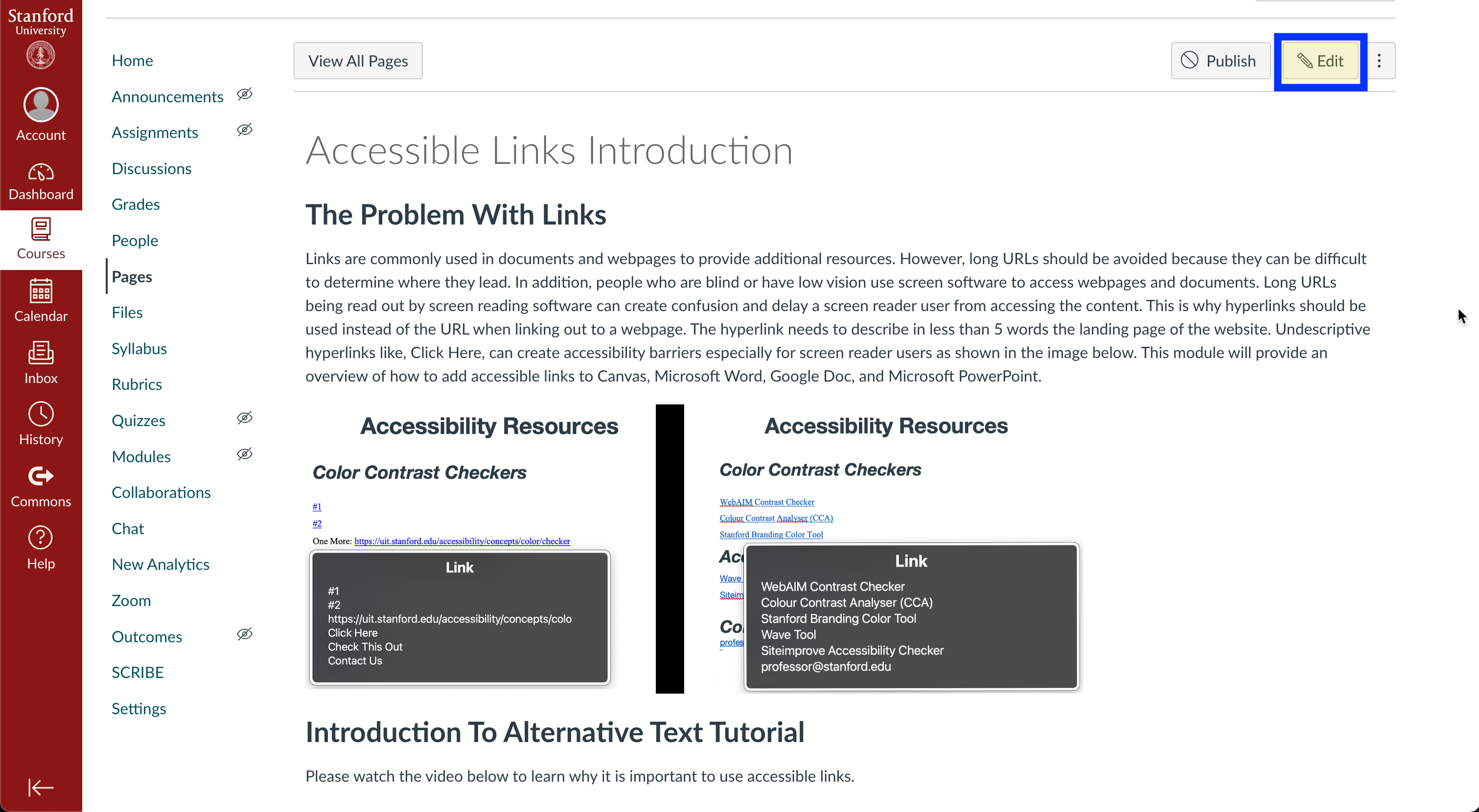
Select the edit button and enter into a Canvas page.
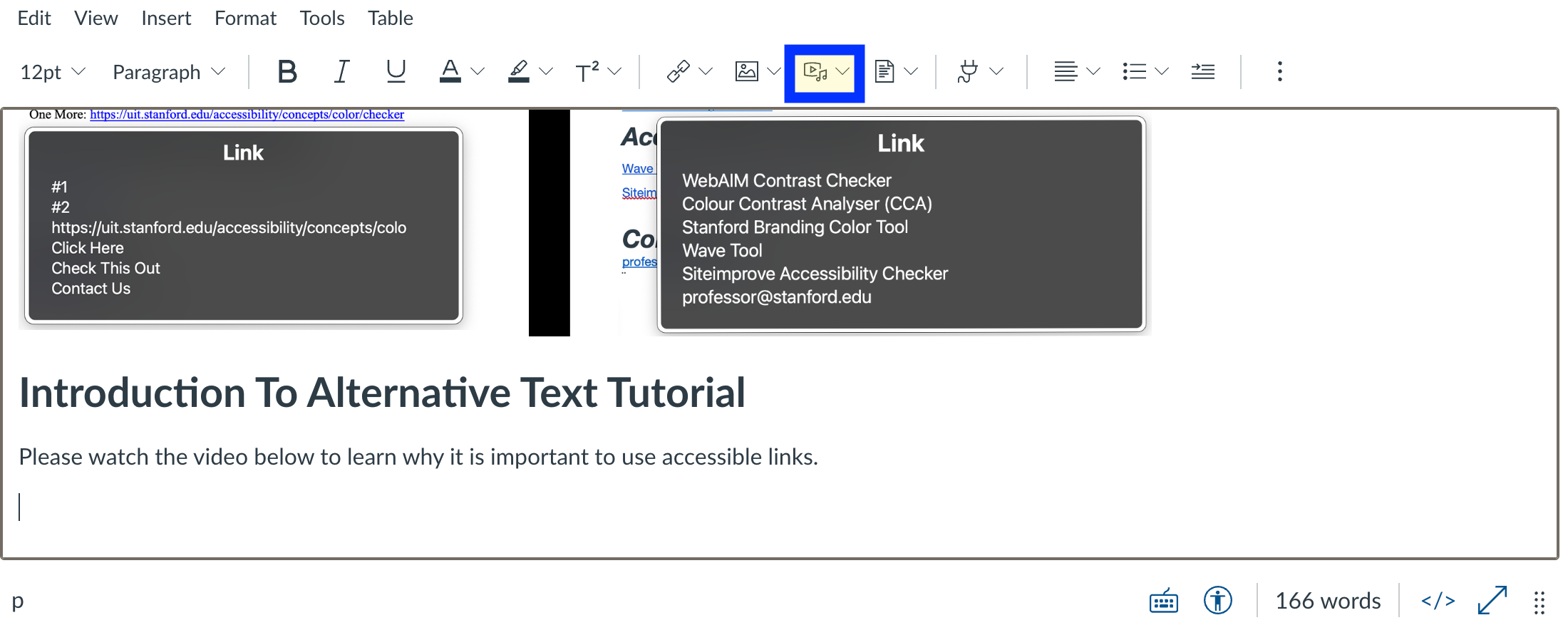
Select the media button from the toolbar.
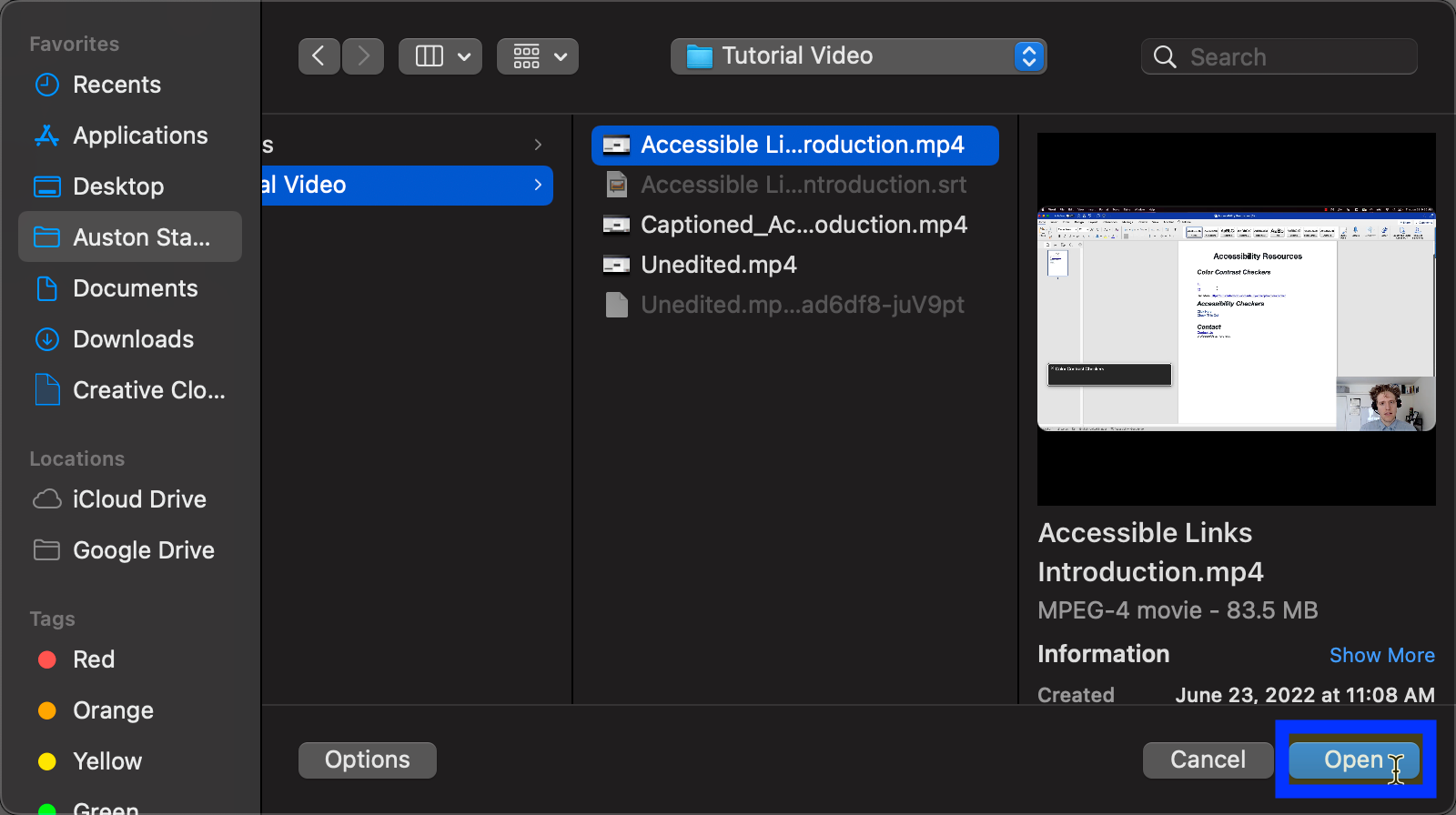
Select the video that you want to add to the Canvas page.
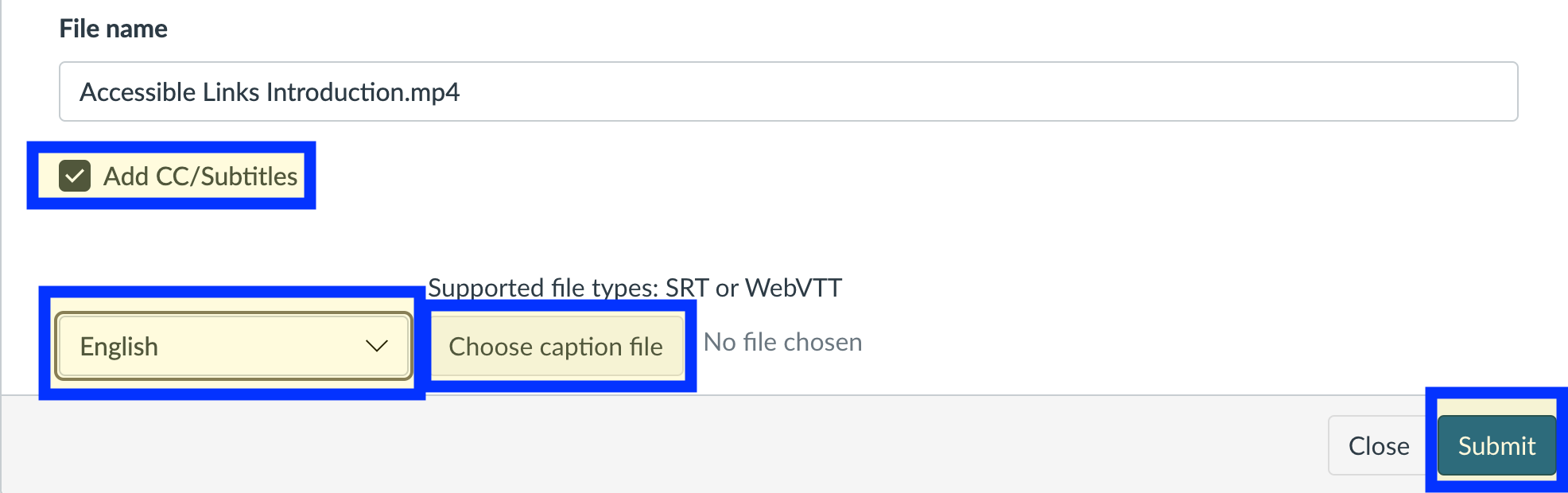
Select the add CC/Subtitles. Choose the language of the subtitles. Upload an SRT or WebVTT file. Select the submit button when finished.
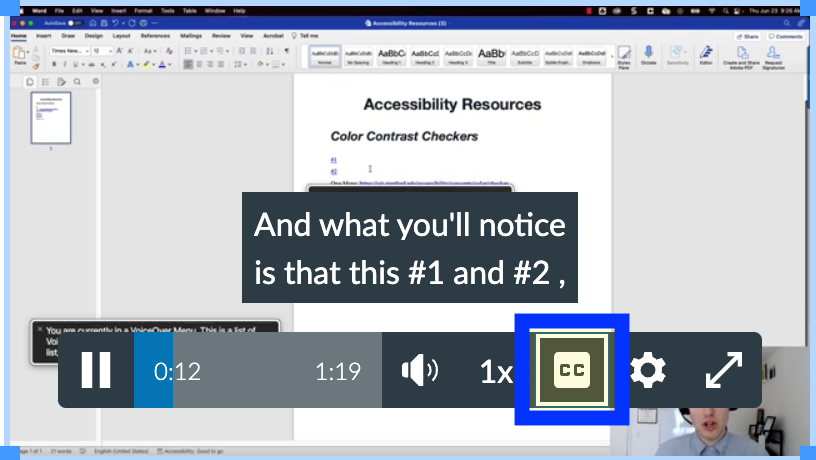
In the Canvas page the video can now be played with captions when the CC button is selected.
Adding Transcript In Canvas
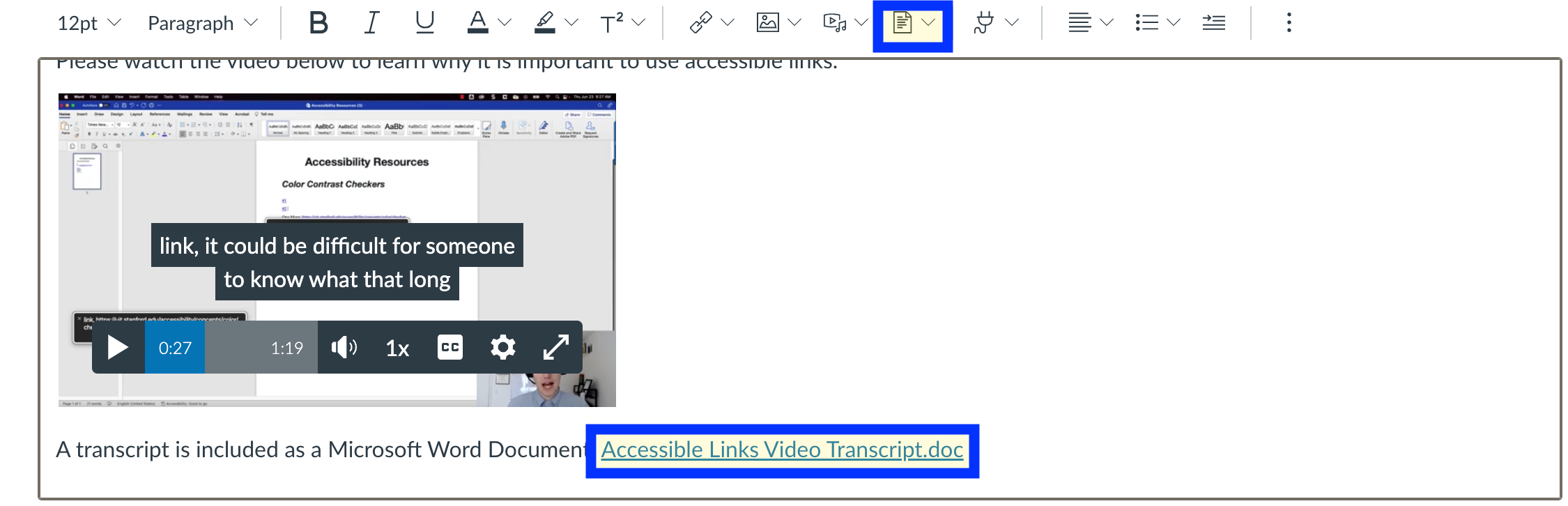
A transcript can be inserted by selecting the documents icon in the Canvas toolbar. Find the transcript file and attach it to the Canvas page. The transcript may be added above or below the audio recording.
Pope Tech Instructor Accessibility Guide: Check Documents & Videos
Enter the Canvas page editor and select the Instructor Accessibility Guide (IAG) Tool.

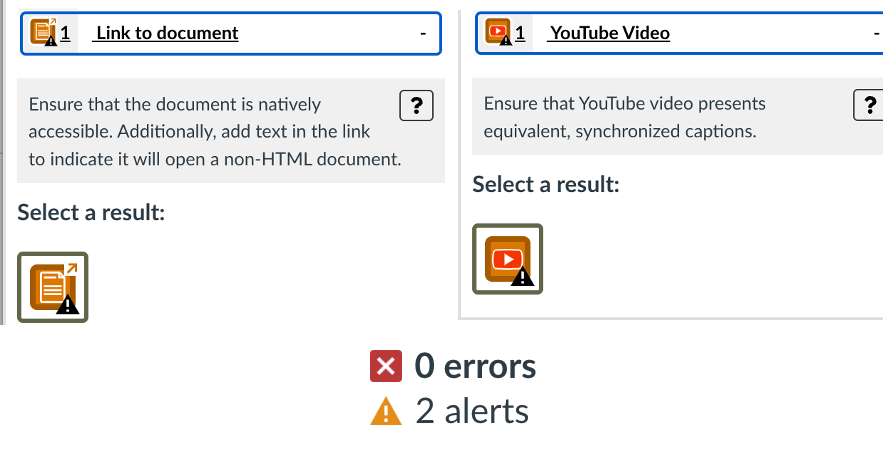
In the IAG Tool select Documents and Videos. Alerts will be displayed for any links that go to external video platforms (YouTube) or documents (PDFs, Word Documents).
Selecting an alert for a document or video will provide an additional reminder to check the accessibility of the external content. The alerts will remain in the IAG Tool. They serve as a reminder for the instructor.