 University IT
Accessibility Testing Tools
The automated accessibility tools listed on this page are commonly used to assess website accessibility. While there is broad overlap among these tools, they do have differences that help identify existing issues. The Office of Digital Accessibility utilizes a combination of these tools for automated accessibility testing.
Please note that no tool provides a complete assessment of your site's accessibility. Conducting a manual accessibility review is a necessary part of the review process.
Automated Accessibility Tools
Accessibility checking tools analyze your code and provide a list of errors based on identifiable accessibility violations. However, they cannot detect all issues. For example, while these tools can confirm the presence of ALT text on an image element, they cannot assess whether the content of the ALT text is appropriate for the image.
Pros
- Quick and Easy: These checks are typically among the first performed on any website and often serve as the entry point for many accessibility experts.
- Programmatic Errors: Most common programmatic issues will be identified by these tools.
- Many Pages: While manual testing is typically limited to a few pages, some tools enable checks across all pages simultaneously rather than one at a time.
Cons
- Limited Tests: At most, these tools can identify roughly 30% of accessibility issues. It is possible to create a website that is entirely inaccessible yet still receives a passing score from these tools.
- False Positives and Negatives: These tools often make assumptions about your code and can miss many issues, while also flagging non-issues as problems.
- False Sense of Security: We frequently hear, "It passes XXX tool, so it is accessible," which is misleading. Relying solely on these tools does not ensure full accessibility.
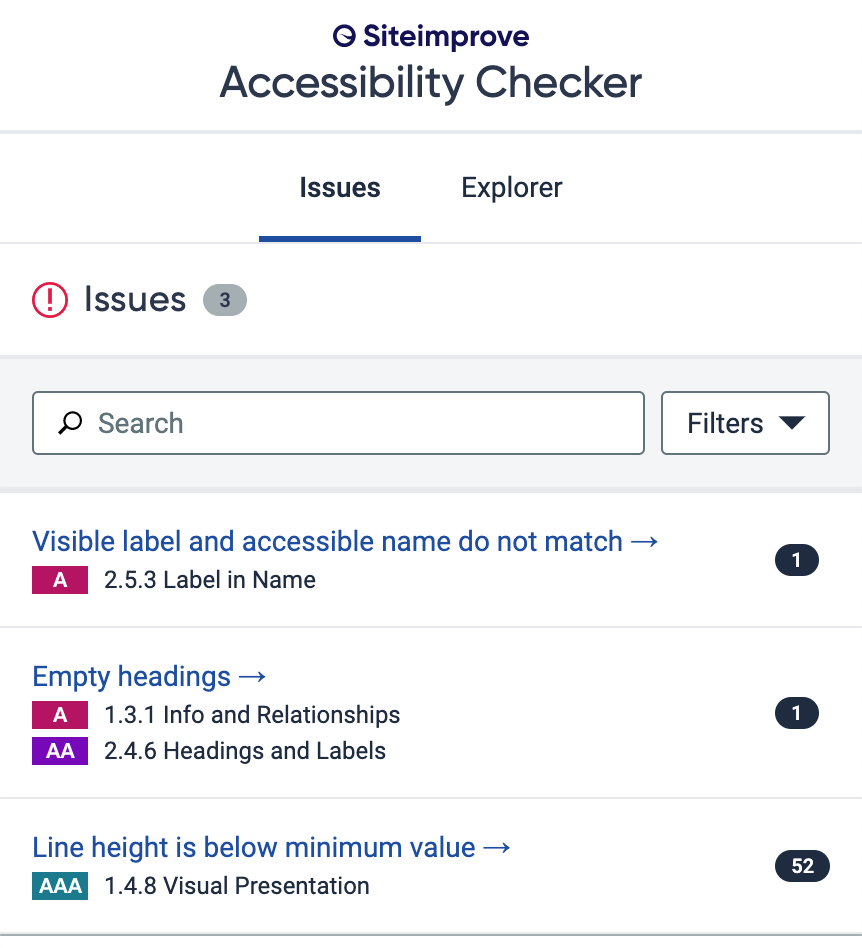
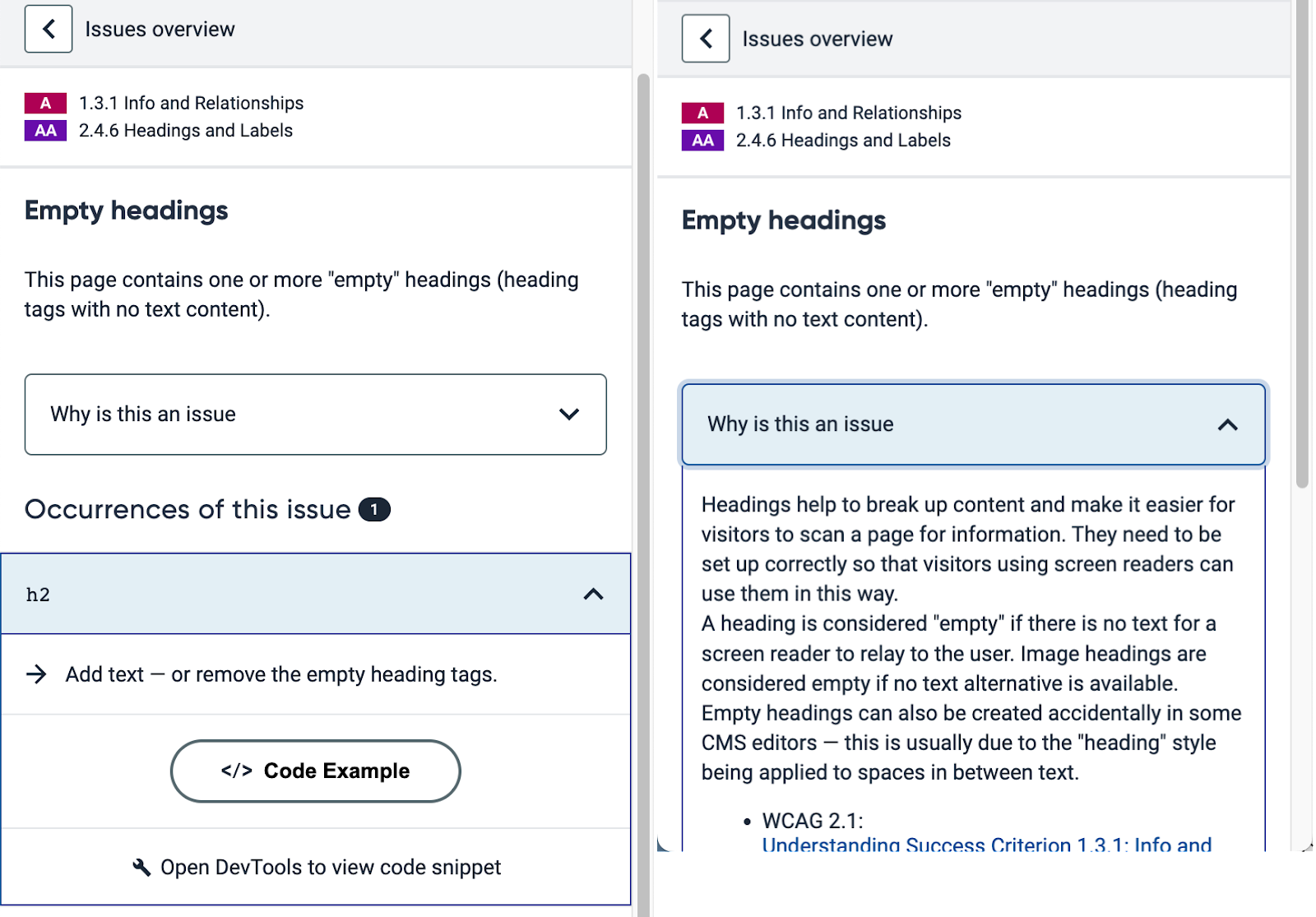
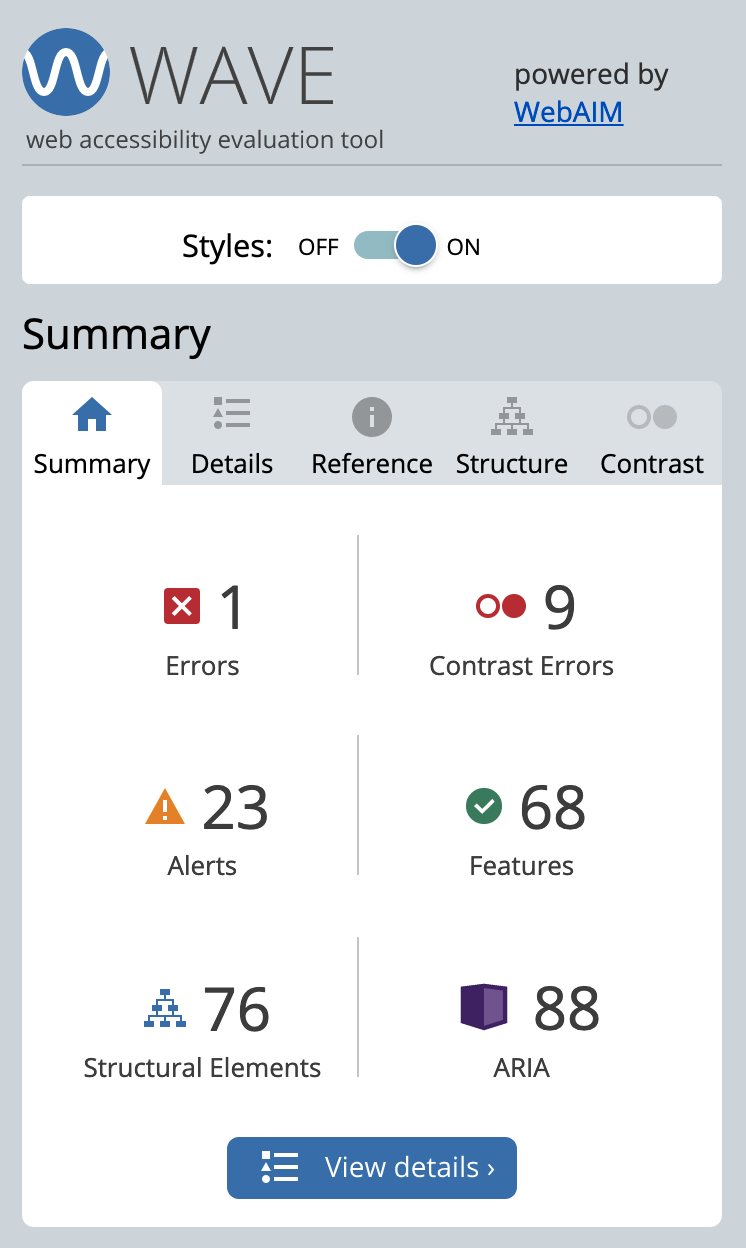
Due to variations in the accessibility rules for each tool, they can report different errors and flag varying WCAG success criteria. For instance, on the same page and day, the Siteimprove Plugin identified 3 errors and 54 total violations, while the WAVE tool reported 1 error, 9 contrast errors, and 23 warnings, highlighting the discrepancies in their results.
We recommend starting with these tools, but always remember they are only one component of your overall accessibility assessment.
Stanford utilizes the Siteimprove tool to automatically scan numerous websites periodically. More information on this comprehensive tool is available at Website Scanning and Monitoring.
The Siteimprove plugin is a companion to the main Siteimprove service but can also be used independently on any website. This includes sites behind authentication, which the full version of Siteimprove cannot currently scan. A key advantage is that the plugin provides results comparable to the full tool, though its output may be more technical.
When the tool is run on a page, it generates a list of results. Each item identifies the violated accessibility principle in plain language (e.g., "Empty Headings"), the specific WCAG success criteria, and the total number of occurrences for that issue on the page.
Selecting an issue link provides more information and highlights the corresponding element on the page. For example, clicking the "H2" link will locate that specific heading. The "Why is this an issue" button also expands to offer a detailed explanation of the problem.
The WAVE browser extension is one of the simplest available. Upon launching, a results panel will appear on the left side of your screen, as depicted below.
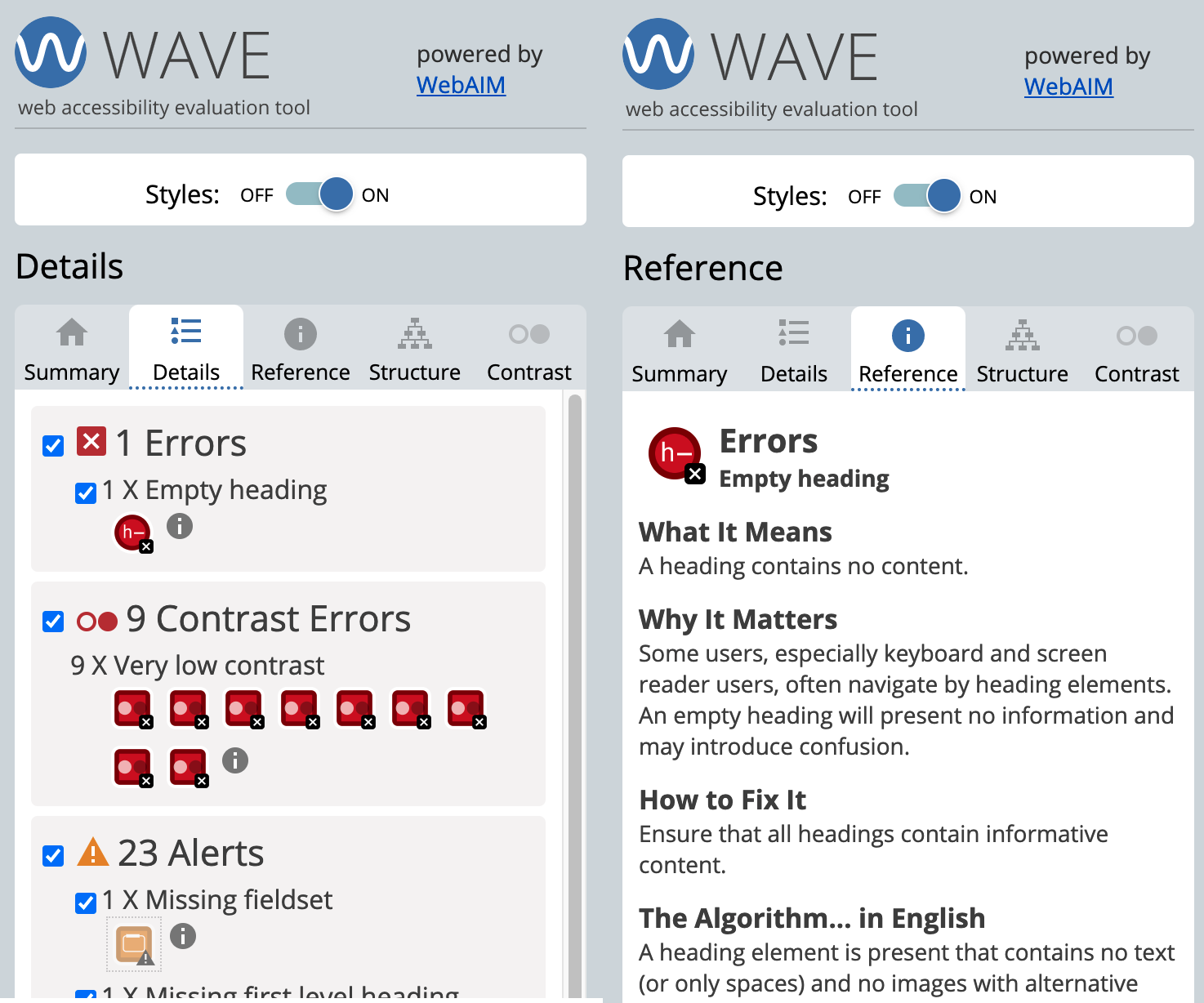
Selecting the "Details" tab provides more information about the errors. You can click the icon for each issue (such as the red circle for an empty heading) to highlight its location on the page. An adjacent information icon ("i"), when selected, will display reference material that explains the problem and offers basic guidance on how to fix it.
The axe DevTools is a more advanced solution as it integrates into the browser's Developer Tools interface. Not only can it provide significant accessibility information in the code-view, it can also facilitate guided manual testing.
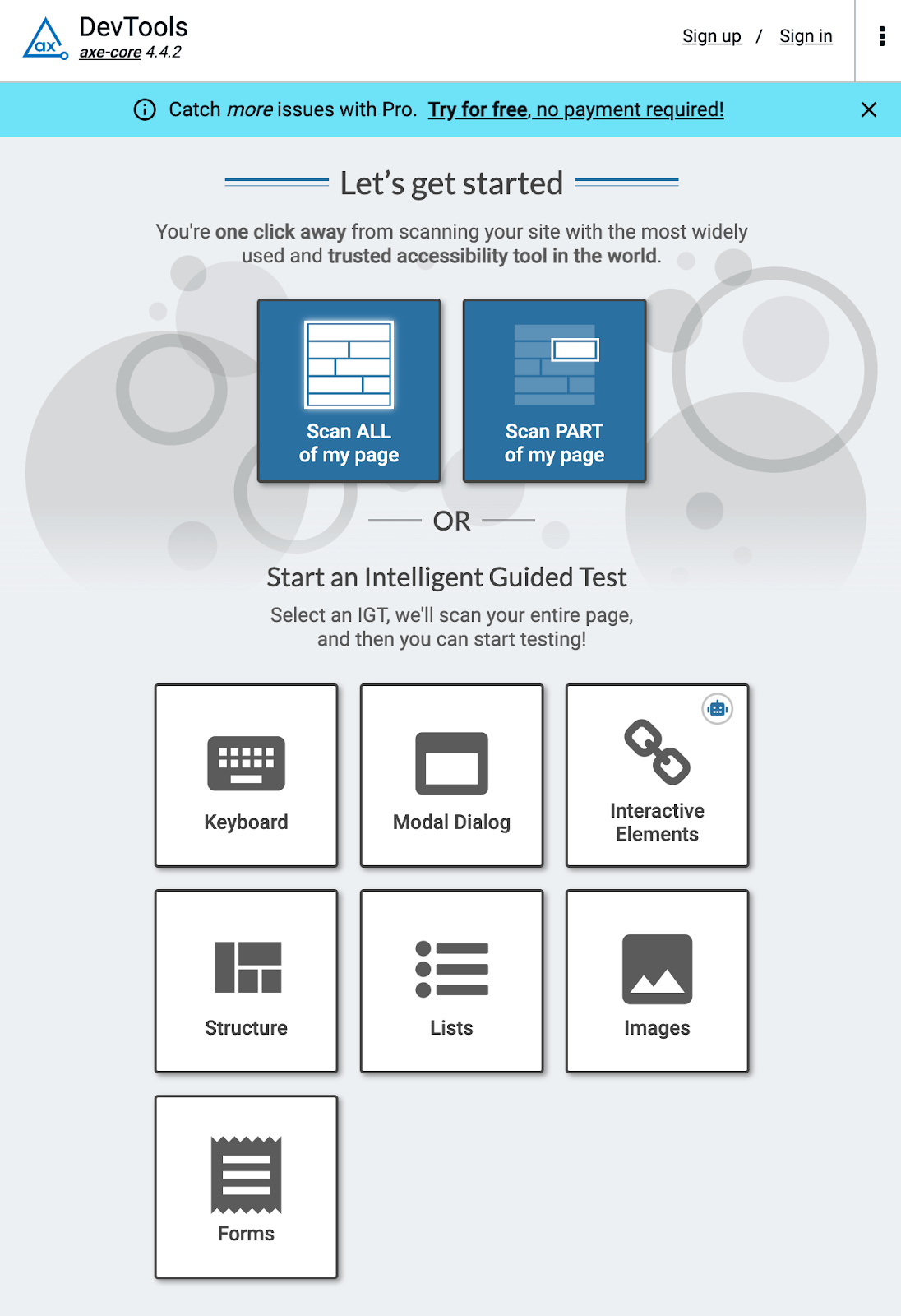
To run the tool, open the web browser's Developer Tools (F12, or right-click on a page and choose "Inspect"). In the top menu, select the "axe DevTools" tab. This will display an interface, as shown below, with options to scan the entire page or a specific part of it. Additionally, it offers tools for manual testing (Intelligent Guided Tests), which are beyond the scope of this page..
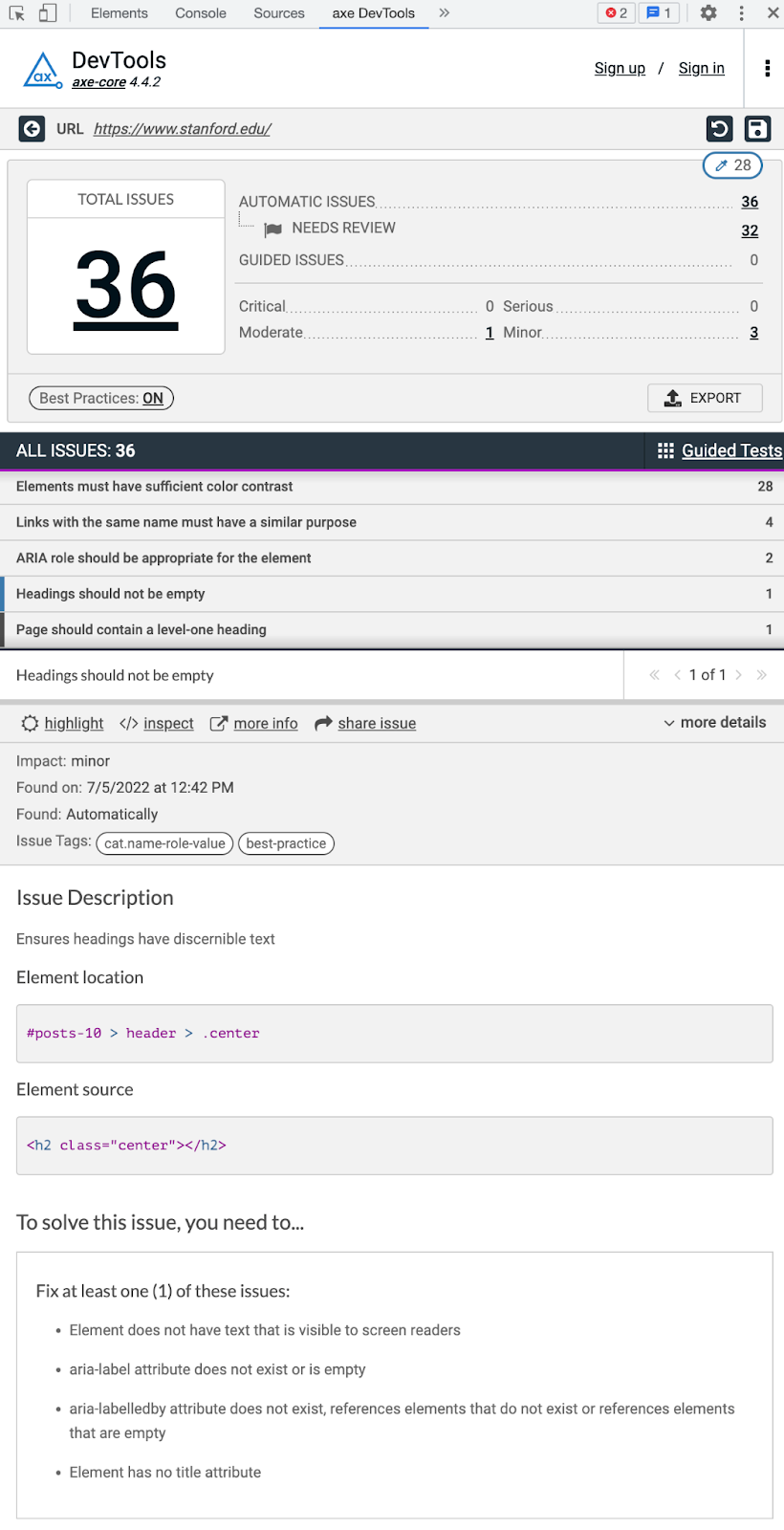
Selecting "Scan all of my page" produces the results shown below. When an issue is selected, you can highlight the element on the page, inspect its code, and perform other actions. While this view consolidates all information about an issue, the instructions provided can be more difficult to interpret.
Accessibility Inspection Tools
Some tools do not directly test for accessibility. Instead, they inspect code elements to analyze the output that screen readers and other Assistive Technology use to interpret the page.
The Social Security Administration (SSA) provides the Accessible Name & Description Inspector (ANDI). This tool is run on a page to examine individual elements, ensuring the visual presentation aligns with the programmatic information conveyed to Assistive Technology. ANDI bypasses inherently accessible content, such as blocks of text, to focus on more complex components.
ANDI includes several modes, such as one for "focusable elements," which all function similarly. Navigation buttons allow you to cycle through elements on the page. An adjacent column displays information about the selected element, including its type and accessibility features.
At the bottom of this column, the "ANDI Output" section shows the exact text a screen reader will announce. This is the most critical information to evaluate with this tool, as it closely approximates the experience for a screen reader user focused on that element..

For comparison, the Structures tool also identifies the same problematic heading found by the accessibility checkers. While this is not flagged as a formal error, the tool's output indicates a non-descriptive "heading level 2," which provides no context for a user navigating the page.

Note that in addition to focusable elements and structures as outlined above, numerous other tools will appear, some of which are dependent on the content on the page. On the tested page, the following options were present when running ANDI.
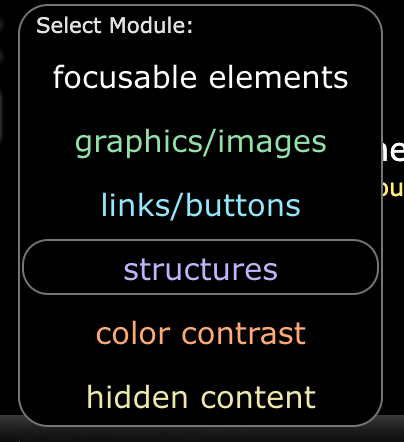
In addition to the above, there are a few other tools that you might find useful. Many of the features of these tools are duplicated by other tools already listed here, but you might find them easier to use or shows different results.
Other Tools
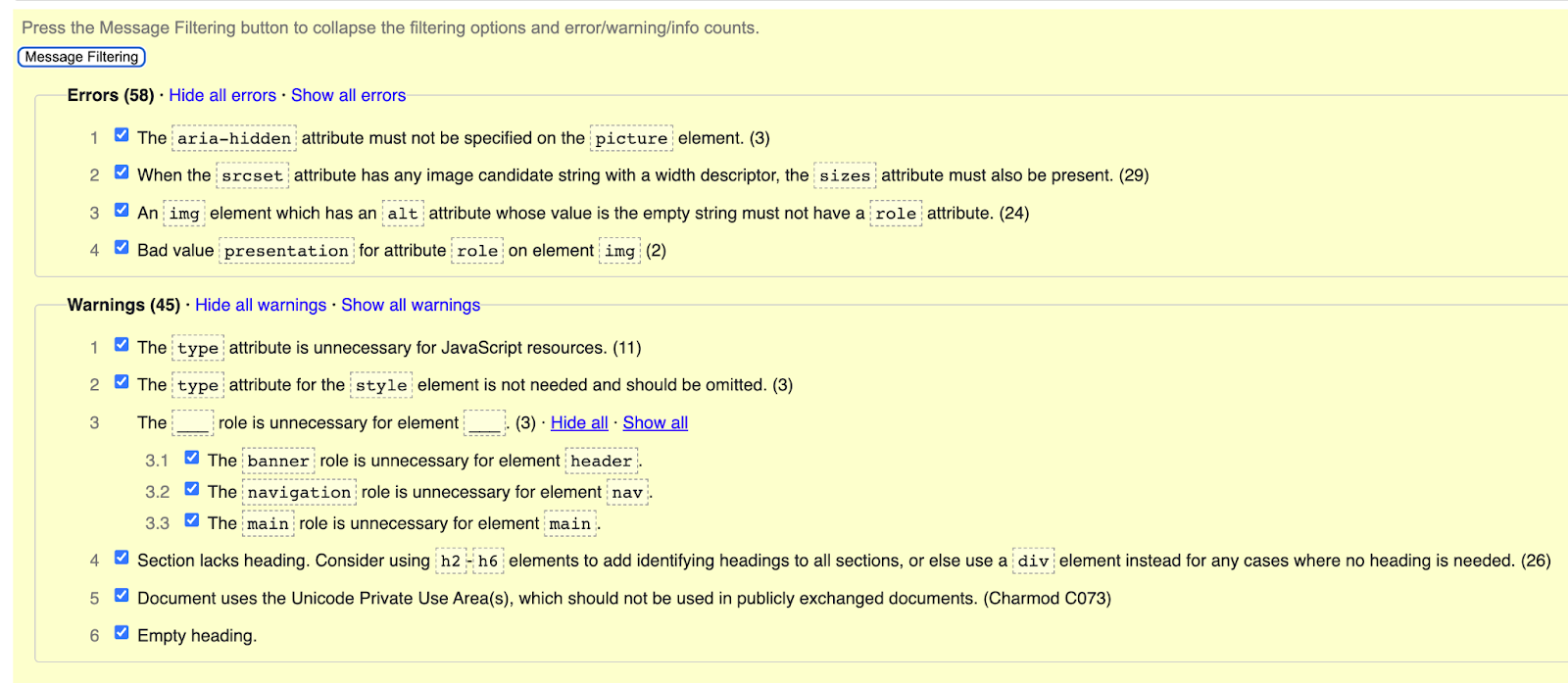
The W3C HTML validator is a valuable tool for assessing page accessibility. While not all validation errors are accessibility issues, it is best practice to resolve all of them, as they can cause unpredictable behavior across different browsers, operating systems, and Assistive Technologies.
Common errors reported by the validator that directly impact accessibility include:
- Duplicate or invalid IDs
- Improper element nesting (e.g., an element is not allowed as a child of another)
- Mismatched or unclosed tags
- Duplicate attributes
- Role and ARIA specification violations
- Other severe errors that impede a complete analysis
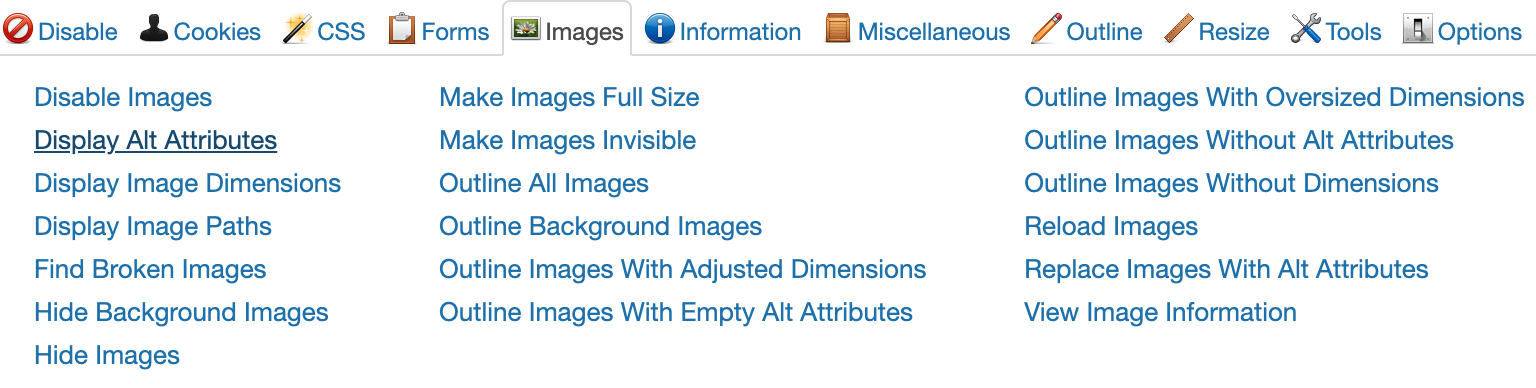
The Web Developer toolbar from Chris Pederick is a helpful tool that can be used to inspect web page content for accessibility issues. After installing the toolbar, there are numerous tabs with different tools that can be used for accessibility checking purposes. Commonly used include:
- Forms -> View Form Details: Will show the label for all form fields on a page.
- Images -> Display Alt Attributes: A quick and easy way to see all the ALT text on a page.
- Images -> Hide Background Images: Can you still read all the content with background images off
- Images -> View Image Information: Look for images that are oversized (greater than 1mb) to ensure pages are read to users (an exceedingly large image could prevent the page from loading on a slower internet connection).
- Information -> View Document Outline: Shows the complete heading structure of the page.
- Color Contrast Checker: From TPGi, this is a standalone software, which means it can be used on anything on your computer, not just websites.
- Accessible Color Picker: From Level Access, in addition to showing the contrast between any two colors, this provides a handy chart of other shades of the same colors to help you pick something slightly lighter or darker.
