University IT
Accessible Canvas: Links
Documents containing hyperlinks to websites or other online resources can be improved by using descriptive link text instead of the full URL. Using the full URL as the link text may not make sense to the reader, particularly if it is long.
Hyperlink guidelines
- Use link text that is descriptive and or informs the person as to the link’s destination.
- For guidance on formatting and descriptive link text, please review the information on Hyperlinks.
Link to an external resource
- Highlight the text to be converted into a hyperlink.
- In the rich content editor, select Links > External Links.
- In the Insert Link window, add the URL to the Link field. Select Done.
Edit an existing link
- Place cursor on link. A submenu will appear. Select Link Options.
- In the Text field, write descriptive text. Select Done.
How To Add Accessible Links In Canvas
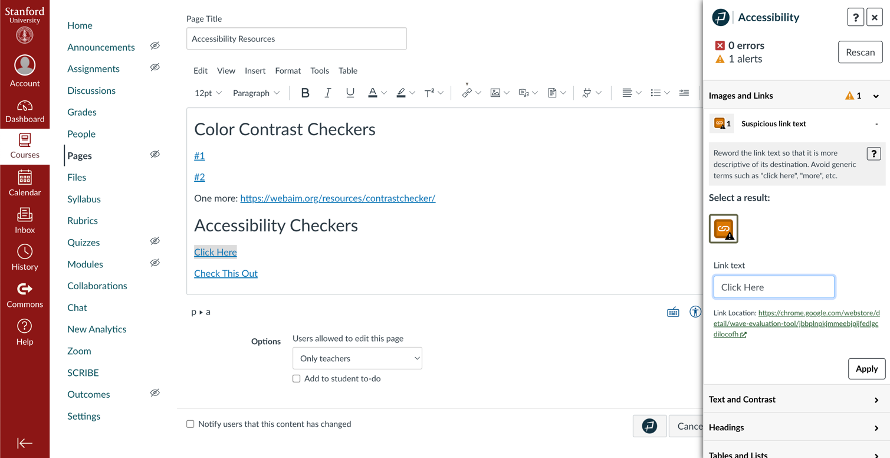
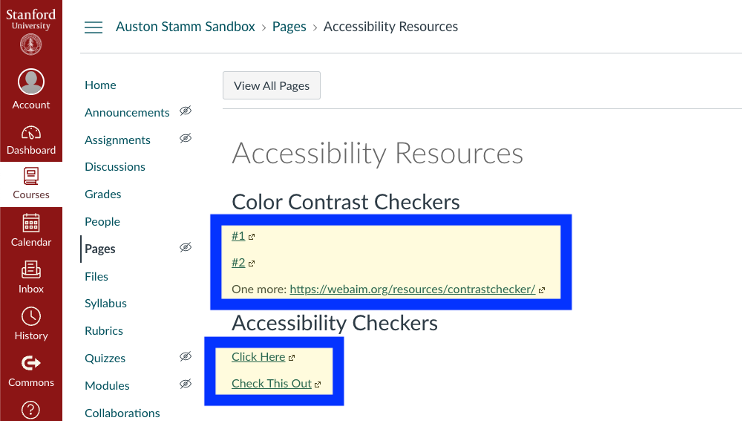
Undescriptive Links
The links below are not descriptive and one of them is just a long URL. It is important that the link name adequately describes the landing webpage.
Descriptive Links
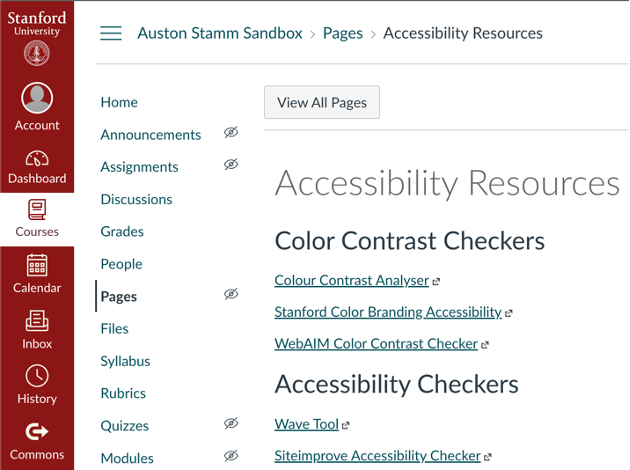
To create a hyperlink write descriptive text, highlight that text, and select the link option in the Canvas page editor toolbar. Insert the URL and select done to create the hyperlink.
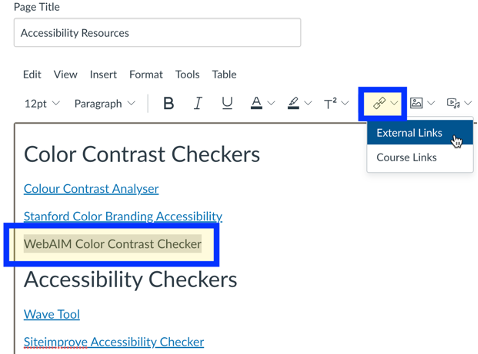
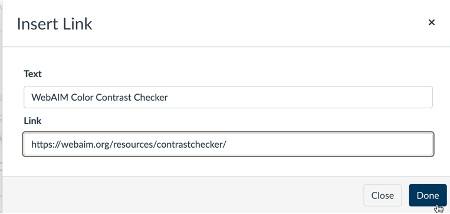
The links now describe the landing webpage, and the URL has been changed to a hyperlink.
Pope Tech Accessibility Guide: Suspicious Link Text
Select the Pope Tech Accessibility Guide and open the links tab to see if any links are flagged as inaccessible. The accessibility guide provides an option to rename links that are non-descriptive. When possible, check hyperlink text manually as the accessibility guide will not catch all variations of non-descriptive link text.