University IT
Accessible Canvas: Images
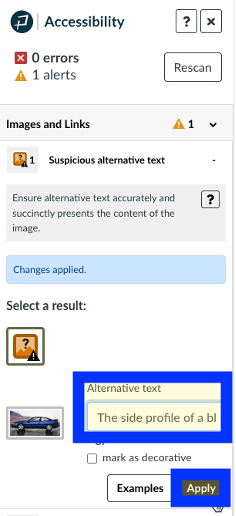
Images that support the content require a text description (also called "alt text") that communicates the purpose and/or content of the image. This information is presented to the individual using assistive technologies, allowing them to hear the description of the image. Image descriptions should be short and communicate the main purpose of the image. Do not include a text description for images that are decorative.
If a longer description of the image is necessary to fully explain its content, consider inserting a more detailed description of the image within the document text that precedes and/or follows the image.
Image guidelines
- A text description should convey the purpose or content of the image in approximately 120 characters or less. Avoid repeating the same information as contained in the surrounding text.
- If the image is decorative, select the Decorative Image checkbox
- If the image is complex, use a short alt text description for the image and then provide additional information in the surrounding text of the document.
- Do not include the file format in the alt text (Example: .JPEG, .PNG).
- Do not include phrases "A picture of" or "An image of" as part of the alt text.
For additional guidance on writing effective text descriptions (i.e., alt text), please review the information on Images.
How To Add Alt Text In Canvas
Adding an Image to Canvas
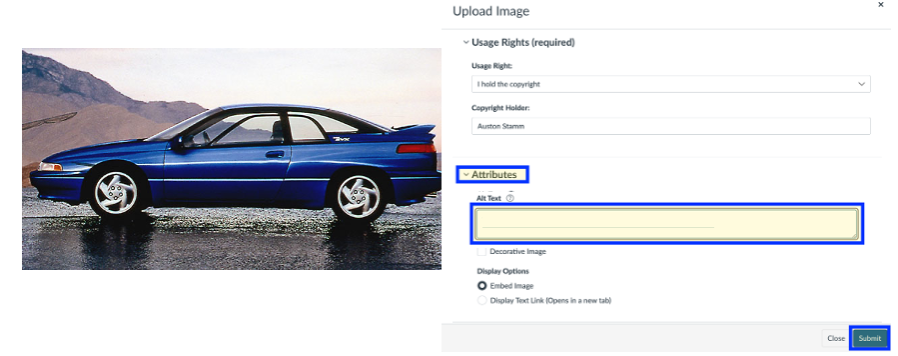
In Canvas select the image icon in the toolbar.
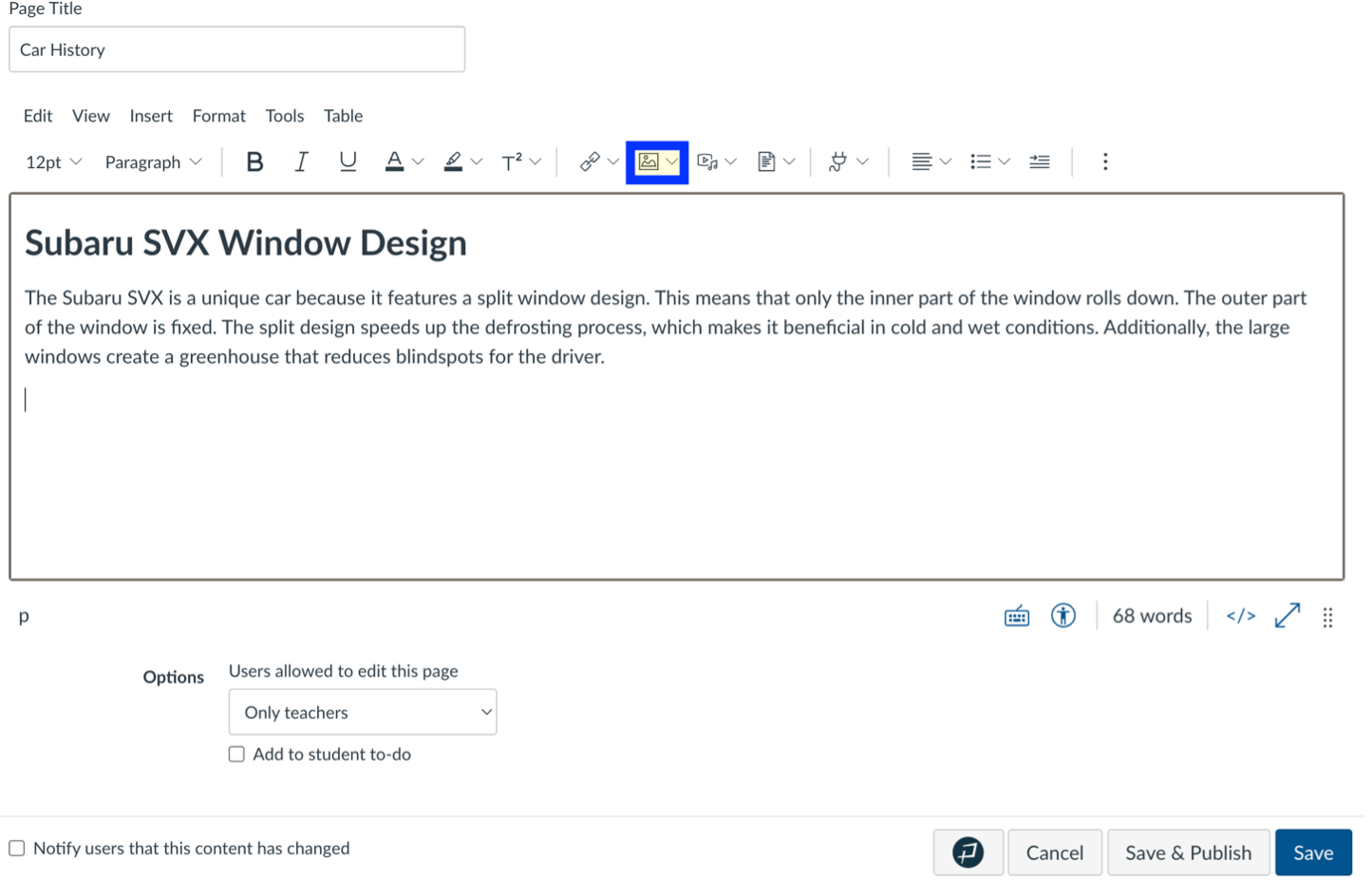
After completing the copyright information scroll to the attributes section and add in the alt text. The alt text should be about 100-125 characters and highlight the important takeaway for the reader.
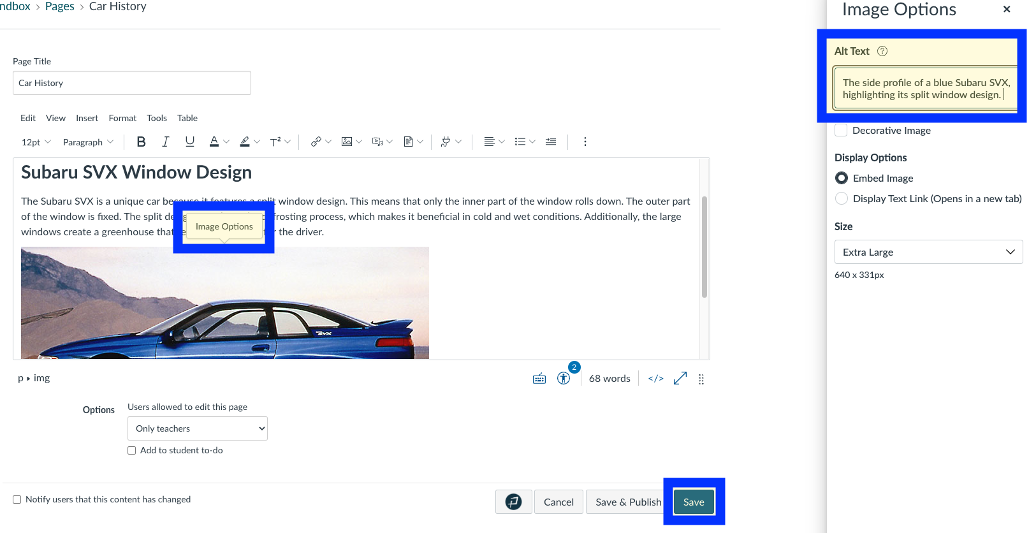
What If an Image is Already in a Canvas Page?
Select the image and select the image options button. Input the appropriate alt text and select the save button.
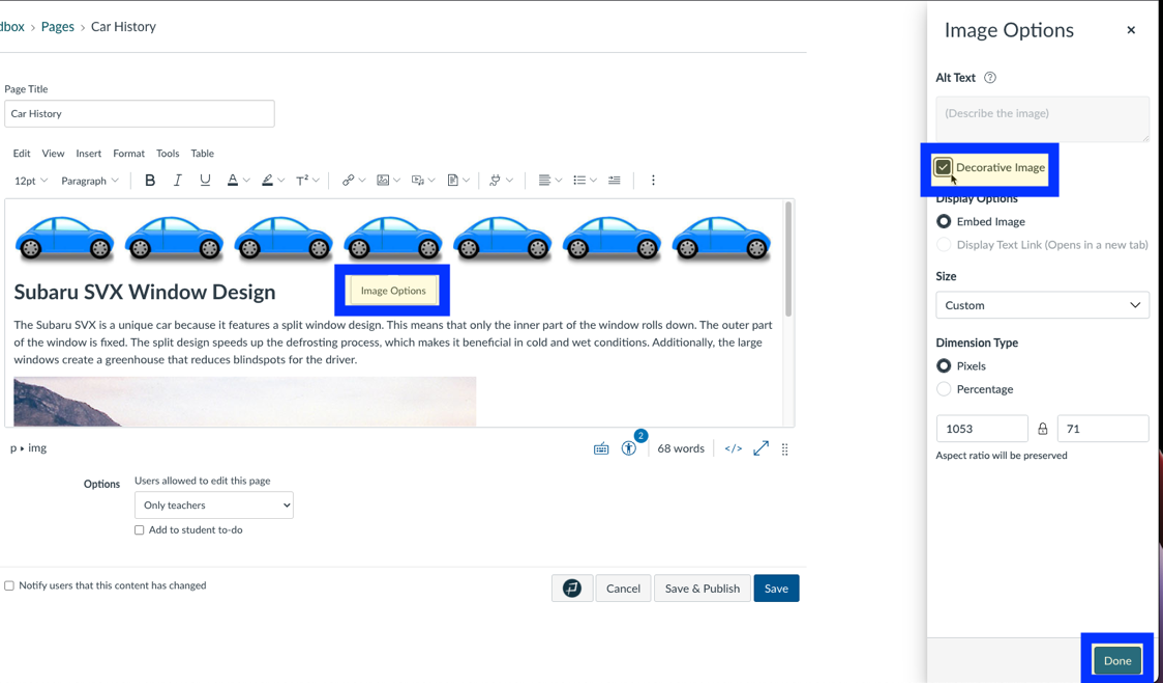
Decorative Option
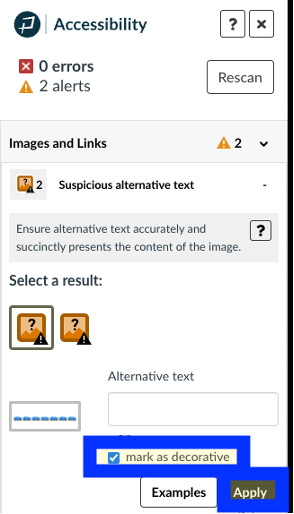
If the image is decorative like a border, decorative image or figure that does not add additional meaning it should be marked as decorative.
Pope Tech Accessibility Guide
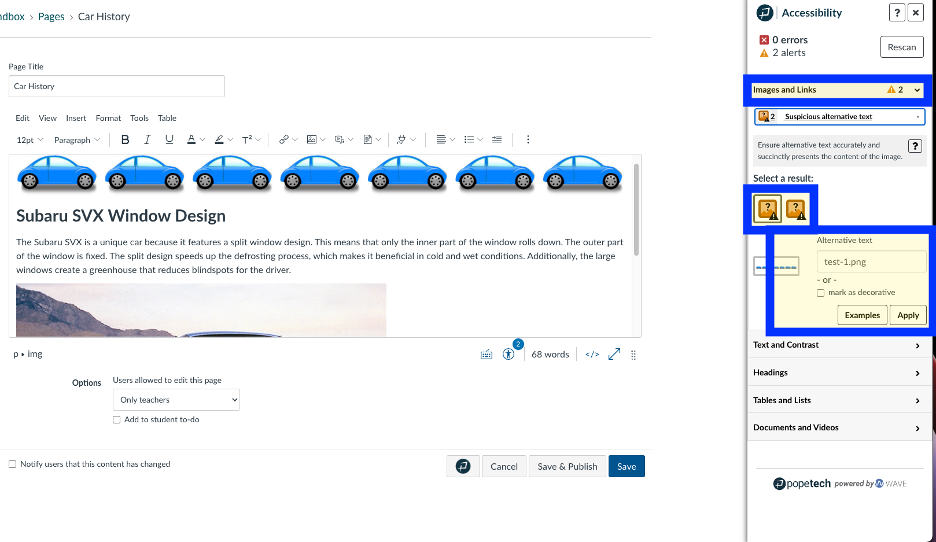
Select the Pope Tech Accessibility Guide from the bottom menu, it is next to the cancel button.
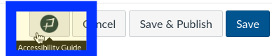
The Pope Tech Accessibility Guide includes options to select the different images. Each image can be marked as decorative or alt text can be added.