 University IT
How to Register a macOS Device in Intune
These instructions are for the School of Medicine community only.
Complete a quick registration to connect your Mac device to the new Microsoft login, giving you secure access to Stanford Microsoft apps like Outlook and Teams. You'll continue to use Jamf for device management.
Step 0: Run Stanford Device Registration (SDR)
- SDR for macOS User Guide
- Select "Yes" to the high-risk data question.
Step 1: Ensure your device is enrolled in Jamf
- If you currently use your Mac for Stanford work and have run SDR, it is likely already enrolled.
- If your device is not enrolled, run SDR.
Prerequisite: Set up new Microsoft login
Before enrolling in Intune, you must set up your new Microsoft login using an approved authentication method. About 24 hours after you set up your new login, you'll see the prompt to launch the Intune Migration app.
Step 2: Register your Mac
Click the "Registration Required" notification that appears on your Mac.
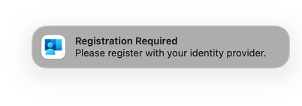 TIP: Did your notification disappear? If you accidentally dismissed the notification, it will reappear if you restart your device.
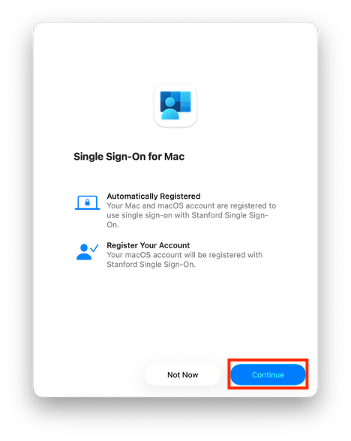
- Click Continue on the Single Sign-On for Mac dialog.
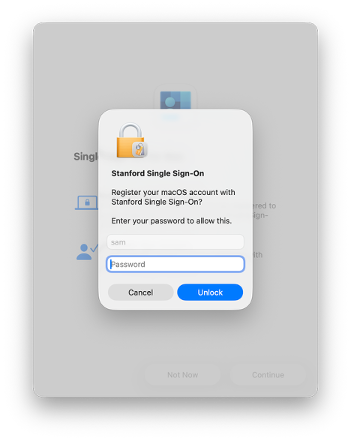
- Enter your Mac password when prompted.
- In the Microsoft sign in window that opens, enter your Stanford email address: SUNetID@stanford.edu
- Follow the login prompts to complete authentication through Microsoft.
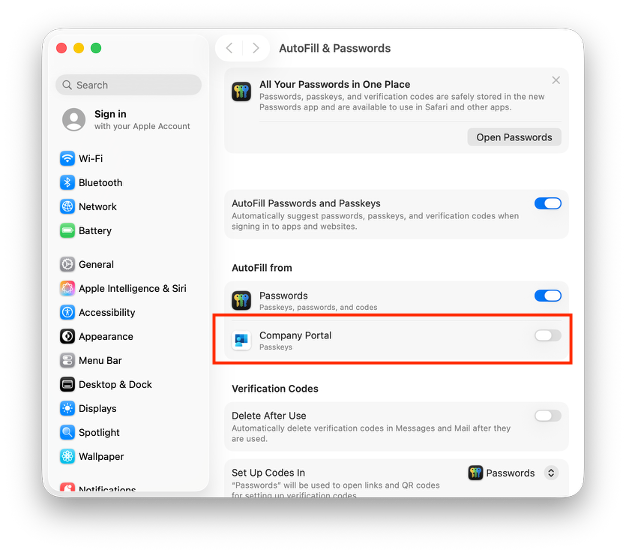
- When prompted to set up Company Portal passkeys, click Open System Settings.
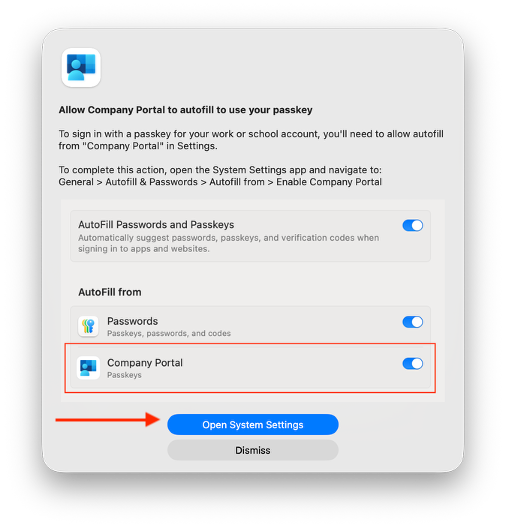
- Click the toggle button to the right of Company Portal to enable it.
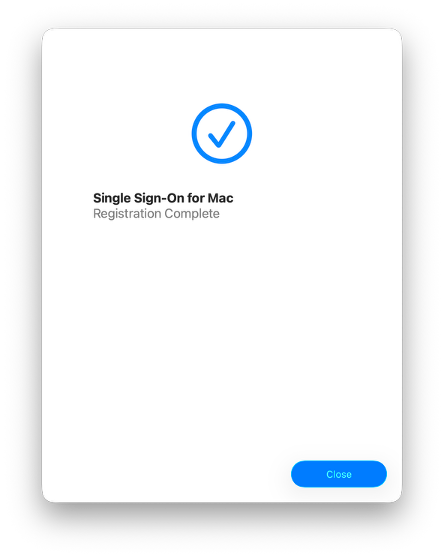
Upon successful completion, you will see confirmation messages in the open windows indicating registration is complete.
Note: If the configuration success message does not appear immediately, ensure you have dismissed the screen shown in Step 6.TIP: If the configuration success message does not appear immediately, ensure you have dismissed the screen shown in Step 6.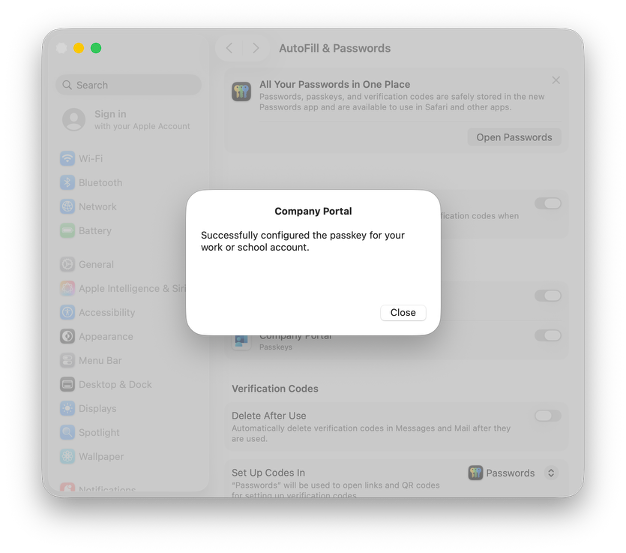
What's next
Wait at least one hour after completing registration, then verify your device's registration on the company portal web site.
See also
- How to Check and Remediate Device Compliance on macOS
- How to Configure Firefox for Device Compliance for macOS and Window
- How to Verify Device Setup on the Company Portal App
Need more help?
- For answers to common questions, review the FAQs.
- For additional assistance, contact SoM Entra ID / Intune support using any of the options listed below:
- SoM TDS Service Desk: Call (650) 725-8000 (option 7), available 6:00 a.m. - 10:00 p.m., 7 days a week. Hours have been expanded to handle increased demand.
- SoM Tech Bar: Schedule an appointment at the location nearest you.
