 University IT
How to Enroll a Linux Device in Intune
These instructions are for the School of Medicine community.
This guide provides installation and enrollment instructions for Microsoft Edge and Microsoft Intune on Linux systems.
These instructions have been validated on Ubuntu 24.04.3 LTS and Red Hat Enterprise Linux (RHEL) 9.6. For additional information please refer to Enroll a Linux device in Intune - Microsoft Intune.
Prerequisite: Set up your new Microsoft login
You must set up your new Microsoft login using an approved authentication method. Then wait 24 hours before enrolling your Linux device in Intune.
Encryption
Encryption is required for compliance and access to university Microsoft applications. University IT (UIT) only supports devices that were encrypted during operating system installation. While it is possible to encrypt a device devices after the operating system has been installed, UIT can not be able to provide direct support. For additional information, please refer to Microsoft's Intune documentation.
Before you begin
- Backup your data: No issues are expected, but it's always a good idea to back up important data.
- Network connection: A reliable Wi-Fi network or wired connection will help ensure your enrollment goes smoothly.
- Save your work: Please ensure all your work is saved and applications are closed before starting the process.
Ubuntu installation instructions
Update system and install prerequisites.
sudo apt update
sudo apt install curl software-properties-common apt-transport-https -y
Add Microsoft GPG key
curl -sSL https://packages.microsoft.com/keys/microsoft.asc | sudo gpg --dearmor -o /usr/share/keyrings/microsoft.gpg
Add Microsoft Edge repository.
echo "deb [arch=amd64 signed-by=/usr/share/keyrings/microsoft.gpg] https://packages.microsoft.com/repos/edge stable main" | sudo tee /etc/apt/sources.list.d/microsoft-edge.list
Add Microsoft Linux repository.
sudo sh -c 'echo "deb [arch=amd64 signed-by=/usr/share/keyrings/microsoft.gpg] https://packages.microsoft.com/ubuntu/$(lsb_release -rs)/prod $(lsb_release -cs) main" >> /etc/apt/sources.list.d/microsoft-ubuntu-$(lsb_release -cs)-prod.list'
Install Microsoft Edge and Intune Portal.
sudo apt update
sudo apt install microsoft-edge-stable intune-portal -y
- Reboot your system to continue the installation, follow the device registration instructions below.
Red Hat Enterprise Linux (RHEL) installation instructions
Import Microsoft GPG key.
ssudo rpm --import https://packages.microsoft.com/keys/microsoft.asc
Add Microsoft Edge repository.
sudo tee /etc/yum.repos.d/microsoft-edge.repo > /dev/null <<'EOF' [microsoft-edge] name=Microsoft Edge baseurl=https://packages.microsoft.com/yumrepos/edge enabled=1 gpgcheck=1 gpgkey=https://packages.microsoft.com/keys/microsoft.asc EOF
Add RHEL 9 repository.
sudo dnf config-manager --add-repo https://packages.microsoft.com/yumrepos/microsoft-rhel9.0-prod
Install Microsoft Edge and Intune Portal.
sudo dnf install microsoft-edge-stable intune-portal -y
- Reboot your system to continue the installation, follow the device registration instructions below.
Device registration instructions
Launch Intune portal by opening a terminal and running the following command:
intune-portal
- Select Sign in from the Intune Portal interface.
- In the new window that opens, enter your email as <sunetid>@stanford.edu
- Follow the prompts to complete authentication through Microsoft.
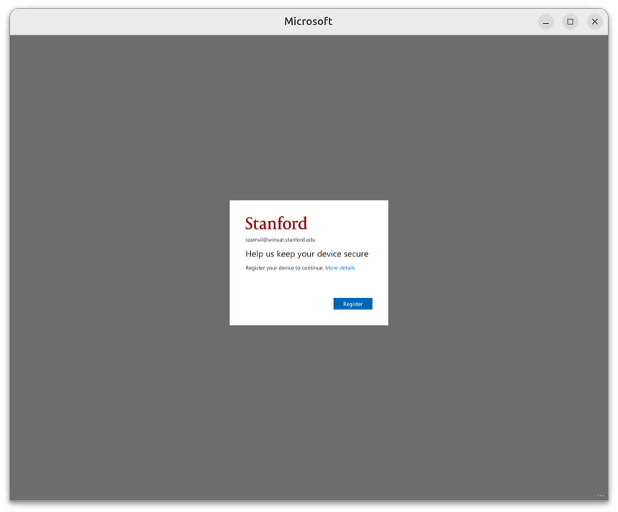
- After completing authentication, select Register. This will return you to the original Intune Portal window.
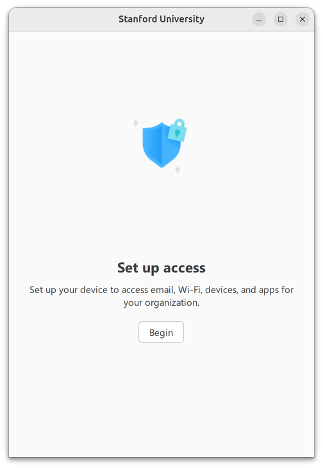
- After returning to the original window, select Begin.
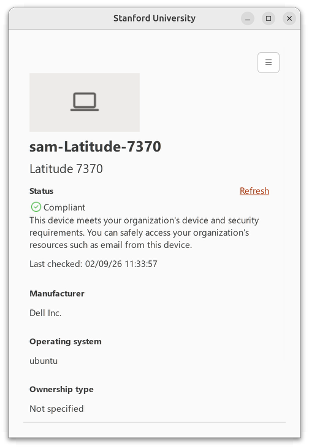
- This will take you to the page that calculates and displays your current compliance status.
- Open Microsoft Edge and sign in to the browser using the user menu in the upper right.
- Once logged into Edge, test your enrollment by attempting to sign in to https://outlook.com.
What's next
Wait at least one hour after completing registration, then verify your device's registration on the company portal web site.
See also
Need help?
- Visit our FAQs.
- For additional assistance, contact SoM Entra ID / Intune support using any of the options listed below:
- SoM TDS Service Desk: Call (650) 725-8000 (option 7), available 6:00 a.m. - 10:00 p.m., 7 days a week. Hours have been expanded to handle increased demand.
- SoM Tech Bar: Schedule an appointment at the location nearest you.
