University IT
Transitioning From AMIE to MyDevices
On this page:
Overview
Completing the annual Data Security Attestation is a mandatory requirement for all Stanford School of Medicine faculty, staff, students, and affiliates. All School of Medicine affiliates, including those with a Full (sponsored) SUNet ID, now manage their devices and complete their attestation in MyDevices.
What Changed?
As of Oct. 19, 2026, School of Medicine faculty, staff, students, and affiliates who previously used AMIE have transitioned to managing their devices and user compliance through MyDevices. This transition consolidates compliance management into one application and includes the attestation process.
Important: Security requirements and compliance obligations haven’t changed, only the portal interface and navigation. If you previously used AMIE, use this guide to help navigate your new experience in MyDevices.
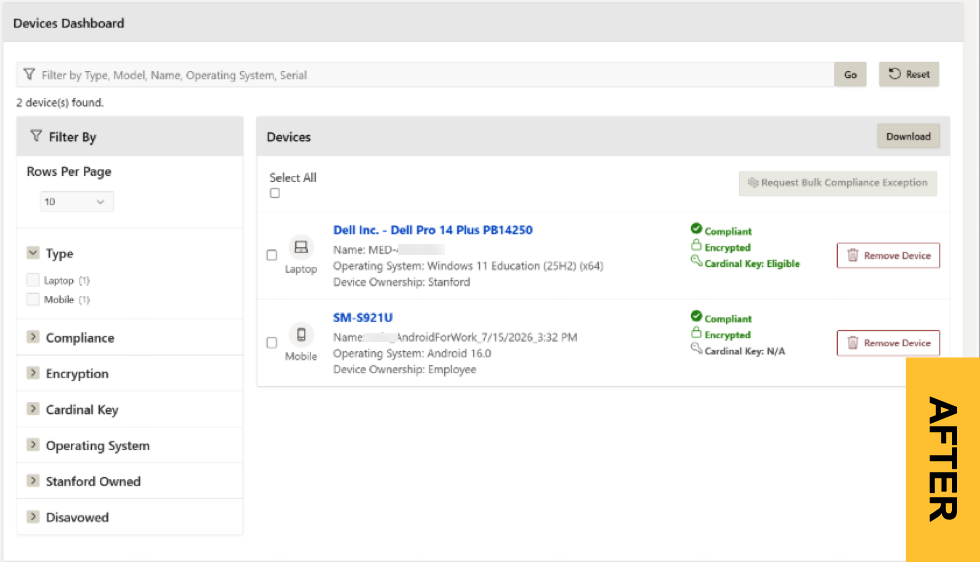
1 - Dashboard: Look and Feel
Previous AMIE Experience: The AMIE portal dashboard used a tabular, list-based layout to display all your registered devices and their compliance statuses.
New MyDevices Experience: MyDevices presents your devices as individual, responsive cards in a modern dashboard layout. Each card provides a clean, visual snapshot of your compliance status using color-coded badges (green checkmarks for compliant devices and red warning icons for non-compliant devices), making it quick and intuitive to identify and troubleshoot issues.
Comparison 1a: Dashboard Overview. Use the image slider tool to compare the before-and-after migration versions. Dashboard Overview Left: AMIE (former); Right: MyDevices.
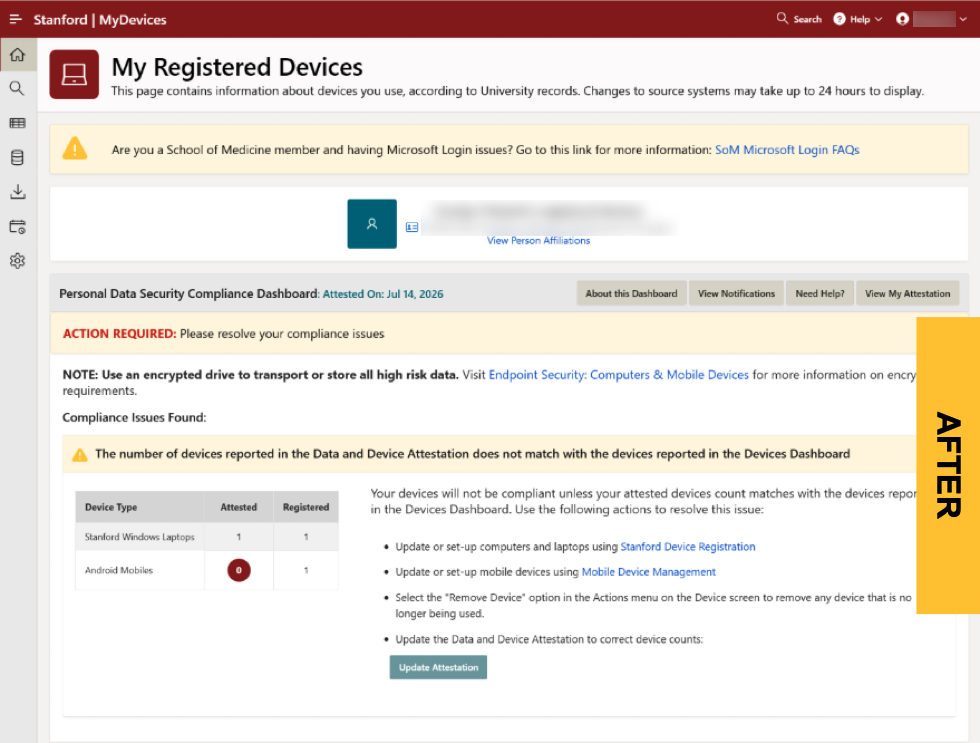
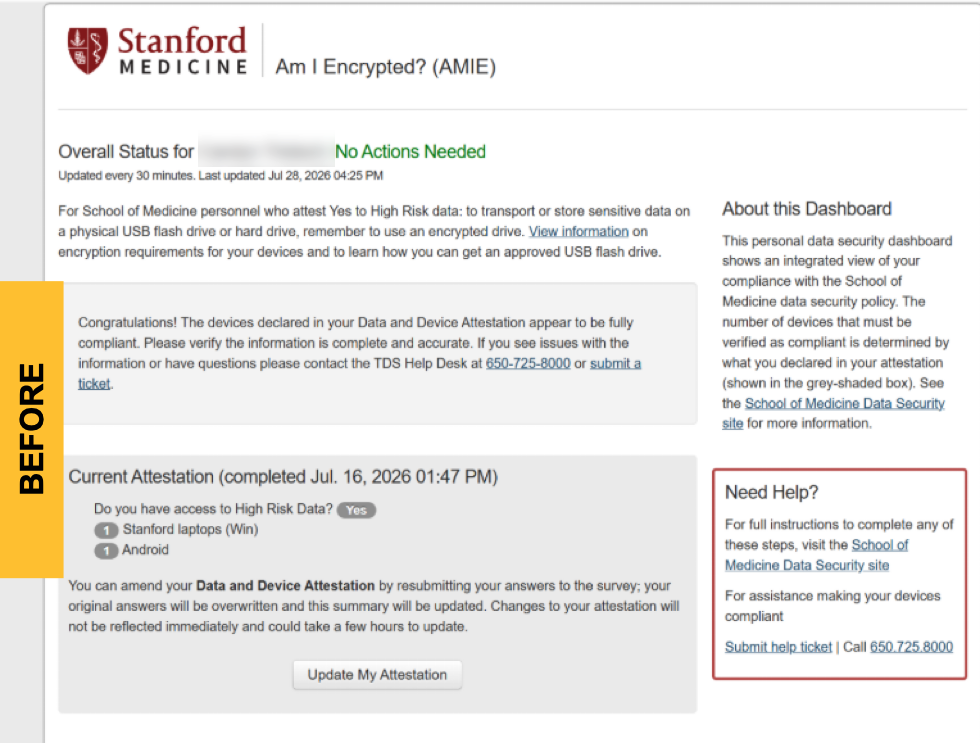
Comparison 1b: Dashboard Details Overview. Use the image slider tool to compare the before-and-after migration versions. Left: AMIE (former); Right: MyDevices.
2 - Device Compliance Status & Details
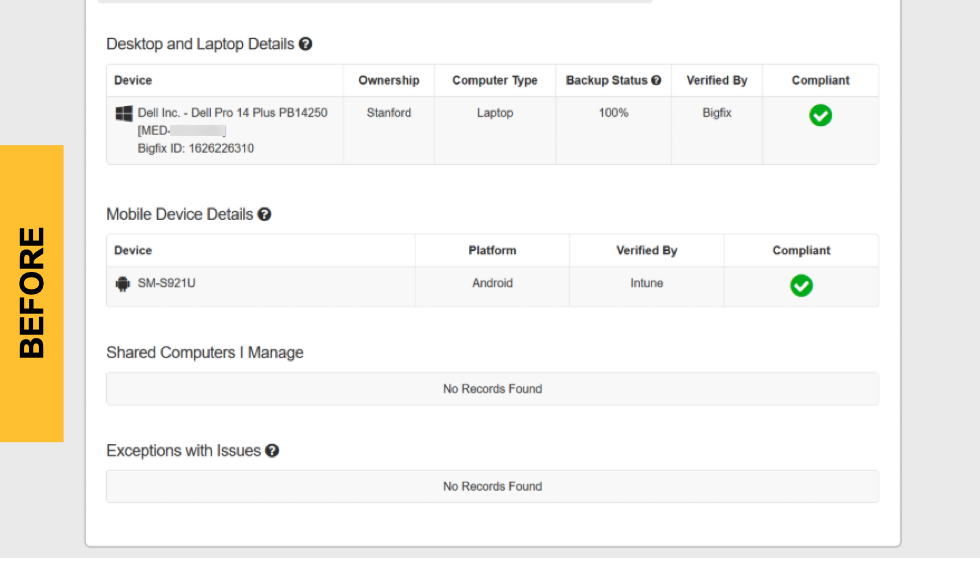
Previous AMIE Experience: A technical table displayed device registration, configuration details, and backup status.
New MyDevices Experience: This organized layout shows you exactly which component requires attention if your device falls out of compliance. Clicking on a device expands a categorized panel that groups technical requirements under clear headings.
Comparison 2: Device Compliance & Statuses. Use the image slider tool to compare the before-and-after migration versions.
Left: AMIE (former); Right: MyDevices.
3 - Managing Your Attestation & Roles
Previous AMIE Experience: The annual Data Security Attestation (declaring whether you work with, have access to, or may receive High-Risk Data) was completed and modified directly within the AMIE portal.
New MyDevices Experience: The annual Data Security Attestation is now completed in MyDevices. You'll continue to receive email notifications when it's time to complete your attestation, but you are now directed to MyDevices instead of AMIE.
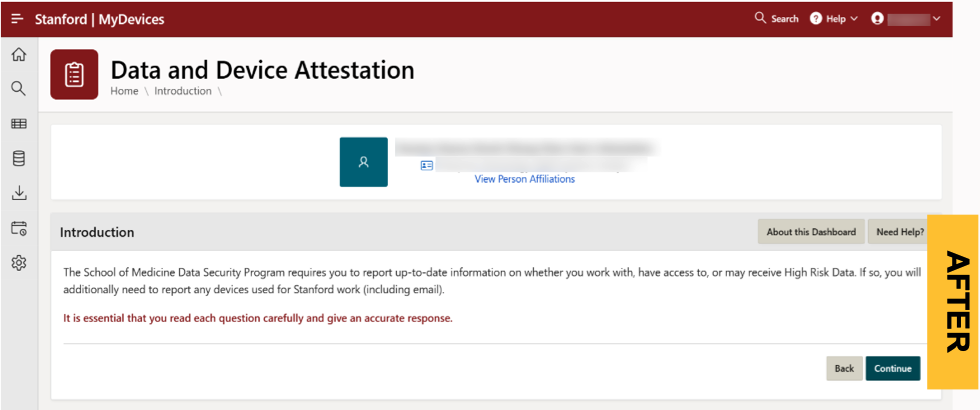
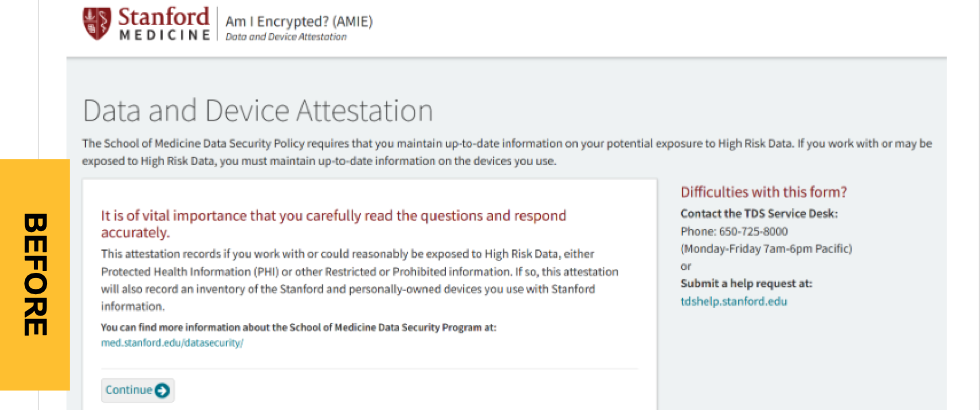
Scenario 1: Attestation Start / Update Screen
This screen is displayed any time the Data and Device Attestation is updated.
Comparison 3a: Data and Device Attestation. Use the image slider tool to compare the before-and-after migration versions. Left: AMIE (former); Right: MyDevices.
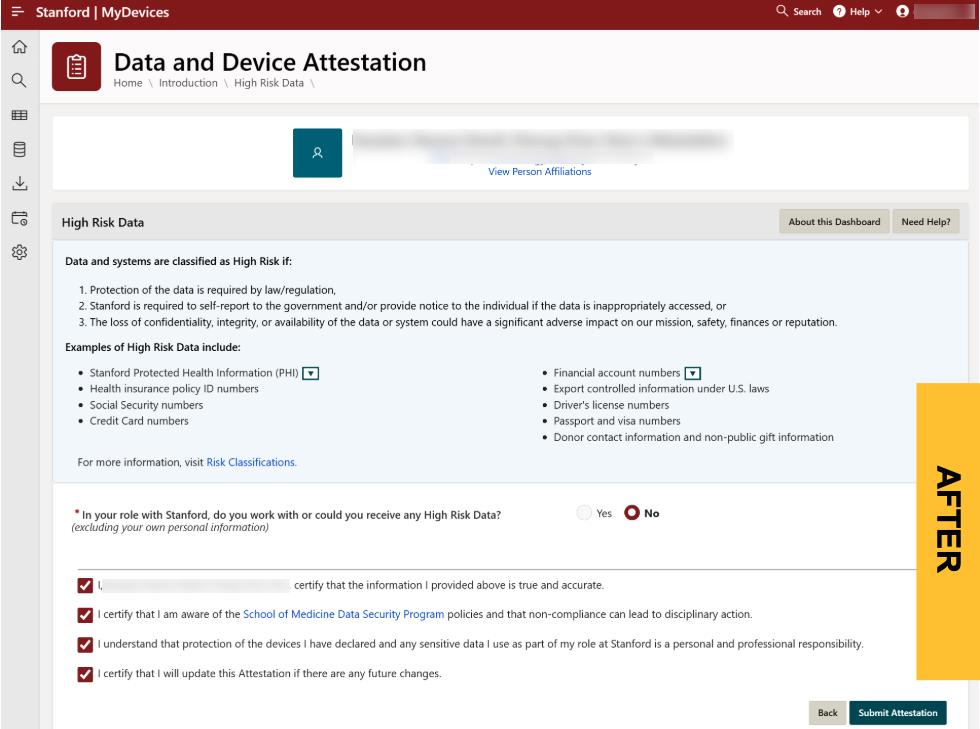
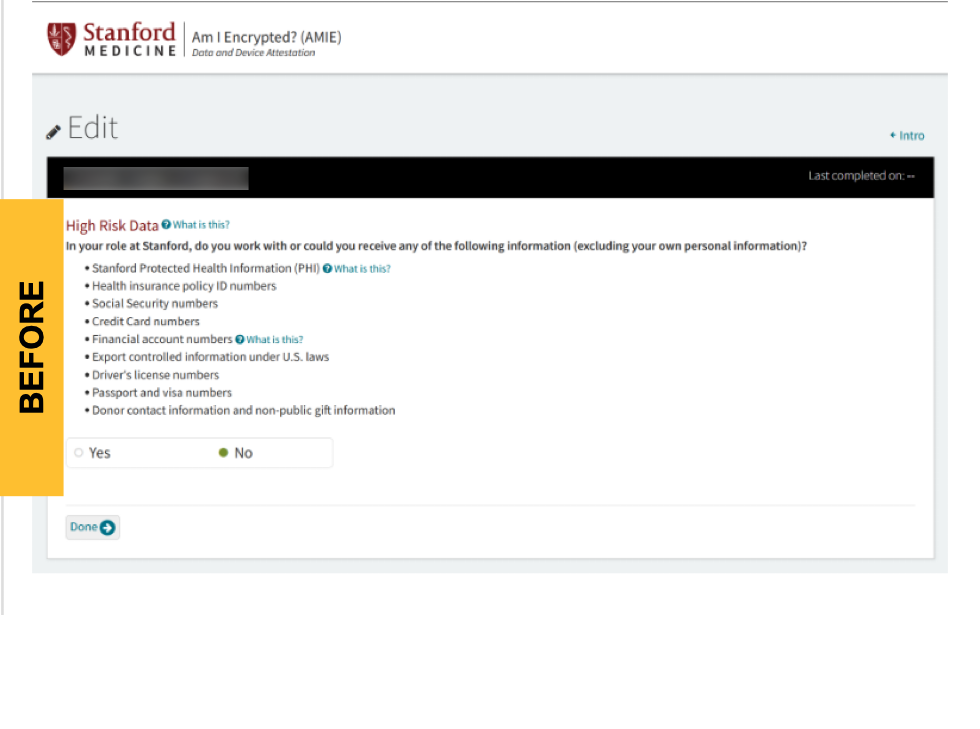
Scenario 2: High Risk = "No" Workflow (Done & Summary)
If High Risk = "No", the Done button appears and you're taken to the Data and Device Attestation Summary screen. In MyDevices, the summary is displayed when "No" is selected.
Comparison 3b: Data and Device Attestation. Use the image slider tool to compare the before-and-after migration versions. Left: AMIE (former); Right: MyDevices.
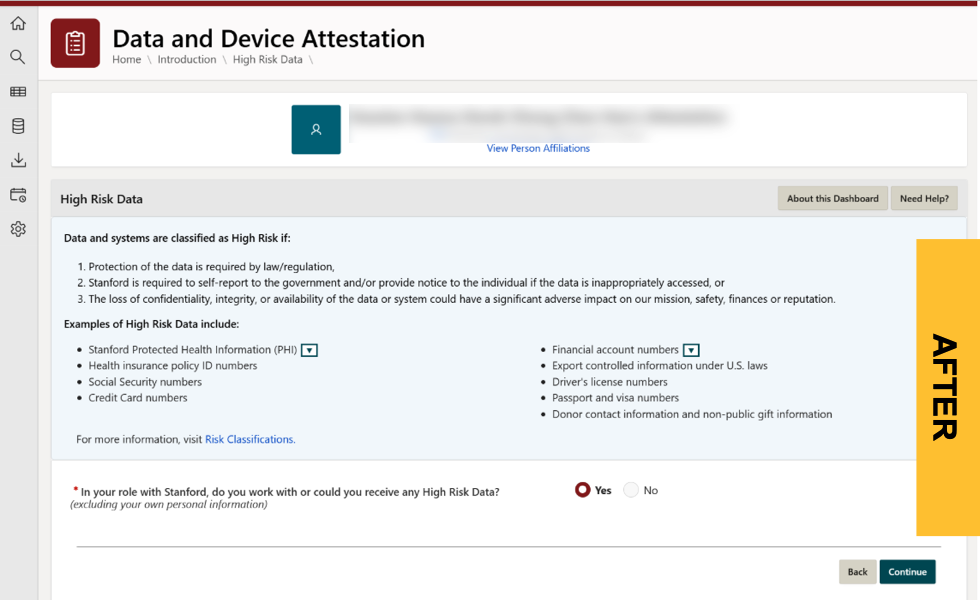
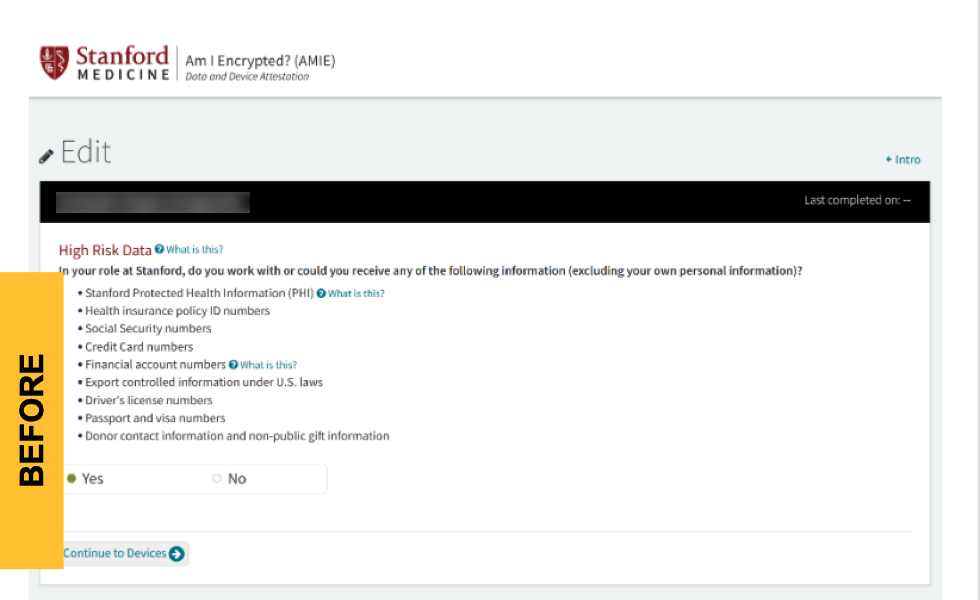
Scenario 3: High Risk = "Yes" Workflow (Continue to Devices)
If High Risk = "Yes", the Continue to Devices button is displayed.
Comparison 3c: Data and Device Attestation. Use the image slider tool to compare the before-and-after migration versions. Left: AMIE (former); Right: MyDevices.
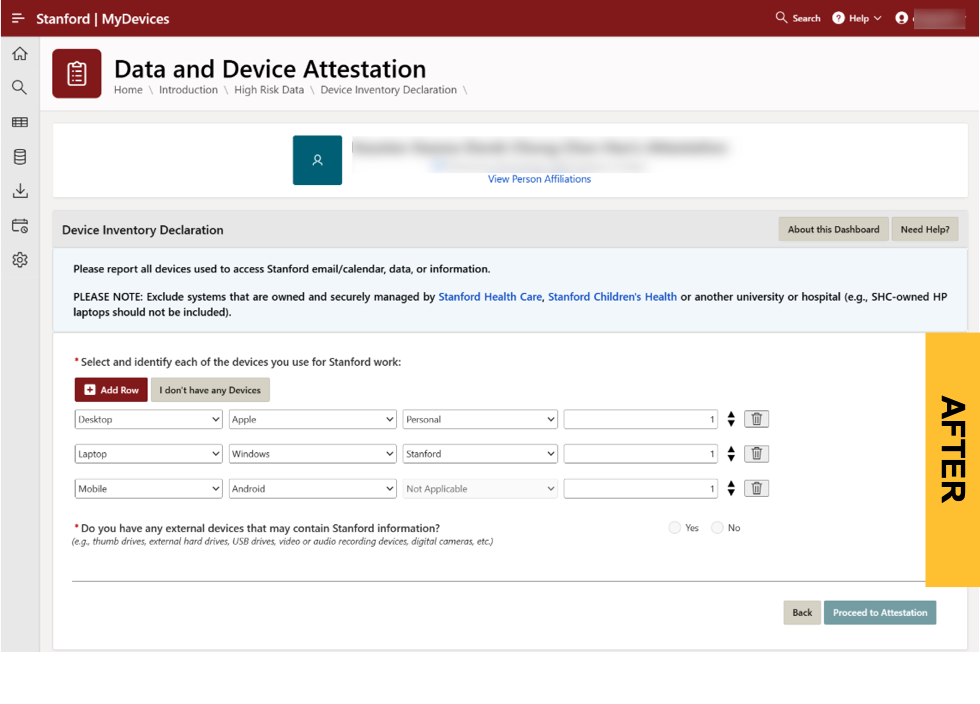
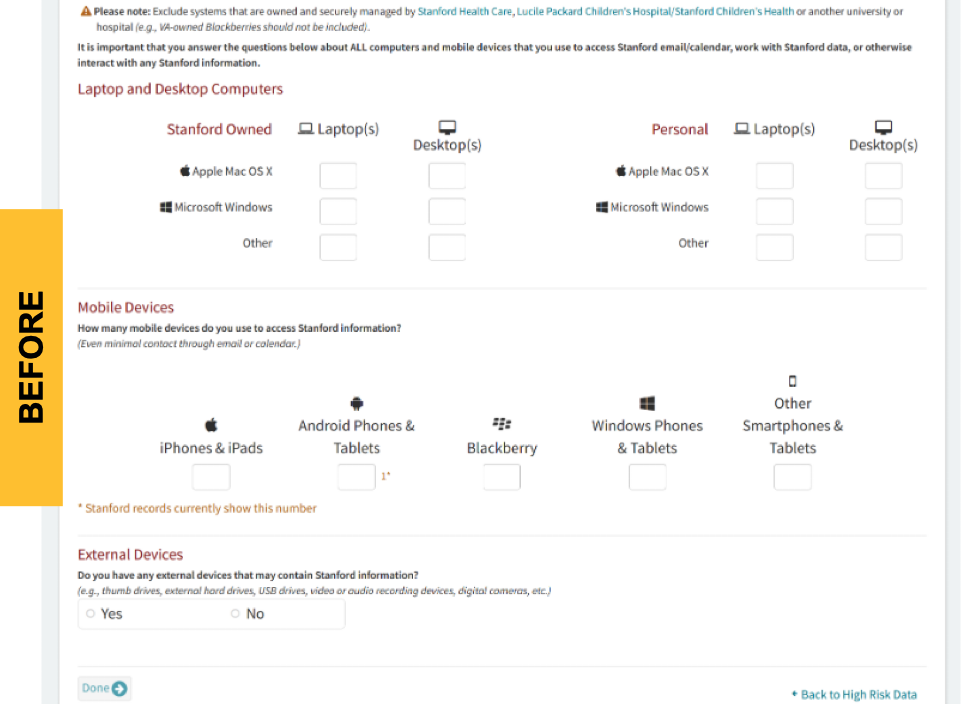
Scenario 4: High Risk = "Yes" Workflow (Device Screen & External Device Default)
If High Risk = "Yes", the device screen is displayed. The External Device question is defaulted to not expanded.
Comparison 3d: Data and Device Attestation. Use the image slider tool to compare the before-and-after migration versions. Left: AMIE (former); Right: MyDevices.
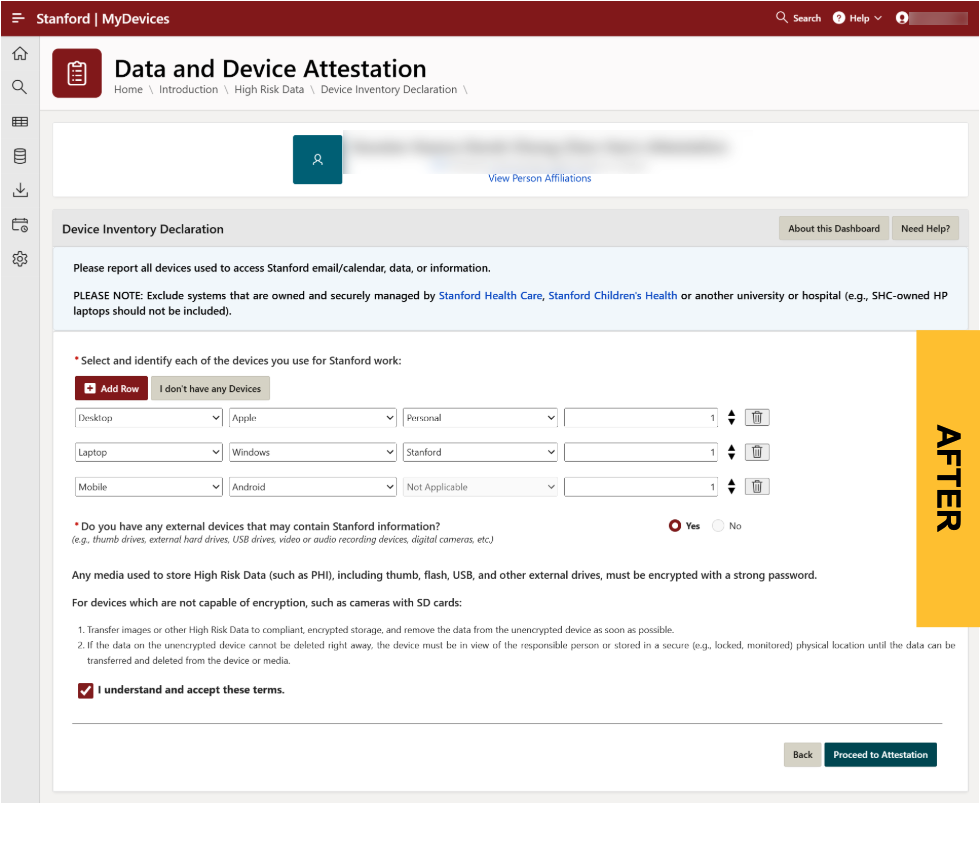
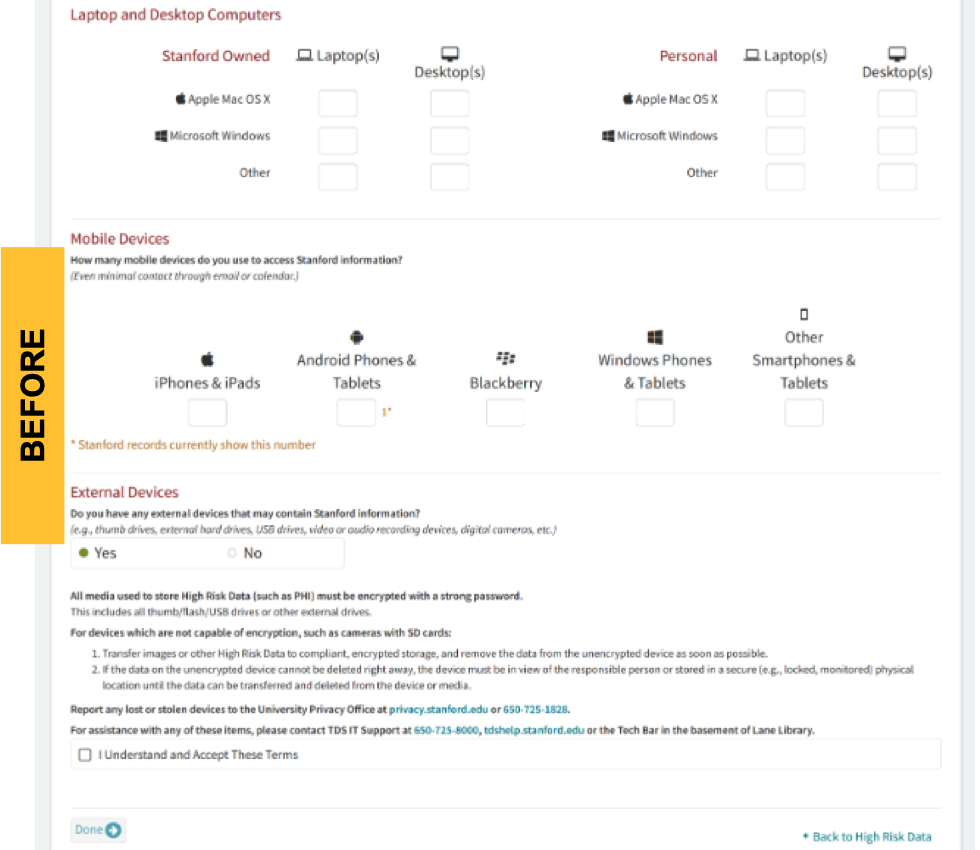
Scenario 5: External Device Question Expanded
The External Device question is expanded to include additional legal language and an acknowledgement when "Yes" is selected.
Comparison 3e: Data and Device Attestation. Use the image slider tool to compare the before-and-after migration versions. Left: AMIE (former); Right: MyDevices.
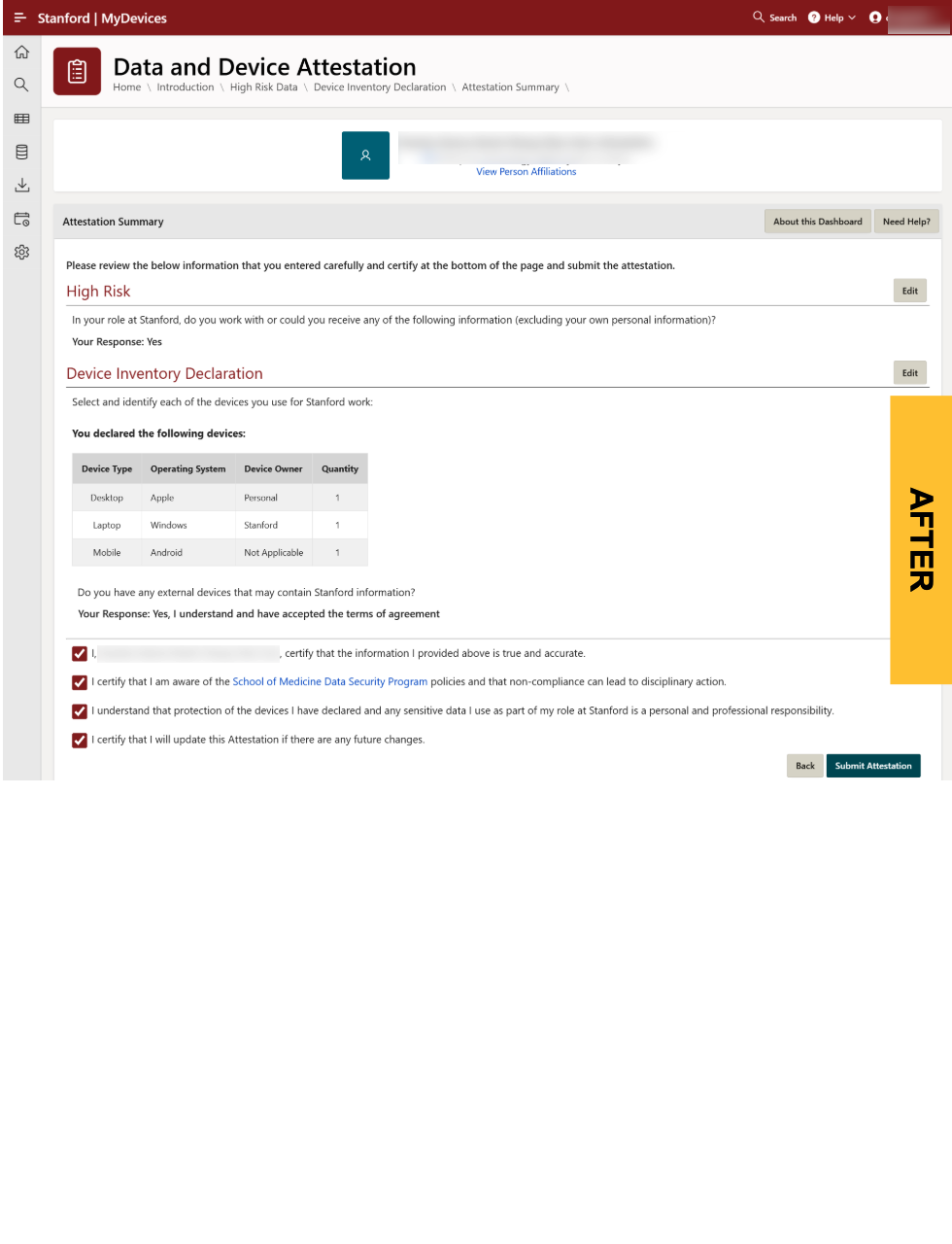
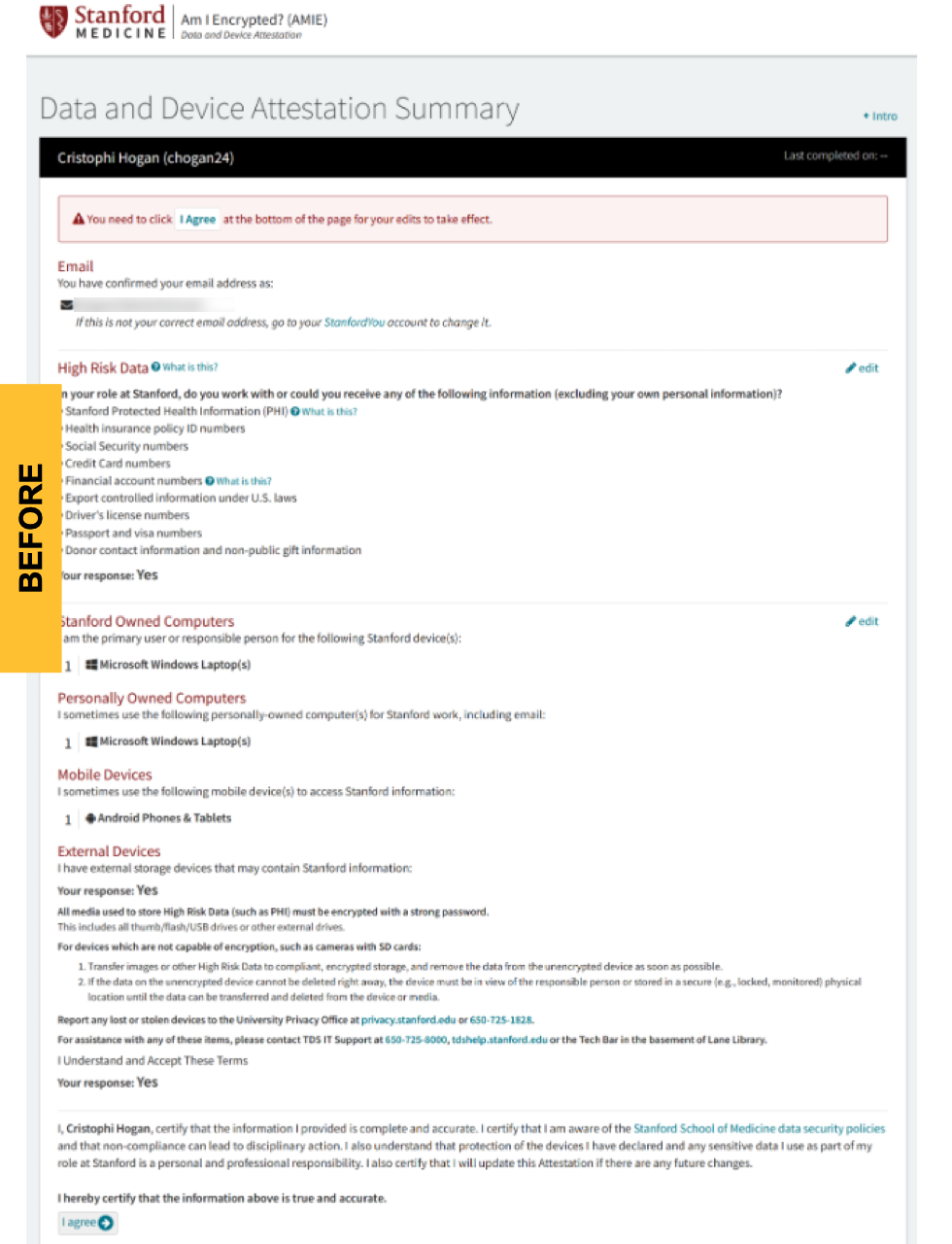
Scenario 6: High Risk Summary Page
This is the summary page for High Risk.
Comparison 3f: Data and Device Attestation. Use the image slider tool to compare the before-and-after migration versions. Left: AMIE (former); Right: MyDevices.