University IT
How to Set Up Stanford Gmail within Outlook
On this page:
Mac Users
- Open the Outlook app.
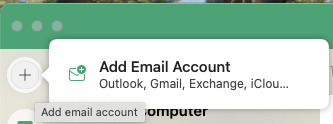
Click on the "+" in the upper left-hand side and select Add Email Account.
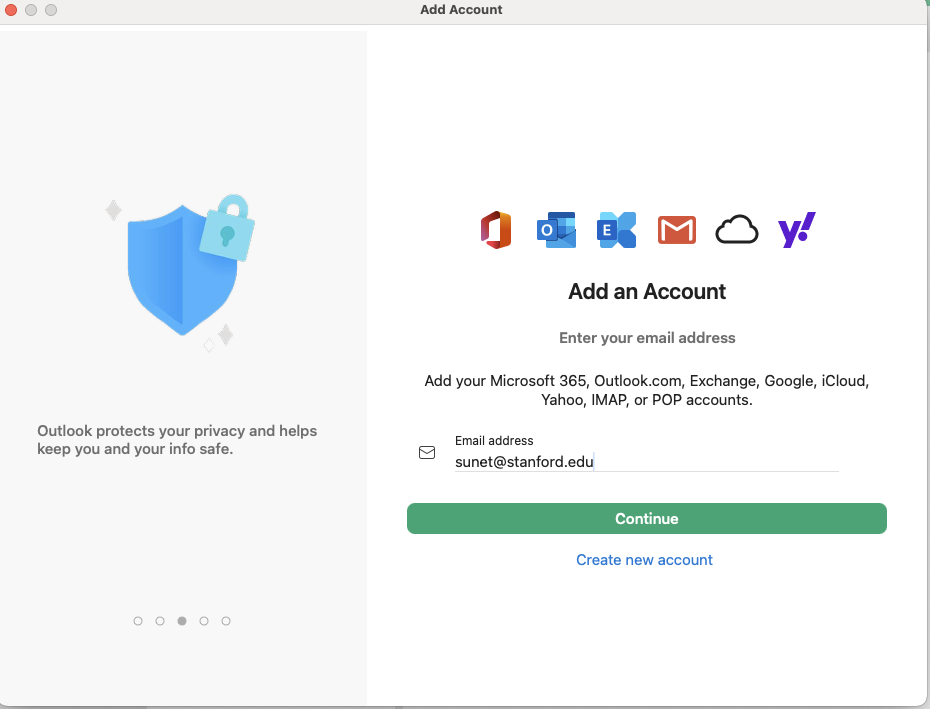
Sign in to your Google Workspace with your SUNet, then click Continue.
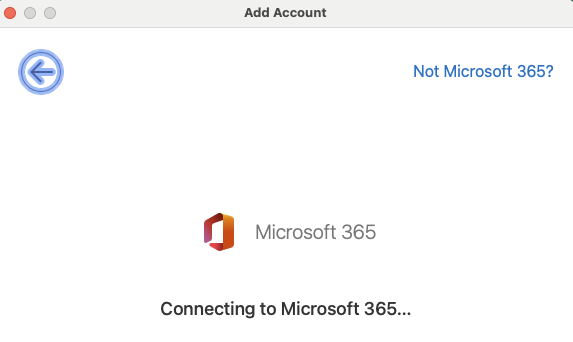
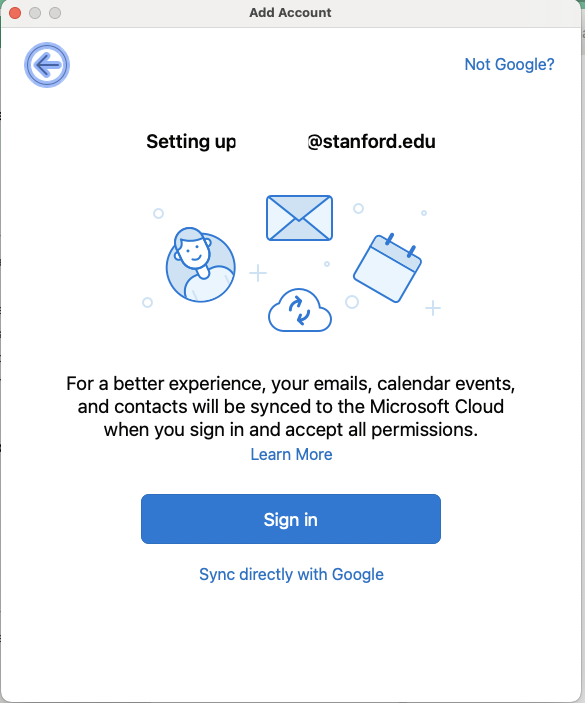
Click on "Not Microsoft 365?".
Note: This screen will try to auto-connect to Microsoft 365 if not clicked in time. If this happens, you will have to delete the account and start over.
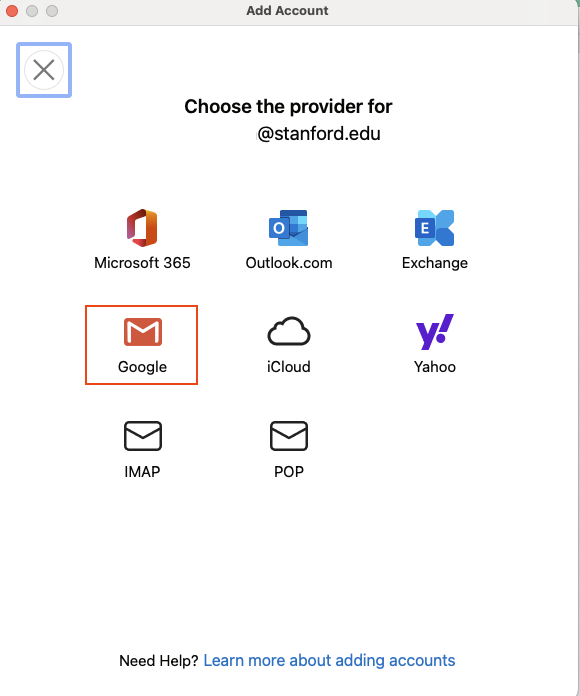
Next, you will choose Google from the list of providers.
- You will then be asked to sign in.
- If prompted, please sign in using two-step authentication.
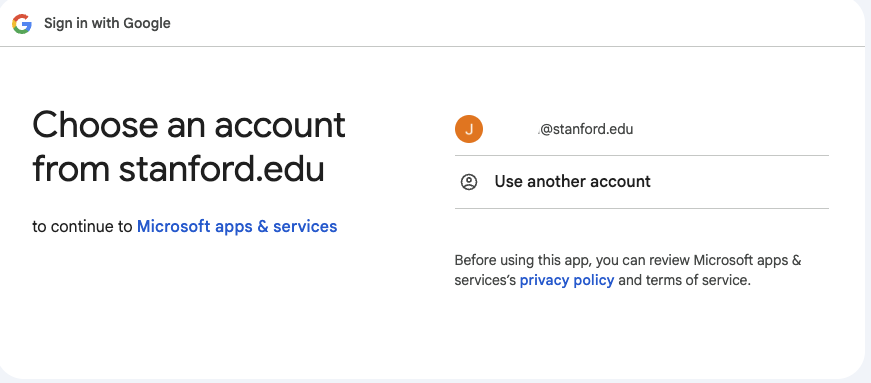
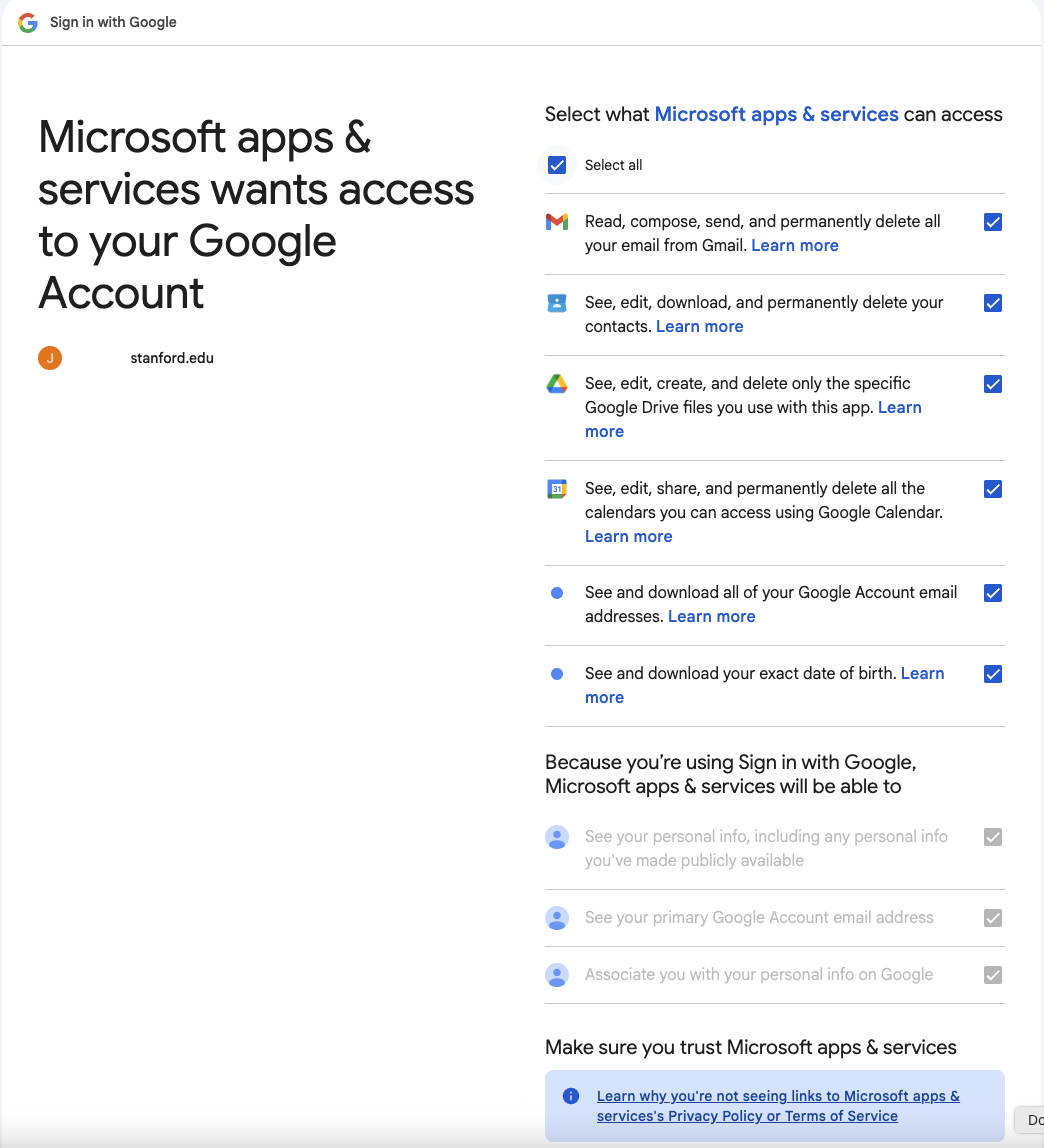
Select your account. Then, review the prompt to allow macOS access to information about you and click Continue.
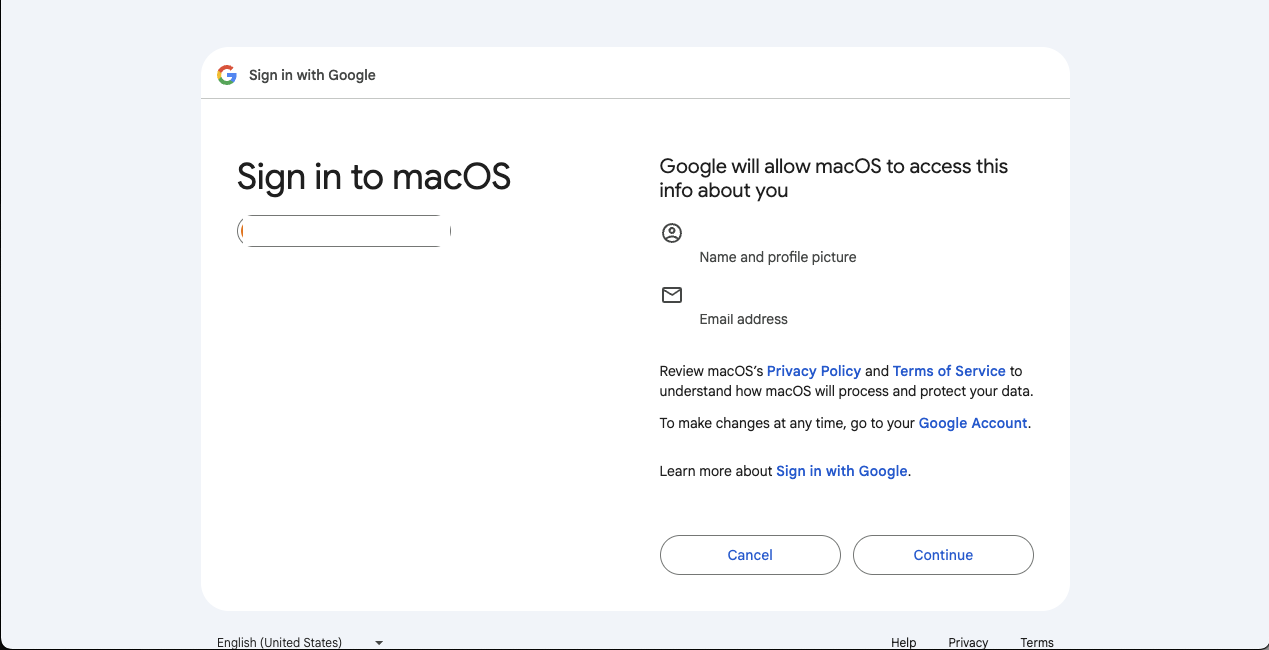
"Select all" when asked for macOS access permissions, and then click Continue.
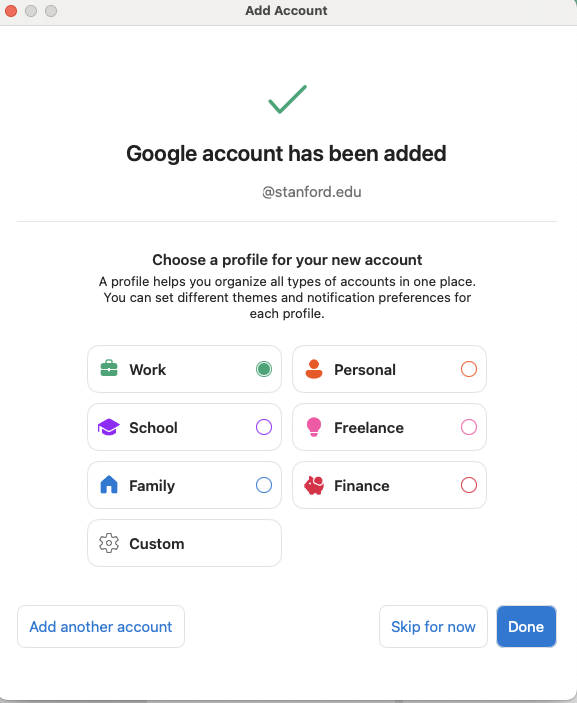
Your Google account has been added. You can choose to create a profile or select Done.
Windows Users
- Download Google Workspace Sync for Microsoft Outlook from https://tools.google.com/dlpage/gssmo.
Once installed, The setup wizard will prompt you to sign in. Enter your Stanford email address and select Continue.
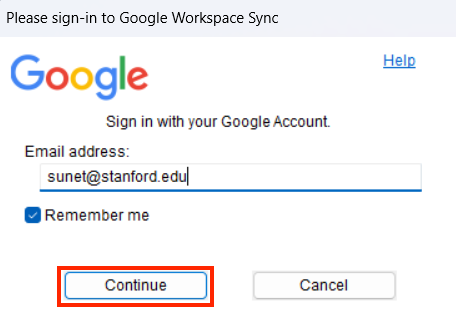
- Note: If the setup wizard doesn't start, Please search for Set Up a Google Workspace sync user.
- Select your Google account and allow access.
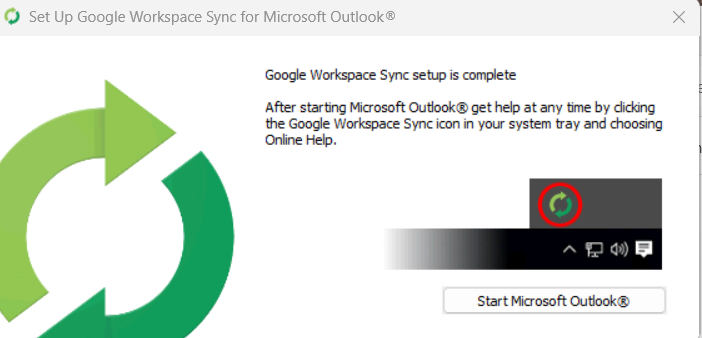
Click on Create a new profile and than select Start Microsoft Outlook.
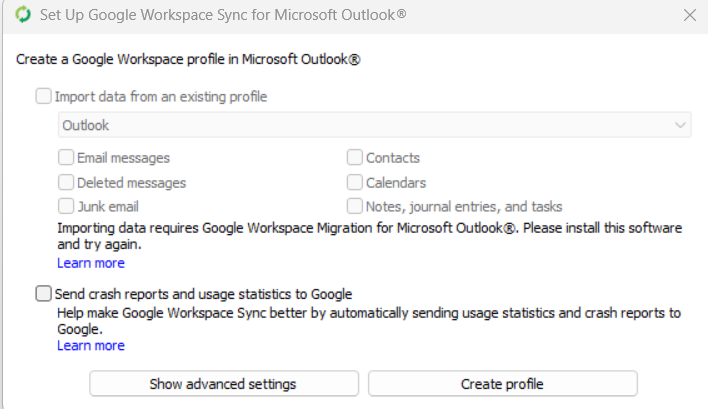
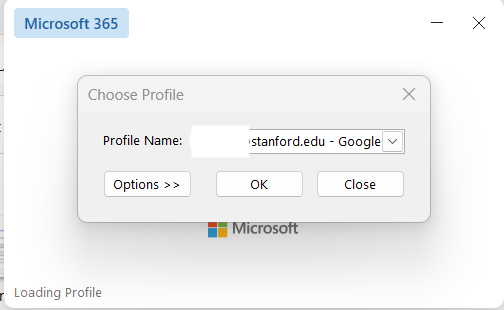
Than, you will select your profile and click ok.
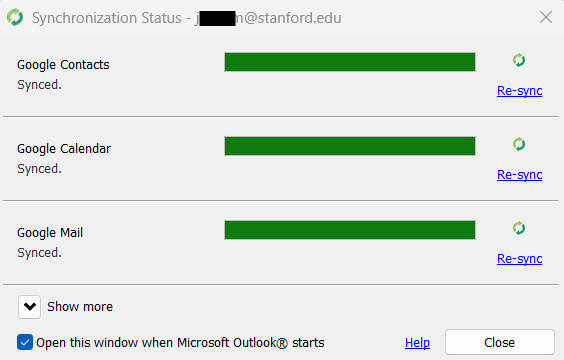
A synchronization status window will appear. Please allow time for the sync to complete.