 University IT
Accessible Tables in Google Docs
Tables in Google Docs must be used for organizing tabular data and not for visual layout. A simple, uniform structure is necessary for compatibility with assistive technologies. Programmatically define a header row and add descriptive alternative text to the table. This enables screen readers to announce the header for each data cell, providing critical context for users.
Using data tables for layout purposes creates significant accessibility barriers and must be avoided. Use the appropriate formatting tools in Google Docs to achieve the desired visual layout.
How To Add Accessible Tables In Google Docs
Google Doc's Limited Table Features
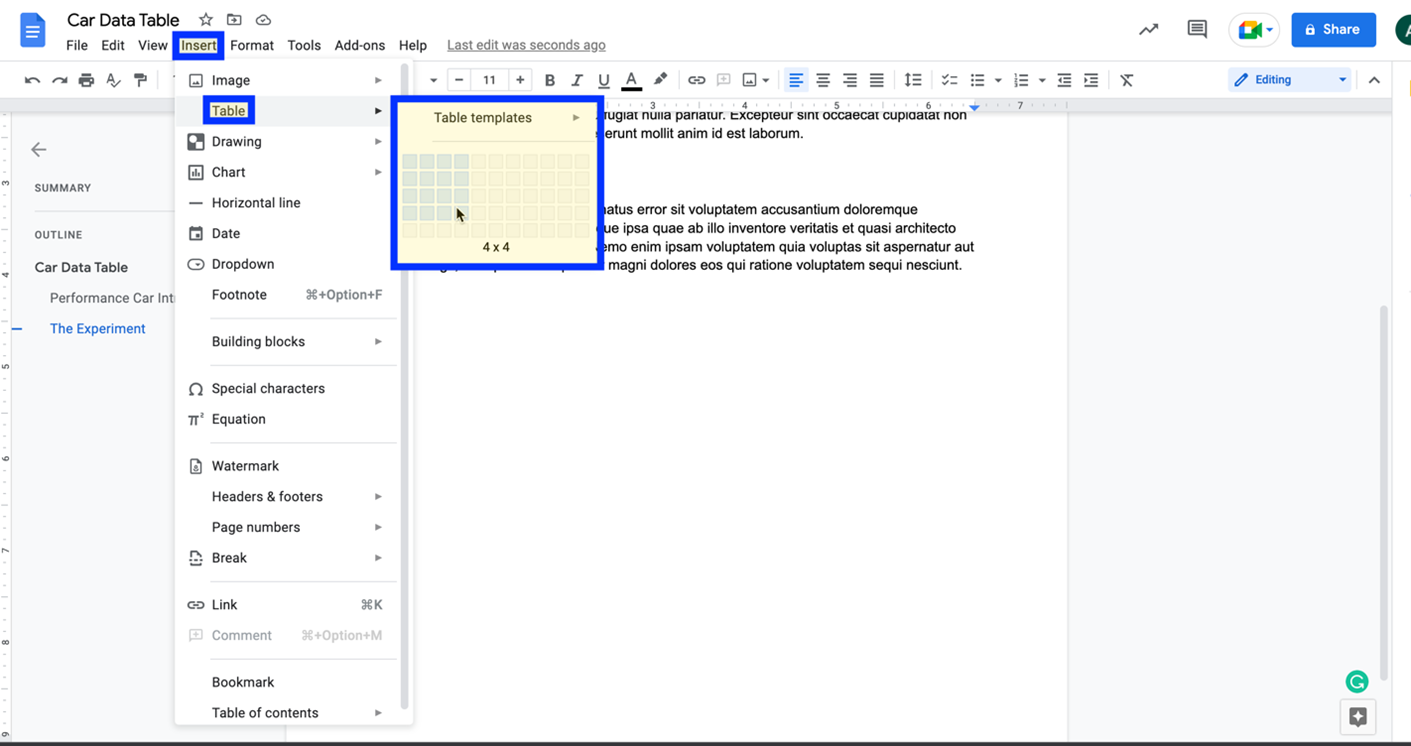
Google Docs provides a limited set of options for specifying the column headers in a data table. Create the table using the Table template tool. Then select the Table and choose Table Properties.
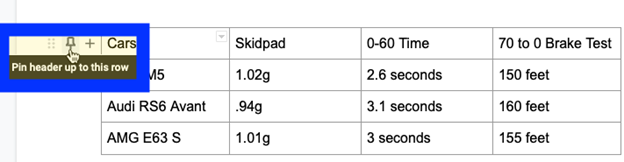
Pin the header row of your table. This ensures that the header row is displayed visually if the table extends into the next page.
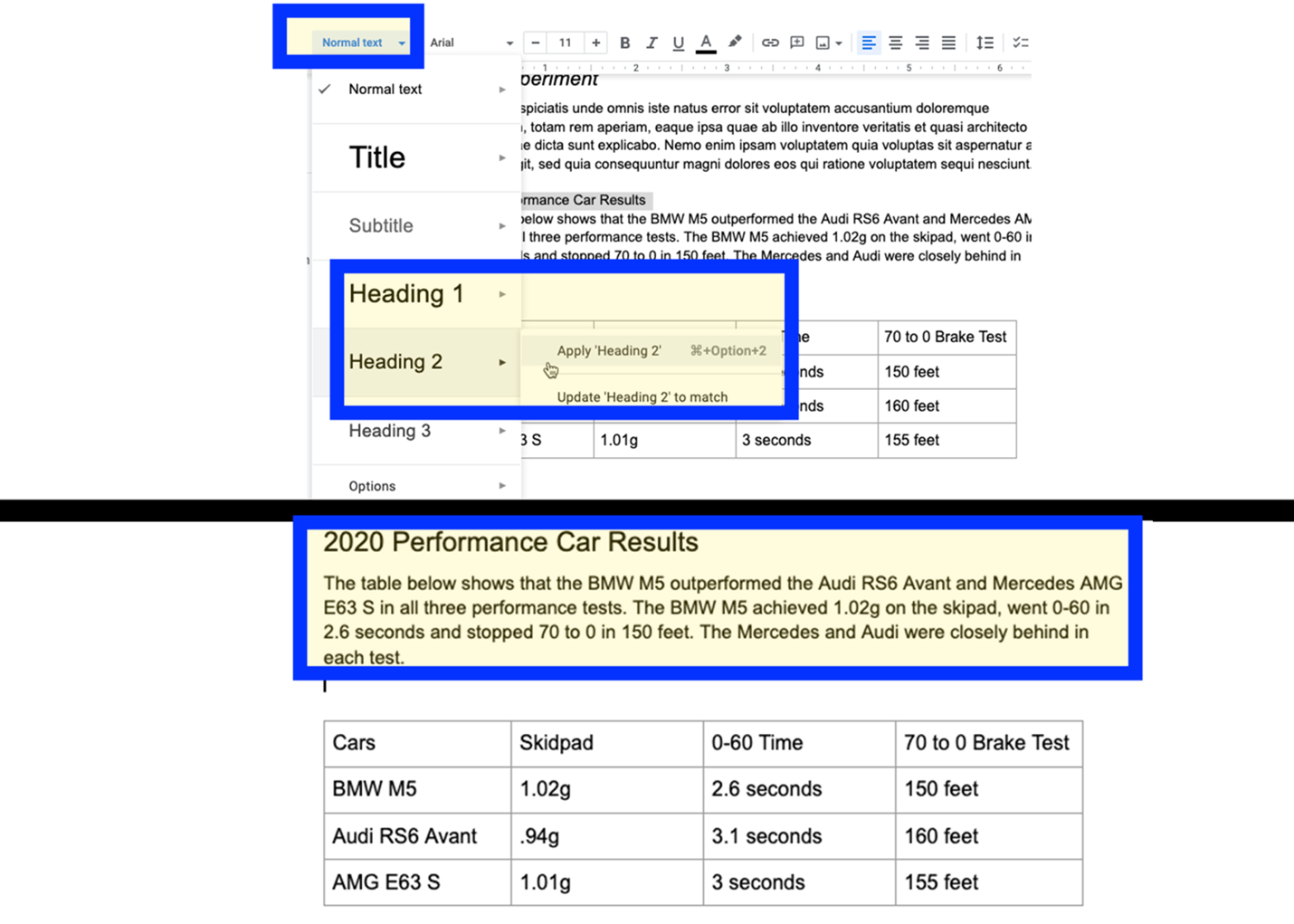
Create a heading level title for the table. Provide a description of the table's results before the table. This way the takeaway of the table is conveyed since the table itself will be inaccessible. Again, the only way to make the table accessible is to import the document into Word.
Export To Microsoft Word
Google Docs lacks the full set of features needed to create accessible tables for screen-reader users. If possible, export the document to Microsoft Word and remediate the table using that software.
