University IT
Captioning or Transcription In Zoom
Zoom offers a built-in captioning solution for meetings and webinars, providing approximately 90% accuracy and a full, downloadable transcript. While this feature is effective for most scenarios, it is not a substitute for professional Communication Access Realtime Transcription (CART), which offers nearly 100% accuracy for formal accommodations.
For cloud recordings, Zoom allows users to edit the automated captions, enhancing the final accuracy and creating a more reliable, searchable transcript. Review the steps below for how to edit a Zoom recording to improve caption accuracy.
For more information about the need for captions or a transcript, please visit Why Use Captioning or Transcription?
Captioning Or Transcription Tutorial
Please watch the video below for a step by step review of how to use Zoom Captioning or Transcription.
Adding Captioning In Zoom
Enabling Zoom Live Captioning
Select Live Transcript from the bottom Zoom toolbar. Then select enable Live Transcription.
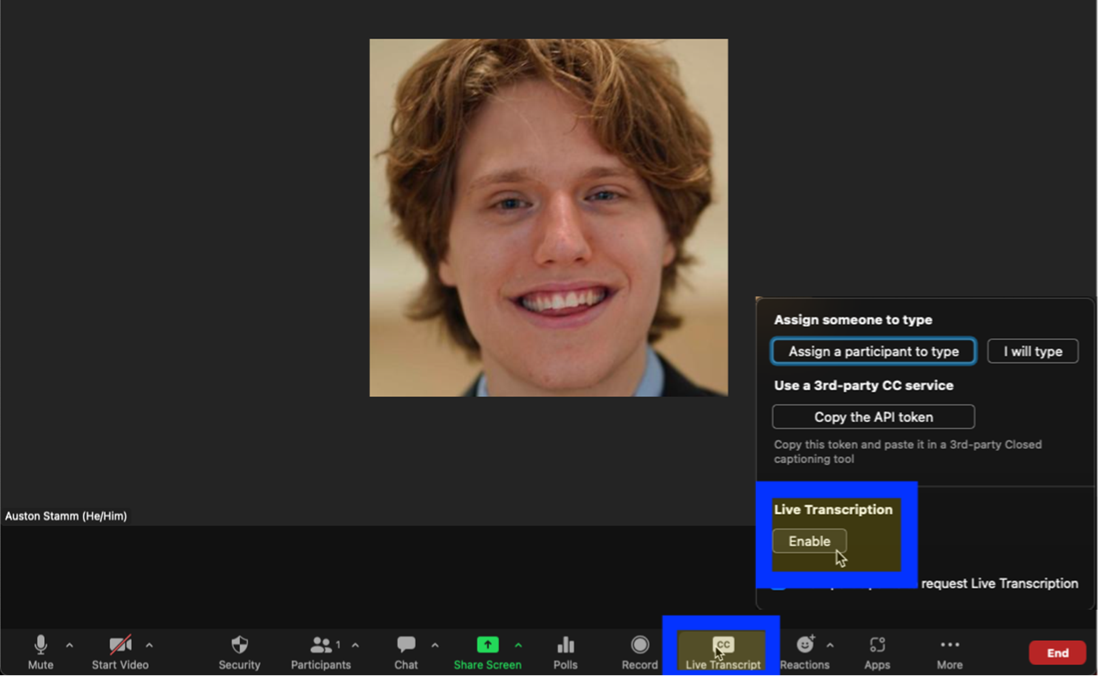
A live transcription bar will display at the top of the Zoom meeting.

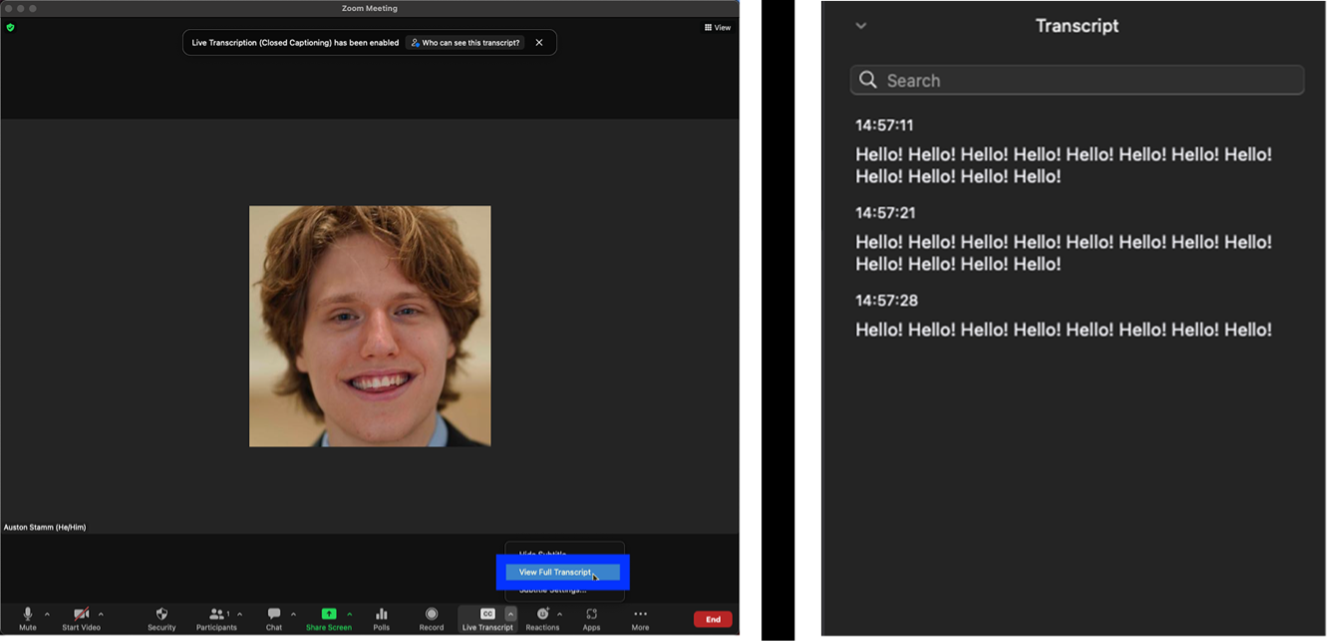
To hide the captioning select the CC carrot and choose hide subtitles.

A full transcript can be viewed by selecting the CC carrot and choose view full transcript.
Enabling Zoom Audio Transcript For Recordings
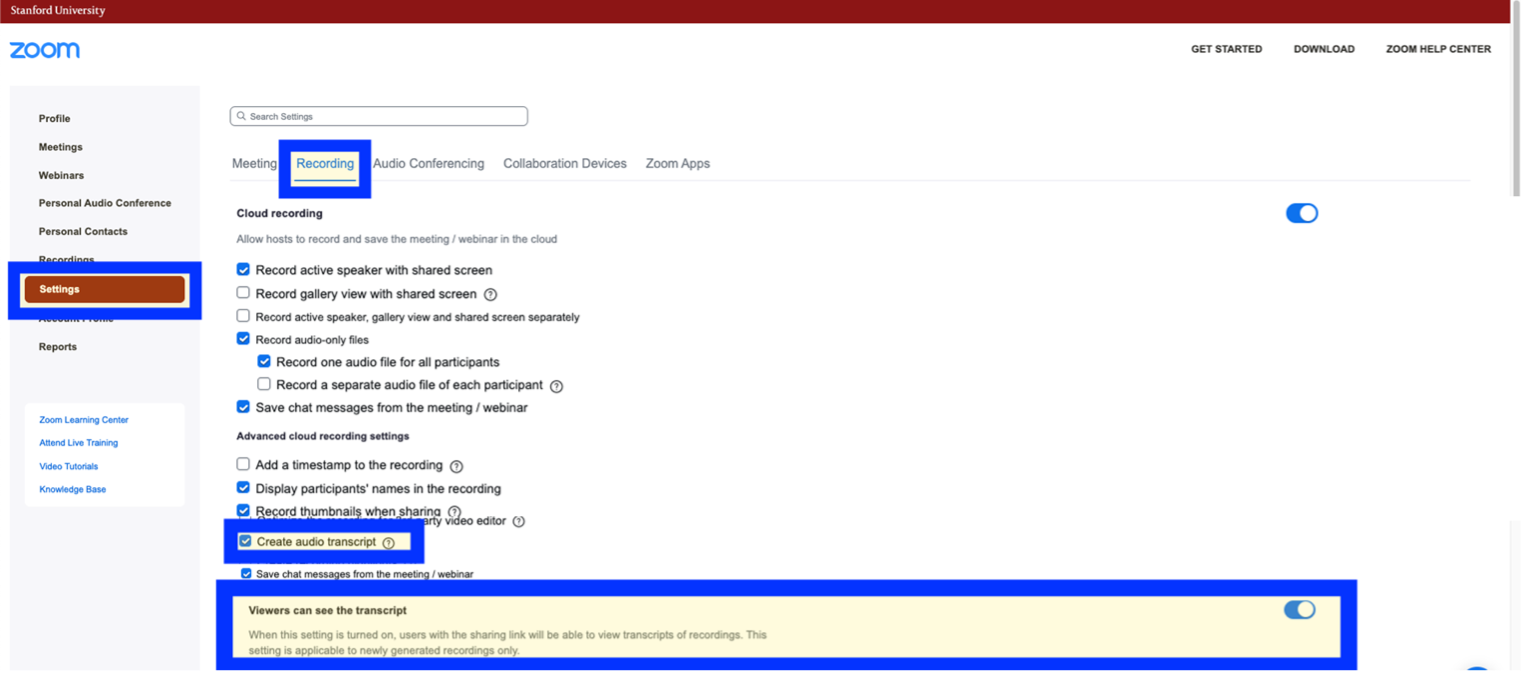
Login in to Stanford’s Zoom Platform and select settings and the recordings tab. Make sure to check create audio transcript and the option that allows viewers to view the transcript.
When your meeting starts select record and choose Record to the Cloud.

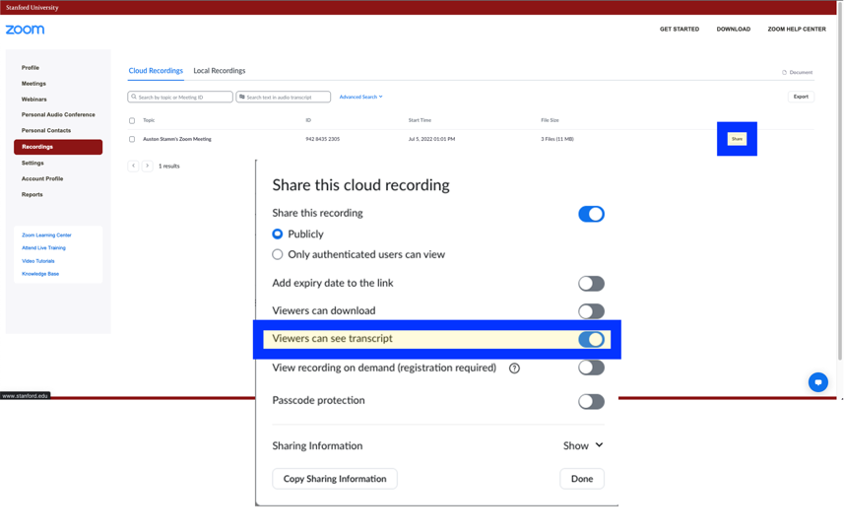
Select share and make sure the option, viewers can see transcript, is marked.
Downloading the Zoom recording and transcript
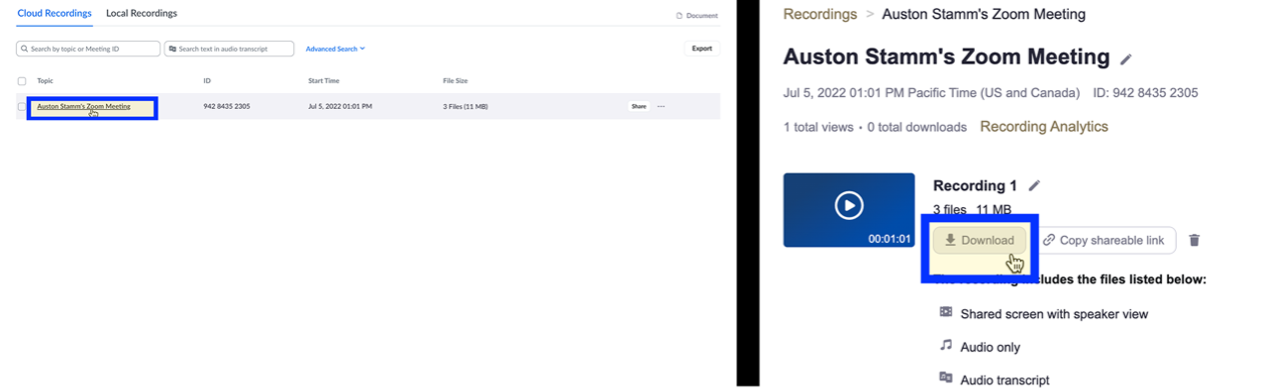
Select the Zoom recording and then choose download. This allows the user to get the Zoom recording and transcript out of Zoom. The content can be uploaded to YouTube for editing or sent to a captioning vendor.
Editing Zoom Audio Transcript
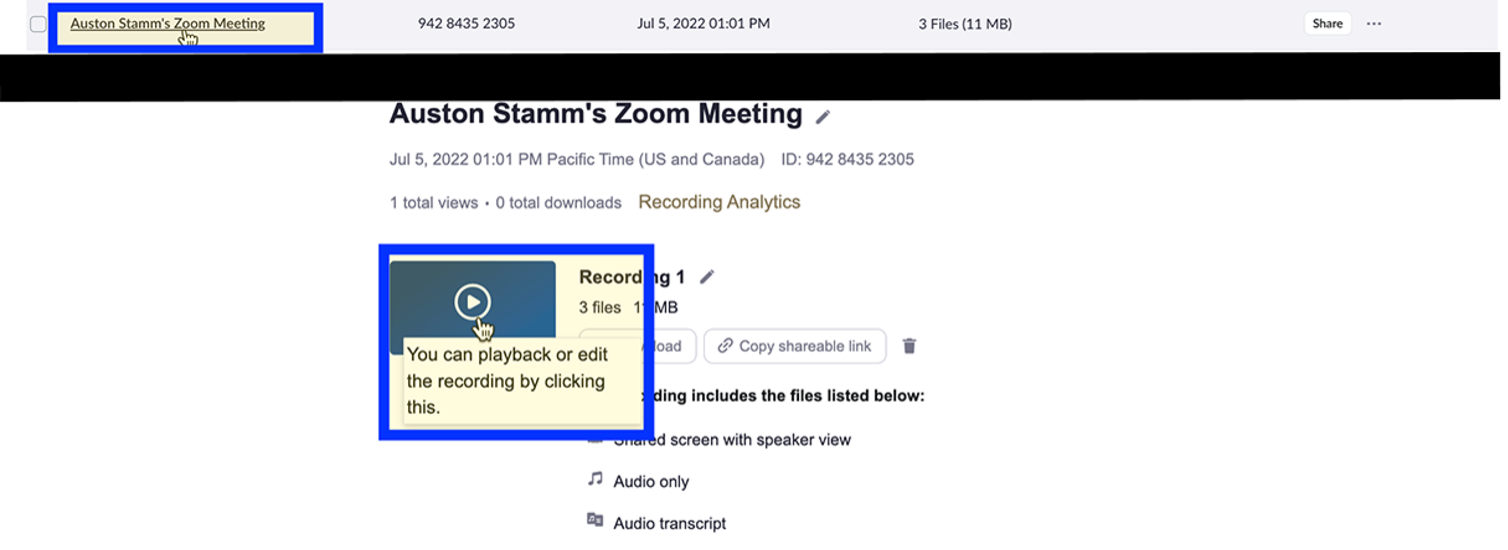
Select the Zoom recording and select the video player, which provides editing controls.
In the editor select the CC button to see the captioning. View audio transcript pane to make edits to the transcript
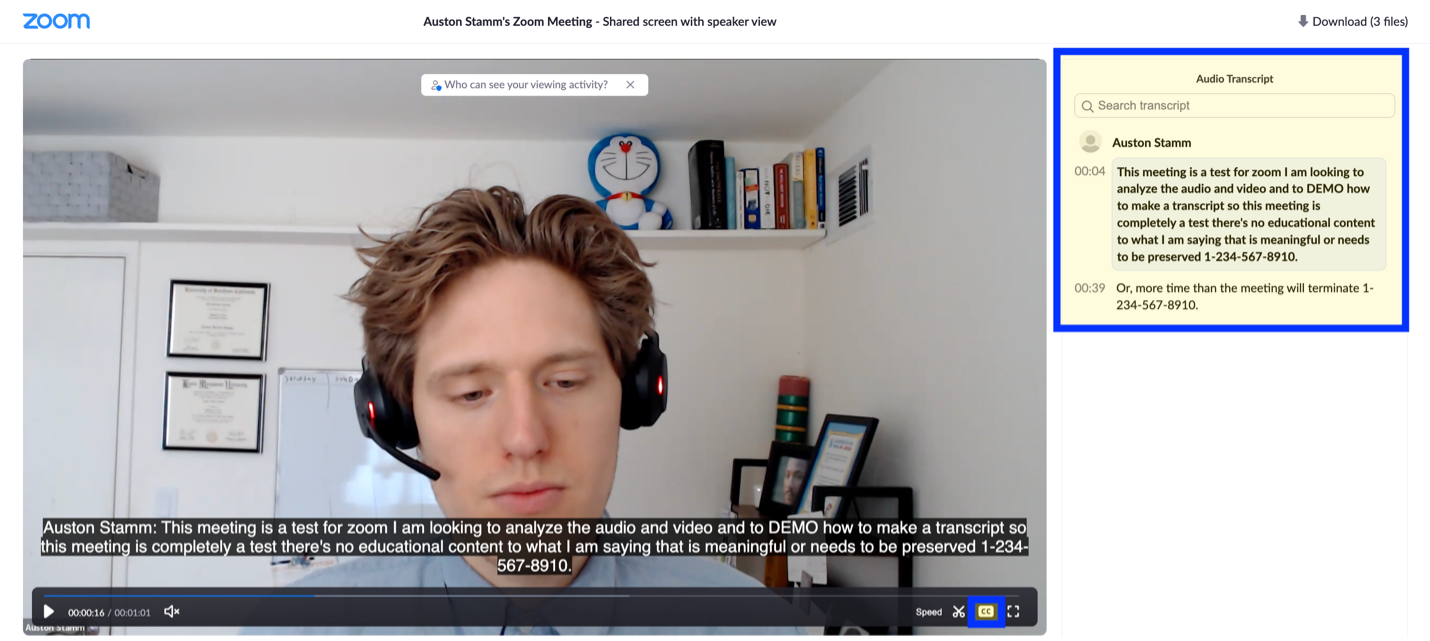
Choose text bubble to edit and select the pencil icon to edit.
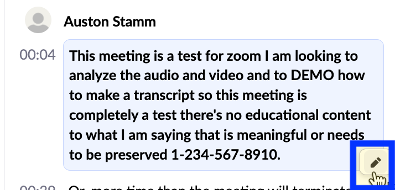
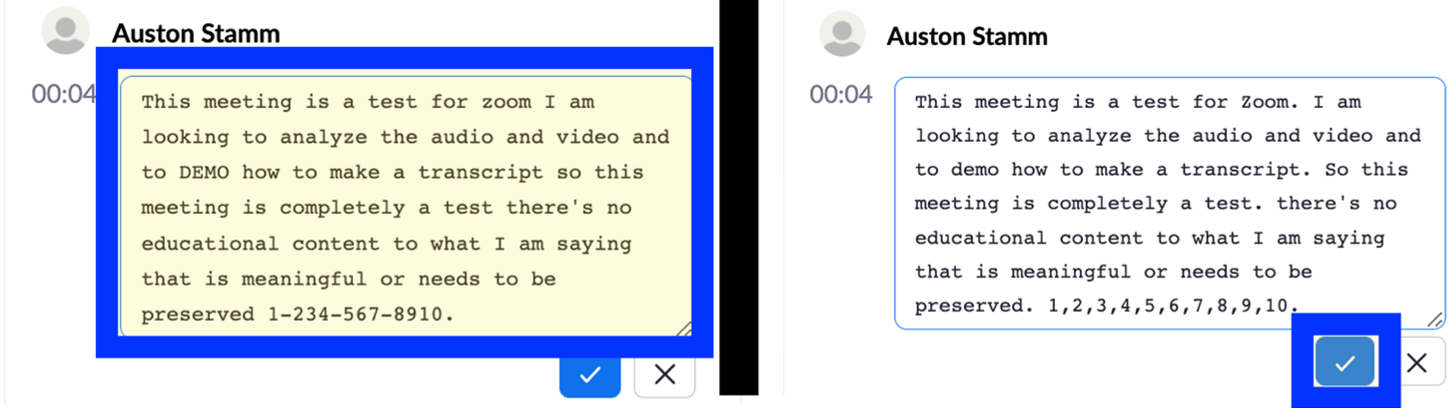
Make the desired changes and choose the blue checkbox to save. Repeat until the entire transcript has been checked and edited.