 University IT
Captioning in Google Drive
Captions may be added to videos hosted in Google Drive to ensure the video content is accessible. It is not sufficient to have the caption file in the same folder as the video. Rather, the caption file must be added to the video if hosted in Google Drive.
How To Add Captions To Google Drive Videos
Adding Captions To Google Drive
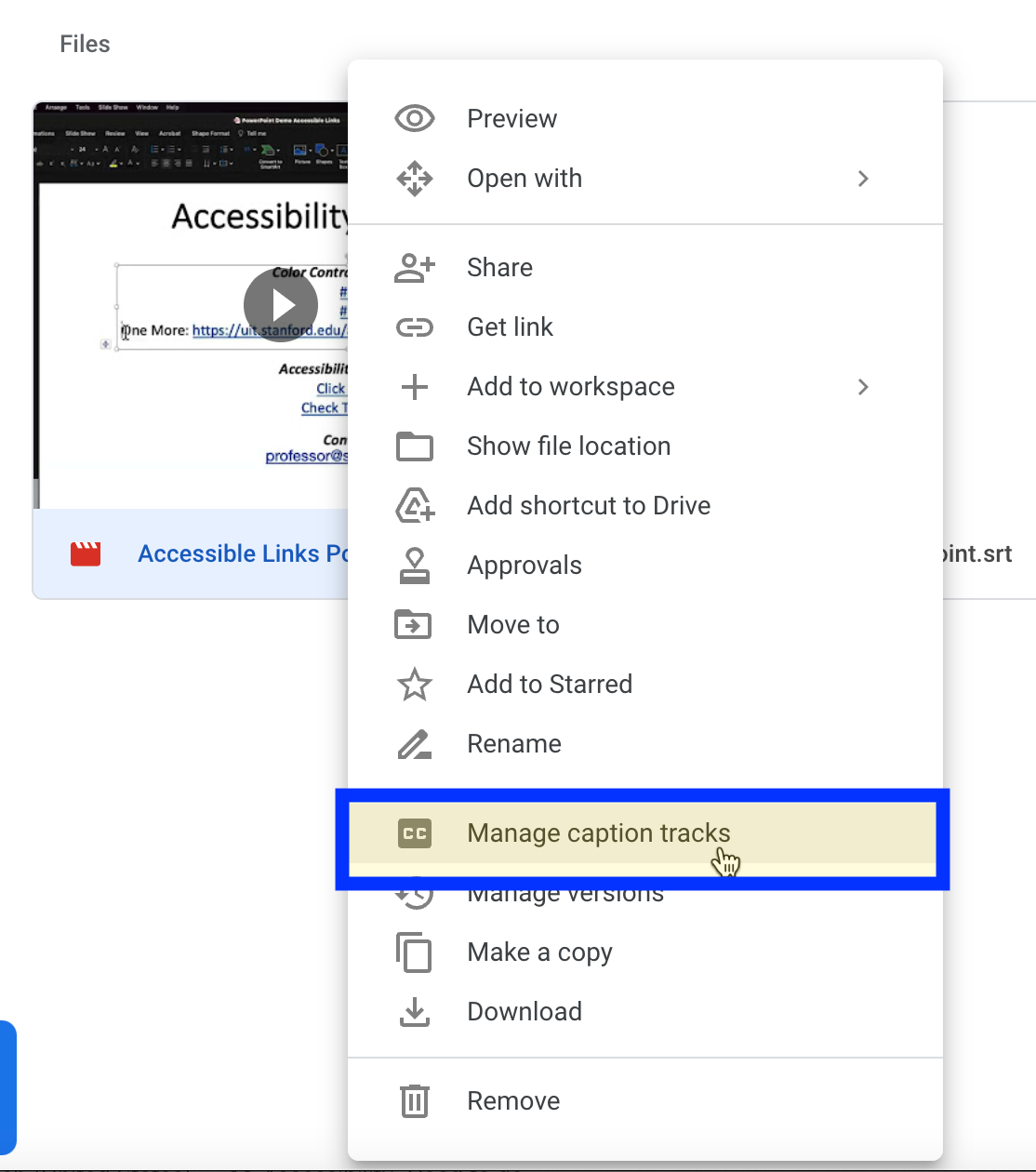
In Google Drive select the uploaded video. Control click on a Mac or right click on a PC. Select the manage caption tracks option.
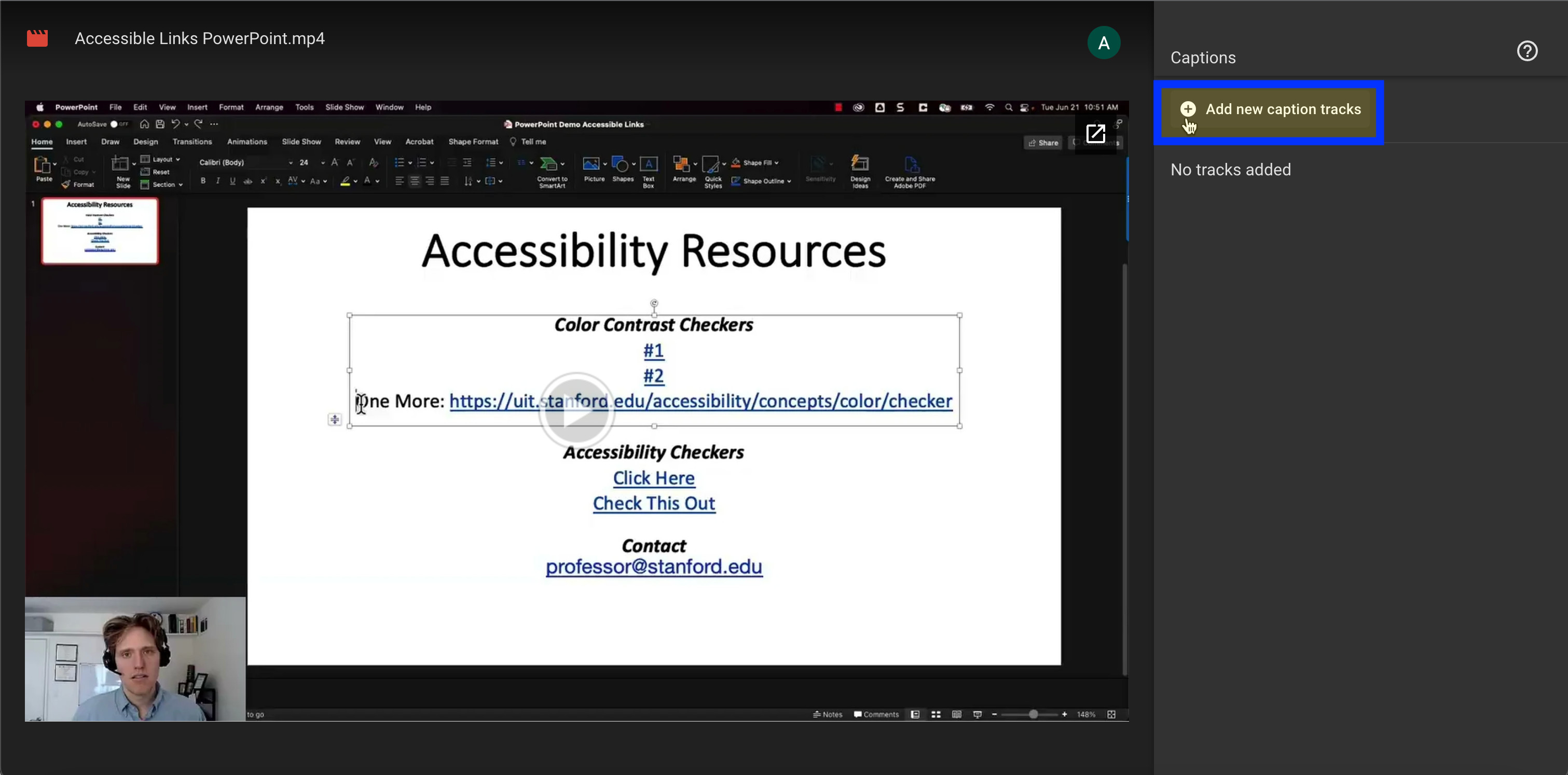
Select add new captioning track.
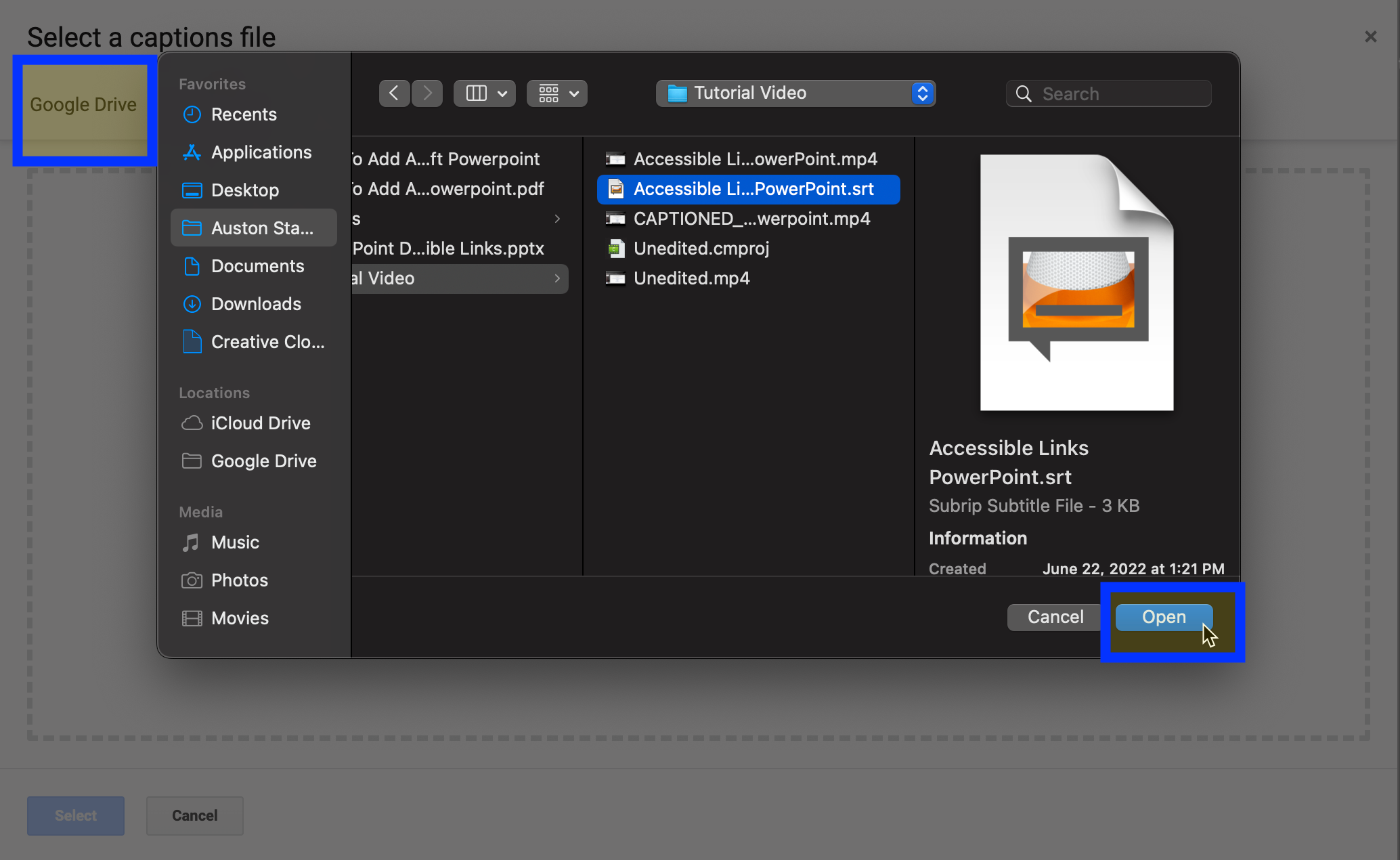
You can select the captioning track from your Google Drive or upload the subtitles file from your computer.
Set the language of the subtitles and then select the upload button. This will enable captioning in your Google Drive video.
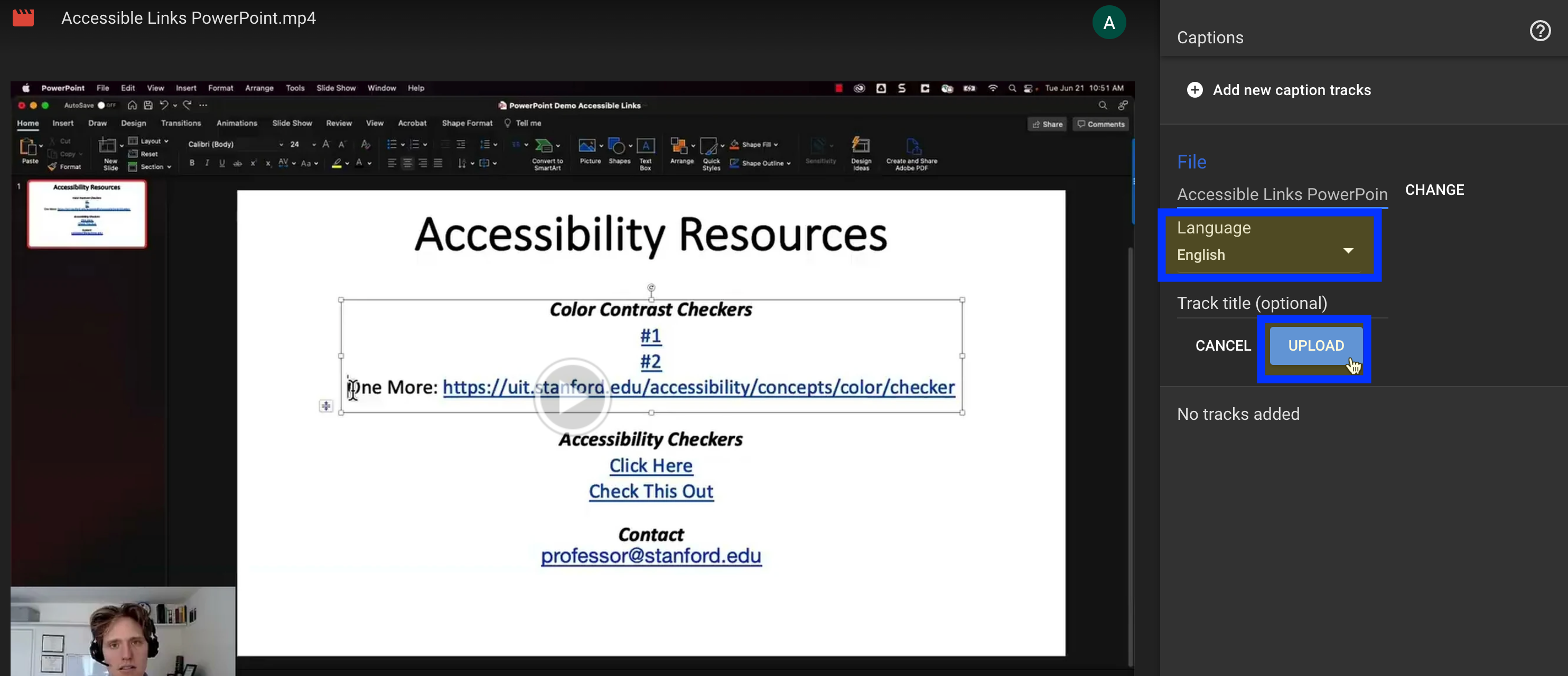
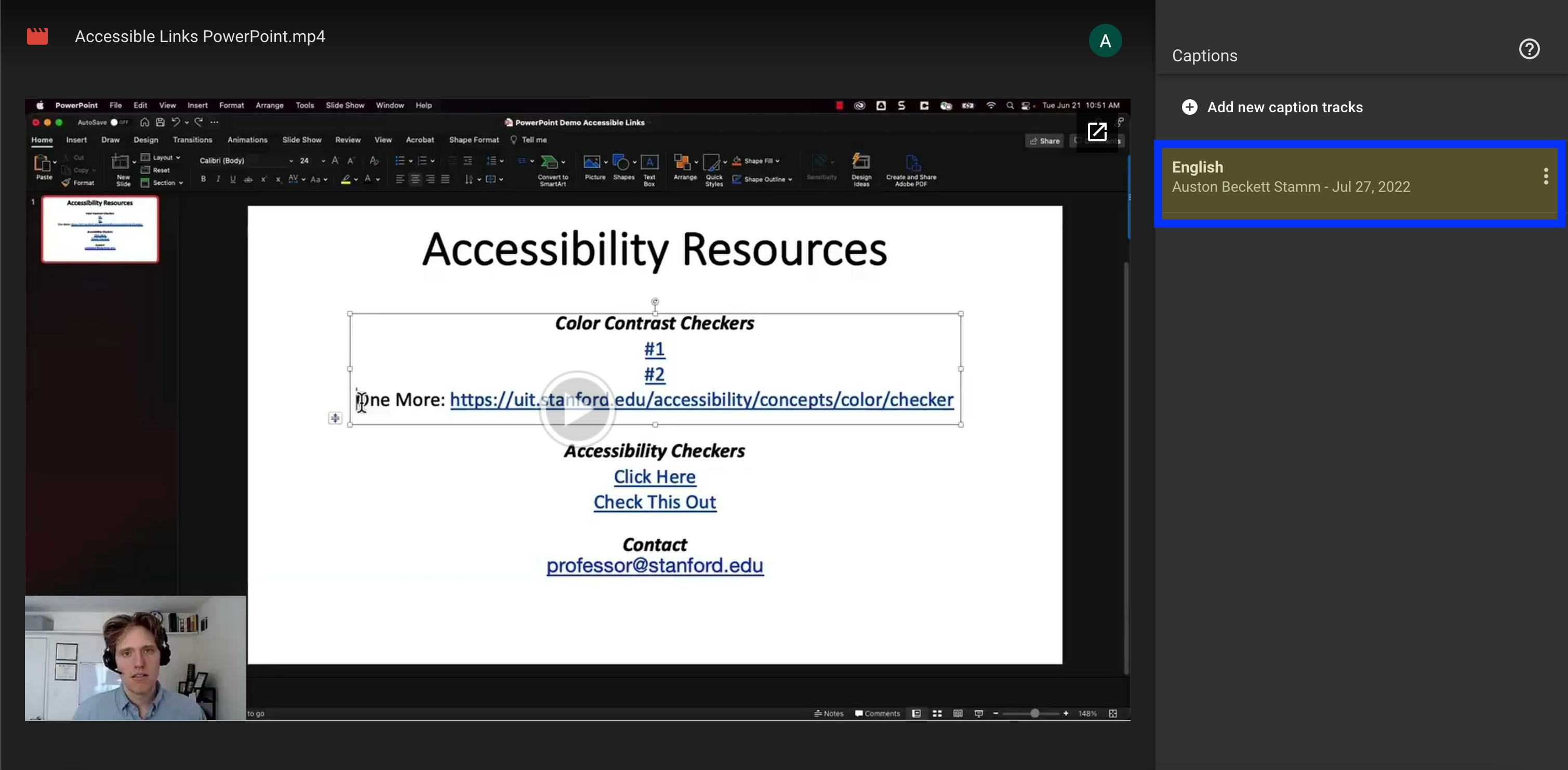
You should see the captions listed on the right side now.
Last modified
