 University IT
How to Remove an Account from Authenticator (iOS)
These instructions are for the School of Medicine.
To remove an account from Microsoft Authenticator
On your iOS device:
- Open Microsoft Authenticator on your iPhone
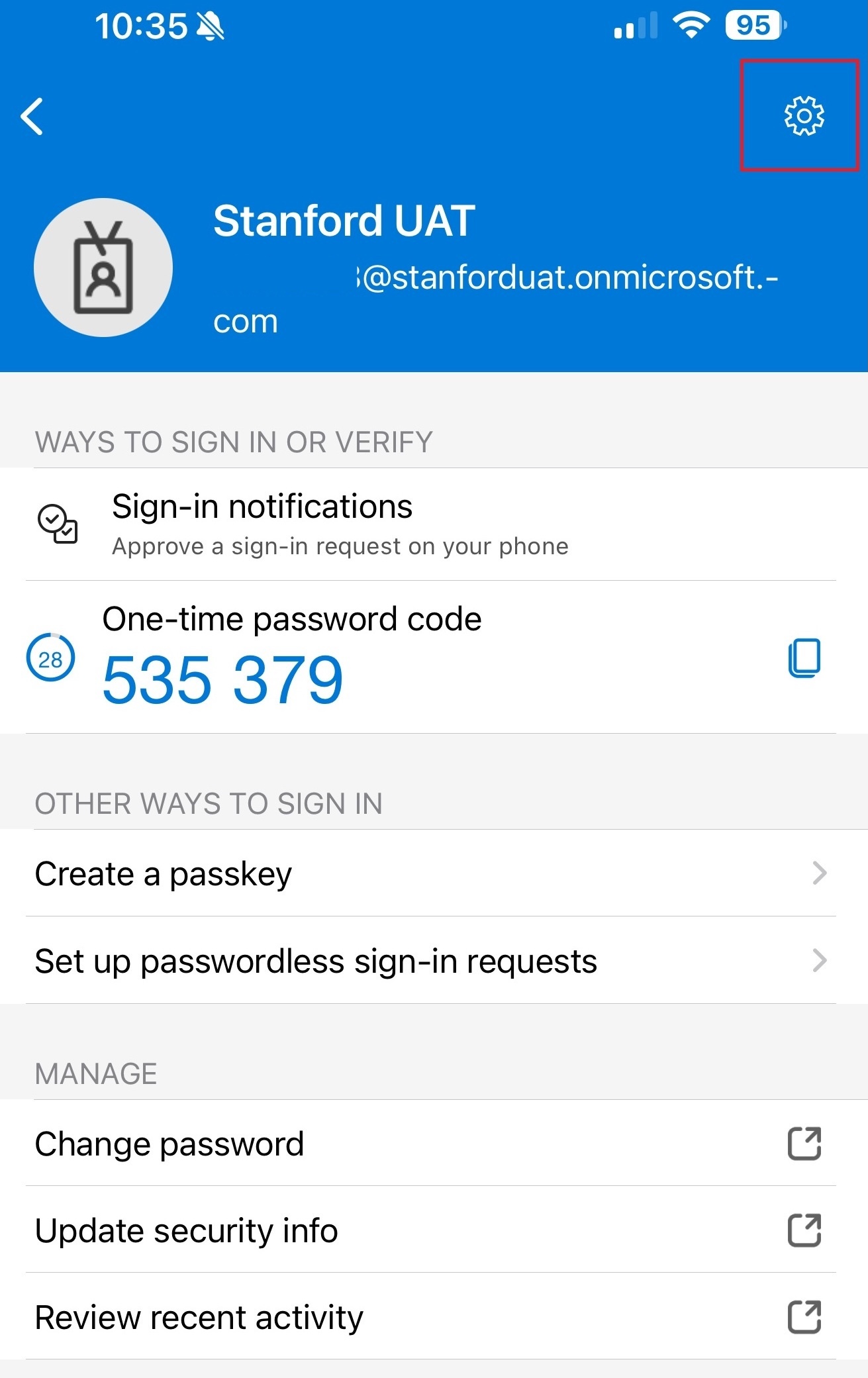
- Locate and tap your Stanford account
- Tap the cog wheel in the upper right corner
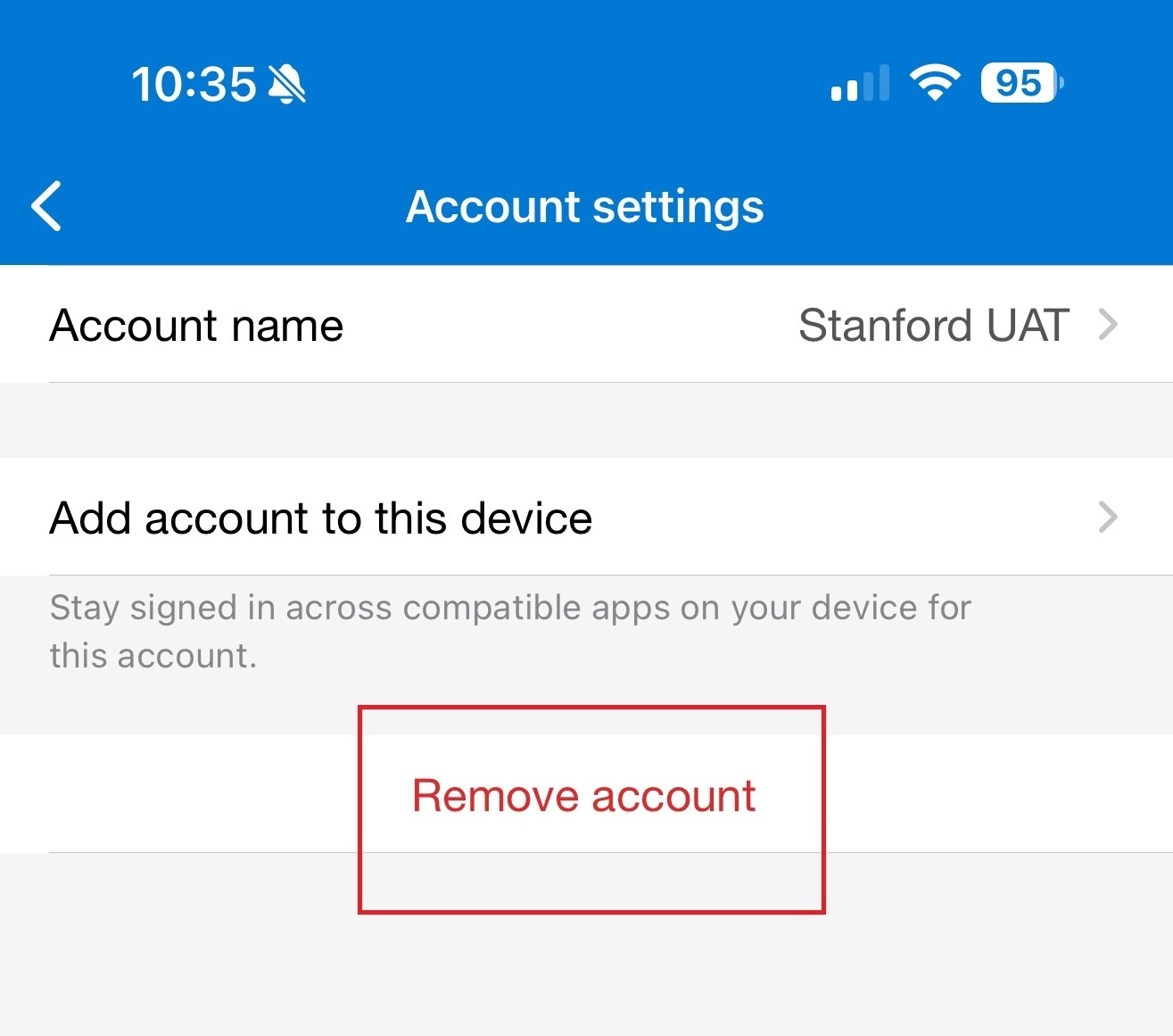
- Tap Remove account. This should remove the account from the Microsoft Authenticator app.
Remove account from your Microsoft account settings
On your computer:
- Open an Incognito/Private browser (Learn how to open an incognito browser.)
- Go to https://mysignins.microsoft.com/security-info and sign in if prompted
- Under Security info, locate the listing for Microsoft Authenticator
- Click Delete next to the listing and follow the prompts to successfully delete the device.
Note: If Microsoft Authenticator is set as your "Default sign-in method," you may need to change your default authentication method before deleting. To do this, select Change, select your preferred method, and then click Confirm when complete.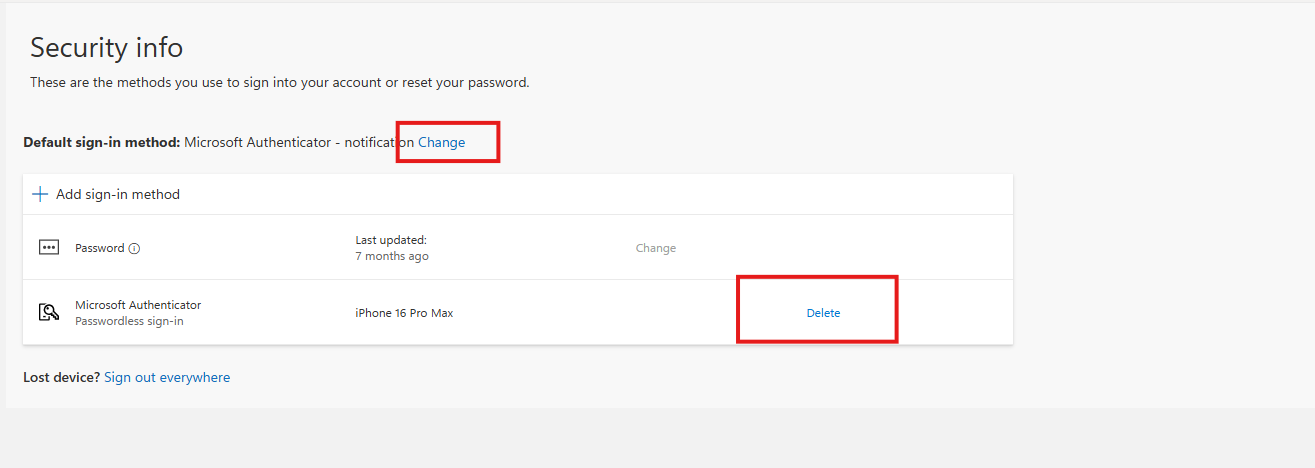
- This will remove Microsoft Authenticator from your Microsoft account configuration so you can begin the set up again. If needed, you need can restart the Authenticator set up process starting from Step 2.
Last modified
