 University IT
How to Log in to Microsoft Using Authenticator
The steps here show how to log into Stanford Microsoft using the Authenticator app as your authentication method. Once your new Microsoft login with is activated, you'll simply approve the sign-in from the Microsoft Authenticator app on your phone.
- Go to the Microsoft site or application where you want to sign in.
- When prompted, enter your Stanford email address as <your SUNet ID> @ stanford.edu on the Stanford Microsoft login screen.
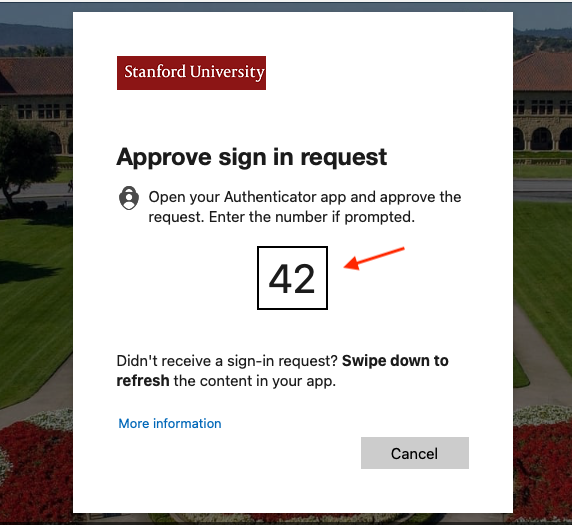
- You’ll see a prompt asking you to open the Microsoft Authenticator app and approve the request. A number will appear in the sign in on your computer screen.
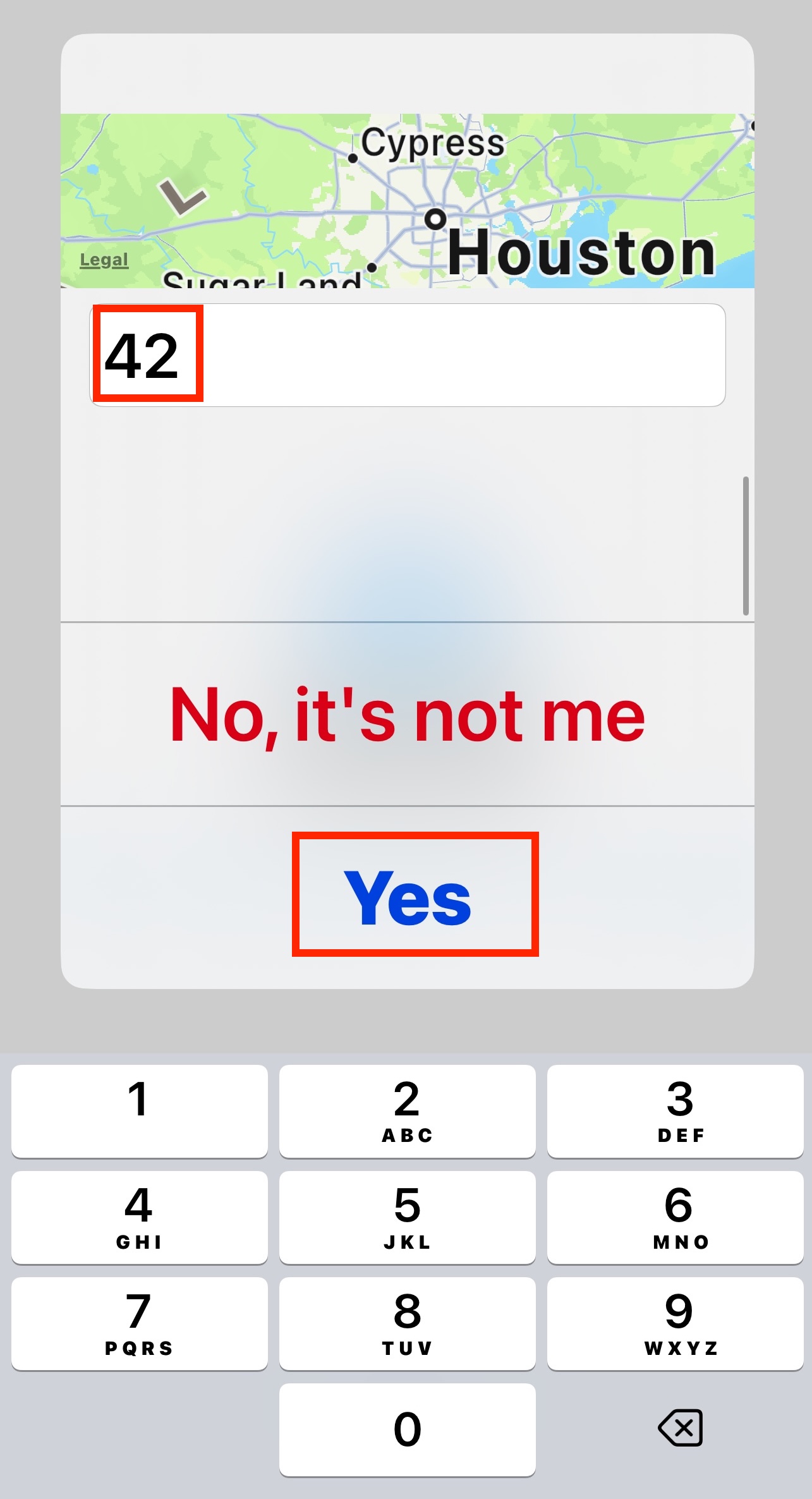
- On your mobile phone, open the notification from Microsoft Authenticator. Enter the number shown on your computer and tap Yes to approve the request.
Last modified
