 University IT
Selecting Headings using CMS Platforms
A content management system (CMS) like WordPress or Drupal makes it easy to add and format content without writing code. However, choosing headings the right way is important for accessibility. Proper headings help all users, especially those who use screen readers, navigate your content. Let's look at how to select headings correctly in popular CMS platforms.
Selecting Headings in WordPress
WordPress uses the Block Editor (also called Gutenberg) to create content. To add a heading:
- Click the plus (+) button to add a new block.
- Choose the Heading block.
- Type your text.
- Use the toolbar above the block to select the heading level (H2, H3, and so on).
In many WordPress themes, the page title is automatically set as the Heading 1. This means your content headings should usually start at Heading 2. Avoid using the "Paragraph" style with large or bold text to fake a heading. Screen readers will not recognize it as a real heading.
Selecting Headings in Drupal
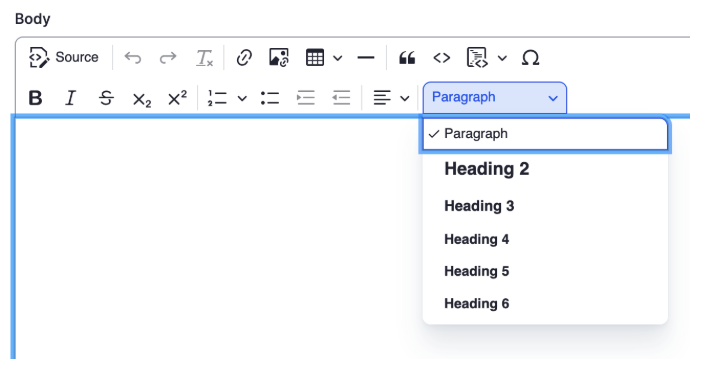
Drupal often uses a text editor called CKEditor. To add a heading:
- Highlight the text you want to format.
- Open the Format or Styles dropdown menu in the toolbar.
- Choose the correct heading level, such as Heading 2 or Heading 3.
Like WordPress, Drupal usually sets the page title as the Heading 1. Start your content headings at Heading 2 and move down in order.
Common Mistakes to Avoid
When selecting headings in any CMS, watch out for these errors:
- Choosing a heading for its look. Never pick a heading level just because you like the font size. Use styling settings or CSS to change appearance.
- Skipping heading levels. Always move in order, such as
H2toH3. - Faking headings with bold text. Bold text is not a heading and will not help screen reader users.
- Using multiple Heading 1s. Stick to one main title per page.
Summary
Selecting headings correctly in a CMS is simple once you know the steps. Keep these tips in mind:
- Use the built-in heading tools in WordPress or Drupal
- Choose heading levels based on meaning, not appearance
- Follow the correct order without skipping levels
- Start content headings at Heading 2 in most cases
By selecting headings the right way, you make your content clear, organized, and accessible to everyone.
