 University IT
Automated Device Enrollment (ADE) for Stanford-owned Android Devices
Automated device enrollment for Stanford-purchased Androids starts January 27, 2026. Learn more.
Stanford's Mobile Device Management (MDM) service installs profiles on your device to configure and maintain its settings, helping to protect both your privacy and the university's data. With automated device enrollment, Android phones purchased through Stanford will automatically enroll in Stanford's Intune device management system.
Note: Android devices currently do not support Cardinal Key.
What to expect after you enroll in MDM
Once enrolled in Stanford's MDM service, your device will:
- Require a password to unlock it. Stanford requires a minimum password length of four digits, though some manufacturers may require a stronger password.
- Automatically time out after a period of inactivity, requiring a password to unlock it again. You can adjust the screen timeout duration in your device's display Settings. Intune will allow a screen timeout setting of up to five minutes.
- Sync your email, contacts, and calendar appointments during the first few minutes after installation, provided email activation is supported on your device.
- Check periodically to ensure it isn't compromised.
- Otherwise, perform as it did before you installed the MDM.
How to set up your new Android
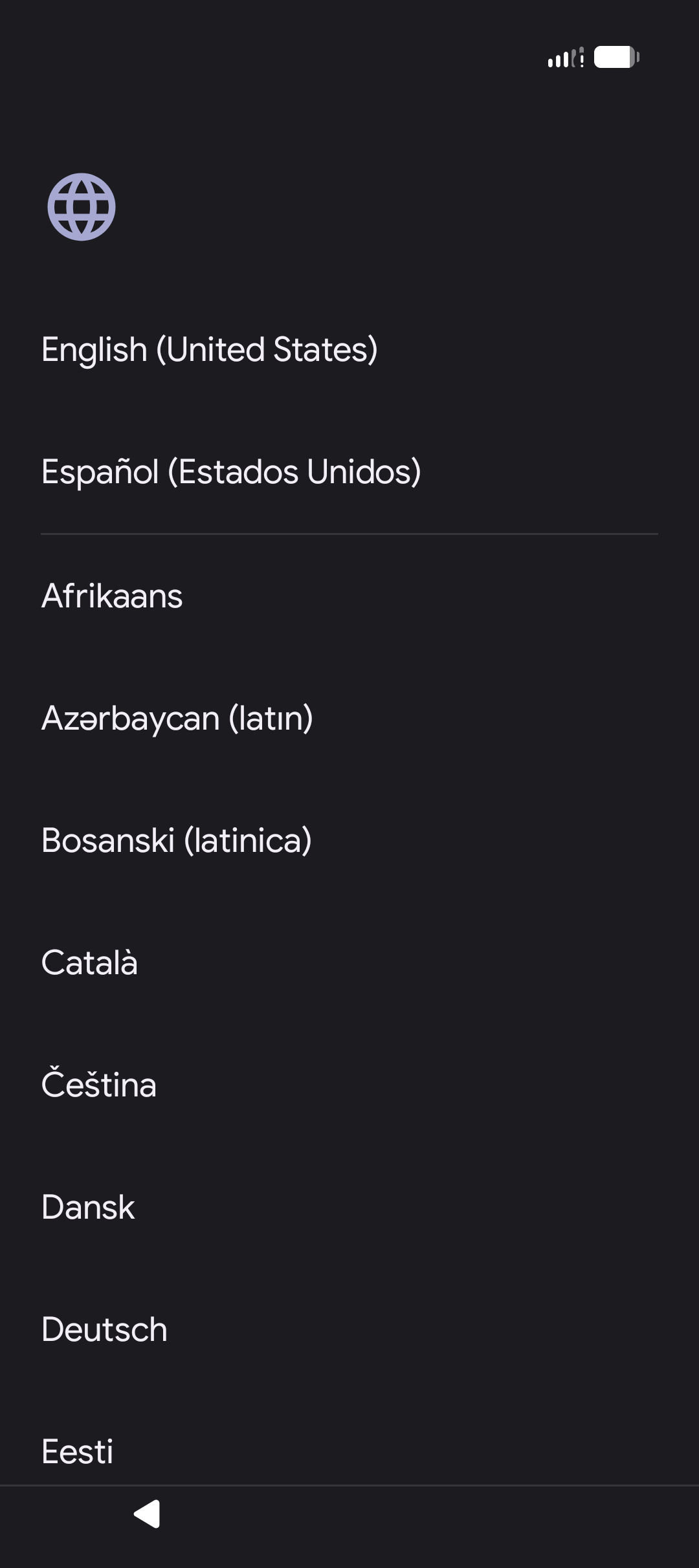
- Turn on your phone and follow the first few screens to select your language and configure initial settings. Your device will go through carrier activation during this process.
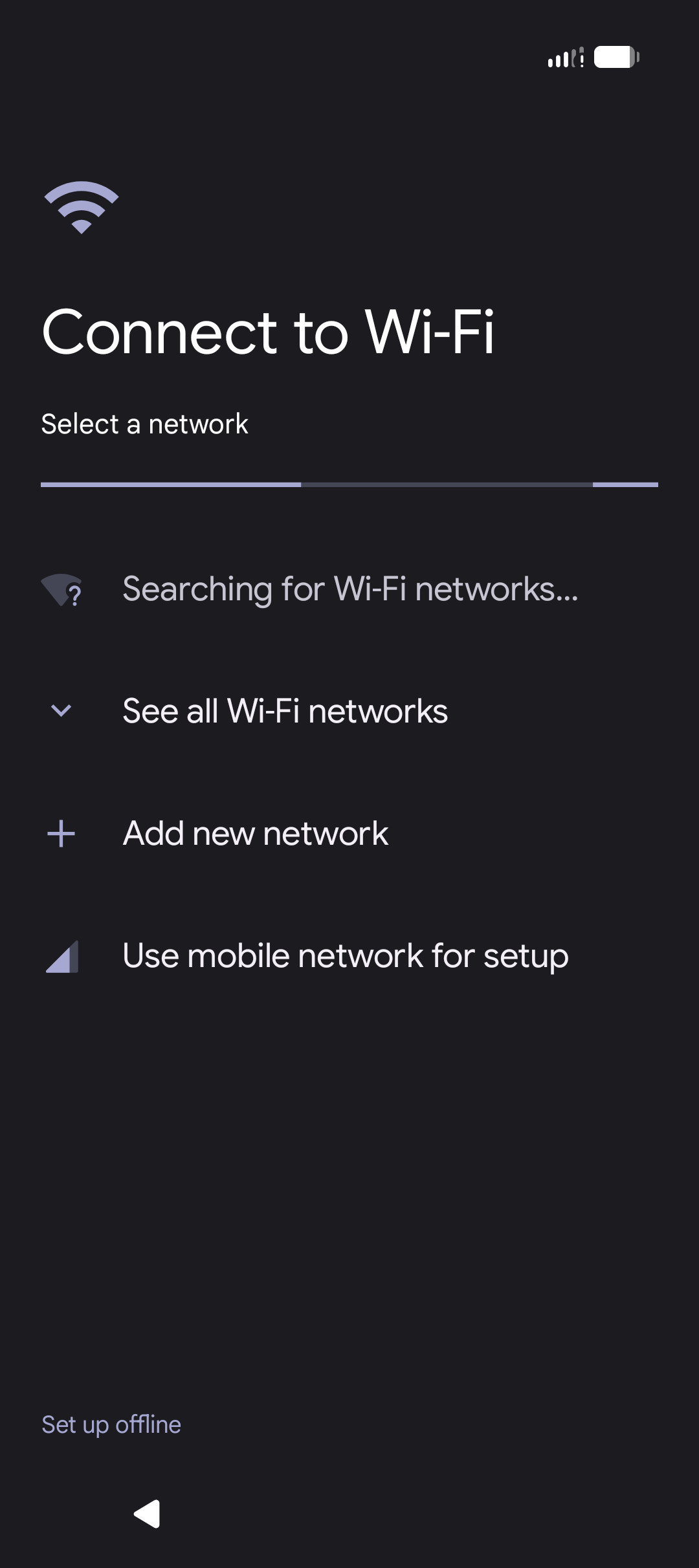
When asked, connect to Wi-Fi if available.
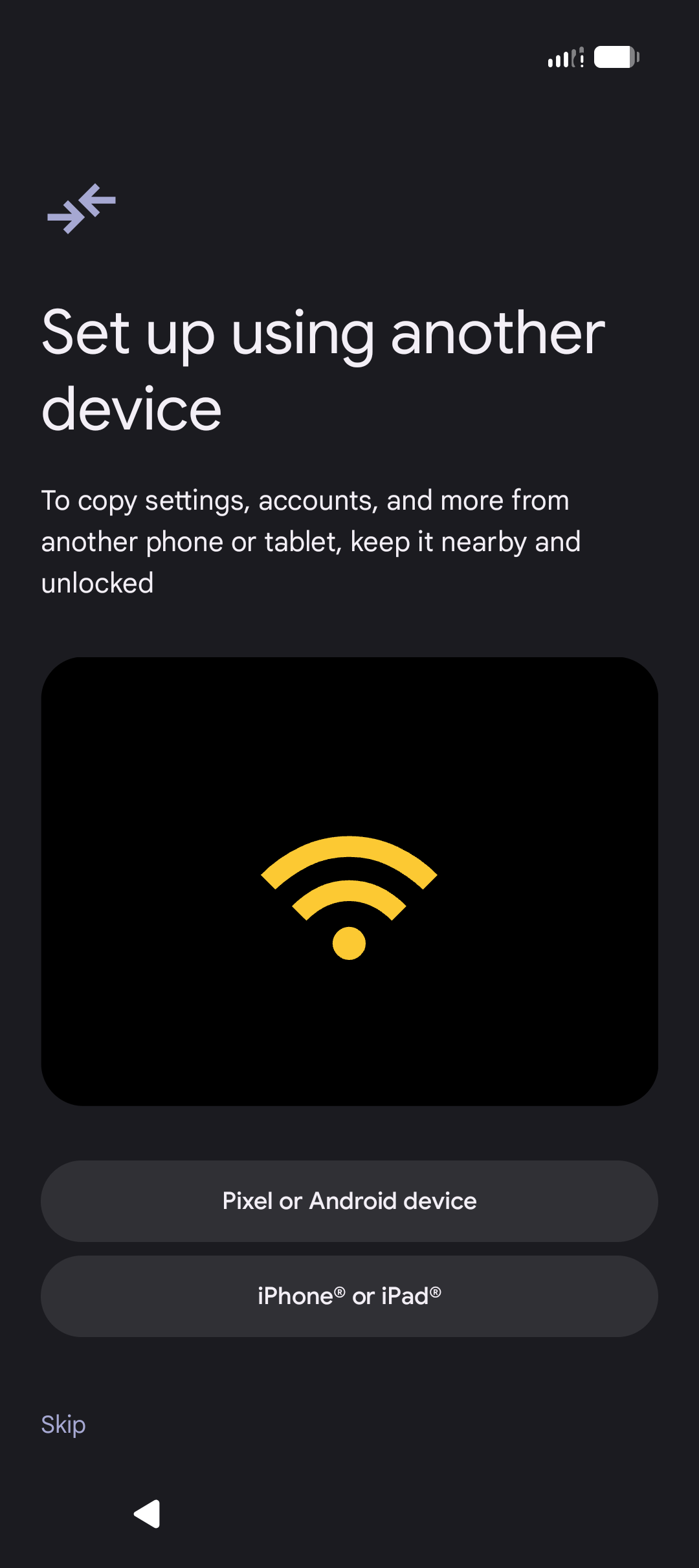
- If prompted, choose whether you want to copy data from a previous phone.
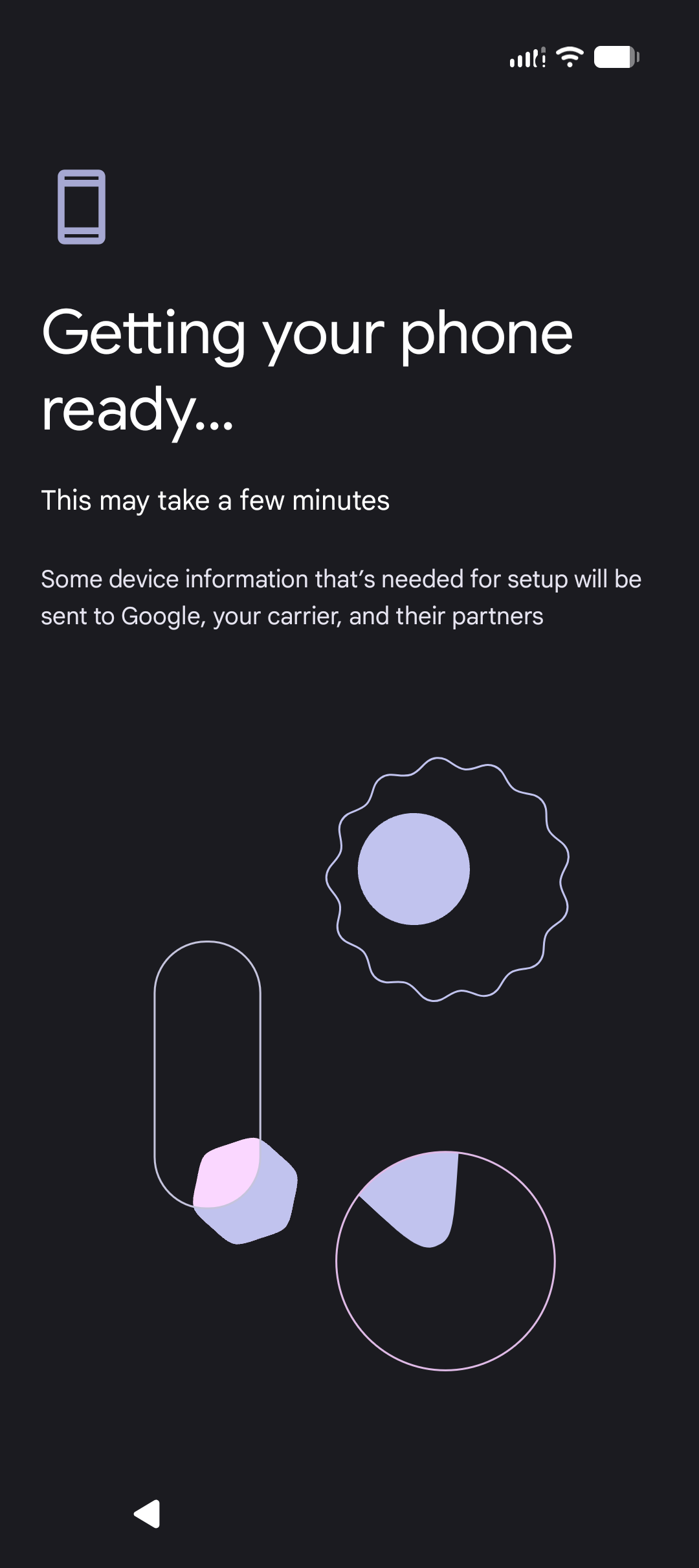
- Wait a moment while your device checks the automatic enrollment details.
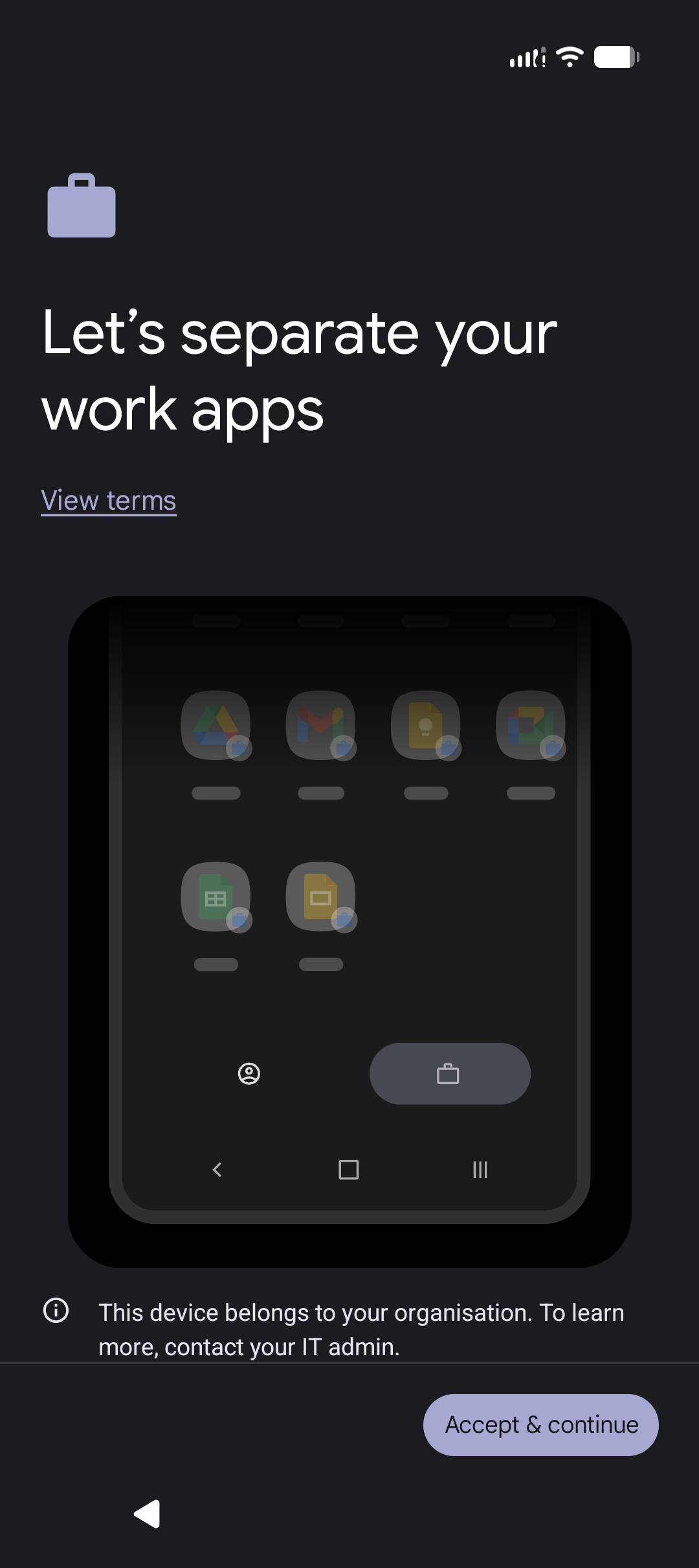
- When you see a prompt to set up a work profile. Tap Agree & continue or Next to continue. This will create a separate, secure space for your work apps.
- Your device will open the Chrome browser. Sign in using your Stanford university email and select Next. You'll be prompted through the Stanford login process.
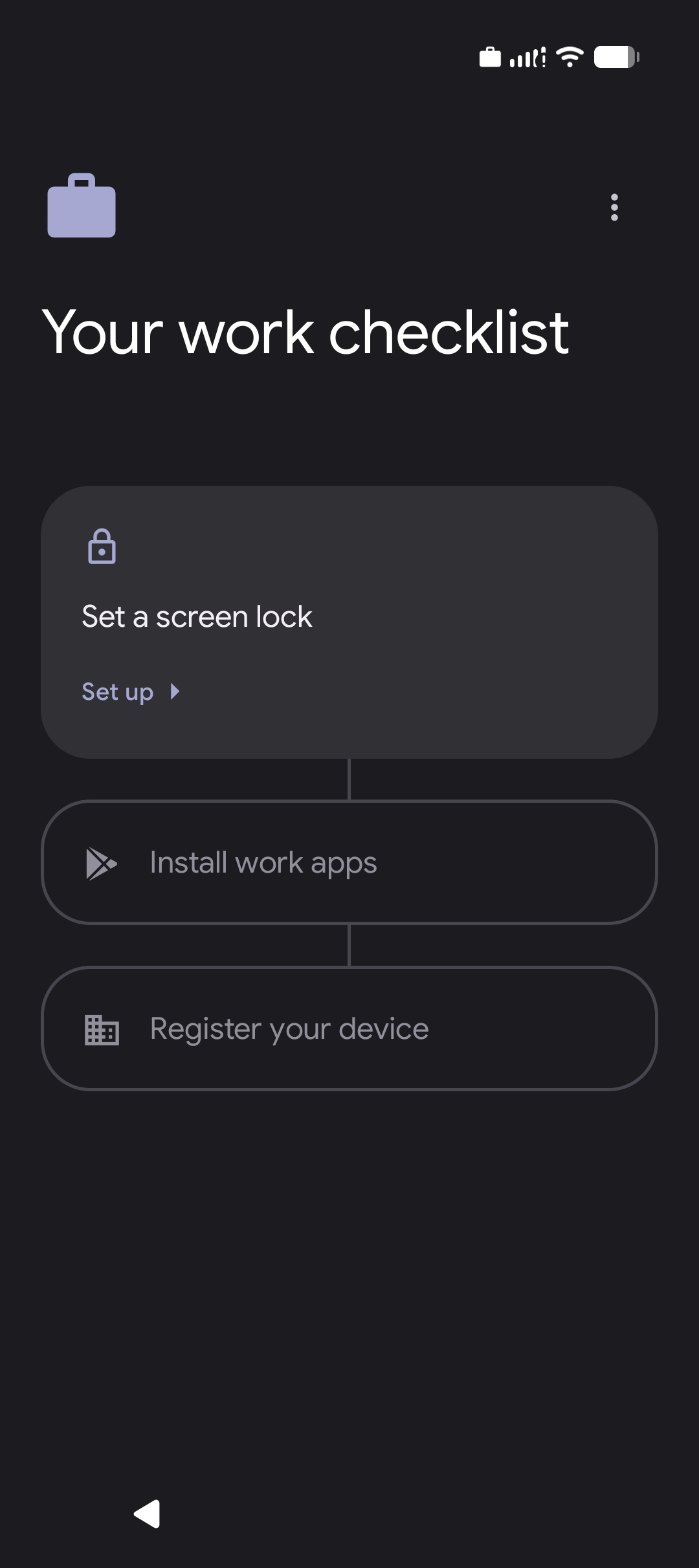
- You'll see a "Your work checklist." Follow these steps on your screen:
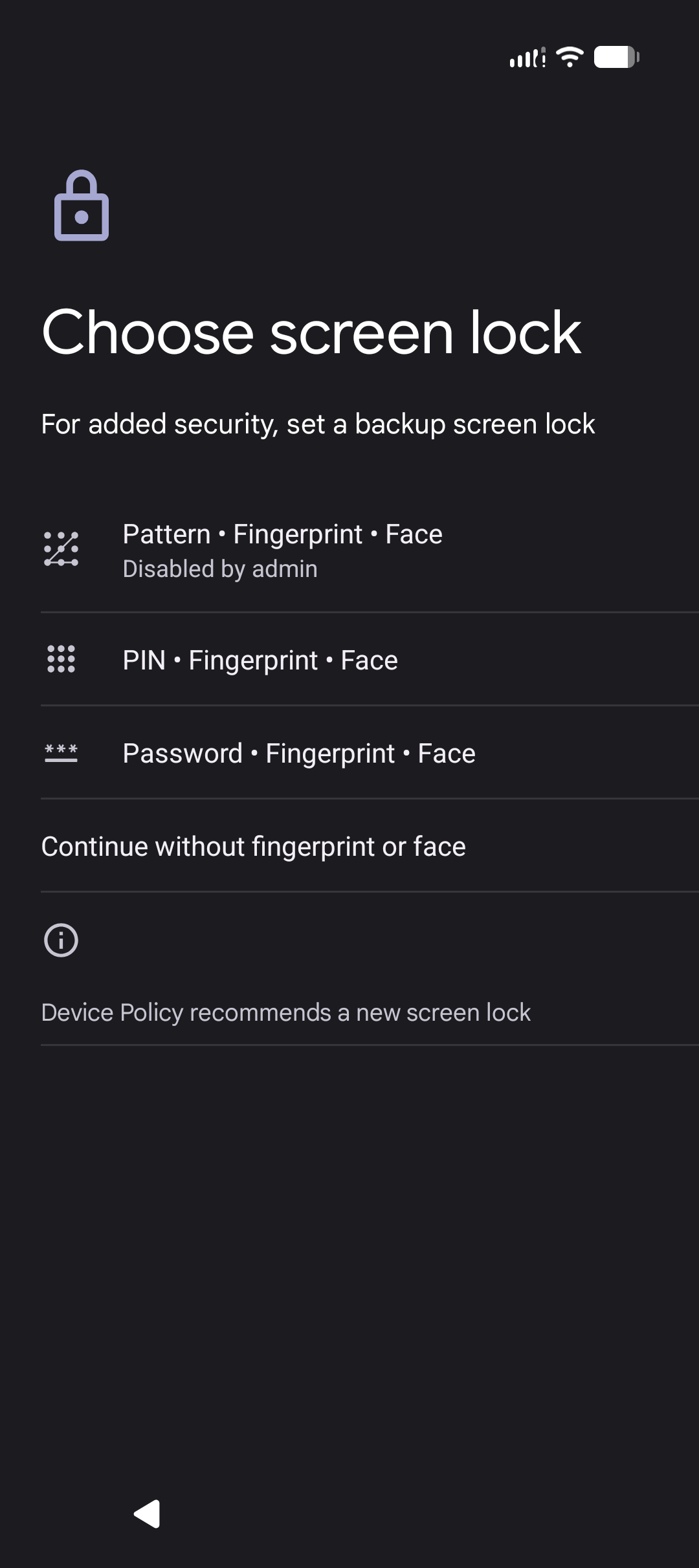
- Set a screen lock: You must create a passcode. It's also recommended that you enable biometric authentication (using your fingerprint or Face ID).
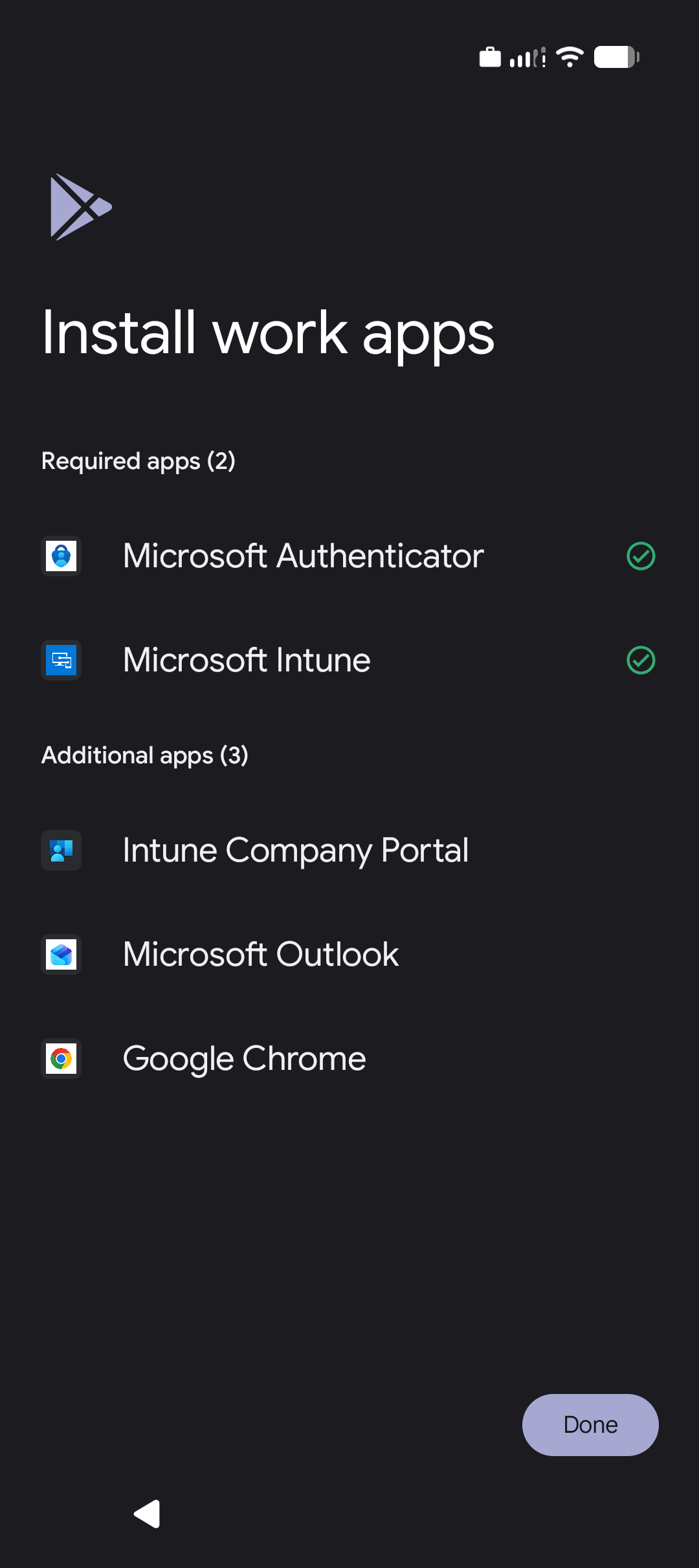
- Install work apps: This happens automatically.
- Register your device: You might need to sign in one more time.
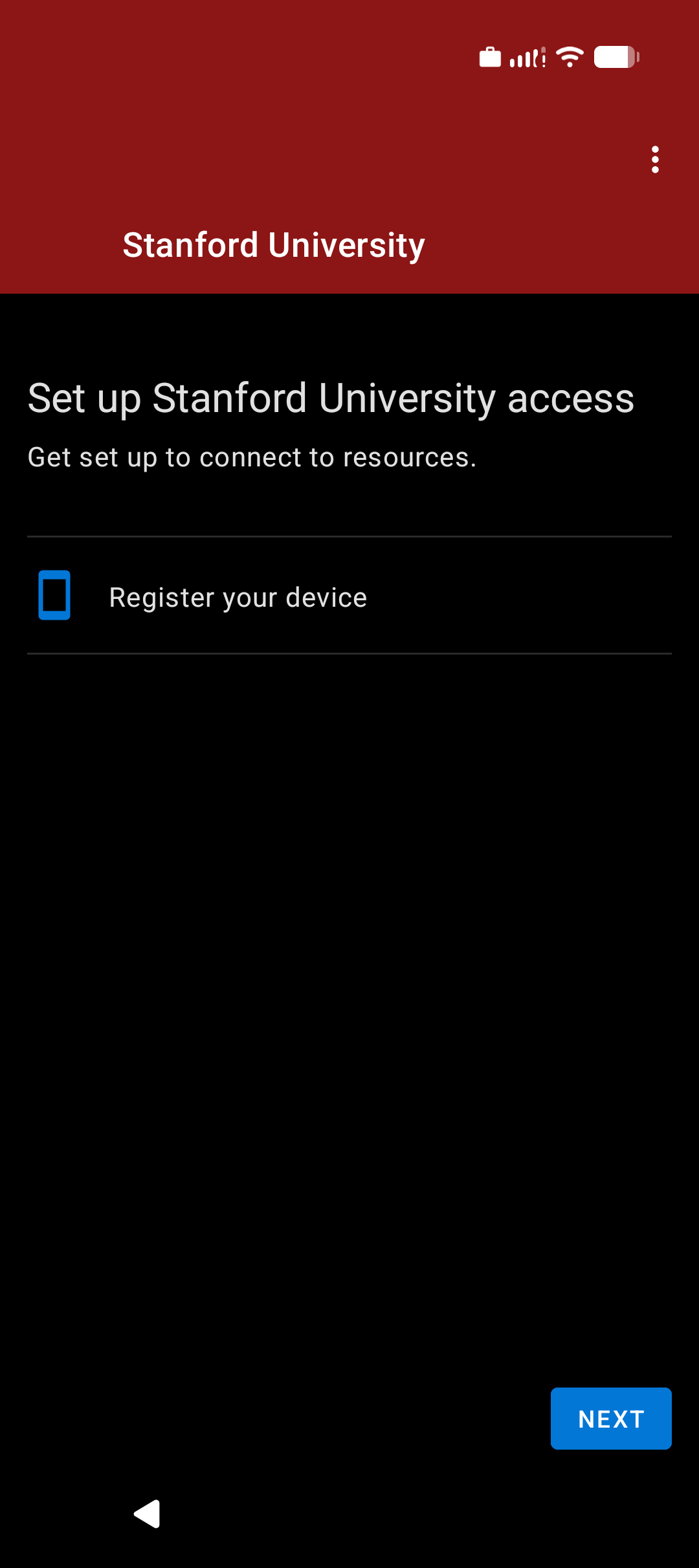
- Set a screen lock: You must create a passcode. It's also recommended that you enable biometric authentication (using your fingerprint or Face ID).
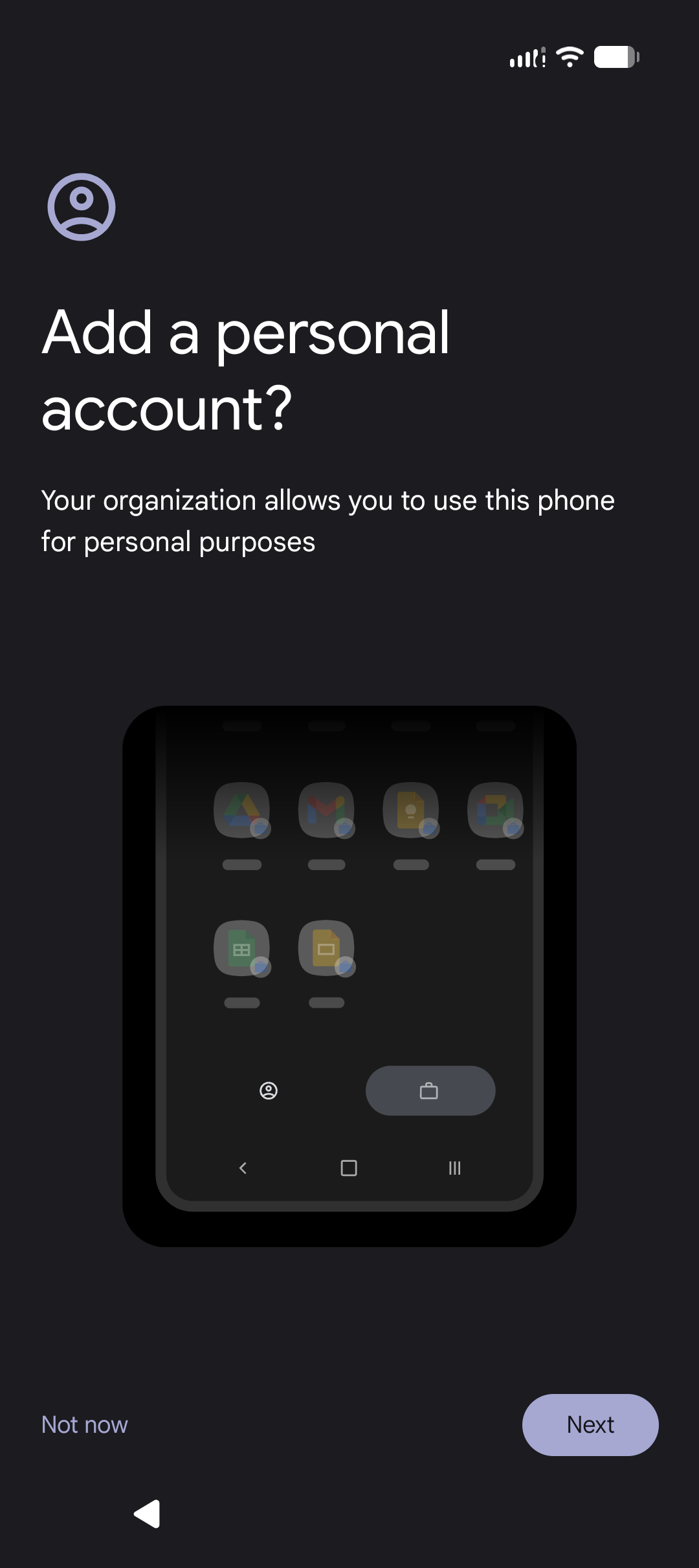
- Next, you can add a personal account to your device. Your personal data will be kept separate from work.
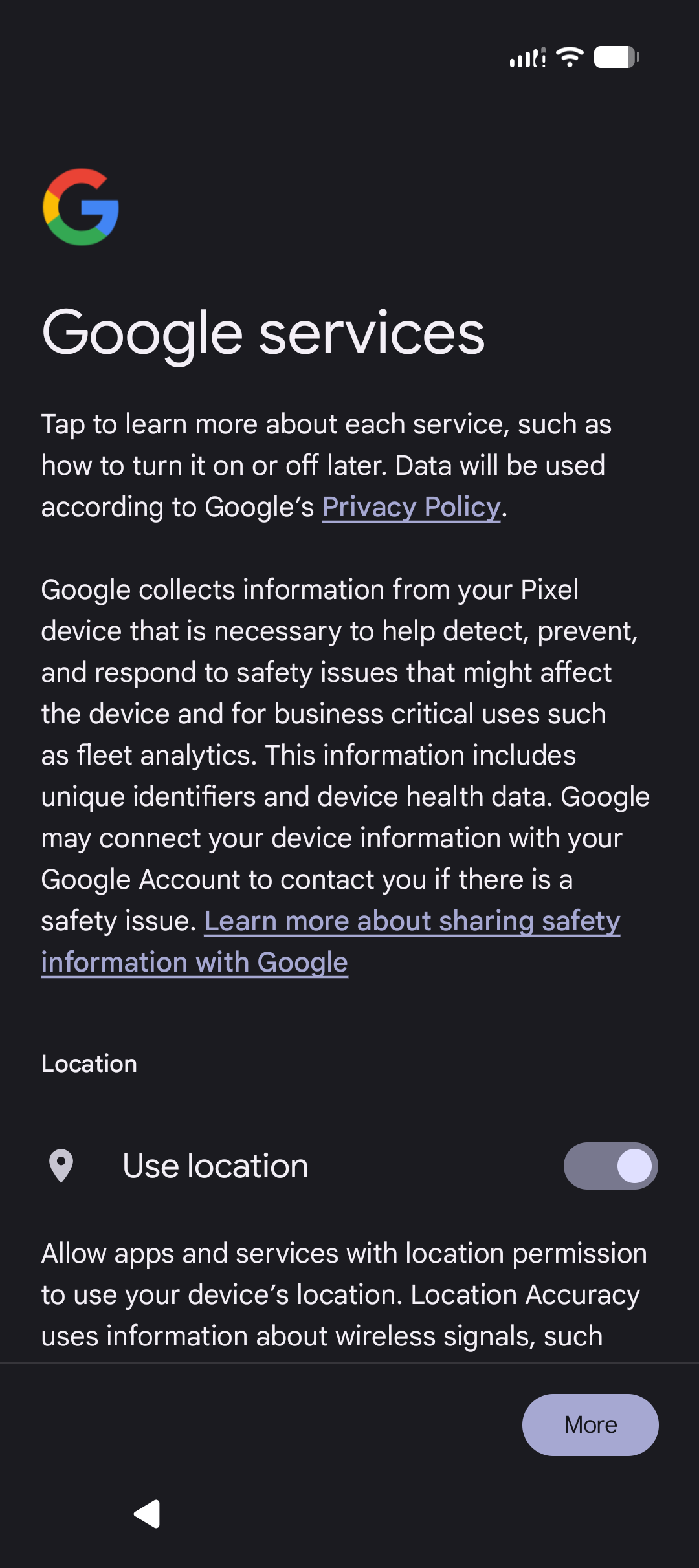
Lastly, choose if Google can access certain data on your device. After that, you're done!
Last modified
