 University IT
How to Retain Google Drive Files After Collaborators Leave the University
When individuals leave Stanford and no longer have an active university affiliation, their Stanford Google Workspace account becomes suspended. After their account has been suspended for 180 days, those files may transition to a Soft Delete state and become inaccessible.
If you rely on files owned by colleagues who have left Stanford, you should take action to retain access and avoid interruptions to your work.
What you need to know
Two visual indicators are available to help you quickly spot files that are owned by a suspended account.
- “Account Suspended” labels: These appear on files owned by people who have a suspended Stanford Google account because they are no longer affiliated with the university.
- [Suspended] tag on account names: When a colleague leaves Stanford and their My Drive becomes suspended, you’ll see [Suspended] appear before their name.
The image below shows these indicators from the "Shared with me" interface.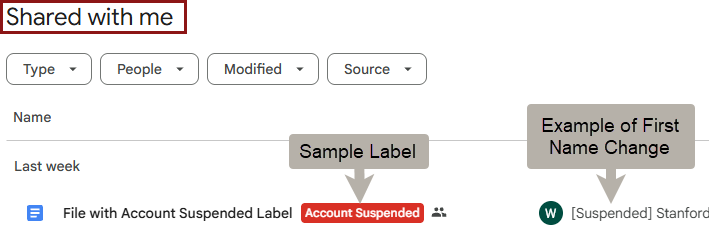
How to take action
While there are no immediate plans to delete files, you're encouraged to prepare by following these steps:
- Find files with the "Account Suspended" label
- Review the files to determine what you need to keep
- Copy files or folders to a shared drive (recommended)
Step 1: Find "Account Suspended" files
Click the Advanced Search icon (funnel icon) in your Google Drive search bar, then use one of these methods:
Option A: Search by owner
- In the Owner field, select "Specific person"
- Search for a known user or by [Suspended]

Option B: Search by label
- In the Labels section, search for Document Management > is > Account Suspended.

Step 2: Review your results
Your search may return many files, most of which you won't need. Here are some strategies to focus on the files you want to retain.
- Filter the list based on collaborators. If you know former colleagues owned files you use, filter the list to show only their files.
- Remove files from the list as you go. As you identify files you don't need, remove them from your view to keep the list manageable.
- Coordinate with your team. Before taking action, check with collaborators who also have access to avoid duplicating efforts.
Step 3: Retain the files you need
Best practice: Move to a shared drive (recommended)
Moving files to a Google shared drive is the best way to prevent future loss. Files in shared drives are owned by the university, ensuring continuous access regardless of staff transitions.
To move a file to a shared drive
(on a computer)
- Right-click on the file
- Select Organize > Move
- Choose your shared drive destination
(on a mobile device)
- From the Google docs app, tap the three dots (...) icon next to the file name
- Select Move
- Choose your shared drive destination
Note: You must have manager access to the destination shared drive if you want to move a file or folder.
- Moving a folder: If you have edit access to the folder, you must also have manager access to the destination shared drive.
- Moving a file: If you have edit access to the file, you must also have content manager or manager access to the destination shared drive.
Learn more about:
- Stanford Google shared drives l University IT
- Shared drives for business continuity l University IT
Alternative: Make a copy
You can also make a copy if you have edit permissions. You'll become the new owner of the file.
To make a copy:
(on a computer)
- Right-click on the file
- Select Make a copy
(on a mobile device)
- From the Google docs app, tap the three dots (...) icon next to the file name
- Select Make a copy
Important notes about copying:
- Existing permissions do not automatically transfer to the new copy. Review the sharing settings on your new file and re-invite critical collaborators.
- Coordinate with your team. To avoid issues with version control and responsibly use university storage resources, check with others before making copies.
FAQs
FAQs about Copying Google Files
What if I can't copy a file?
You may not be able to copy a file for several reasons.
The owner has disabled copying.
The file owner may have checked "Disable options to download, print, and copy" in the sharing settings. This prevents viewers, commenters, and editors from making copies.
You don't have sufficient permissions.
- The file is set to "Restricted" and you're not listed as an authorized user.
- You're in a shared drive or folder where your permission level (e.g., viewer) doesn't allow copying.
- The file has content restrictions enabled (e.g., marked as final/approved).
You're trying to copy a folder.
- You can copy individual files, but you cannot directly copy an entire folder.
- You'll need to copy files one at a time or move them to a new location.
How do I copy or transfer a Google Site?
Google Sites work different than Google files. Instead of copying, you'll need to transfer ownership or move the site.
Method A: Transfer ownership to another person
- Open the Site in edit mode and click the Share icon.
- Add a successor as an Editor, then change their role to Owner.
Method B (Preferred): Move the Google Site file from My Drive into a shared drive
- Locate the Google Site file in "My Drive."
- Right-click and select Move to.
- Choose your shared drive destination.
The shared drive then becomes the "Owner," and access is governed by the shared drive's membership.
How do I transfer Google Cloud Platform (GCP) assets?
Step 1: Verify Ownership:
- Go to the GCP Console > IAM & Admin.
- Ensure at least two active Stanford employees (or a Google Group) have the Project Owner role.
Step 2: Transition Billing:
- Ensure the project is linked to a Departmental Billing Account, not an individual's credit card or temporary fund.
Step 3: Transfer AppSheet:
- Open the app in the AppSheet editor.
- Go to Manage > Author.
- Select Transfer to move app ownership to a successor.
How do I copy or transfer Google forms?
You'll need to submit a Help request as Google forms owned by suspended accounts require special tools to transfer.
FAQs about Soft Delete
What happens to files after a colleague leaves Stanford?
When a colleague leaves Stanford and their My Drive becomes suspended, you'll see a [Suspended] tag before their name. In addition, an “Account Suspended” label will appear on files owned by people who no longer have an active Stanford Google account. You'll see this label next to the file name in Drive and at the top of the file when opened.
After an account has been suspended for 180 days, files owned by the suspended account move to a Soft Delete state. The files will no longer appear in Google Drive, and links to them will stop working, even if the files were shared with you directly.
Are Soft Delete files deleted?
No. During Soft Delete the files aren't erased; they just can't be seen or opened.
Does this affect email or calendar?
No, only Google Drive files.
Does it affect my own files while I'm at Stanford?
No. It only applies to accounts that have been suspended for 180 days.
Does this change storage charges?
Yes. For accounts over 5 TB, storage charges stop when the account enters Soft Delete.
What if I need to access a file in Soft Delete?
If a file is in Soft Delete, access can be restored by sponsoring the owning account's SUNet ID at the full-service level. Access to files will be restored once the sponsorship has been processed.
How should I protect any files I rely on that are owned by former colleagues?
Look for the [Suspended] tag next to the owner's name and the “Account Suspended” label on their files. Next, follow the steps outlined above in this guide to find and move the files you need.
More resources
- Google Workspace: Storage Management Guide | University IT
- How to Clean Up Google Drive | University IT
- How to Find Files Shared with "Anyone with the link" in Google Drive | University IT
- Understanding Google Storage Limit Alerts | University IT
- If you are off-boarding - Make someone else the owner of your file (Google Help)
Get help
Need assistance? Submit a Help request to the Google Workspace team for IT support.
