 University IT
How to Set Up an Archive Mailbox Using Outlook on the Web
This knowledge article addresses setting up an Archive Mailbox through Outlook on the Web (OWA). Archive Mailboxes are only available through OWA or desktop Outlook clients; they are not available through other clients.
Overview
Every Stanford M365 mailbox has a 100 Gigabyte (GB) storage limit. Understanding how to manage mailbox storage is important to maintaining your e-mail functionality. As you reach capacity, you may experience difficulty sending and receiving email. Using the Archive Mailbox function on Outlook on the Web (OWA), also known as Stanford Webmail, is an effective way to stay within your allotted capacity.
This article walks you through:
- Finding and enabling your Archive Mailbox
- Setting up archive policies
Note: Your Mailbox Archive will be easiest to access via webmail, and may also be visible if you use the Microsoft Outlook client on Windows or macOS devices. However, you will not be able to access the Mailbox Archive through other email clients.
How to find or enable your Archive Mailbox
Stanford has already enabled the Archive Mailbox for the vast majority of campus users. Additionally, the M365 team activates new users on a periodic basis. If the Archive Mailbox is not yet activated for you, please submit a help request. Be advised it takes up to 24 hours for the Archive Mailbox to appear once it has been enabled.
Understanding and using the Archive Mailbox
Think of the Archive Mailbox as a second mailbox attached to your account, specifically designed for older messages. You have effectively unlimited storage capacity in your Archive Mailbox.
When items move to the archive,they
- Leave your primary mailbox (and free up space within your 100 GB capacity)
- Remain accessible in a folder structure you can browse and search.
How to tell if you already have the Archive Mailbox
Look for a folder called "Online Archive" or "In-Place Archive" in your Outlook folder list.
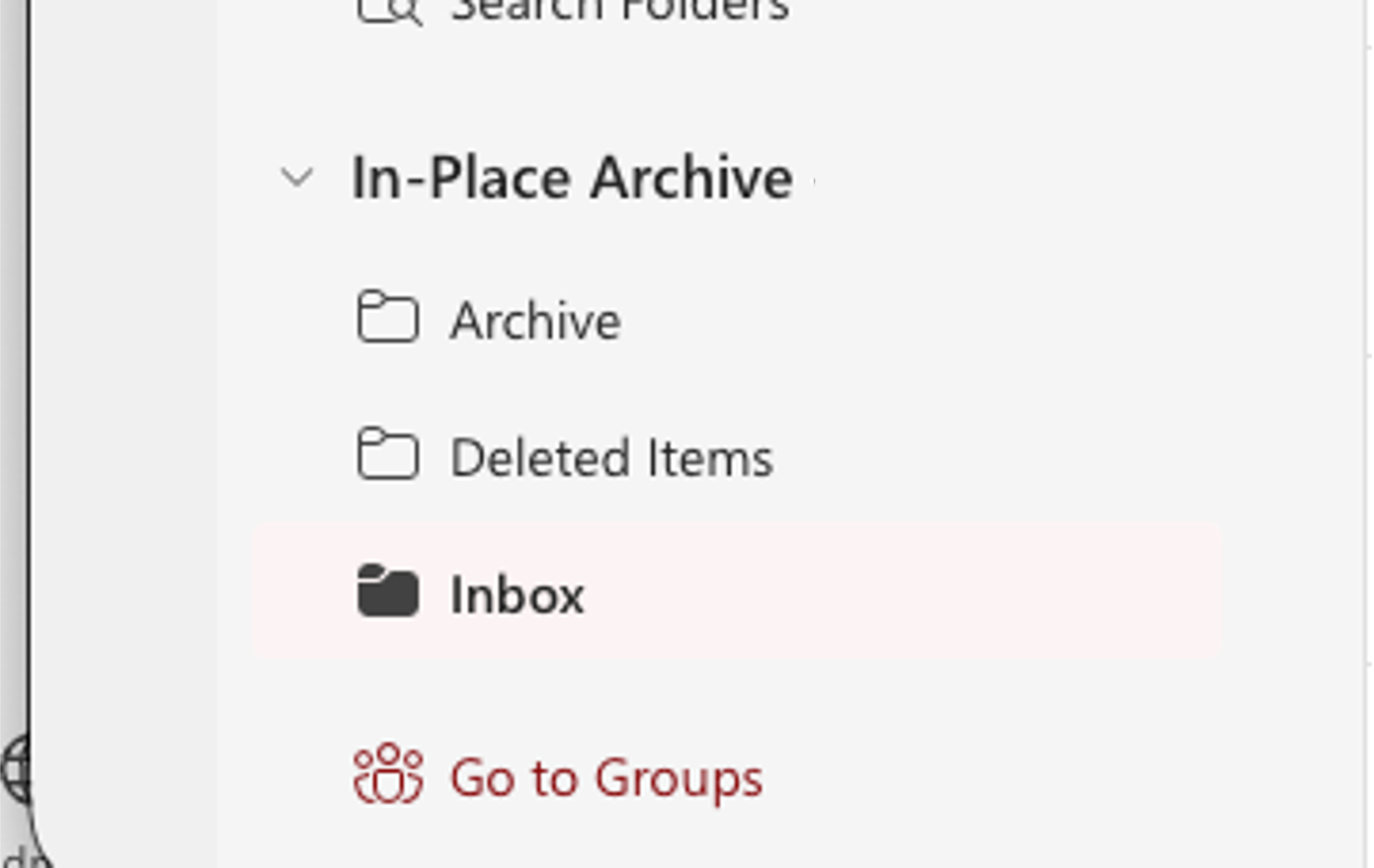
If you do not see an archive folder in any of these locations, your archive mailbox has not been enabled yet. Submit a request through the Stanford IT Service Desk and the team will provision it for your account. Remember, it takes up to 24 hours for the Archive Mailbox to appear once it has been enabled.
Set an archive policy
Enabling the archive mailbox alone does not automatically archive email. You need to assign an archive policy to tell Outlook which messages to archive and when. Without a policy, the only way items get into the archive is if you drag them there manually.
How archive policies work
An archive policy is a retention tag that you apply to a folder. Once applied, the Managed Folder Assistant (a background process Microsoft runs approximately every seven days) evaluates the age of each item in that folder. If an item is older than the policy threshold, it gets moved to the corresponding folder in your archive mailbox automatically.
Available archive policies at Stanford
When you right-click a folder in Outlook or OWA and select "Assign Policy," you will see several options. The ones that move items to your archive (rather than deleting them) are:
| Policy Name | What It Does |
|---|---|
| Personal 1 year move to archive | Moves items older than one year to your archive. |
| Personal 3 Year move to archive | Moves items older than three years to your archive. Recommended starting point for most users. |
| Personal 5 year move to archive | Moves items older than five years to your archive. |
Additional options (seven year, 240 day) may be available through OWA Settings under Retention Policies. You can enable these additional tags if needed, though the one-, three-, and five-year options cover most use cases.
How to apply a policy
In Outlook or OWA, right-click the folder you want to auto-archive (e.g., Inbox, Sent Items). Select Assign Policy, then choose the archive tag that matches your needs. Repeat this for each folder you want to archive. The policy is per-folder, so you can set different thresholds for different folders if needed.
After assigning a policy, it can take up to seven days for the Managed Folder Assistant to process your mailbox and begin moving items. This is not instant.
Important: Archive vs. delete policies
Be careful when assigning policies. The same right-click menu also shows delete policies ("1 Year Delete," "5 Year Delete," etc.). These look similar but do very different things. Archive policies preserve your email by moving it to a safe, searchable location. Delete policies permanently remove your email after the specified time period. Make sure you are selecting a "move to archive" option, not a delete option.
