 University IT
How to Manage Storage in Your M365 Email Account
Overview
Every Stanford M365 mailbox has a 100 Gigabyte (GB) storage limit. As you reach capacity, you may experience difficulty sending and receiving email. Therefore, understanding email storage and proactively applying techniques to manage email will help ensure your account stays fully functional..
This article walks you through
- Stanford’s storage policies
- How to check your current storage and immediately free up capacity
- Best practices to prevent future storage issues
Additionally, one of the most effective ways to manage email storage long term is to utilize the Archive Mailbox through Outlook on the Web (OWA), also known as Stanford Webmail.
Understanding email storage and why your email can stop working
Emails in your Inbox, Sent, Archive, Deleted Items, and other folders count against your 100 GB capacity. You can permanently delete emails in your Deleted Items folder by right clicking on them and selecting Delete. This action removes the selected emails entirely and they no longer count against your capacity.
Additionally, the Archive folder you see under your Inbox is for organizational purposes only; messages there still count against your capacity. Use an Archive Mailbox for long-term storage that doesn’t impact your storage quota.
As you approach your 100 GB capacity, you will receive warning notifications, and experience limitations in sending and receiving email. If you need immediate help because you're getting the warning messages, or can't receive messages, submit the Office 365 Email help request form to Stanford UIT Service Desk.
Microsoft applies three quota thresholds that trigger progressively as your mailbox fills up:
| Threshold | Default Level | What Happens |
|---|---|---|
| Warning | ~98 GB | |
| Send Prohibited | ~99 GB | |
| Send/Receive Prohibited | 100 GB |
Checking storage and freeing space
Outlook on the Web (Recommended)
The easiest way to check your current usage is through Stanford Webmail. The steps and views described are the same whether you’re using a Windows or macOS computer.
- Sign in at outlook.office365.com.
- Click the Settings gear icon in the top-right corner.
- Select Account, then Storage. You will see a visual breakdown of your total mailbox usage and how much space each folder consumes
Select Empty in the Manage column. In the dropdown you’ll be provided the option to permanently delete all emails or emails older than a certain date.
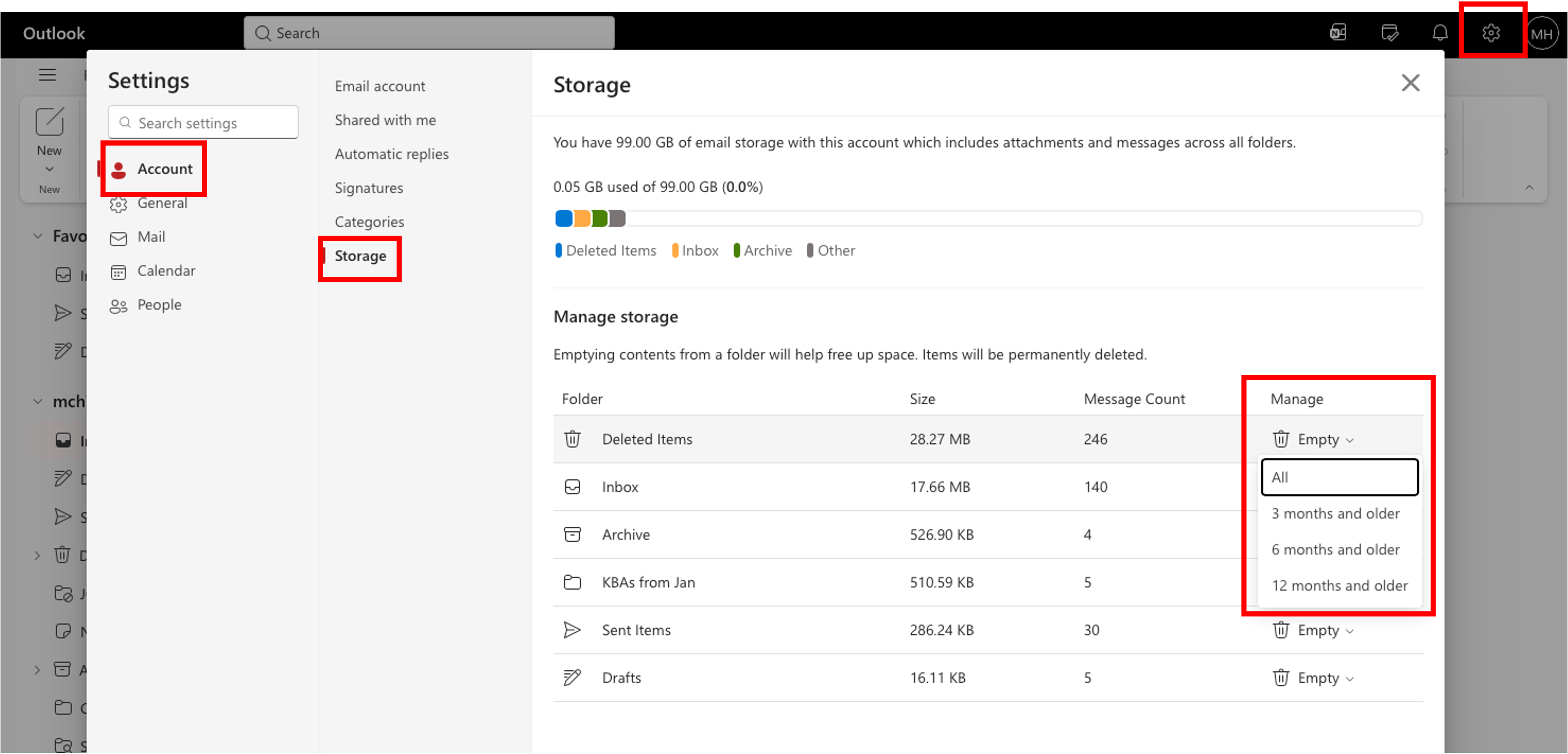
New Outlook for Windows
The new Outlook desktop client uses the same interface as Stanford Webmail.
- Click the Settings gear icon in the top-right corner.
- Select Account, then Storage. You will see a visual breakdown of your total mailbox usage and how much space each folder consumes.
Select Empty in the Manage column. In the dropdown you’ll be provided the option to permanently delete all emails or emails older than a certain date.
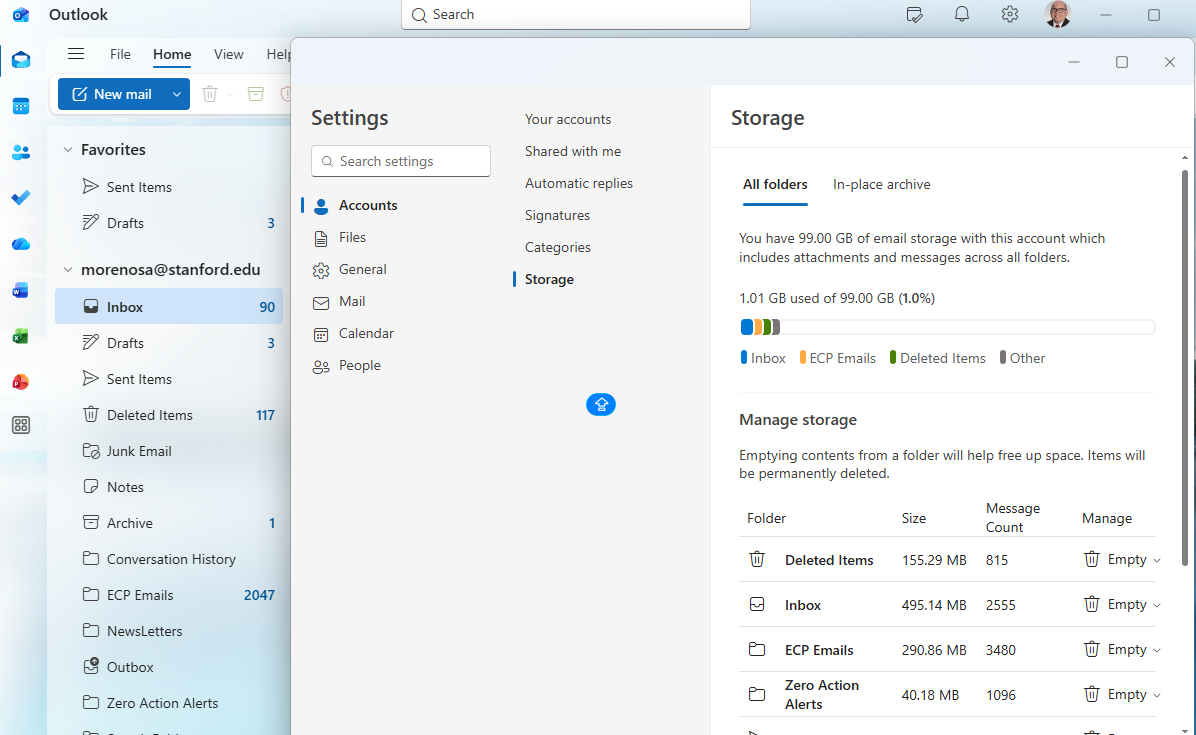
Classic Outlook for Windows
Open Outlook and click the File tab. Under Account Information, look for Mailbox Settings where it displays your storage used.
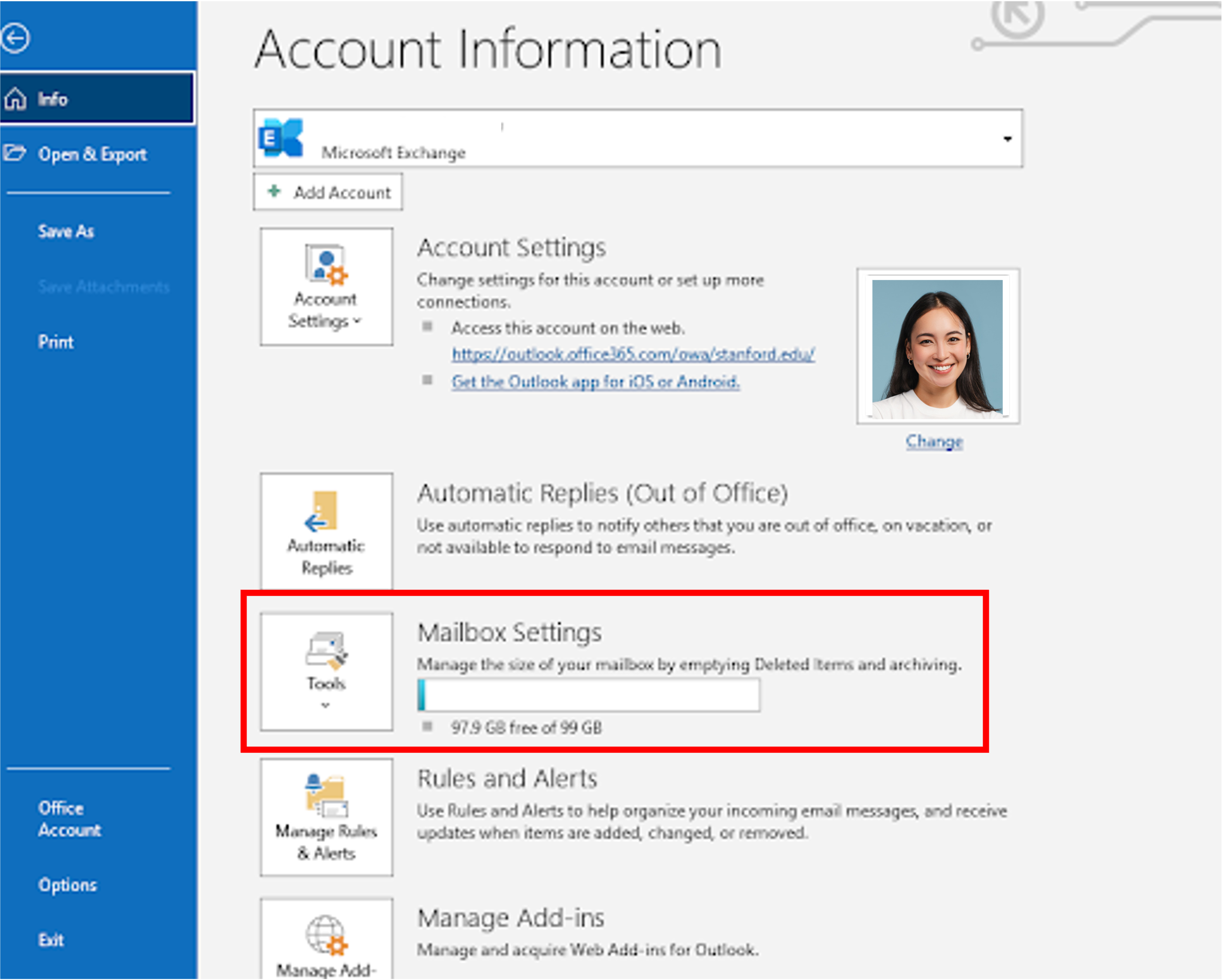
Select Empty Deleted Items Folder to permanently delete all items in the Deleted Items folder.
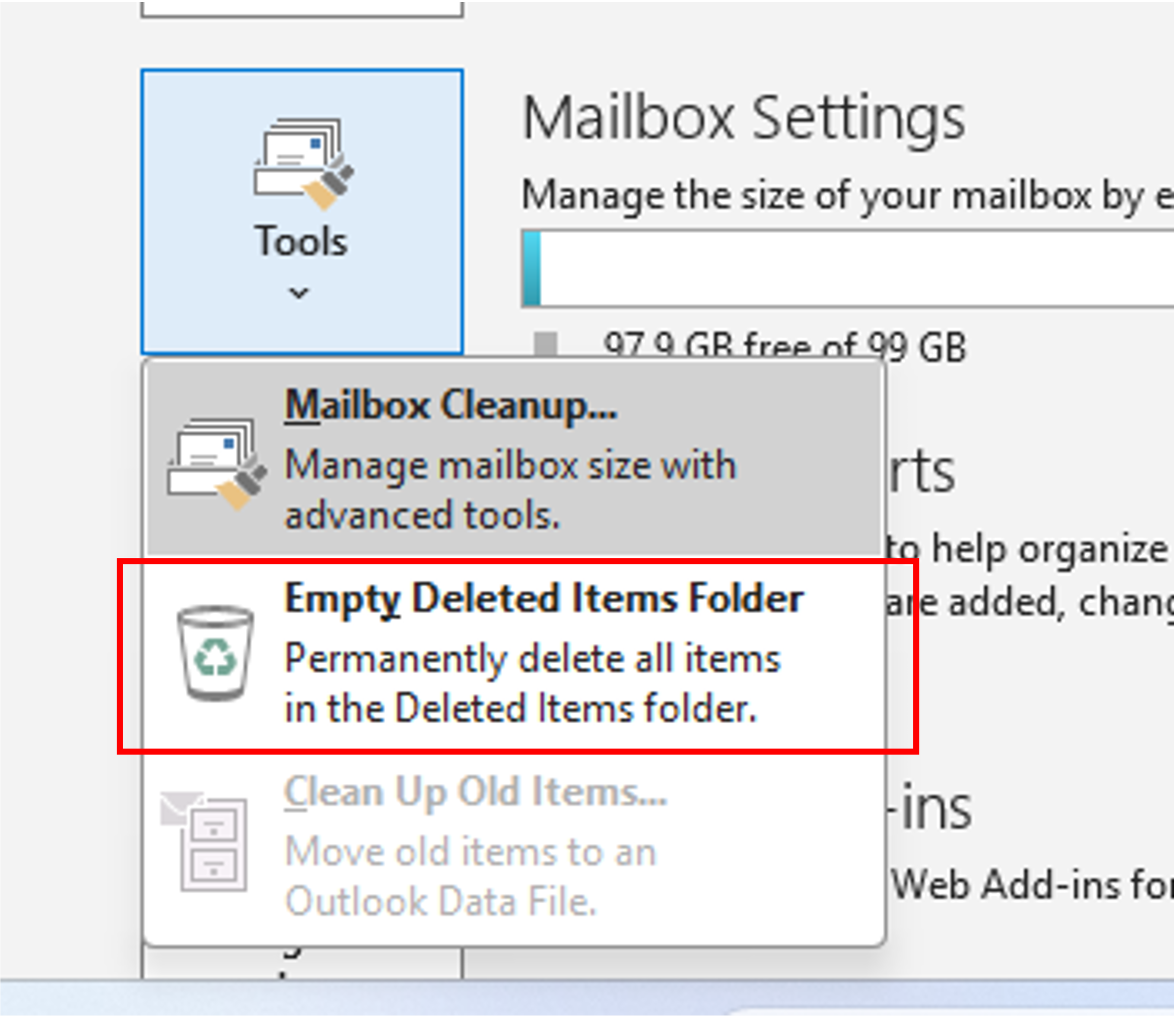
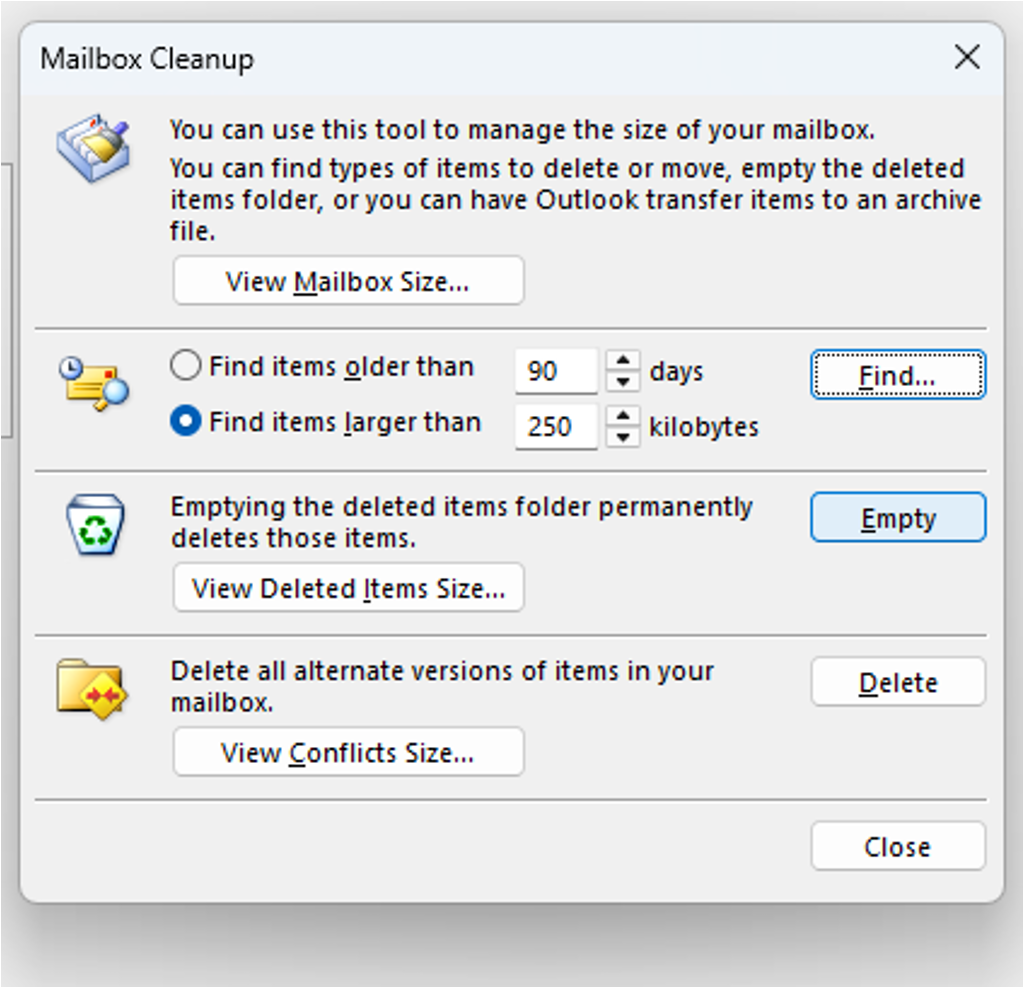
Use Mailbox Cleanup for more precise control over items to delete, including deleting based on size or age.
Outlook for Mac
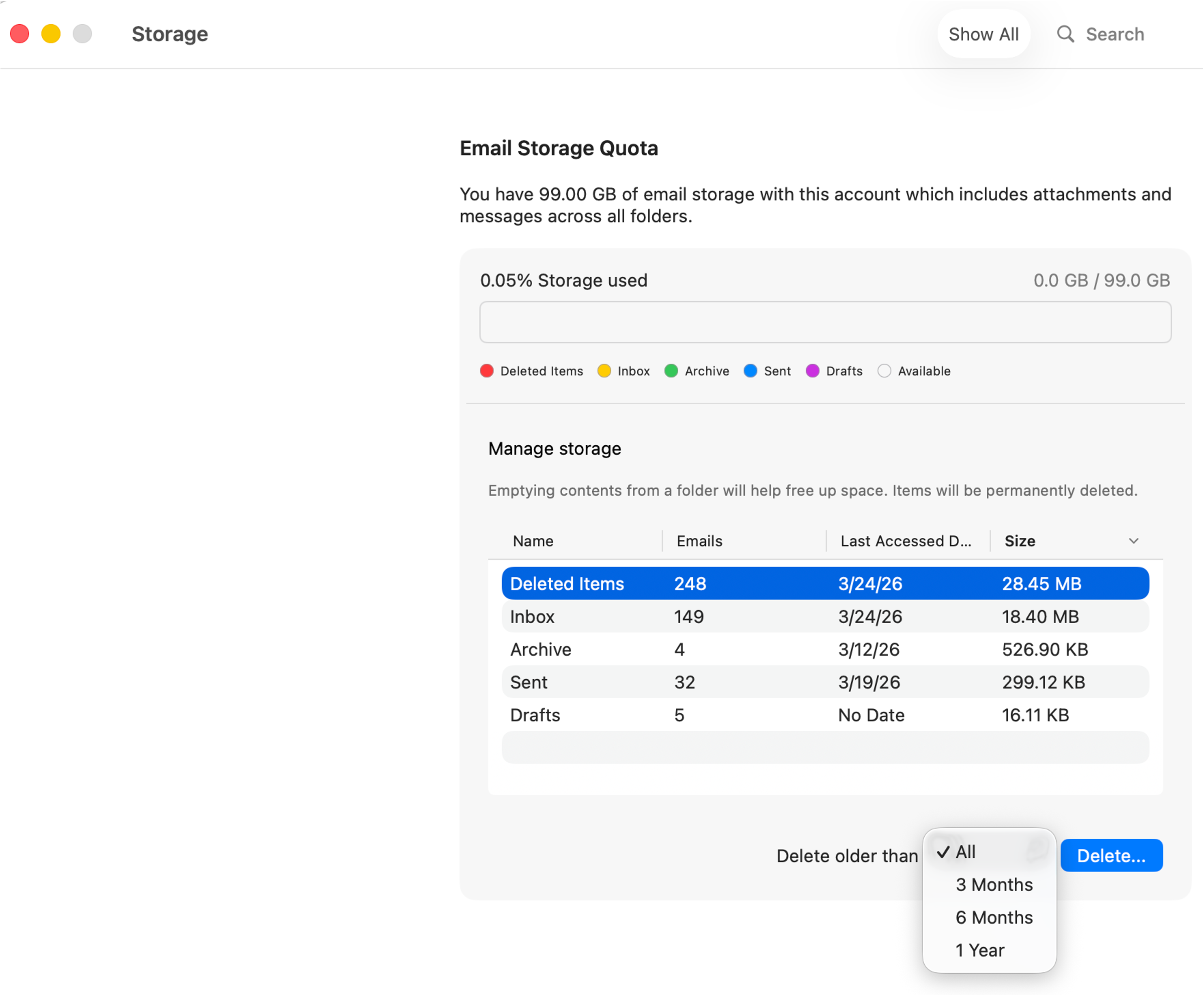
- Click Tools in the top navigation, then select Manage Storage from the dropdown menu. You’ll see a list of your folders and how much space each consumes.
Select a folder (it will turn blue). Select a choice from the “Delete older than” dropdown, then click Delete.
Best practices to prevent future storage issues
In addition to permanently deleting emails at periodic intervals, a few best practices will help keep you under your capacity limit:
- Share files via links, not attachments. Use Google Drive or OneDrive to share large files. Remember, When you send a 10 MB file to five people via email, that is 10 MB in your Sent Items plus 10 MB in each recipient's Inbox.
- Set up an Archive Mailbox and keep your archive policy active. Setting up an Archive Mailbox in Stanford Webmail lets you automatically archive mail based on rules you set. Once you have set archive policies on your key folders, leave them in place. They run automatically in the background and will continuously move aging items out of your primary mailbox.
- Use Sweep for high-volume senders. Stanford Webmail has a Sweep feature that lets you create rules for specific senders, such as automatically sending to the Deleted Items or other folder. This is a good option for things like newsletters or automated notifications.
- With Stanford Webmail, select a message, then click the Sweep icon in the top menu
- Use the radio buttons and “Move to” drop down to set rules for emails from this sender.
Need Help?
If you are locked out of your mailbox because it has reached the send/receive limit, or if you need your archive mailbox enabled, submit the Office 365 Email help request form the Stanford UIT Service Desk.
| Question | Answer |
|---|---|
| What is my mailbox storage limit? | |
| What happens when I hit the limit? | |
| How do I check my usage? | |
| What is the archive mailbox? | A separate, attached mailbox for older mail. Unlimited storage. Fully searchable. |
| How do I get archive enabled? | Submit an Office 365 Email help request. |
| How long until archive policies take effect? | Manual moves to the archive happen immediately, but the automatic archive policy runs weekly and is managed by Microsoft. Items may take up to a week to move automatically after a policy is assigned. |
| Does deleting email free up space immediately? | Only after you also empty the Deleted Items folder. Items in Deleted Items still count against your quota. |
| Can I search archived email? | Yes. Archived items are fully searchable in Outlook and OWA. |
| What is the recommended archive policy? | Start with "Personal 3 year move to archive" on your largest folders. This is the least disruptive starting point as this setting avoids archiving emails that are recent enough for you to want to retrieve. You can always switch later to a one-year policy. |
