 University IT
How to Recover a SharePoint Site Returning a 404 Error
This guide helps you recover a SharePoint site that returns a 404 error at the root URL by bypassing the broken homepage and setting a new valid page as the site's home page.
Prerequisites
- You are a Site Owner or SharePoint Administrator
- The Site Pages library exists and is accessible
- At least one .aspx page in Site Pages loads successfully or you can create a new .aspx to set as HomePage
Recovery Steps
Step 1: Bypass the broken root URL
- Open a known-good system view in the Site Pages library by navigating directly to: https://office365stanford.sharepoint.com/sites/<sitename>/SitePages/Forms/ByAuthor.aspx
Note: Be sure to edit the URL to reflect your site name.
Example: If your site name is "Test-Teams-Group," you would change the URL to: "https://office365stanford.sharepoint.com/sites/Test-Teams-Group/SitePages/Forms/ByAuthor.aspx"with your actual SharePoint site name. - This view often loads even when the site root (/) returns 404.
- If this page also does not load (404 Page Not Found) then there is a larger issue and the whole site may have been deleted or corrupted and will require a Support case submitted to UIT.
Step 2: Locate a valid page to use as Home
- In the ByAuthor view:
- Identify an existing page such as Home.aspx or another known working page
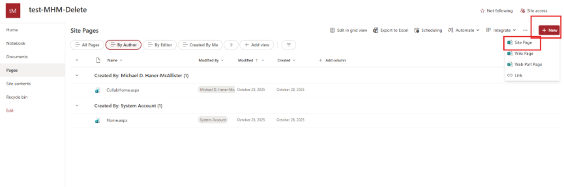
- If no suitable page exists, create a new page from New → Page
- Identify an existing page such as Home.aspx or another known working page
Step 3: Open the page
- Click the page (for example: Home.aspx) to open it normally
- Confirm the page renders correctly
- Go back to the Pages tab
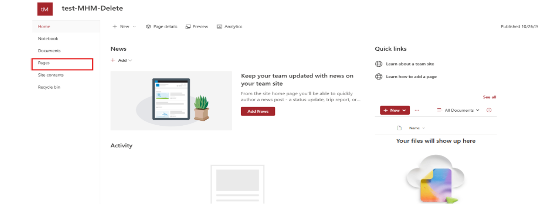
Step 4: Set the page as the site home page
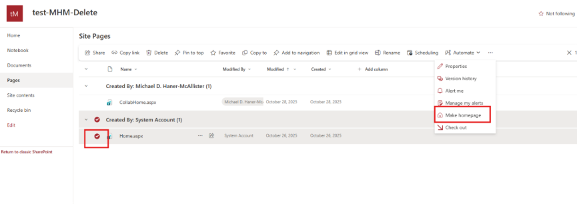
- From the page command bar:
- Select the Page you want to make the HomePage
- Then click the ellipse ( … )
- Choose Make homepage
Alternatively:
- Settings (⚙️) → Site contents → Site Pages
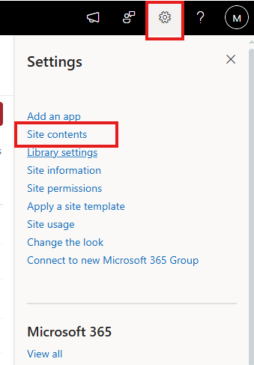
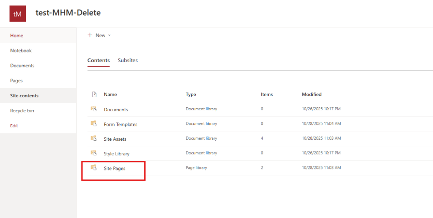
- Select the page
- Choose Make homepage
- This updates the site’s Welcome Page setting.
Step 5: Validate site root resolution
- Open the site root URL: https://office365stanford.sharepoint.com/sites/<sitename>
Note: Be sure to edit the URL to reflect your site name.
Example: If your site name is "Test-Teams-Group," you would change the URL to: "https://office365stanford.sharepoint.com/sites/Test-Teams-Group"
- The site should now resolve and redirect to the selected home page.
Last modified
