 University IT
Email Warning Tags
Overview
Email warning tags are visual indicators that provide additional context for messages, alerting you to use caution when responding to or acting on potentially dangerous emails. These tags are rare and do not prevent you from opening, downloading attachments from, or clicking links within an email.
If you are uncertain whether an email is safe, submit a Help request or call the UIT Service Desk at 650-725-4357 (5-HELP) for assistance.
Email tags
Email Warning Tags apply only to inbound messages. When you reply to or forward a tagged message, the tag is removed.
The table below illustrates the Email Warning Tags you may see in your messages using the default tag titles and descriptions provided by Proofpoint:
| Image | Description |
 | This message was sent from a sender with whom you have not previously corresponded. Look at the sender’s address to decide if it is safe to open. |
 | This message has a URL or link in it that can potentially cause harm to your computer or your network. Look carefully at the URL before you click it. |
 | This message is potentially from someone impersonating someone you know. Look carefully at the sender’s address to decide if it is safe to open. |
 | The sender’s email domain has been active for a short time, and it could contain a malicious payload. |
 | This message is from a sender whose identity could not be verified and someone may be impersonating the sender. |
 | This message contains suspicious elements but did not meet the threshold to block. Caution should be taken when interacting with this message. The scoring to trigger this tag is currently in Beta testing and will be generally available very soon. |
 | Avoid replying with sensitive information, clicking links, downloading attachments, or making payments. |
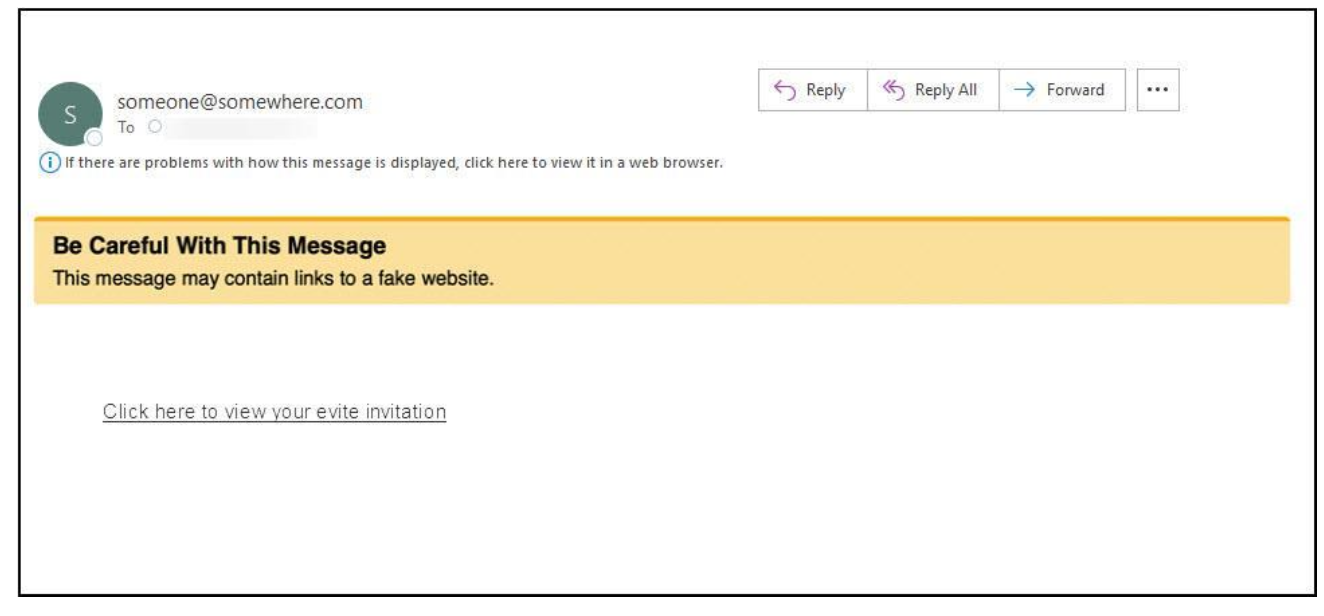
The following screenshot illustrates an example of a tagged message:
What to do if you see a warning tag
If you see a warning tag, take a moment to review the message before taking action:
- Check the sender. Make sure the email address matches who you expect to hear from. Be wary when receiving emails that look like they’re from members of the Stanford community, but are sent from personal-looking email accounts.
- Look closely at links and attachments. Avoid clicking links or downloading files unless you’re confident the message is legitimate.
- Pause if something seems unusual. If the message feels unexpected or suspicious, verify it through another method or report it.
- Use the Report Phishing button. If you suspect a phishing attempt, use the Report Phishing button in Outlook or forward the email to phishing@stanford.edu.
