University IT
Notification Settings and Comments
Workgroup Manager provides flexible email notification settings and enhanced documentation capabilities to help administrators stay informed about workgroup changes. Administrators can customize their notification preferences through two different interfaces and add contextual comments to track important workgroup actions.
Notifications
Notifications in My Workgroups view
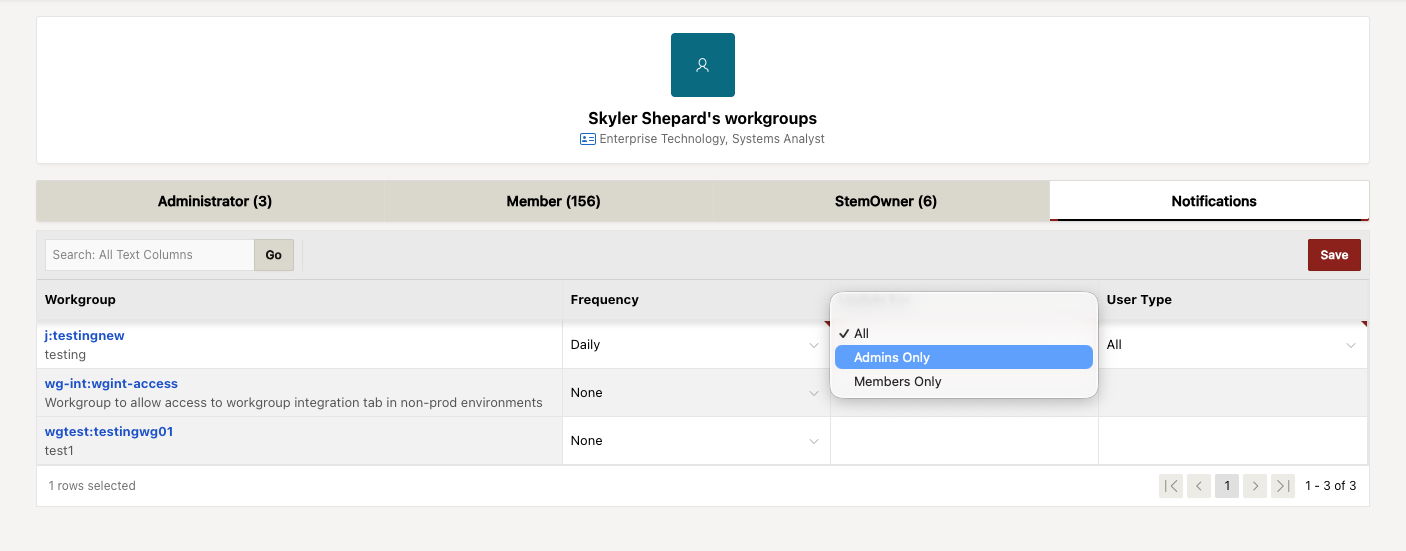
In the “My Workgroups” view, under the “Notifications” tab, users will find a list of each workgroup for which they are an administrator.
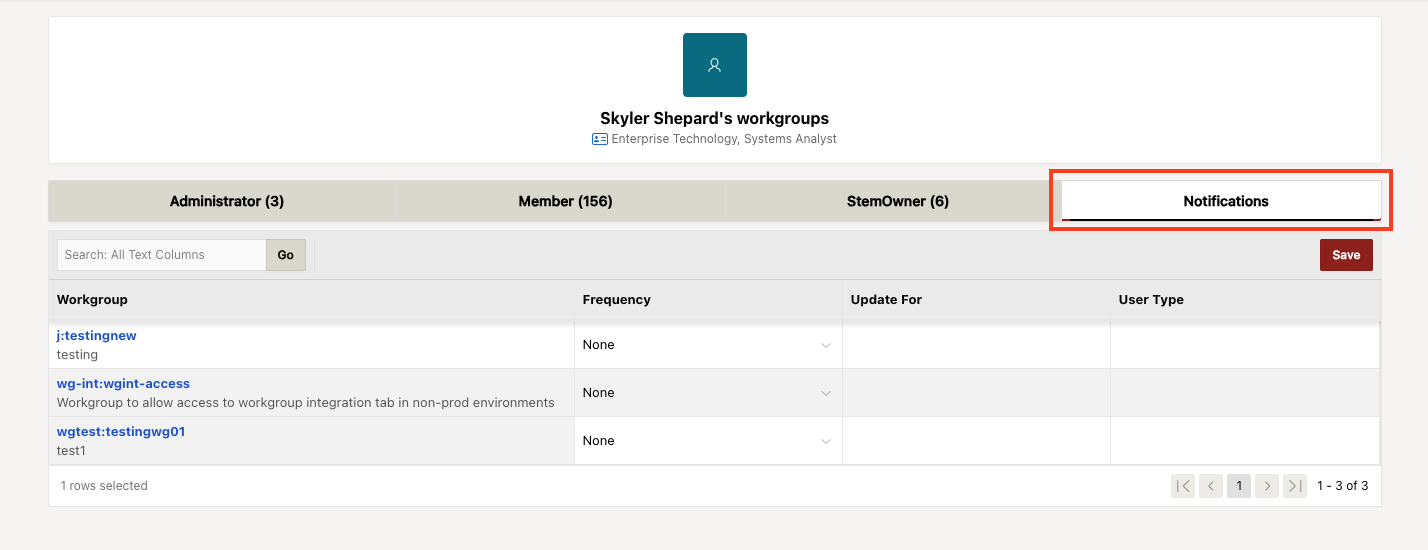
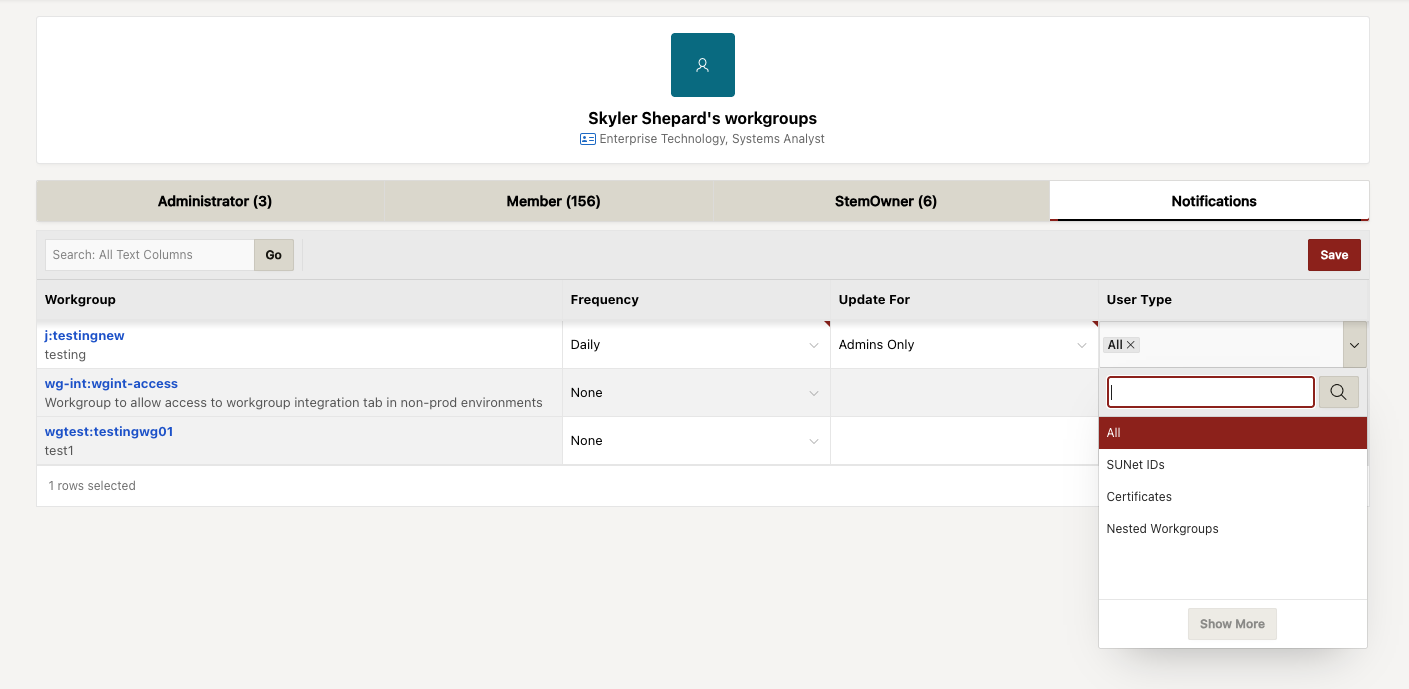
Under the "Notifications" tab, each workgroup contains three columns:
Frequency Column: Users can select how often they receive notifications: None, Real-time, Daily, or Weekly. Once an option is selected, the "Update For" and "User Type" columns will become available.
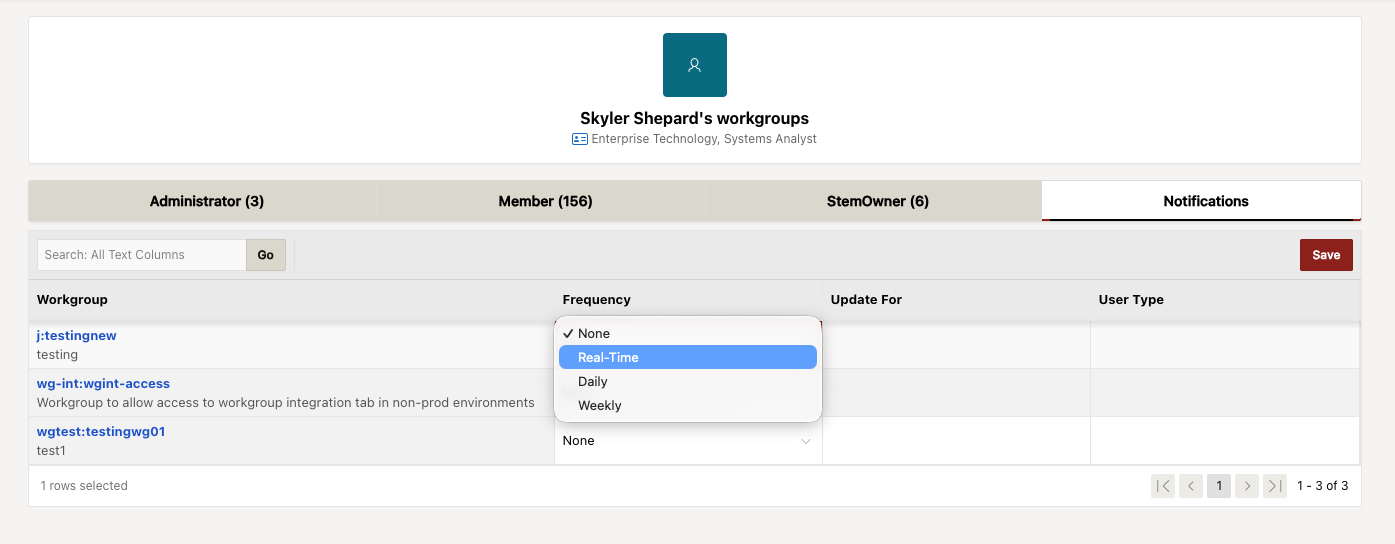
Update For: This option allows you to select whether only admins, members, or both should receive email notifications.
User Type: The administrator can select which notification types to receive: All, SUNet IDs, Certificates, or Nested Workgroups.
Notifications in the Properties tab
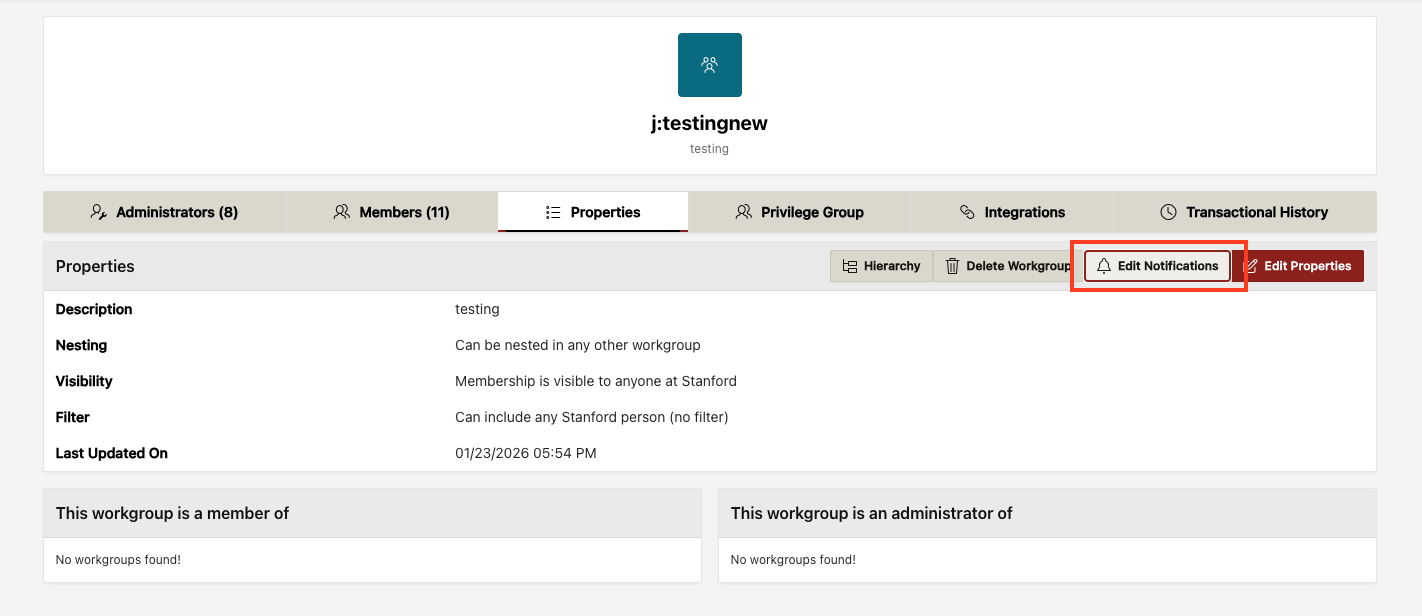
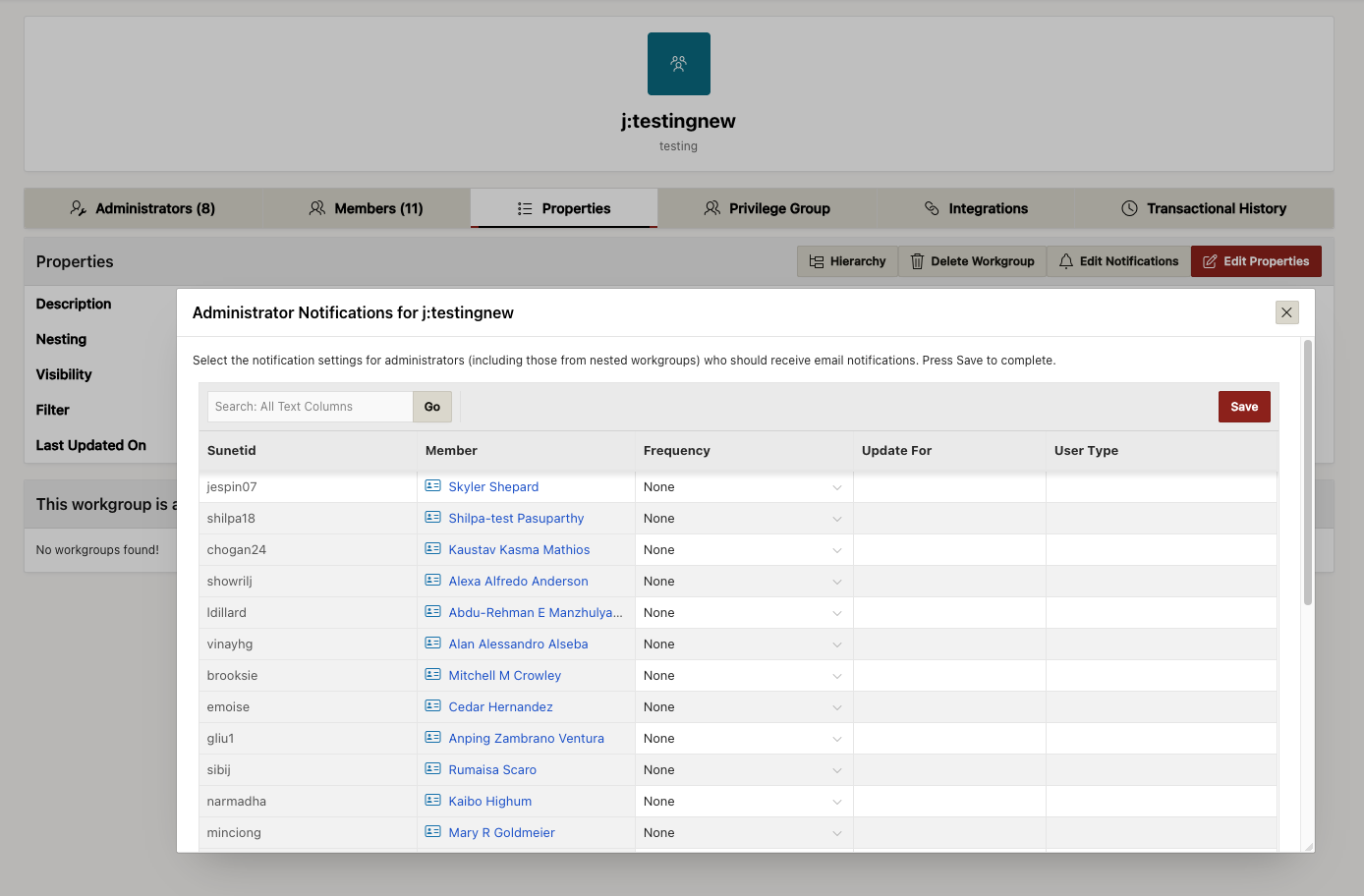
When viewing a workgroup as an administrator, you will find the option to “Edit Notifications” in the “Properties” tab as an additional button. Once “Edit Notifications” is clicked, a modal pops up with allowed selections.
In the modal’s menu, administrators can configure email notification preferences, as mentioned above, with "Frequency," "Update For," and "User Type" options.
Notification emails
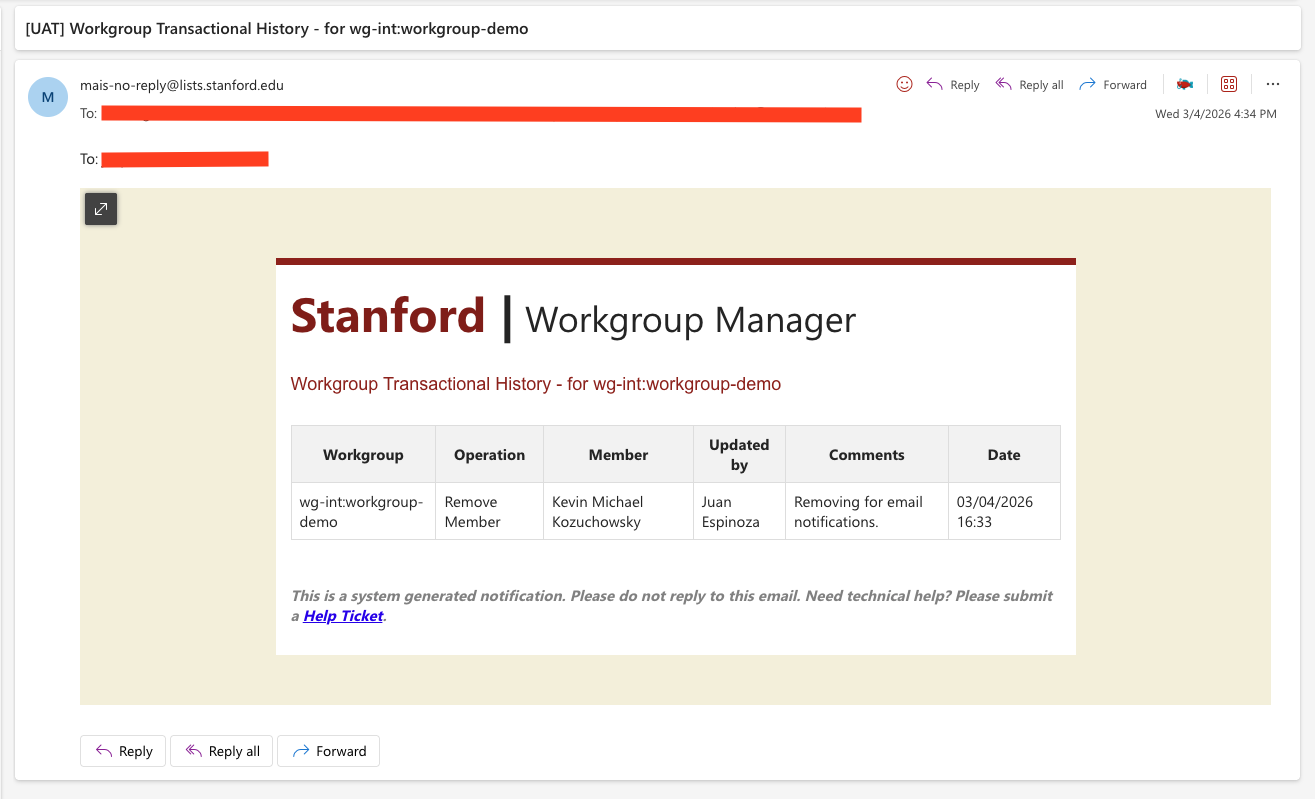
Notifications on updates will be sent to the user's Stanford email address as shown in the example below.
Comments
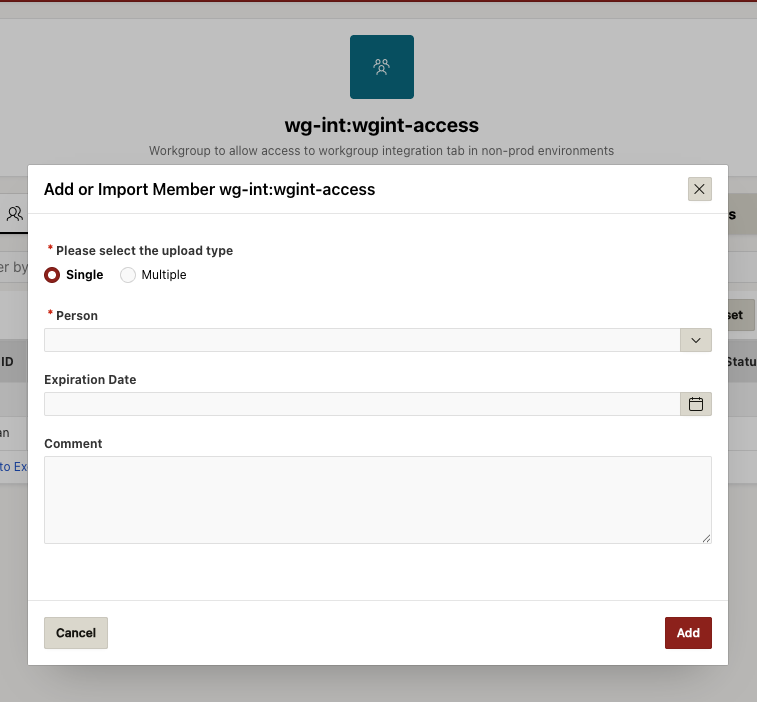
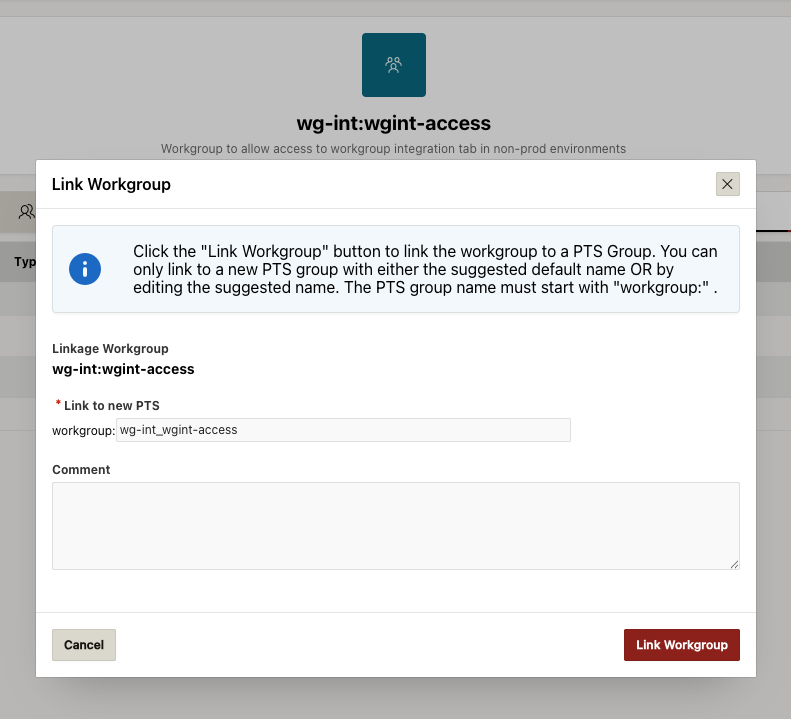
Comments can be added in the comment field for multiple actions done in Workgroup Manager, such as adding an administrator or member, removing an administrator or member, adding a linkage, or removing a linkage.
All comments can be viewed in the Transactional History tab.