University IT
How to Use Claude Cowork With API Gateway
On this page:
Step-by-Step
Step 1 – Launch
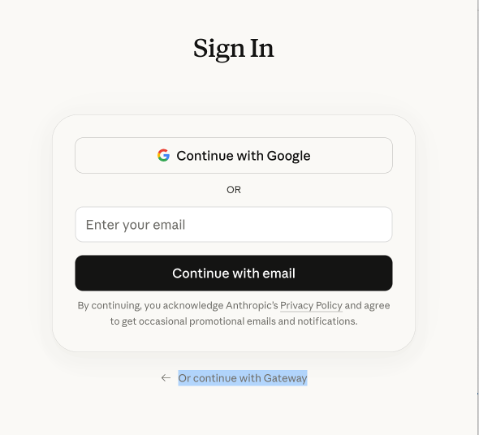
Launch the Claude desktop application and sign in using your Enterprise account credentials.
Step 2 – Enable Developer Mode
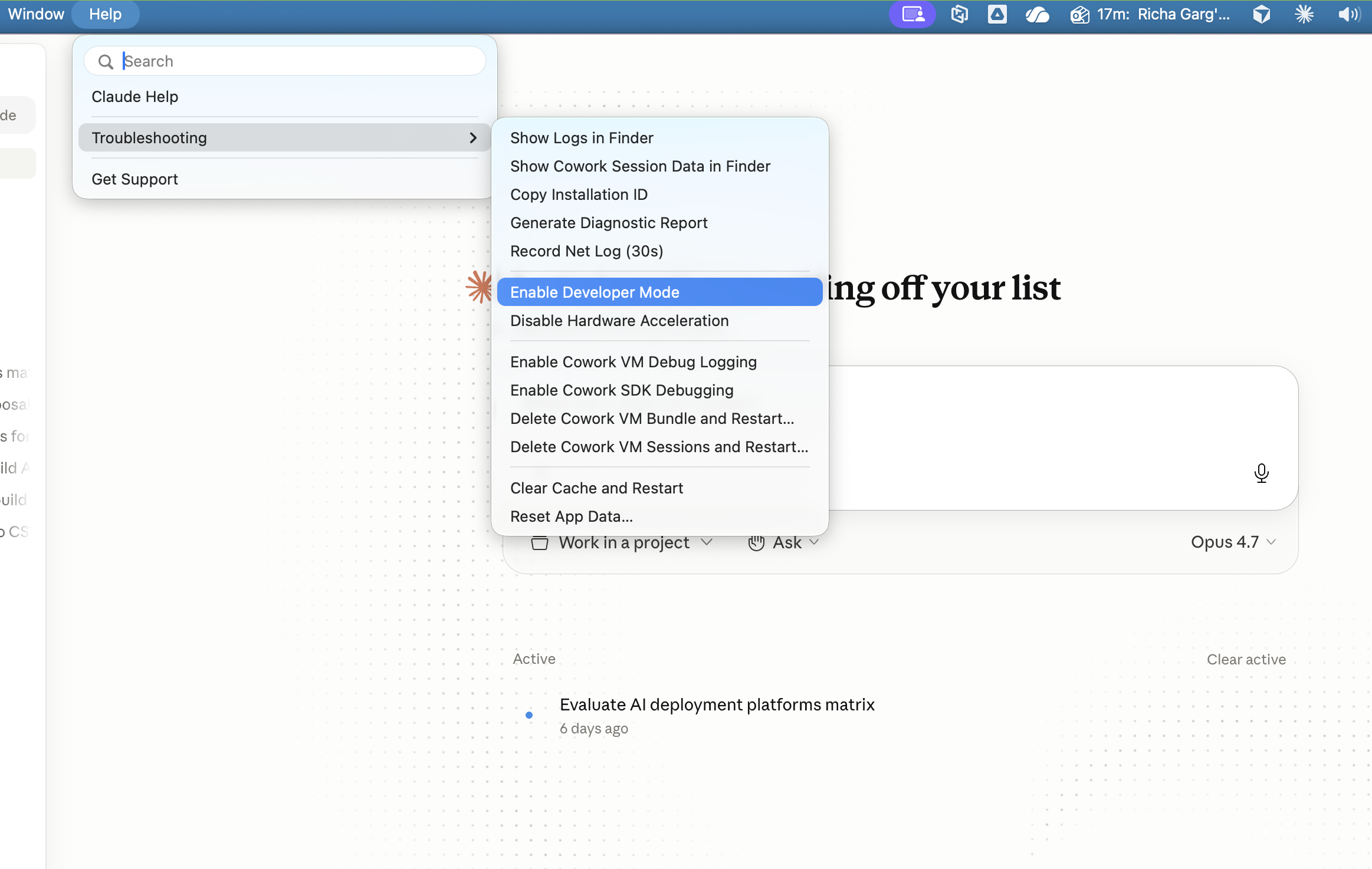
If Developer mode is not visible, enable it by navigating to Help → Troubleshooting → Enable Developer Mode.
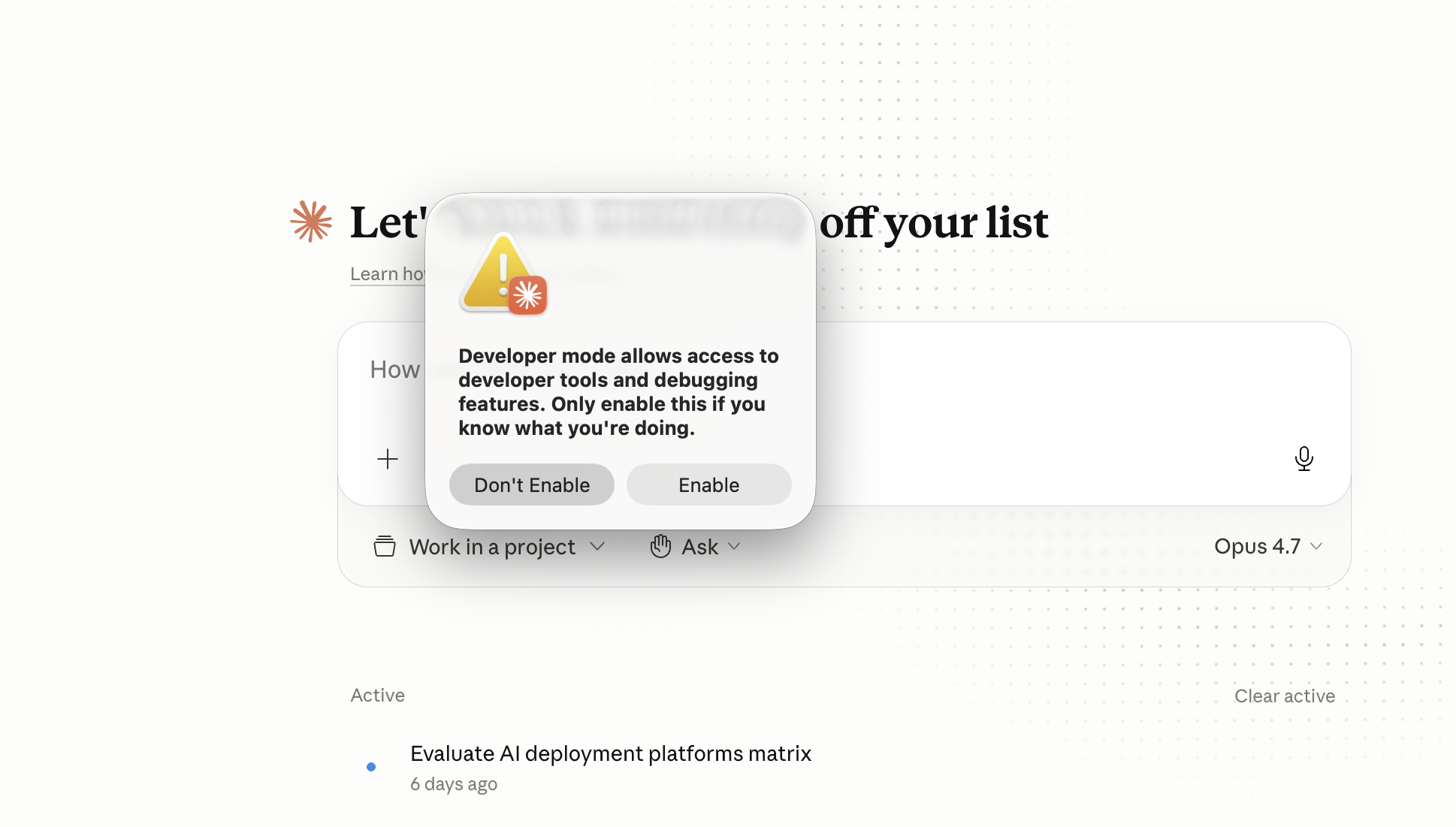
When prompted with a confirmation message, acknowledge the warning to allow the application to restart.
Once the application has restarted, a Developer menu option will appear in the menu bar, adjacent to the Window option.
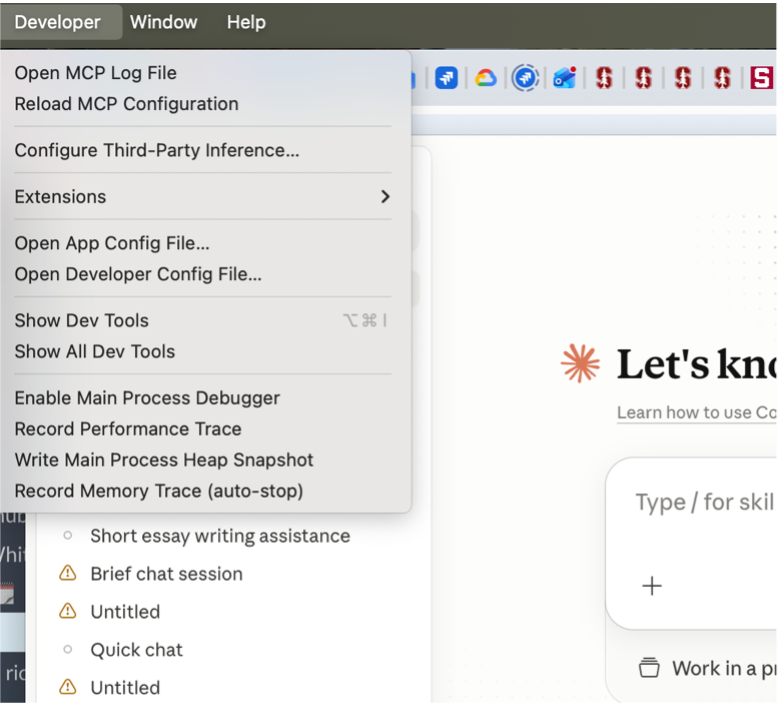
Click Developer → Configure Third-Party Inference.
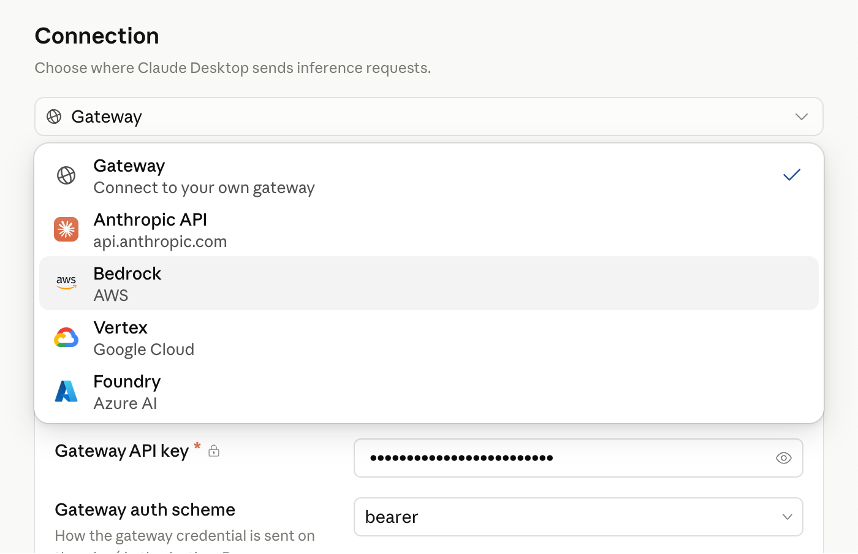
Step 3 – Select Gateway
In the configuration dialog, select the Gateway option from the available choices.
Step 4 – Complete the Configuration Form
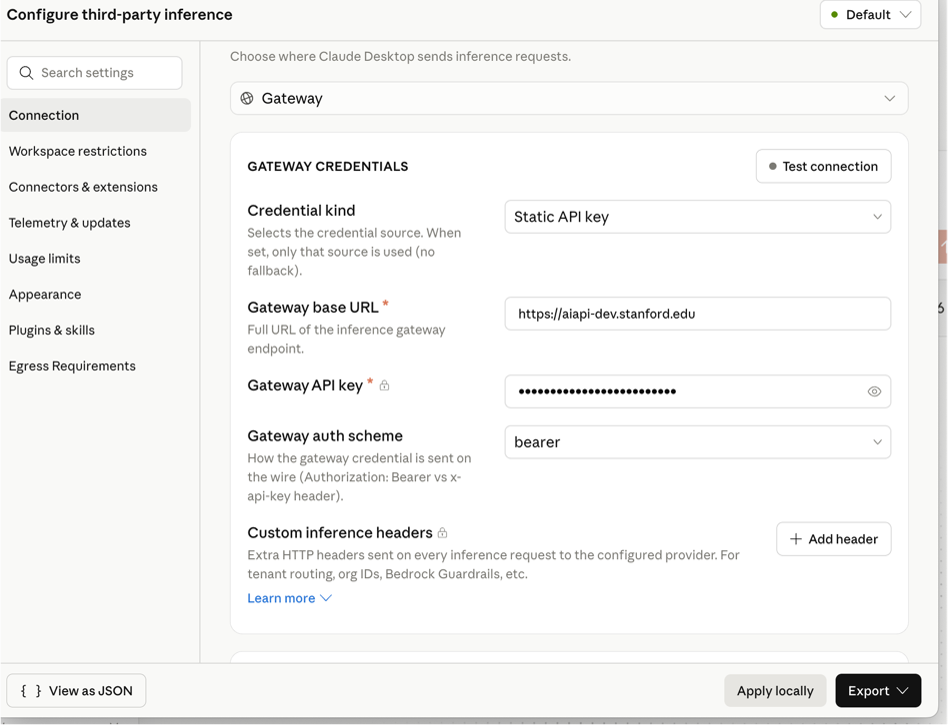
Complete the configuration form by entering the following details (refer to the screenshot below for guidance).
- Credential Kind – Select Static API Key
- Gateway Base URL – Enter aiapi-prod.stanford.edu
- API Key – Enter your secret API key (e.g., “sk-x1y2z34” provided via secure email)
- Gateway Auth Scheme – Select Bearer
Step 5 – Validate the Connection
Click Test Connection.
Once the connection is confirmed as successful, restart the application and select the "Continue with Gateway" option when prompted.
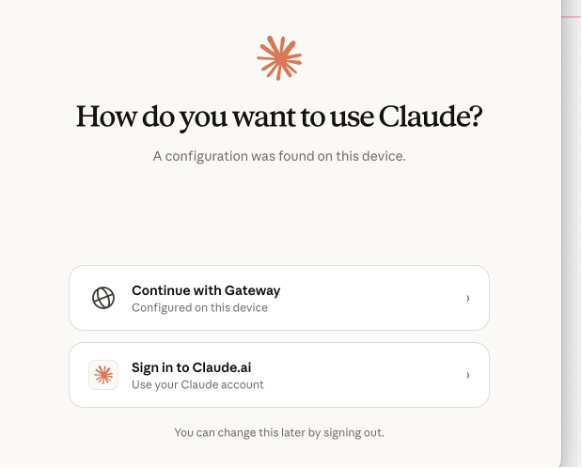
You are now ready to use Claude Cowork through your API Gateway.
Model Notes
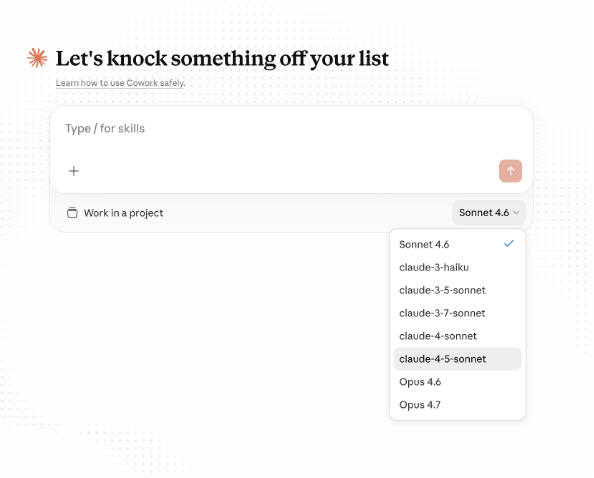
Currently, Opus models are working well compared to Sonnet. We recommend selecting an Opus model within the application. (Opus 4.6, Opus 4.7)