 University IT
OpenAI Codex CLI with AI API Gateway
This webpage provides steps for installing and configuring the OpenAI Codex CLI on macOS using AI API Gateway model aliases.
1. Prerequisites
Required Software
| Software | Minimum Version | Download/Source |
|---|---|---|
| OpenAI Codex CLI | Latest (0.96+) | https://learn.chatgpt.com/docs/codex/cli |
| Node.js | 18+ (LTS) | https://nodejs.org/en/download |
| VS Code (optional) | 1.93+ | https://code.visualstudio.com/download |
System requirements
| Requirement | OpenAI Codex CLI |
|---|---|
| OS | macOS (Linux also supported; on Windows use WSL) |
| RAM | 4GB+ recommended |
| Disk Space | Minimal |
| Internet | Required for API calls |
| AI API Key | Required |
AI API Gateway Details / API Key
- Base URL: https://aiapi-prod.stanford.edu/v1
- API Key: Your own AI API key (sent via secure channel)
- Model alias: Must match the gateway alias exactly (example used throughout this doc: gpt-5.4)
2. Installation Steps (macOS)
Step 1- Check if Codex CLI already exists
Run:
shell
codex --versionExpected result: a version string is returned (0.96 or later recommended). If you get command not found, proceed to Step 2.
Step 2 — Install Node.js (if needed)
Codex runs on Node.js. Check whether it is installed:
shell
node --versionIf it is missing, install it with Homebrew:
brew install nodeStep 3- Install OpenAI Codex CLI
Homebrew (recommended on macOS):
brew install codexOr via npm:
npm install -g @openai/codexIf the install location is not on your PATH (zsh):
echo 'export PATH="$HOME/.npm-global/bin:$PATH"' >> ~/.zshrc
source ~/.zshrc
Re-check:
codex --version
3. Configuration Steps
Codex reads gateway configuration from ~/.codex/config.toml - a TOML file.
Step 4 — Create the Codex config directory (if needed)
mkdir -p ~/.codexStep 5 — Create/update the config file
Write the config in one step (this overwrites any previous, partially-edited file with a known-good version):
[model_providers.stanford]
name = "Stanford AI API"
base_url = "https://aiapi-prod.stanford.edu/v1"
env_key = "STANFORD_AI_API_KEY"
wire_api = "responses"
requires_openai_auth = false
EOF
Confirm it wrote correctly:
cat ~/.codex/config.tomlPlease note: — env_key is a variable NAME, not the key. The env_key value must be the name of an environment variable (here, STANFORD_AI_API_KEY). Do not paste your actual API key here. If you do, Codex looks for a variable literally named after your key, finds nothing, and silently falls back to the ChatGPT sign-in. The key itself is set in Step 6.
Step 6 — Set the API key as an environment variable
Codex reads the key from the variable named in env_key. Add it to your shell profile (zsh). Replace YOUR_AIAPI_KEY with your real key:
echo 'export STANFORD_AI_API_KEY="YOUR_AIAPI_KEY"' >> ~/.zshrc
source ~/.zshrc
Confirm the variable is set (it should print your key back):
echo $STANFORD_AI_API_KEYStep 7 — Clear any existing ChatGPT sign-in
If Codex was ever opened before, it may hold a ChatGPT session that overrides the gateway and defaults to model gpt-5.6-sol. Clear it so Codex uses your gateway provider:
codex logoutStep 8 — Add a launch alias (ensures Codex always uses the gateway)
A bare codex command may still fall back to the ChatGPT sign-in screen. This alias forces the gateway provider and model on every launch. Add the line below to the end of ~/.zshrc (open it with: nano ~/.zshrc):
alias codex='codex -c model_provider="stanford" -c model="gpt-5.4"'Save (Ctrl+O, Enter, Ctrl+X), then reload:
source ~/.zshrcConfirm the alias registered (it should print the alias definition back):
alias codexConfiguration Fields Explained
| Field | Description |
|---|---|
| model | Default model to use. Must match the gateway alias exactly (e.g. gpt-5.4). |
| model_provider | The id of the provider block Codex should use. Must match the [model_providers.<id>] name below (here, "stanford"). |
| name | Cosmetic display label for the provider. |
| base_url | Root gateway URL for the OpenAI-compatible endpoint. Include /v1 (the opposite of Claude Code, which omits it). |
| env_key | NAME of the environment variable that holds your API key — not the key itself. The key is set separately (Step 6). |
| wire_api | API protocol Codex uses. Must be "responses" — Codex removed "chat" support in early 2026. The gateway must expose /v1/responses. |
| requires_openai_auth | Set to false so Codex accepts the gateway key format instead of requiring an OpenAI "sk-" key. |
4. Validation
Launch Codex
With the alias in place, simply run:
codex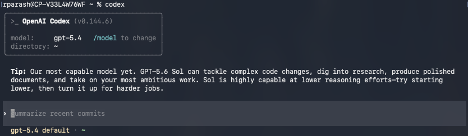
Confirm routing (authoritative check)
In the session, type /status. Confirm it shows model gpt-5.4 and base URL https://aiapi-prod.stanford.edu/v1. This is the reliable way to verify routing.
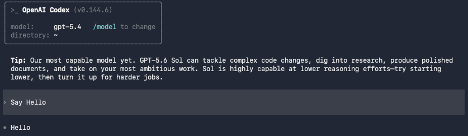
Test Case 1 — Basic response
In the session, enter:
Say OK/HelloExpected result: Codex responds normally. Validation is complete when /status shows the gateway, and you receive a response without errors.
Test Case 2 — Code Generation Test (Python)
Ask:
Write a simple Python program that prints Hello World.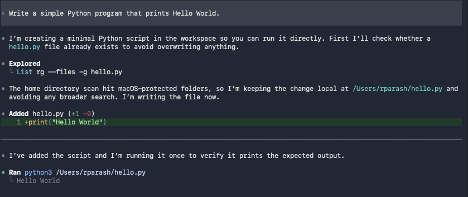
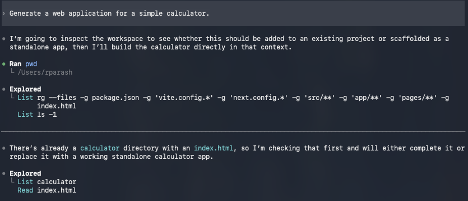
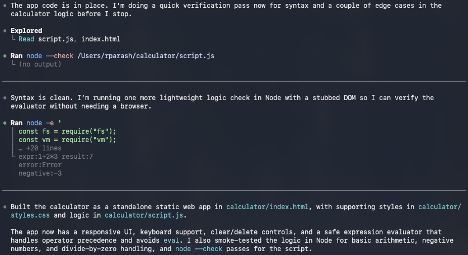
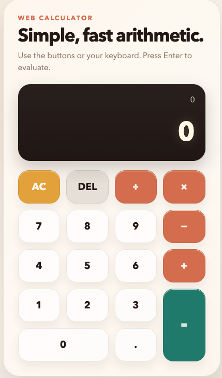
Test Case 3 — Web Application
Ask:
Generate a web application for a simple calculator.
5. Troubleshooting / Common Errors
5.1 Config file is TOML, not JSON
- Codex uses
~/.codex/config.toml(TOML syntax) — do not paste JSON. Use straight quotes only; smart / curly quotes break the parse. - Every section header needs square brackets:
[model_providers.stanford]on a single line. A split or unbracketed header causes:key with no value, expected `=`.
5.2 Base URL must include /v1
- Correct:
https://aiapi-prod.stanford.edu/v1 - Wrong:
https://aiapi-prod.stanford.edu
5.3 env_key holds the variable NAME, not the key
- Set
env_key = "STANFORD_AI_API_KEY"and export the key separately (Step 6). Pasting the raw key intoenv_keymakes Codex look for a variable named after your key, fail to find it, and drop to the sign-in screen. - Alternative (less secure): keep the key in the file with
experimental_bearer_token = "YOUR_KEY"and removeenv_key— the two cannot coexist.
5.4 API key must be exported in the same shell
A 401 / 403, or an unexpected sign-in prompt, usually means STANFORD_AI_API_KEY is not set in the terminal that launched Codex.
Check with:
echo $STANFORD_AI_API_KEYIf it prints nothing: run source ~/.zshrc (or open a new terminal), confirm the export went into ~/.zshrc (not ~/.bashrc), and check the name matches env_key exactly.
5.5 Model name must match the gateway alias exactly
If you get "model not found" / "invalid model", confirm the available aliases:
curl -s https://aiapi-prod.stanford.edu/v1/models \
  -H "Authorization: Bearer YOUR_AIAPI_KEY"
Then update the model value in config.toml (and the alias in the launch alias). See Available Models.
5.6 Codex shows the sign-in screen or uses gpt-5.6-sol
If /status shows gpt-5.6-sol (Codex's built-in default) or you keep landing on the three sign-in options, Codex is not using your gateway provider. In order:
- Run
codex logoutto clear any ChatGPT session. - Make sure the launch alias (Step 8) is active — check with
alias codex. Plaincodexcan ignore the config's default provider; the alias forces it. - On the "Sign in with ChatGPT / Provide your own API key" screen, do not paste your key — that field targets Codex's built-in OpenAI provider, not your gateway. Press Esc and launch via the alias instead.
5.7 "profile ... cannot be used" / legacy profile error
Newer Codex versions reject profile = "..." and [profiles.x] inside config.toml. If you see this error, remove both from config.toml. Either use the launch alias (Step 8), or put profile overrides in a separate file ~/.codex/<name>.config.toml and launch with codex --profile <name>.
5.8 Verifying which model/endpoint is actually in use
- Authoritative:
/statusin-session shows the resolved model and base URL. - Independent proof: the gateway team's dashboard should log the request against your key, or tail
~/.codex/log/to see the outboundaiapi-prod.stanford.edu/v1/responsescalls. - Not reliable: the model's answer to "what model are you using?" — it cannot see your config or the endpoint and will give a generic family name.
