 University IT
How to Manage Shared Email
Manage membership to a shared mailbox
Shared Email account administrators should use Workgroup Manager to manage membership in the workgroup and to give other users access to the shared mailbox. Members of the workgroup have access to shared-email mailbox. Please allow about 90 minutes after making a change in Workgroup Manager for the new permissions to take effect.
NOTE: The value of the Shared Email Name column plus "@o365.stanford.edu" must be assigned as a forwarded email to enable the inbox for each Shared Email
Forward shared email
Use the Accounts application to forward email to other accounts. To set up an autoreply for a shared email, please visit Manage Autoreply.
- Log in to accounts.stanford.edu.
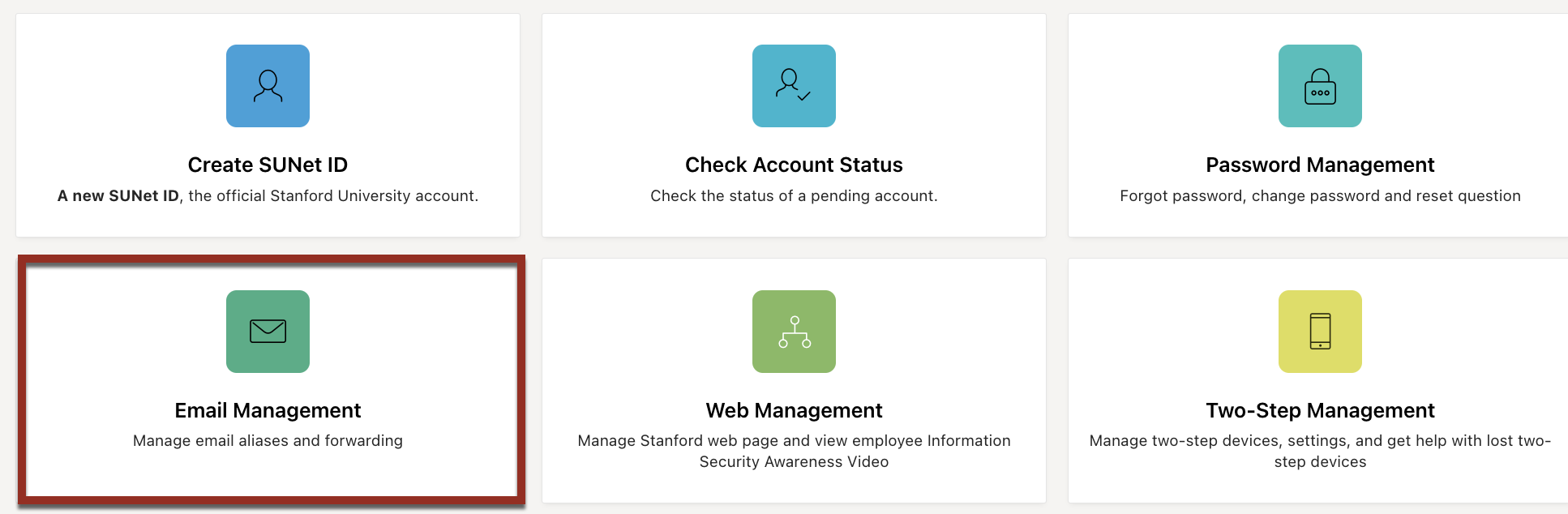
- Click the Email Management tile.
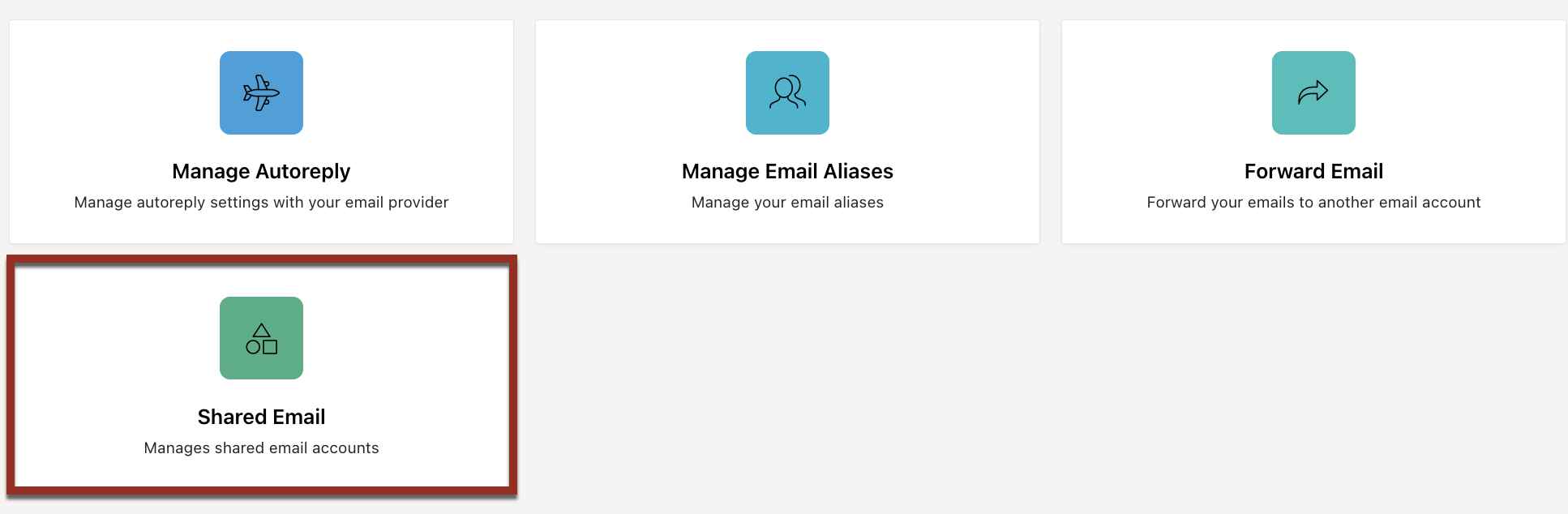
Click the Shared Email tile.
NOTE: To view the Shared Email tile in the Accounts application, the user must be added as an administrator to the appropriate Office365 workgroup (for example, office365:hikingclub).
- Click the Edit button next to the account you want to manage.
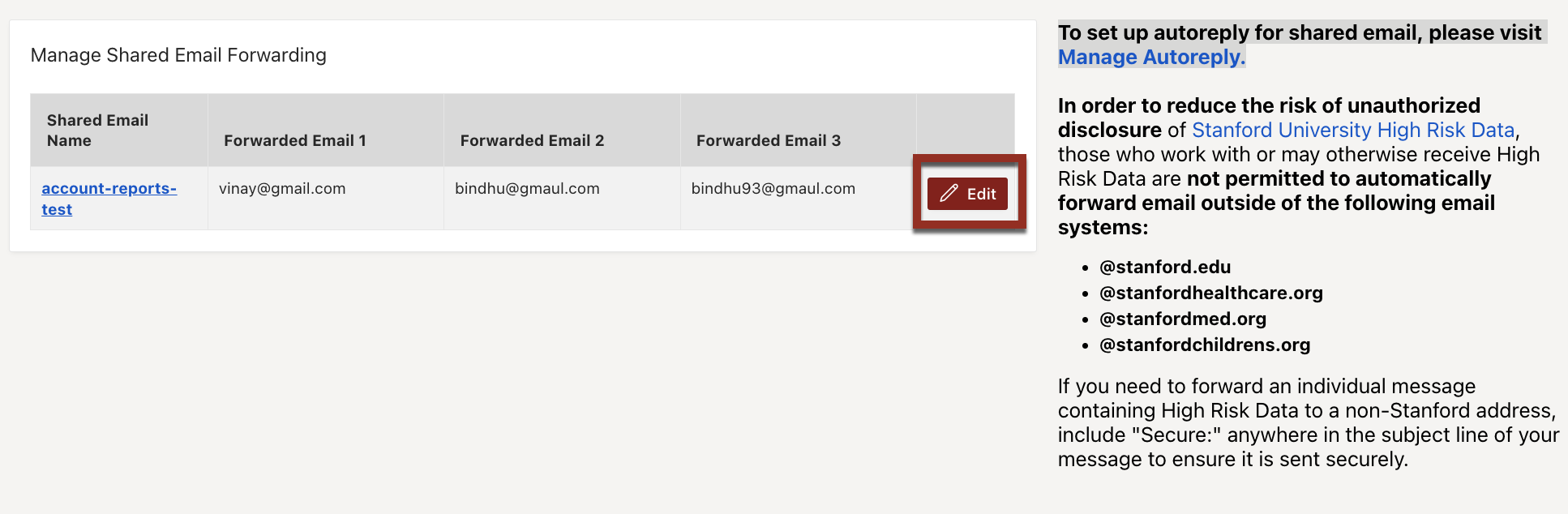
- Make the desired changes.
- Click Save.
Keep in mind that forwarding email and redirecting email behave differently. Forwarded messages appear to be from you, while redirected messages retain the original sender, which also determines where replies are sent.
For more tips, visit Microsoft's support page on using rules to automatically forward messages.
