 University IT
Claude for Education FAQs
Using Claude
How do I access Claude on different devices?
You can access Claude through multiple platforms to suit your needs:
Web browser
- Visit claude.ai on any web browser.
- Enter your stanford.edu email address and select "Continue with SSO."
- Works on both desktop and mobile browsers.
Desktop application
- Download Claude for Desktop for macOS or Windows.
- Install by visiting the Claude downloads page and following the installation instructions.
- Launch from your Applications folder (Mac) or Start menu (Windows).
Mobile applications
- iOS: Download from the App Store.
- Android: Download from Google Play Store.
- Sign in with the same university account you use on the web version.
- See our Claude Mobile Apps section for more information.
All platforms synchronize your conversations, allowing you to start on one device and continue on another. Mobile apps offer additional features like photo analysis and voice dictation. (Source: Claude Support)
Who is eligible to use Claude for Education at Stanford?
The Standard tier is available to active Stanford faculty, staff, students, and postdocs with an active SUNet ID, at no cost.
There is also an option to access the Standard tier for affiliates who are not eligible for the paid Standard tier. This is available to every SUNet ID that isn't covered in the no cost tier above.
Premium licenses are available to anyone with an active SUNet ID and a valid PTA or student account.
Please see the FAQ item titled "What payment methods are required for the Premium tier?" for more information on the PTA and student account options.
UIT has no control over which affiliations were approved for the no cost Standard tier or how an account's affiliation is listed. If you feel your affiliation is incorrect, please contact UHR or the person sponsoring your account UIT cannot change your affiliation. To access the Standard tier at no cost, a SUNet ID must be a member of one of the following affiliation groups:
stanford:affiliate-fellow
stanford:faculty-active
stanford:faculty-emeritus
stanford:faculty-onleave
stanford:faculty-otherteaching
stanford:staff-academic
stanford:staff-active
stanford:staff-casual
stanford:staffcasual
stanford:staff-emeritus
stanford:staff-onleave
stanford:staff-student
stanford:stafftemp
stanford:staff-temporary
stanford:student-active
stanford:student-onleave
stanford:student-postdocCan I request a shared account or an account for a shared mailbox or service account?
No. Anthropic does not have a concept of shared account in the Education workspace and requires only one user per account, per mailbox. Additionally, the Stanford Information Security team also requires each person requesting an account to attest to the usage agreement for themselves.
Can I request an account on behalf of someone else?
No. The Stanford Information Security team also requires each person requesting an account to attest to the usage agreement for themselves.
Can I request multiple accounts through my SUNet ID?
No. Anthropic requires a license be tied to only one user per account, per mailbox.
How does the Stanford offering compare to what is commercially available from Anthropic?
The Standard tier is equivalent to Anthropic's Claude Enterprise $20 per month plan, and the Premium tier is equivalent to the Claude Enterprise $200 per month plan.
What is the difference between the Standard and Premium tiers offered by Stanford University?
Both tiers have access to the same features. However, the Premium tier has a higher usage quota and exclusive access to the Fable family of models.
Both tiers have multiple usage limits set by the vendor. These include hourly, weekly, and more. The Premium tier generally offers around 5x the usage quotas of the Standard tier. For more information on quotas, please see the FAQ item titled, "What rate limits, quotas, or thresholds are in place for Claude's Standard and Premium tiers?".
Fable models are not available in Standard tier accounts, per Anthropic. In rare cases where additional usage quotas may be required, the Stanford AI API Gateway is available with unlimited quota thresholds. For more information on the Fable family of models, please see the FAQ item titled, "Will Claude models like Fable be available in Stanford's Claude for Education offering?"
What rate limits, quotas, or thresholds are in place for Claude's Standard and Premium tiers?
Anthropic doesn't publish exact rate limits, as they can vary throughout the day based on overall usage. That said, the Premium tier generally offers around 5x the usage quotas of the Standard tier.
You can view your usage in the claude.ai website. Click on your profile on bottom left corner, go to Setting, and click on Usage. You should see your current usage and the next reset window listed there.
There are different kinds of limits (several hours, daily, weekly, monthly) and University IT does not have visibility into those limits. University IT cannot increase or reset these limits. If a limit is reached, the only path forward is to wait for it to clear.
What connectors, plugins, and addons are available?
View the Approved Connectors for AI Services webpage to learn more.
If you would like to use a connector that isn't on the list, please submit a ServiceNow ticket to have the connector reviewed.
I am having problems with my existing personal or business account. Can Stanford help me with that account?
A personal account refers to any account that is not provided as part of the Claude for Education service that was released by Stanford on June 30, 2026.
The university has no access to or control over your personal or business account. If you encounter problems with your personal account, you will need to work with the vendor to resolve those issues.
Can my personal or Teams subscription be tied to the new Stanford offering without migrating?
No. A personal subscription of any type, setup outside the Stanford service is not able to be moved into the university account. A personal account refers to any account that is not provided as part of the Claude for Education service that was released by Stanford on June 30, 2026.
You will need to migrate your data into the new Stanford service if you wish to continue using it. Moving forward, you cannot have a personal account associated with a @stanford.edu email address. If you currently have a personal account under a @stanford.edu email address, you will need to either move that data to another account or migrate that information to the Stanford provided account. You will lose access to the old account on December 31, 2026, if no action is taken.
See the FAQ item below titled "How do I migrate my personal Claude account to the new Stanford offering?" for more information about migrating a personal account with an @stanford.edu email address.
Should I delete or close my personal Anthropic account before signing up for a Stanford provided account?
No. Please do not delete or close your personal account. Anthropic has a required 30 day cool down for email addresses.
A personal account refers to any account that is not provided as part of the Claude for Education service that was released by Stanford on June 30, 2026. If you delete a personal account that was created using your @stanford.edu email address, and then try to register for a Stanford provided account, you will likely be blocked from using all Anthropic services for 30 days.
Can our Teams/Enterprise admin be given administrator access to the Stanford service?
No. Administrative access cannot be granted to other groups, even if they have existing accounts outside the Stanford provided service.
I have a personal or business account. Do I have to move to a Stanford account?
No. But moving forward, you cannot have a personal account associated with a @stanford.edu email address.
A personal account refers to any account that is not provided as part of the Claude for Education service that was released by Stanford on June 30, 2026. If you currently have a personal account under a @stanford.edu email address, you will need to either move that data to another account or migrate that information to the Stanford provided account. You will lose access to the old account after December 31, 2026 if no action is taken.
Please note that the use of Stanford data is approved only when accessed through the Stanford-provided account.
I have a personal or business account, if I request a Stanford account will I still be able to access my personal account?
Yes, but only through the end of the year. If you currently have a personal account under a @stanford.edu email address, you will need to either move that data to another account or migrate that information to the Stanford provided account. A personal account refers to any account that is not provided as part of the Claude for Education service that was released by Stanford on June 30, 2026. You will lose access to the old account after December 31, 2026 if no action is taken.
Please note that the use of Stanford data is approved only when accessed through the Stanford-provided account.
I have a personal or business account under an email alias. Am I affected by this change?
Yes. This will apply to any variation of a stanford.edu email address including aliases and plus addresses.
A personal account refers to any account that is not provided as part of the Claude for Education service that was released by Stanford on June 30, 2026. Anthropic will not allow the creation of new accounts under any @stanford.edu domain. If you currently have a personal account under a @stanford.edu email address, you will need to move that data to another account. Anthropic will delete the old stanford.edu account later this year.
Please note that the use of Stanford data is approved only when accessed through the Stanford provided account.
I have a personal account under a Stanford subdomain like law.stanford.edu or cs.stanford.edu. Will I be forced to migrate to the new service?
No. Existing accounts created under subdomains do not appear to be in scope.
A personal account refers to any account that is not provided as part of the Claude for Education service that was released by Stanford on June 30, 2026. Please note that the use of Stanford data is approved only when accessed through the Stanford-provided account.
I would like to create a personal account under a stanford.edu email address. Can I do that?
No. Anthropic will not allow the creation of new accounts under the @stanford.edu domain.
A personal account refers to any account that is not provided as part of the Claude for Education service that was released by Stanford on June 30, 2026. Please note that the use of Stanford data is approved only when accessed through the Stanford-provided account.
How do I migrate my personal Claude account to a non-stanford.edu email address?
A personal account refers to any account that is not provided as part of the Claude for Education service that was released by Stanford on June 30, 2026. If you need to migrate your current Anthropic account to a personal email, you would need to work with Anthropic support to do that. University IT would not be able to assist you.
How do I migrate my personal Claude account to the new Stanford offering?
Unfortunately, Anthropic does not support the automatic migration of data from personal accounts to highly secure HIPAA ready environments. You should save or export anything in your personal account that you want to keep. After December 31, 2026 you will no longer be able to access your personal account.
A personal account refers to any account that is not provided as part of the Claude for Education service that was released by Stanford on June 30, 2026.
The instructions below are shared as an example of how to manually migrate data from another Claude account to the Stanford environment.- How to Migrate Your Chat Conversations from a Personal Account to a Stanford Enterprise Account in Claude
- How to Migrate Your Memory Between Claude Accounts
- How to Migrate Your Cowork Projects from a Personal Account to a Stanford Enterprise Account in Claude
- How to Migrate Your Connectors Between Claude Accounts
- How to Migrate Your Artifacts from a Personal Account to a Stanford Enterprise Account in Claude
- How to Migrate Your Skills from a Personal Account to a Stanford Enterprise Account in Claude
Is Claude Science and Remote Control available in Stanford's Claude for Education offering?
Yes. At this time, certain beta products like Claude Science and Remote Control have been approved for use in the Stanford workspace and are enabled.
Are Fable models available in Stanford's Claude for Education offering?
Yes. Fable models are available to Premium tier accounts only. It is not available on the Standard tier or the Standard tier for affiliates.
This is a function of how Anthropic licenses the model. On Premium accounts, Fable is included as part of the plan. On Standard accounts, Fable is not included in the plan's usage allowance. If you need access to Fable models, you will need to request a Premium account (requires a valid PTA or student account). Please see the FAQ item titled "What payment methods are required for the Premium tier?" for more information on the PTA and student account options.
Will Claude Design, Claude Tag, Claude Code Web, etc. be available in Stanford's Claude for Education offering?
At this time, certain beta products like Claude Design, Claude Tag, Claude Code Web, Artifacts Inline Visualization, etc. are not covered by the Stanford agreement.
Sometimes tools may be out of the beta/preview state, but have perquisites that are still in beta. These tools are regularly reviewed by the university. Once these tools can be made available or are fully released by Anthropic, they will be enabled in the Stanford workspace.
Why am I unable to share session outputs as a published artifact?
At this time, Anthorpic requires that HIPAA compliance be disabled in order for Artifact publishing to work. These features are enabled for the Stanford workspace, and therefore, this feature is not available.
Why does Claude say it cannot read websites or that web fetch is disabled?
Claude can search the web in Stanford’s Claude for Education service, but reading a specific webpage works differently.
Web search is available. Claude can find and summarize information from search results, but those results may be incomplete or out of date.
Direct, real time webpage reading (“web fetch”) is unavailable. Anthropic disables this feature in HIPAA enabled workspaces like Stanford’s. University IT cannot enable this feature.
Some webpages may still be accessible for real time reading through other tools. Cowork or Code in the Claude desktop app may be able to read pages directly. Availability varies by website and where you use Claude, and access can be intermittent per Anthropic's own documentation.
For the most reliable results, Anthropic recommends coping and pasting the page’s text into your conversation or to simply save the page as a PDF and attach it to your conversation. This gives Claude the content you want it to review. Alternatively, use tools like ChatGPT Edu, Gemini Enterprise, or the AI Playground which are all capable of real time web fetch.
The web browser tools say they are unable to search for information from specific Stanford sites. What sites are blocked?
Below is a list of sites which are blocked for use with the Stanford provided AI tools.
- sequoia.stanford.edu
- fa-exuf-saasfaprod1.fa.ocs.oraclecloud.com
- ofweb.stanford.edu
- axess.stanford.edu
- axess.sahr.stanford.edu
- bi.stanford.edu
- sera.stanford.edu
- ffit.stanford.edu
- fit.stanford.edu
- opacsprd.stanford.edu
- ecertification.stanford.edu
- tableau.stanford.edu
- quicksight-uat.stanford.edu
- quicksight.stanford.edu
- bidpin.stanford.edu
- bidprj.stanford.edu
- bidev2.stanford.edu
- bidev3.stanford.edu
- biupin.stanford.edu
- biuprj.stanford.edu
- biipin.stanford.edu
- biint2.stanford.edu
- biuat4.stanford.edu
- *.console.aws.amazon.com
- console.cloud.google.com
- cloud.oracle.com
- sera-dev.stanford.edu
- sera-int.stanford.edu
- sera-uat.stanford.edu
- sera-fix.stanford.edu
- sera-tch.stanford.edu
- apply.stanford.edu
- sta.test.technolutions.net
- of1fix.stanford.edu
- applygrad.stanford.edu/manage
- applygrad.stanford.edu/manage/reader
- adminuat.dc4.pageuppeople.com
- stanford.dc4.pageuppeople.com
- home.interfolio.com
- mathjobs.com
- econjobmarket.org
- fasa.stanford.edu
- fasa-uat4.stanford.edu
admin.enterprise.givegab.com
alumnidirectory.stanford.edu
alumnidirectoryexport.stanford.edu
app.cvent.com
app.orbiit.ai
card.stanford.edu
corral.stanford.edu
dev--adapt-directory.netlify.app
dev--adapt-honor-rolls.netlify.app
experience.adobe.com
givegabreports.stanford.edu
givinghistory.stanford.edu
goreporting-dev.stanfor.d.edu
goreporting-dev.stanford.edu
goreporting-poc.stanfor.d.edu
goreporting-psdev.stanfor.d.edu
goreporting-pssit.stanfor.d.edu
goreporting-psuat.stanfor.d.edu
goreporting-psuat.stanford.edu
goreporting-uat.stanford.edu
goreporting.stanfor.d.edu
goreporting.stanford.edu
gre-dev.stanford.edu
gre-poc.stanford.edu
gre-psdev.stanford.edu
gre-psuat.stanford.edu
gre-uat.stanford.edu
gre.stanford.edu
groups-uat.stanford.edu
groups.stanford.edu
honorrolls.stanford.edu
marketo.stanford.edu
myaccount.stanford.edu
ogp-dev.stanford.edu
ogp-poc.stanford.edu
ogp-psdev.stanford.edu
ogp-pssit.stanford.edu
ogp-psuat.stanford.edu
ogp-uat.stanford.edu
ogp.stanford.edu
ogp.stanforfd.edu
oodhub-dev.stanford.edu
oodhub-fix2.stanford.edu
oodhub-poc.stanford.edu
oodhub-psdev.stanford.edu
oodhub-pssit.stanford.edu
oodhub-psuat.stanford.edu
oodhub-sit2.stanford.edu
oodhub-uat.stanford.edu
oodhub.stanford.edu
oodpta-dev.stanford.edu
oodpta-poc.stanford.edu
oodpta-psdev.stanford.edu
oodpta-psuat.stanford.edu
oodpta.stanford.edu
oodsaadocs-dev.stanford.edu
oodsaadocs-uat.stanford.edu
oodsaadocs.stanford.edu
preview--adapt-honor-rolls.netlify.app
preview-honorrolls.stanford.edu
psapp-dev.stanford.edu
psapp-poc.stanford.edu
psapp-psdev.stanford.edu
psapp-psuat.stanford.edu
psapp-uat.stanford.edu
psapp.stanford.edu
runtransfers-dev.stanford.edu
runtransfers-poc.stanford.edu
runtransfers-psdev.stanford.edu
runtransfers-psuat.stanford.edu
runtransfers-uat.stanford.edu
runtransfers.stanford.edu
saafilemaker-uat.stanford.edu
saafilemaker.stanford.edu
spotsearch-dev.stanford.edu
spotsearch-poc.stanford.edu
spotsearch-psdev.stanford.edu
spotsearch-psuat.stanford.edu
spotsearch-uat.stanford.edu
spotsearch.stanford.edu
stampoutput-dev.stanford.edu
stampoutput-poc.stanford.edu
stampoutput-psdev.stanford.edu
stampoutput-psuat.stanford.edu
stampoutput-uat.stanford.edu
stampoutput.stanford.edu
stanford-c.sandbox.us.hivebrite.com
stanfordcard--carddev.sandbox.my.salesforce.com
stanfordcard--lesson.sandbox.my.salesforce.com
stanfordcard--psdev.sandbox.my.salesforce.com
stanfordcard--pssit.sandbox.my.salesforce.com
stanfordcard--psuat.sandbox.lightning.force.com
stanfordcard--sit.sandbox.my.salesforce.com
stanfordcard--uat.sandbox.lightning.force.com
stanfordcard.lightning.force.com
stanfordoga--dev.sandbox.my.salesforce.com
stanfordoga--uat.sandbox.my.salesforce.com
stanfordoga.my.salesforce.com
uat--adapt-myaccount.netlify.app
ucomm-marketo.stanford.edu
unsubscribe-dev.stanford.edu
unsubscribe-poc.stanford.edu
unsubscribe-psdev.stanford.edu
unsubscribe-psuat.stanford.edu
unsubscribe-uat.stanford.edu
unsubscribe.stanford.edu
How do I access Anthropic models through an API?
API usage is not included with this service.
The Stanford AI API Gateway allows for access to numerous models from a list of different AI vendors, and is approved for High Risk data and PHI. The AI API Gateway is a charge back service, which requires a PTA when requesting a key.
Who owns and manages the data for Claude for Education account?
Stanford University is the designated Primary Owner and manages your Claude for Education account and all associated data. (Source: Anthropic Privacy Center)
Will Anthropic use my inputs to train their models?
No. Stanford has negotiated service agreements to protect Stanford data. Anthropic will use not inputs or outputs from the Stanford-provided accounts to train models in any of their products.
Can anyone else at Stanford access the content I share with or generate in the Claude for Education workspace?
No. Information shared within the Stanford provided workspace is restricted to your account and not accessible by other people using the service.
As with other university services, a small number of people within University IT (UIT) are able to access information stored within this system, but only do so if required and with the appropriate approvals. The UIT team does not review the content of conversations. In rare circumstances, such as public safety, the result of investigations, subpoenas, or lawsuits, the university may be required to review data stored in university systems or provide it to third parties. You can learn more about the appropriate use of Stanford compute systems and these situations in the Stanford Admin Guide.
How long does Anthropic store my data?
Anthropic retains your chats and coding sessions in the product to provide you with a consistent product experience. You control your conversations and can delete your chats anytime from your dashboard. When you delete a conversation it is:
- Removed from your chat history immediately
- Deleted from Anthropic's back end storage systems within 30 days
Incognito chats are automatically deleted within 30 days unless flagged as a Usage Policy violation. Learn more about Incognito chats for your organization. (Source: Anthropic Privacy Center)
How can I learn more about using Claude?
You can find more information on using Claude at Anthropic's Help Center. Common topics include:
- What are Projects?
- How can I create and manage Projects?
- Project visibility and sharing
- What are Artifacts and how do I use them?
- Usage Limit Best Practices
- Create and edit files with Claude
- Using the Google Drive Integration
- Configuring and Using Styles
- Enabling and Using Web Search
- When should I use web search, extended thinking, and research?
Billing
How will billing be structured in the new Claude for Education plan?
There are two tiers:
- Standard: Free to students, postdocs, faculty, and staff, and is equivalent to Anthropic's Claude Enterprise $20 per month plan.
- Premium: Has a monthly charge that requires a PTA or student account and is equivalent to Anthropic's Claude Enterprise $200 per month plan.
Please see the FAQ item titled "What payment methods are required for the Premium tier?" for more information on the PTA and student account options.
You can use the Get Claude for Education Premium link on the service Claude for Education service page to purchase a Premium tier account.
Can I pay month to month, instead of for the duration of the contract term?
No. Rates are charged based on contract terms, and purchase of a license requires a commitment to the remainder of the term at the prorated rate. Licenses cannot be charged monthly and cannot be terminated once purchased.
What payment methods are required for the Premium tier?
A valid PTA or student account is required to purchase the Pro tier. STAP funds and Pcards cannot be used for this upgrade.
You can learn more about PTAs on Stanford's Admin Guide 3.1.3 Expenditure Accounts (PTAs) or through Stanford's Fingate page about PTA Manager system. The UIT AI Team will not be able to help you find or create a PTA.
A “student account” refers to an account through which a student receives a Stanford tuition bill through the central Student Financial Services (SFS) office. Non-degree students, would not have an eligible “student account” under that definition.
Do I always need to provide PTA billing information for the Premium tier?
A valid PTA or student account is required to purchase the Pro tier. STAP funds and Pcards cannot be used for this upgrade.
You can learn more about PTAs on Stanford's Admin Guide 3.1.3 Expenditure Accounts (PTAs) or through Stanford's Fingate page about PTA Manager system. The UIT AI Team will not be able to help you find or create a PTA.
A “student account” refers to an account through which a student receives a Stanford tuition bill through the central Student Financial Services (SFS) office. Non-degree students, would not have an eligible “student account” under that definition.
What does "Project Task Award" refer to on the Add Claude for Education Premium form?
A PTA is a method of labeling and tracking expenditure accounts in the university's financial systems. It consists of three segments: Project (P), Task (T), and Award (A), which help organize and allocate funds for various academic and research initiatives. You enter the corresponding sections into the fields in the request form.

(In the above example, let's use the fake PTA 5555555-000-APIGW. The first section of the PTA is the project, the second is the task, and the last is the award.)
You can learn more about PTAs on Stanford's Admin Guide 3.1.3 Expenditure Accounts (PTAs) or through Stanford's Fingate page about PTA Manager system. The UIT AI Team will not be able to help you find or create a PTA.
Why are the listed approvers for the PTA not correct?
They are correct. What you are seeing is expected behavior. The approver list for UIT billable services may be different than those listed in the PTA authority or other systems.
The UIT Billable system prioritizes the lower ORG level first. A user with access to a top level org code would need to request the UIT Billable Service Approver (University) privilege under the specific ORG code to be included in the approvers list. The approvers you see listed when filling out the request form will have the "UIT Billable Service Approver" role in Authority Manager for the lower ORG code.
Please see the How to Request Authority for Ordering and Reporting page for more information.
Can I get a refund for my personal subscription when I migrate to the university offering?
Anthropic has said that some paid subscriptions (Pro and Max) will be given a prorated refund when the migration begins. Any usage credits remaining on the account will be refunded by Anthropic.
See the FAQ item titled, "How do I migrate my personal Claude account to a non-stanford.edu email address?" higher up on this page for more information about the migration instructions.
You will need to work directly with Anthropic support for refunds. Anthropic requires that refund requests be submitted within 30 days of your account transition and may not offer refunds for Teams accounts.
Troubleshooting
When signing into Claude, you receive an error message stating: "Please confirm your email. You entered ZZZZZ@stanford.edu, but you are currently logged in as YYYYY@stanford.edu.
Claude compares the email address typed in at the login page against the email attribute the IdP returns in the SAML response. For email aliases, Claude will use the default reply to email address. If you had previously signed up for Claude with a +address, the system may log you in as that address instead. If either email address is different than your UPN, Claude will display this message, to let you know it will use the default reply to address when authenticating. This should not affect functionality. Press continue and you should be logged into the Stanford University tenant.
When trying to setup a connector to Microsoft 365, you receive an error message stating, "Your administrator has configured the application to block users unless they are specifically granted access to the application.
The Microsoft 365 connectors are available for most Stanford accounts, except for those under the School of Medicine.
You can learn more about connectors on the Approved Connectors for AI Services page.
I am not able to setup the Zoom connector. It gives me an error reading, "You cannot authorize Claude MCP Connector".
The Zoom connector is available for most Stanford accounts, except for those under the School of Medicine.
You can learn more about connectors on the Approved Connectors for AI Services page.
When trying to setup the Slack connector, you receive an error message reading, "Unapproved permissions requested." or "Connection Blocked."
This is because the selected Slack workspace does not allow the Claude connector. When you are setting up the connector for Claude and Slack, the process should ask you to select a Slack workspace. Whoever runs the Slack workspace you selected would need to allow for Claude to connect to their workspace. If they allow it, this connection should go through without issue, but not all teams across campus have done that. If you have multiple Slack workspaces, you can try selecting a different workspace when you setup the connection. Otherwise, you would need to reach out to the administrator of that Slack workspace to allow the connector.
In the Claude Desktop app, the Cowork or Code tabs are greyed out. How can I resolve this?
This is a known bug with the Anthropic app. The Anthropic team is working on resolving this issue.
The application may display an error mentioning a needed feature within Microsoft's Virtual Machine Platform is not available. There are some steps you can take in order to try troubleshooting the issue on your own. Please follow the steps below, one at a time:
1) Force quit the Claude desktop application, open it again, and try again.
2) Sign out of the application, sign back into the app, and try again.
3) Uninstall the Claude application completely, restart your computer, download the latest installer, right click the installer and select "Run as administrator". Follow the instructions to reinstall. (Use the standard Claude Desktop installer rather than the MSIX package.) Now try again.
4) Try to enable the specified Microsoft Virtual Machine Platform feature on your device. (Manual install requirements: https://support.claude.com/en/articles/12622703-deploy-claude-desktop-for-windows)
5) If the button is still greyed out or you don't have local admin rights on your Stanford device, please contact your local IT support team, they can assist with reinstalling Claude with admin rights or grant temporary admin access.In Claude for Mac, the Tool options window is missing. How can I resolve this?
This is a known bug with the Anthropic app. The Anthropic team is working on resolving this issue.
In the meantime, you can take to try to troubleshoot the issue on your own. There may be MacOS level permissions preventing the app from loading all UI components correctly. Try the steps below at your own risk.
1) Uninstall the application completely, and restart your machine.
2) Download the application again and reinstall it.
3) After the clean reinstall, open the Terminal and run: "sudo xattr -rd com.apple.quarantine /Applications/Claude.app"When using Fable, an error message appears reading, "Something went wrong. Usage credits are required for this model." How do I resolve this?
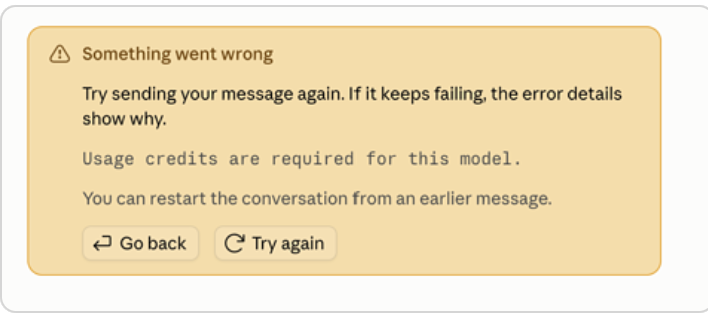
If you receive an error stating that "usage credits are required for this model", it likely means that you need to upgrade to a Premium tier account to use that model. Premium tier accounts have exclusive access to the Fable family of models. Fable models are not available in Standard tier accounts, per Anthropic.
- If you require access to Fable, please fill out the Add Claude for Education Premium Service form to upgrade to a Premium tier account.
- If you already have a Premium tier account and encounter this error, please open a support ticket for the Claude for Education service.
