 University IT
macOS Application Patching
macOS Application Patching is an automated application patching service that ensures that essential Mac applications are consistently updated with the latest security patches and feature enhancements. This service operates in the background using Jamf Pro, allowing the software to remain current without disrupting work. Notifications are sent to the user's device when updates are available and once they have been completed.
Key Benefits
- Enhanced Security: Automatic security patches protect against vulnerabilities.
- Latest Features: Stay current with the latest application features and improvements.
- Reduced Downtime: Proactive updates prevent issues before they occur.
- Minimal Disruption: Updates happen when you're not actively using applications, with notifications kept to once a week.
- User Control: No forced quits or mandatory deadlines - simply close the application when you are ready and the update will complete automatically.
- Stay Informed: Receive notifications when updates are available and when they are completed.
Applications Covered
The following baseline applications are automatically managed and updated:
- Microsoft Office Suite (Excel, OneNote, Outlook, PowerPoint, Word)
- Slack
- Zoom
- Google Chrome
How It Works
- Daily Update Checks: Jamf Pro checks daily for available updates across all managed applications.
- Updates with Minimal Disruptions: Updates occur quietly in the background. Applications must be closed to update, but there are no forced deadlines or forced quits.
- Notifications to Stay Informed:
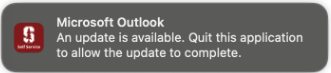
- You'll receive update notifications once a week when updates are available, asking you to save your work and quit the application when convenient. Below is an example of the update notification:
- You'll also receive notifications when applications have finished updating, keeping you informed of completed updates.
- If Focus is enabled on your device, notifications will be hidden and can be viewed by clicking the clock in the upper right corner.
- You'll receive update notifications once a week when updates are available, asking you to save your work and quit the application when convenient. Below is an example of the update notification:
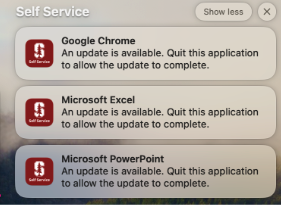
- Initial Update Period: If your applications aren't already at the current versions, you may receive multiple "stacked" notifications prompting you to quit and allow updates. When notifications appear in a stack, you can click on the body of the top notification to expand and view all notifications in the stack. After this initial period, you'll continue to receive regular notifications for new updates as they become available.
- Self Service Options: You can manually install or update any managed application through the Self Service application, with install times ranging from approximately 15 to 50 seconds, depending on the application. Manually updating through the application itself is also supported.
- Stability & Recovery: The system includes automatic retry logic and rollback options for critical issues, with comprehensive reporting to monitor patch status across all devices.
Getting Help
This service is designed to keep your Mac applications secure and up-to-date with minimal impact on your daily work. For technical support or questions regarding this service, please contact the IT department.
- Self Service: Access the latest versions of your applications anytime through the Self Service application on your Mac.
- IT Support: Contact IT if you experience issues with application updates, need an exemption, or have questions about the patching process.
- Reporting Problems: If you notice applications behaving unexpectedly after updates, please report this to IT so we can investigate and adjust our patching policies if needed.
Frequently asked questions
Below is a list of common questions about the Jamf macOS application patching.
Why do my applications need to be patched?
Computer applications can have security vulnerabilities that are exploited by bad actors. Ensuring that applications are up to date offers the most protection from these exploits.
Does this apply to my personally owned Mac?
Yes. If your personal Mac is enrolled in Stanford Management (Jamf), App Patching will automatically apply updates on your computer. If it is not enrolled, App Patching will not apply.
What will I have to do to have these applications patched on my Mac?
Nothing. If you have a supported application installed on your Mac, Jamf will examine its version and, if an update is needed, silently patch the application when it is inactive.
I’m seeing multiple notifications “stacked” on my screen:
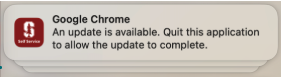 How can I view all of them?
If you click on the body of the top notification, it will expand it so all are viewable:
I’m seeing another notification from Google Chrome:
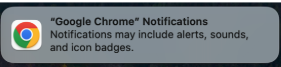 Does this have to do with macOS application patching?
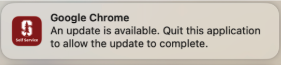
No. The above notification comes directly from the Google Chrome application and has the application’s badge or icon. MacOS application patching notifications have the Stanford Jamf Self Service badge, like the one below:
I’m seeing a failure message from Self Service for patching an application. Will I have to reinstall the application?
No. Jamf will wait 6 hours and attempt to patch the application again if it remains inactive.
Is there a deadline for updates, or will my application force-quit to update?
No, there is no forced update. If the application runs continually, you’ll be reminded roughly once a week to close the application to allow it to update.
This morning, I received multiple update notifications. Why?
When each system is added to application patching, it will evaluate which supported applications require updates. If those applications are open, you will be prompted to close them to allow updates. You will also be notified when an application has been successfully updated.
How can I be certain that an app is completely closed?
Open apps will display a dot below each app’s icon in the dock. For apps that are open, click the icon in the dock
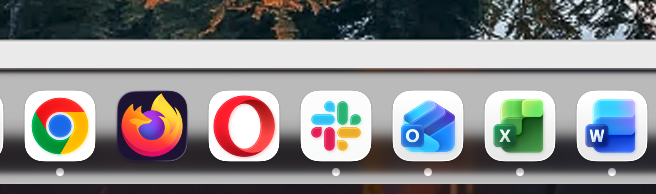
The application’s name will appear to the right of the Apple symbol in the menu bar. Click the name in the menu and choose Quit
Why can't I manually update my application?
Updates are managed automatically through Stanford's patching system to prevent potential issues.
