 University IT
Enable Touch ID, Face ID, or Fingerprint Unlock Authentication
To start using Touch ID or Face ID authentication as an additional Duo prompt approval mechanism, first verify that biometrics are enabled on your device. Tip: If you already use these methods to unlock your phone, it’s already been enabled, and you can skip to the next section. For questions, please submit a Help request.
Note: University IT (UIT) recommends that these new authentication options are not be your primary method of authentication. Please continue to use Duo Push as your primary method of authentication.
Enable Apple biometrics
iPhone and iPad
Before you can set up Touch ID, you need to create a passcode for your device. Then follow these steps:
- Make sure that the Touch ID sensor and your finger are clean and dry.
- Tap Settings > Touch ID & Passcode, then enter your passcode.
- Tap Add a Fingerprint and hold your device as you normally would when touching the Touch ID sensor.
- Touch the Touch ID sensor with your finger—but don't press—so the device can begin recognizing your fingerprint. Hold your finger there until you feel a quick vibration, or until you're asked to lift your finger.
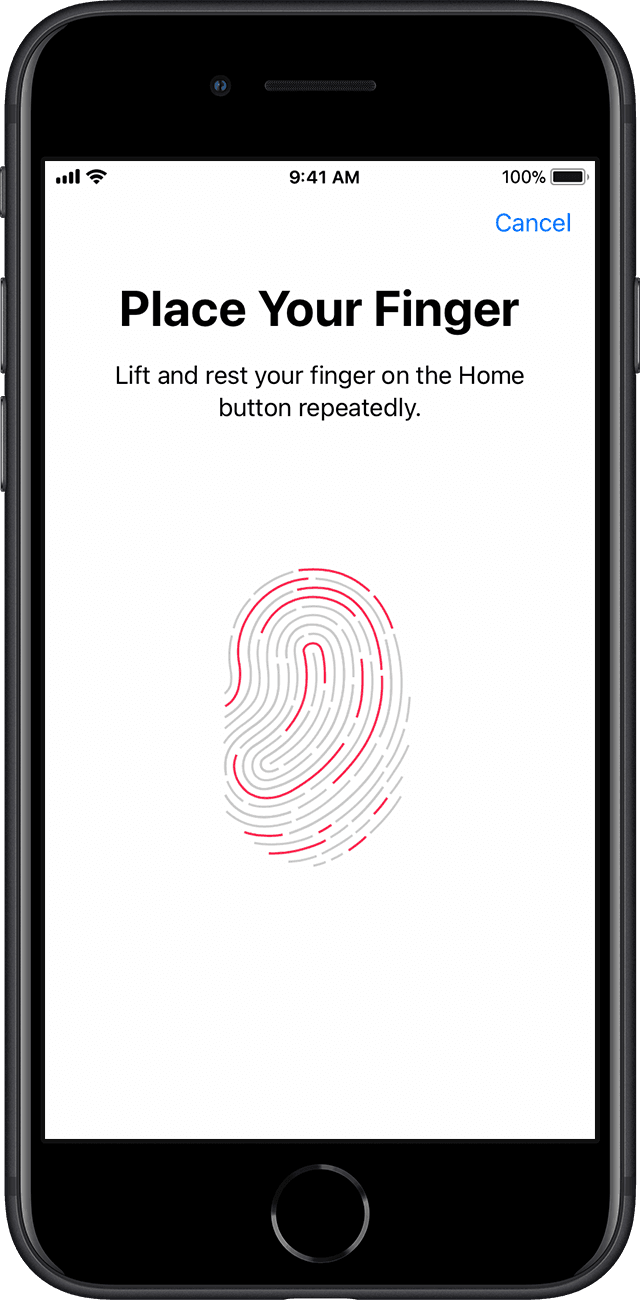
- Continue to lift and rest your finger slowly, making small adjustments to the position of your finger each time.
- The next screen asks you to adjust your grip. Hold your device as you normally would when unlocking it, and touch the Touch ID sensor with the outer areas of your fingertip, instead of the center portion that you scanned first.
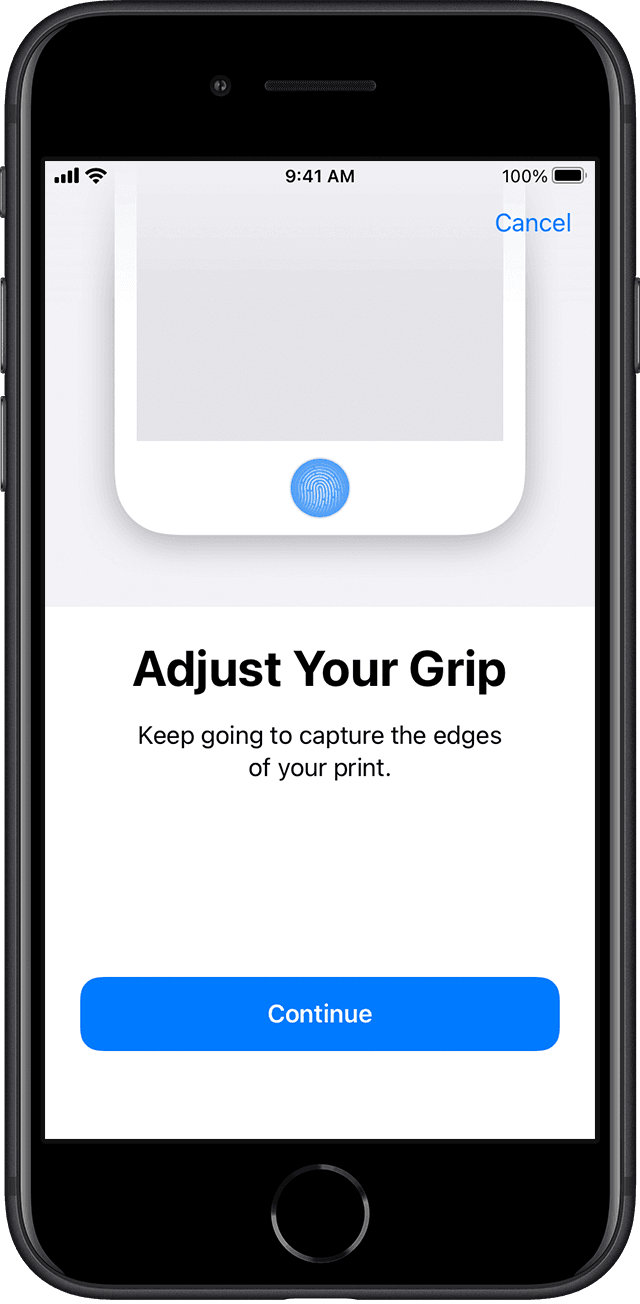
If you have trouble enrolling with one finger, try another.
To set up Face ID:
- Go to Settings, then tap Face ID & Passcode. If asked, enter your passcode. If you didn’t set a passcode, you’ll be asked to create one to use as an alternate way to verify your identity.
- Tap Set Up Face ID.
- Hold your device in portrait orientation, position your face in front of your device, then tap Get Started.
- Position your face inside the frame and gently move your head to complete the circle. If you're unable to move your head, tap Accessibility Options.
- When you finish the first Face ID scan, tap Continue.
- Gently move your head to complete the circle for a second time.
Tap Done.
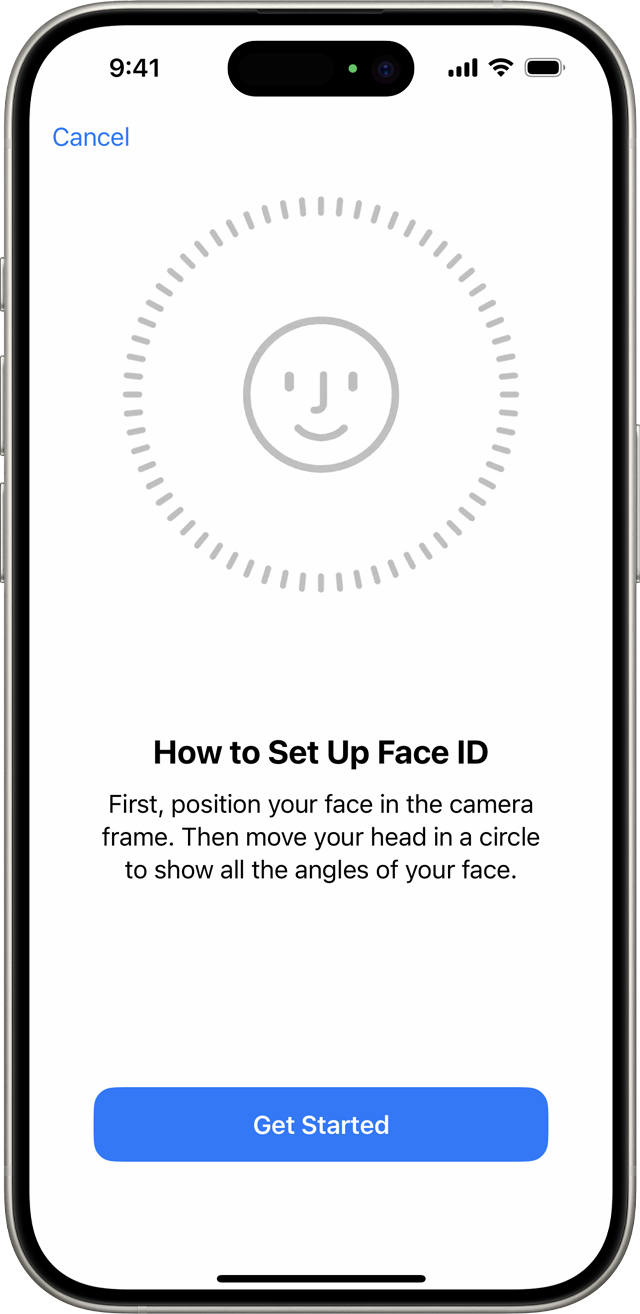
To choose features that you want to use Face ID with or reset Face ID, go to Settings, then tap Face ID & Passcode.
To choose features that you want to use Face ID with or reset Face ID, go to Settings, then tap Face ID & Passcode
macOS for laptops with Touch ID
- On your Mac, choose Apple menu
 > System Settings, then click Touch ID & Password
  in the sidebar. (You may need to scroll down.)
 - Click "Add Fingerprint," enter your password, and then follow the onscreen instructions.
If your Mac or Magic Keyboard has Touch ID, the sensor is located at the top right of your keyboard. You can add up to three fingerprints to your user account (you can save up to five fingerprints on your Mac.)

- On your Mac, choose Apple menu
Enable biometrics for Android
Google devices
To unlock your Pixel phone with your fingerprint:
- Open the Settings app and select Security & privacy.
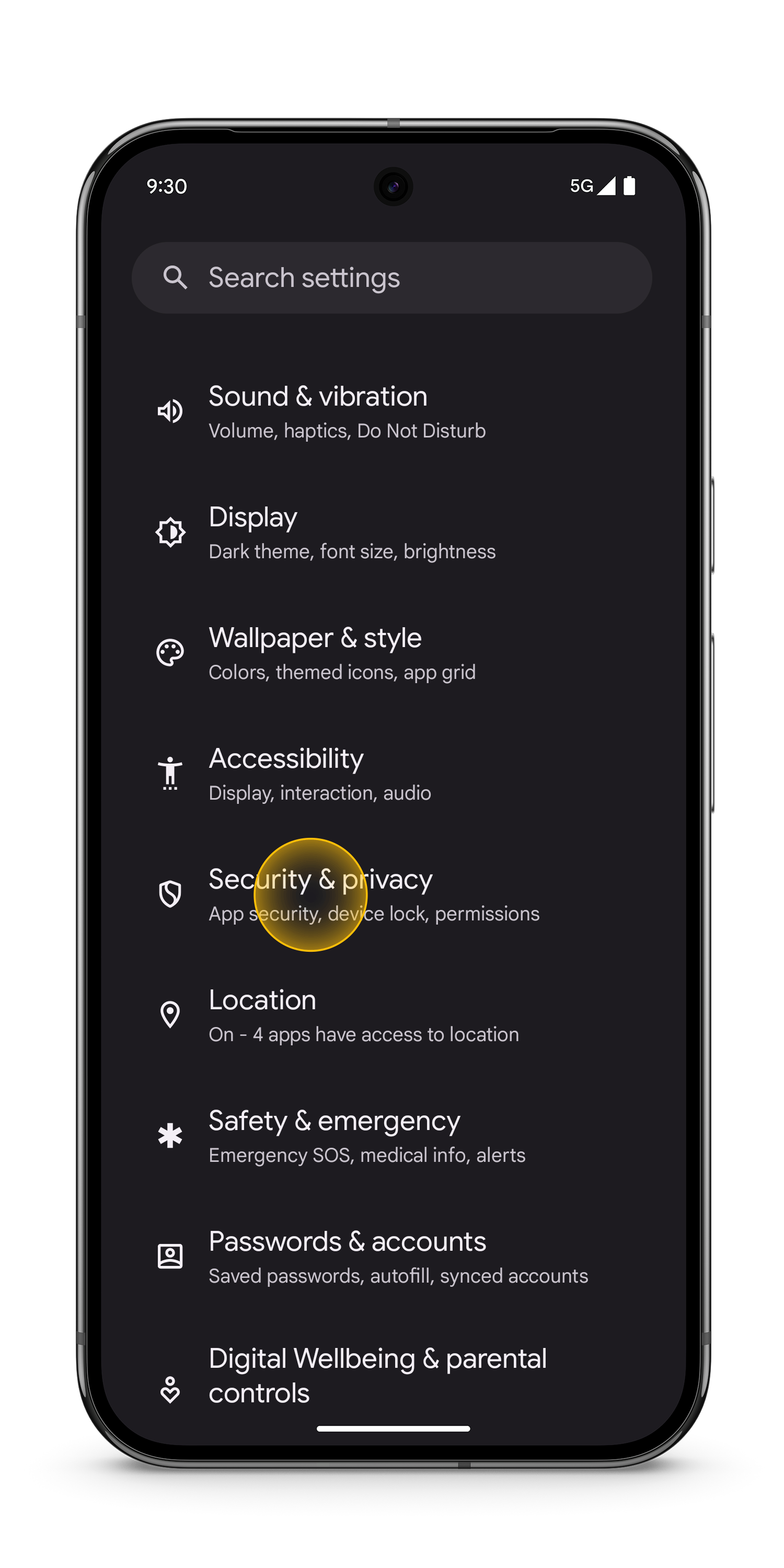
- Tab Device unlock.
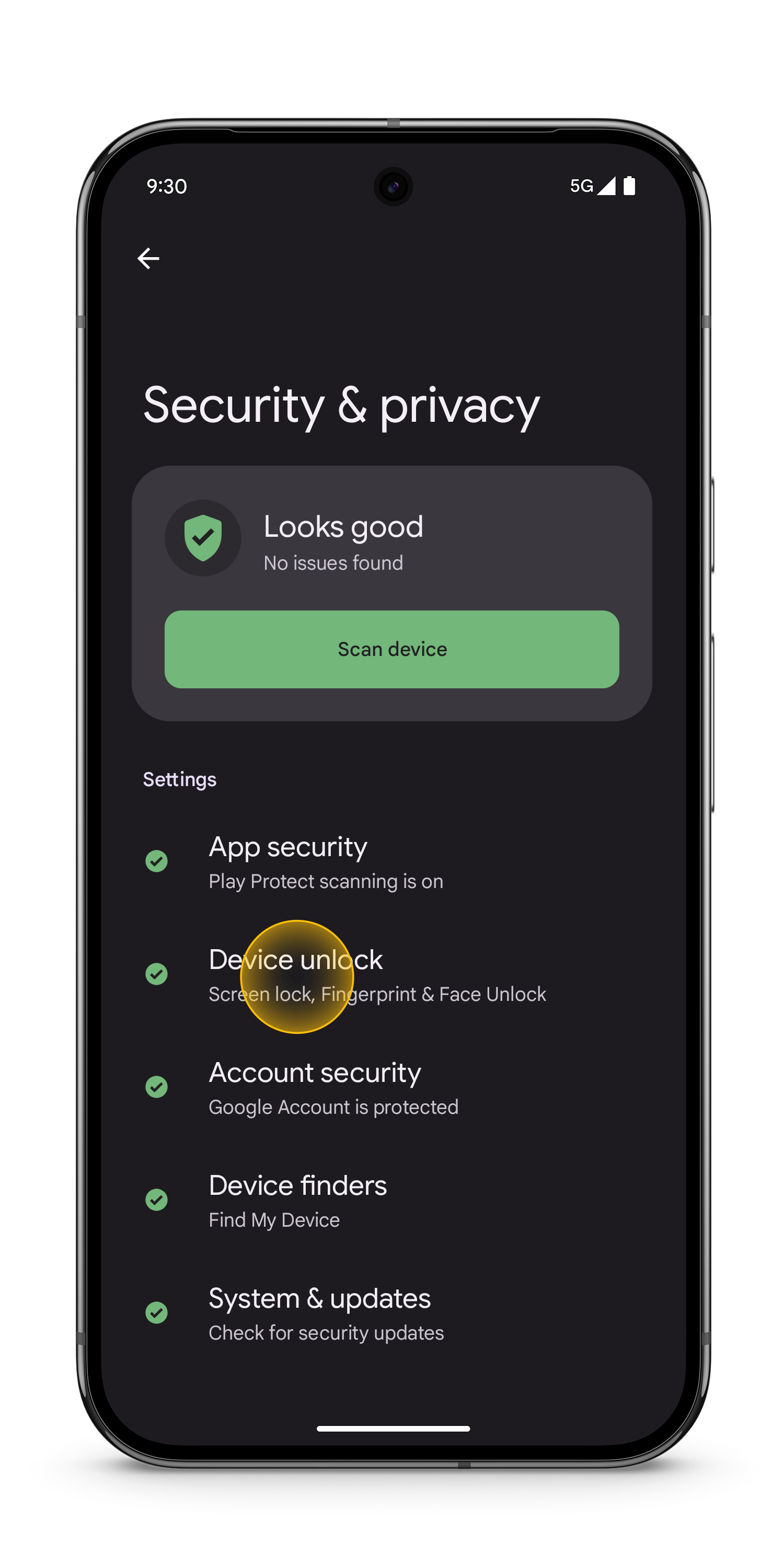
- Select Fingerprint & Face Unlock.
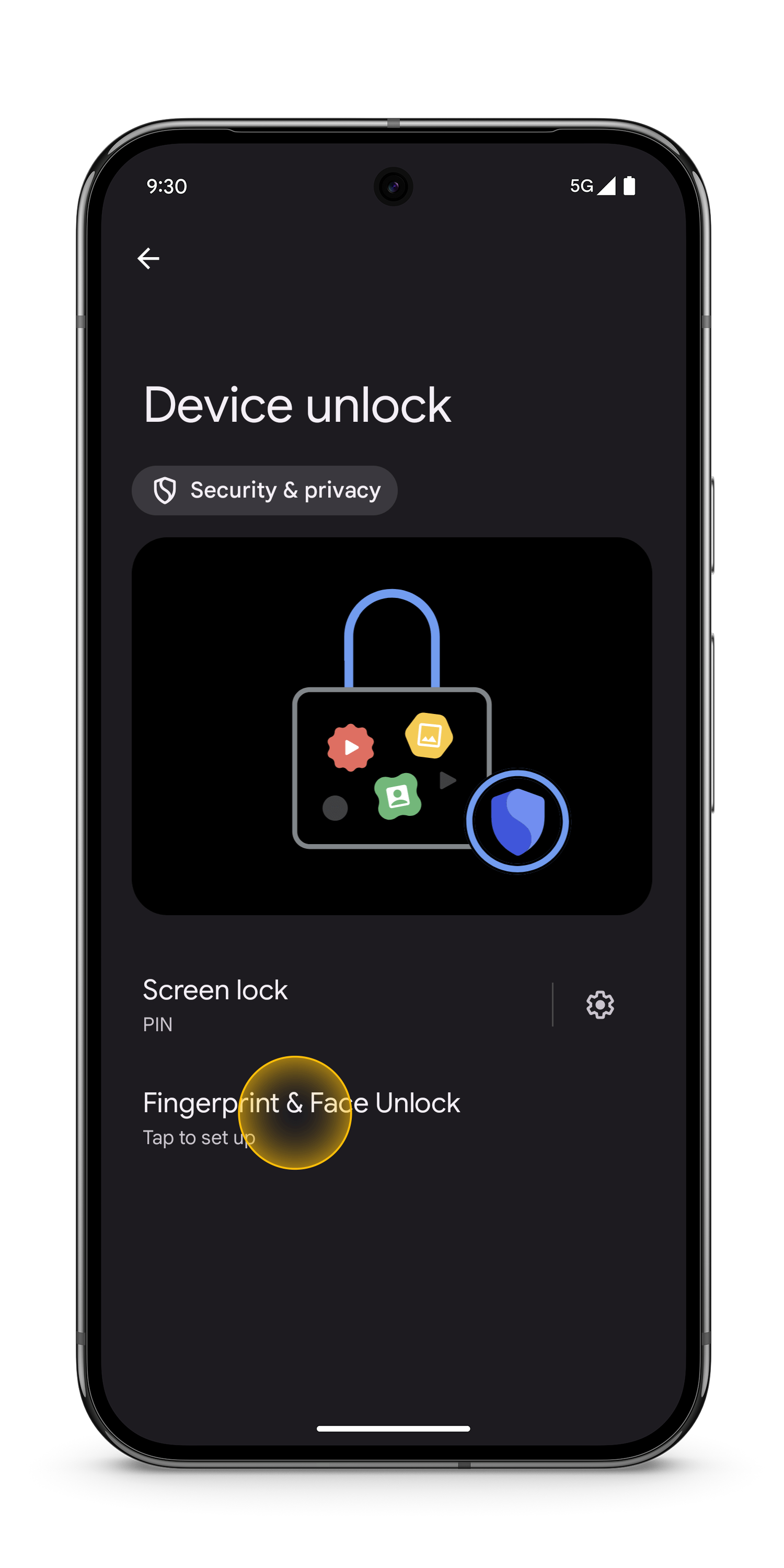
- If you don’t already have a screen lock set up, you’ll be asked to add a backup PIN, pattern, or password. Tap Fingerprint Unlock.
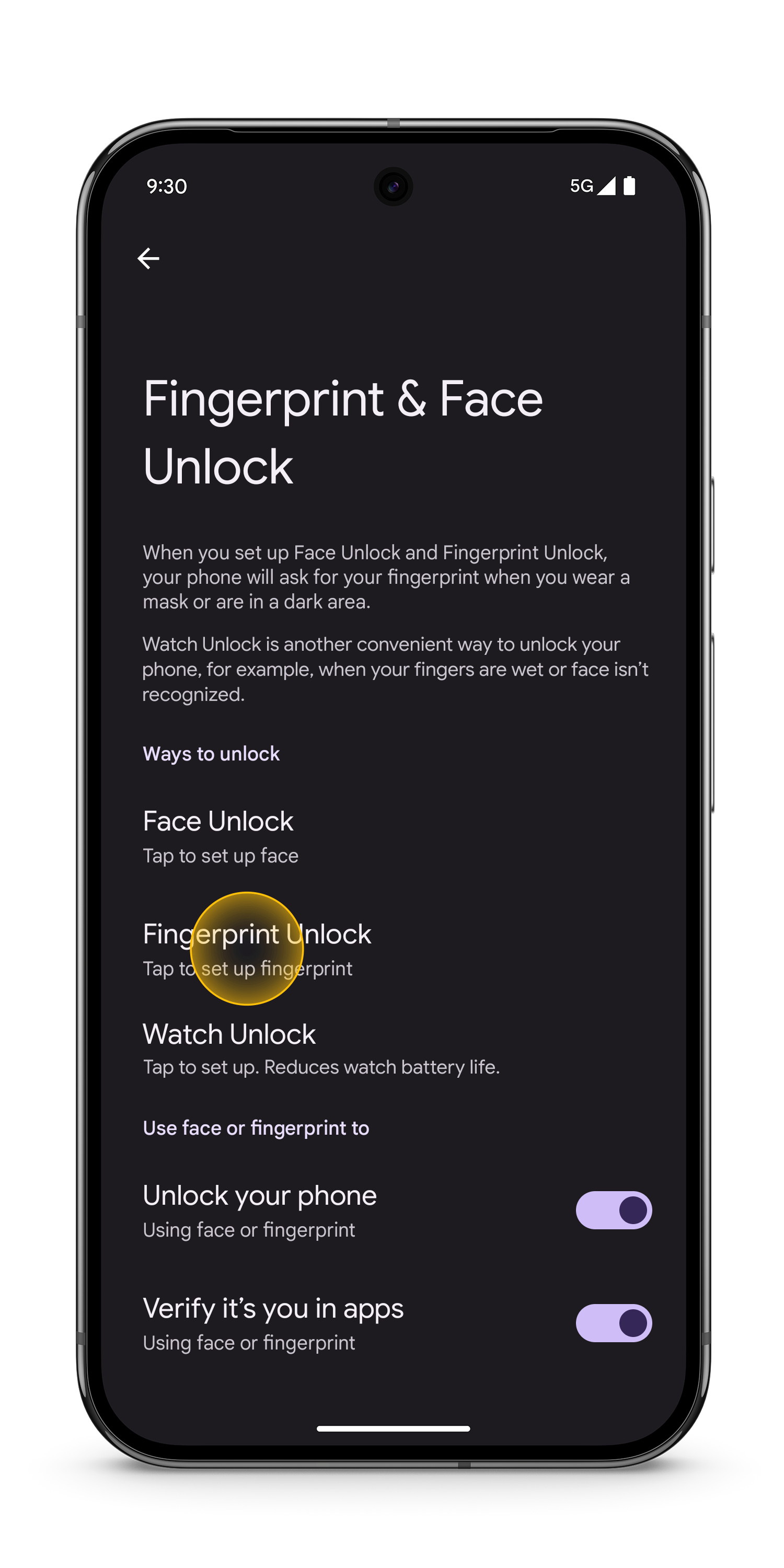
- Review the additional information about Fingerprint Unlock. Select I agree.
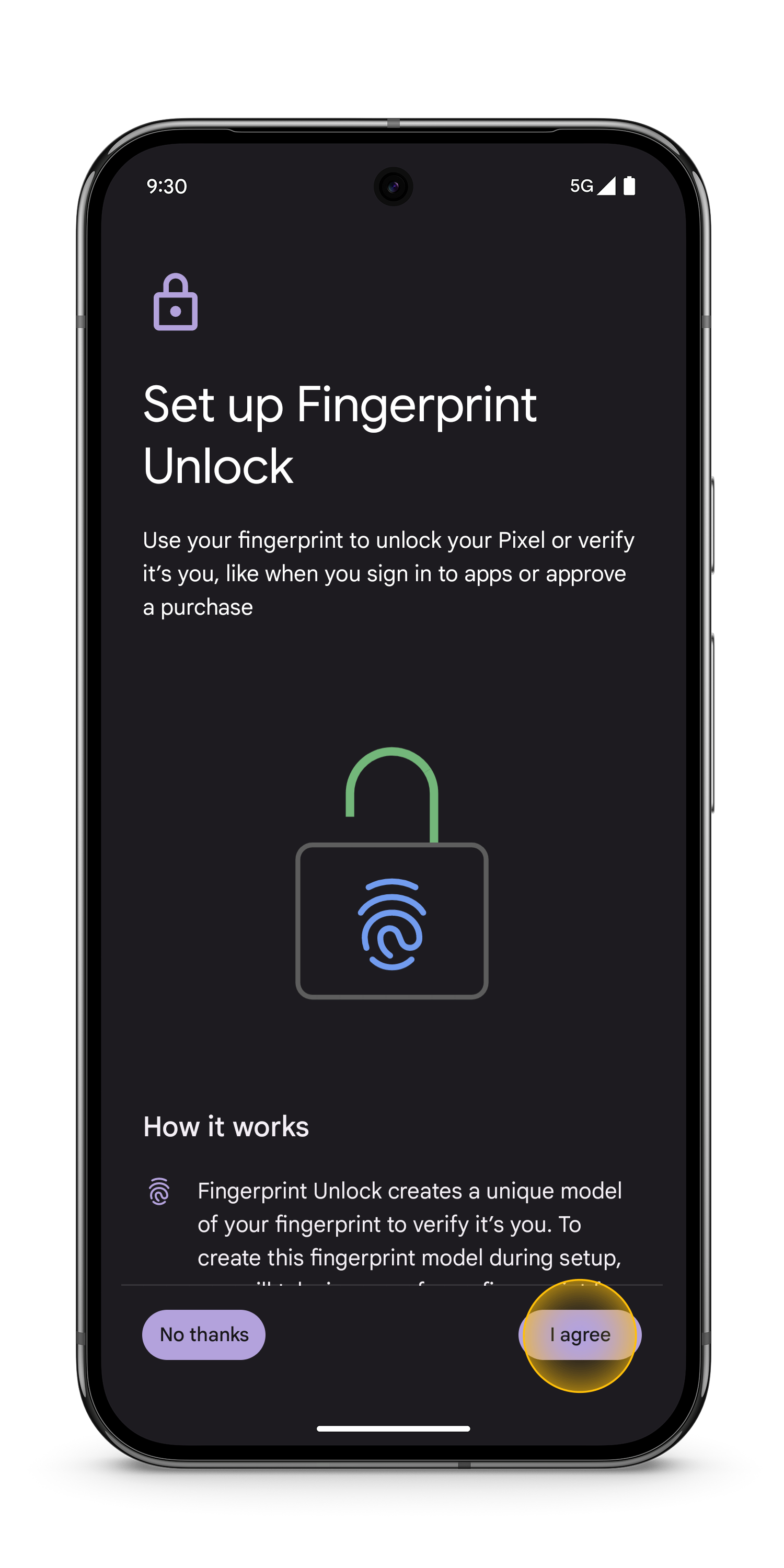
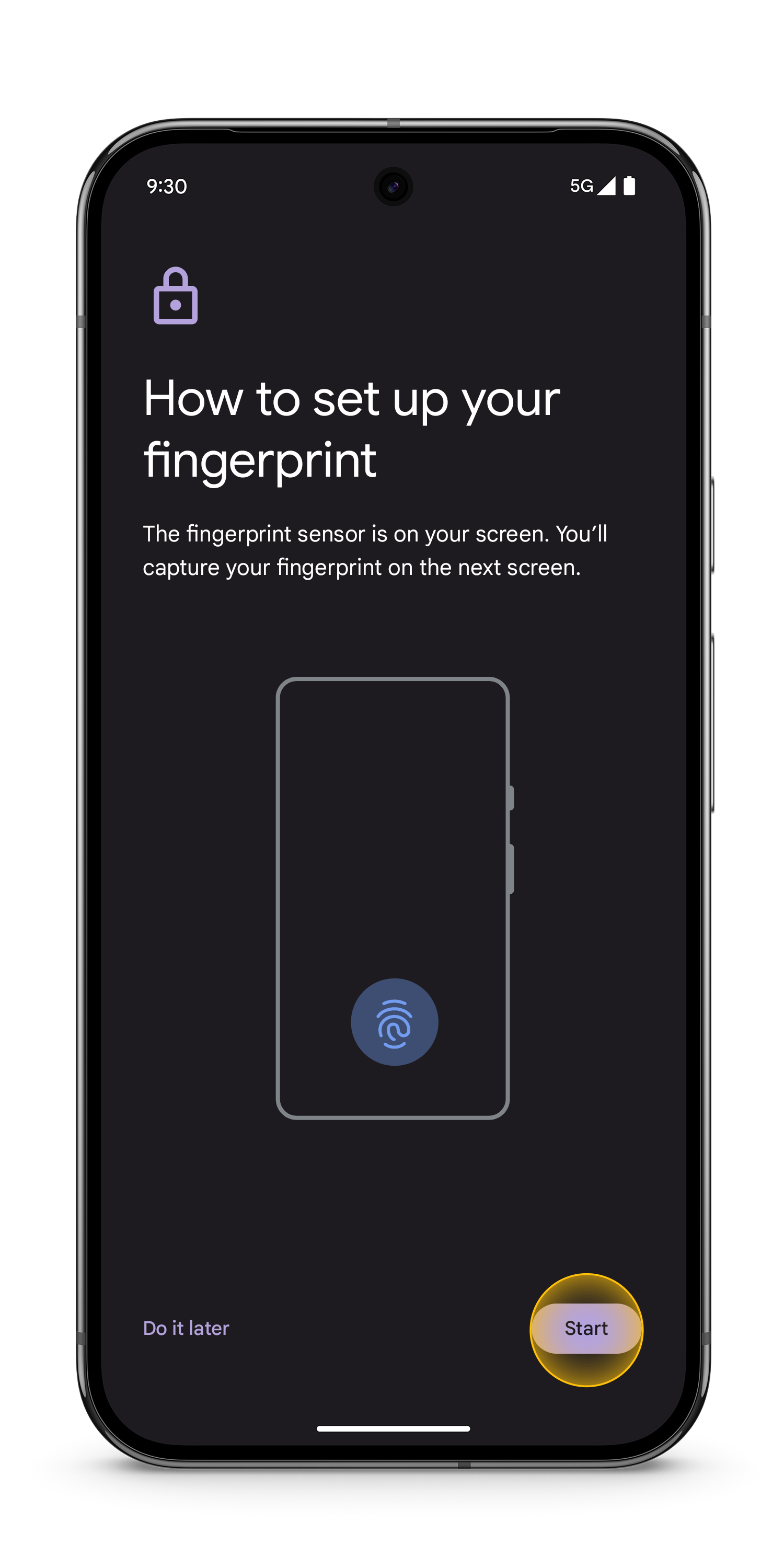
- On the next screen, you’ll be prompted to set up your fingerprint. Tap Start.
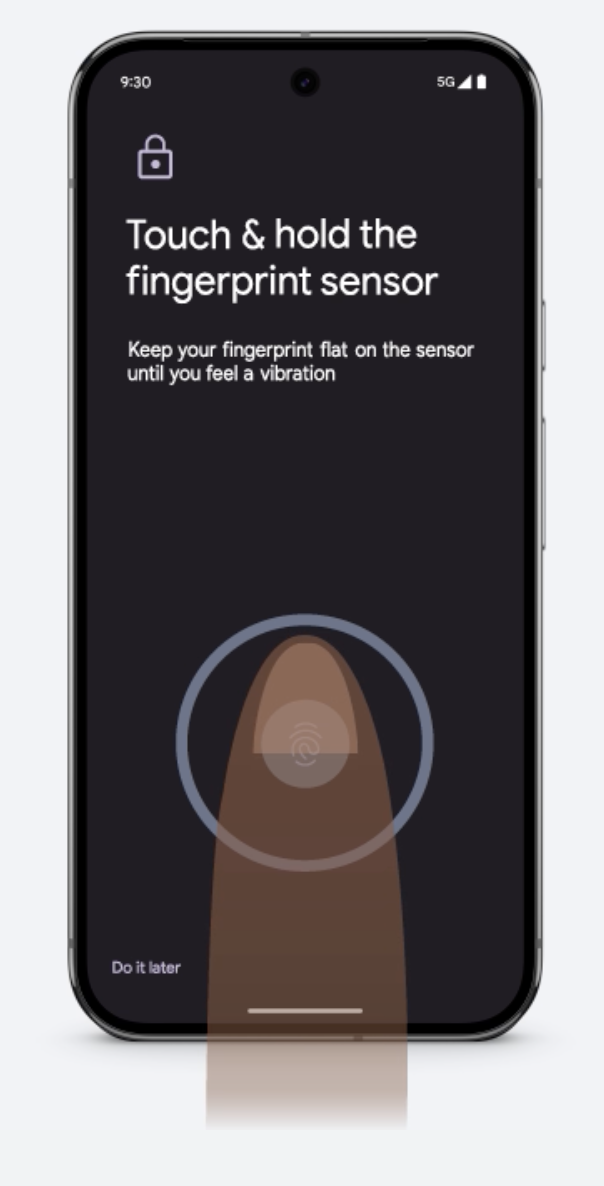
- Touch and hold your finger on the sensor until the sensor lights up and you feel a vibration from your device. Note: If you’re having trouble scanning your fingerprint, it could be due to bright, outdoor sunlight or a thick screen protector. View Google troubleshooting tips, on the Fix issues with your fingerprint sensor on your Pixel phone webpage.
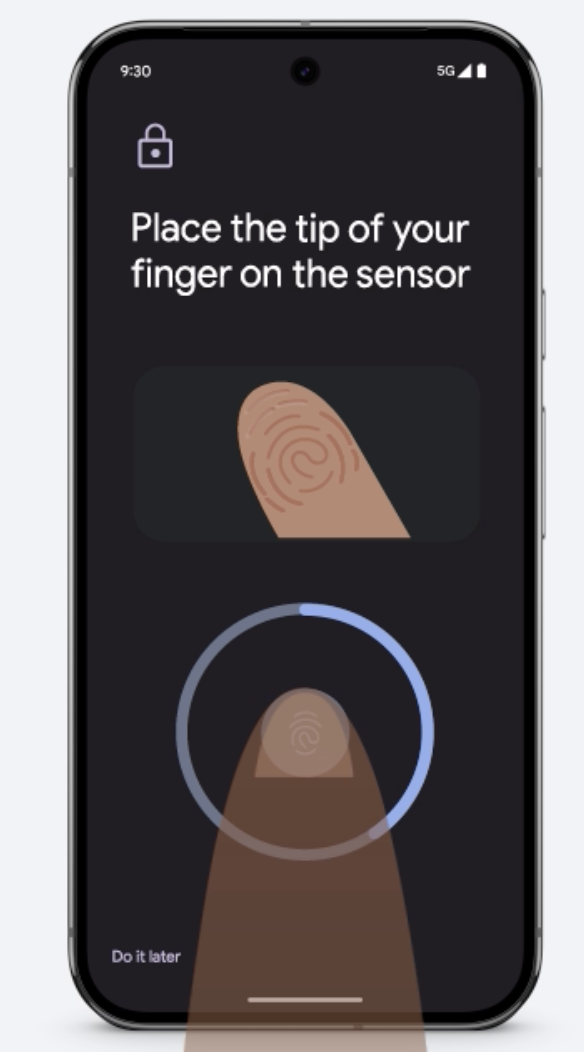
- Lift and then touch and hold your finger on the sensor each time the fingerprint icon moves. Change the position of your finger slightly each time, ensuring that you place the sides of your finger on the sensor when prompted.
- Once your fingerprint is successfully added, select Done.
To enable Face Unlock:
- To set up Face Unlock, open the Settings app and tap Security & privacy.
- Tap Device Unlock.
- Tap Fingerprint & Face Unlock.
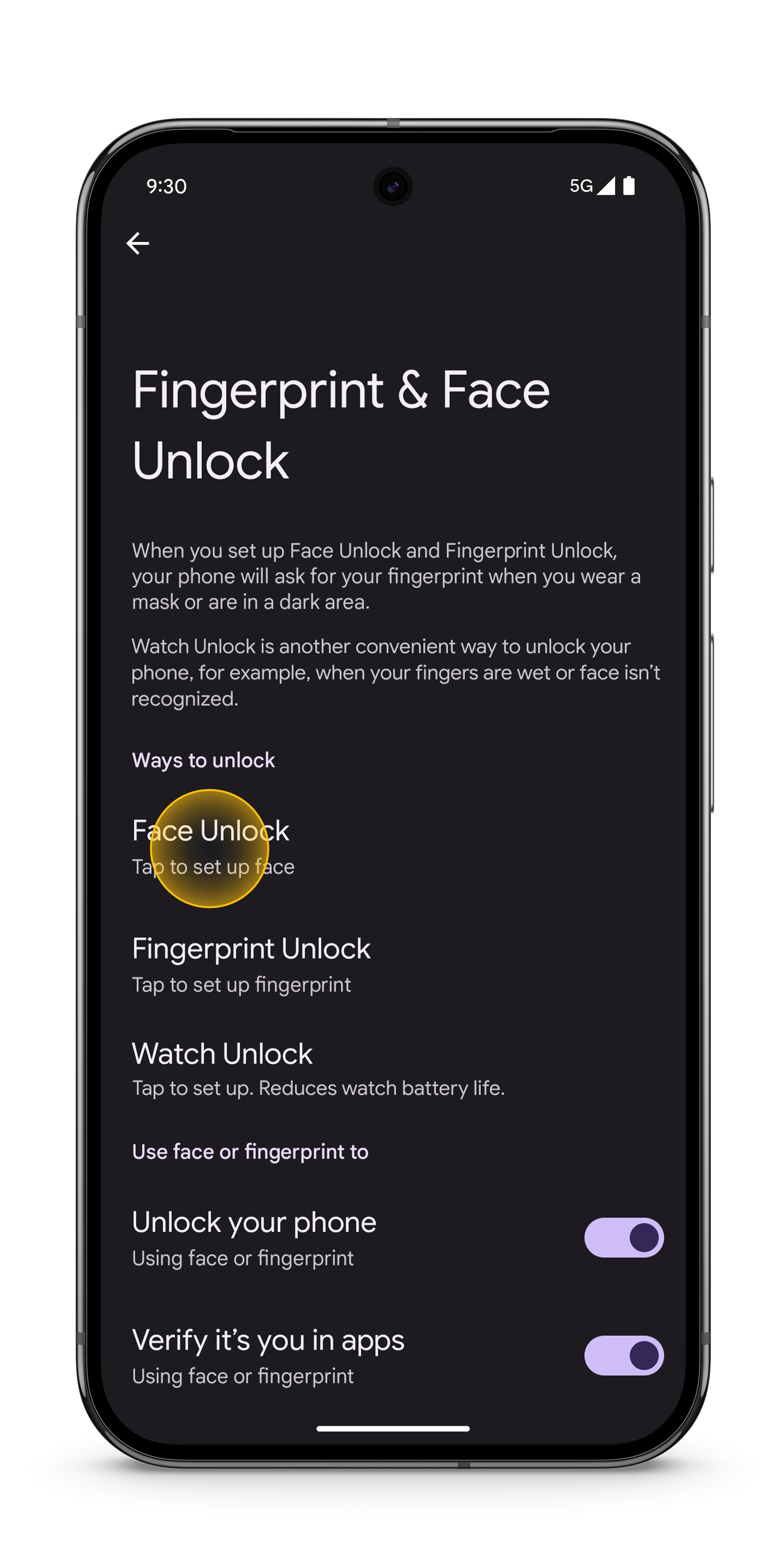
- Tape Face Unlock. Note: If you don’t already have a screen lock set up, you’ll be asked to add a backup PIN, pattern, or password.
- Review the additional information about Face Unlock. Select I agree.
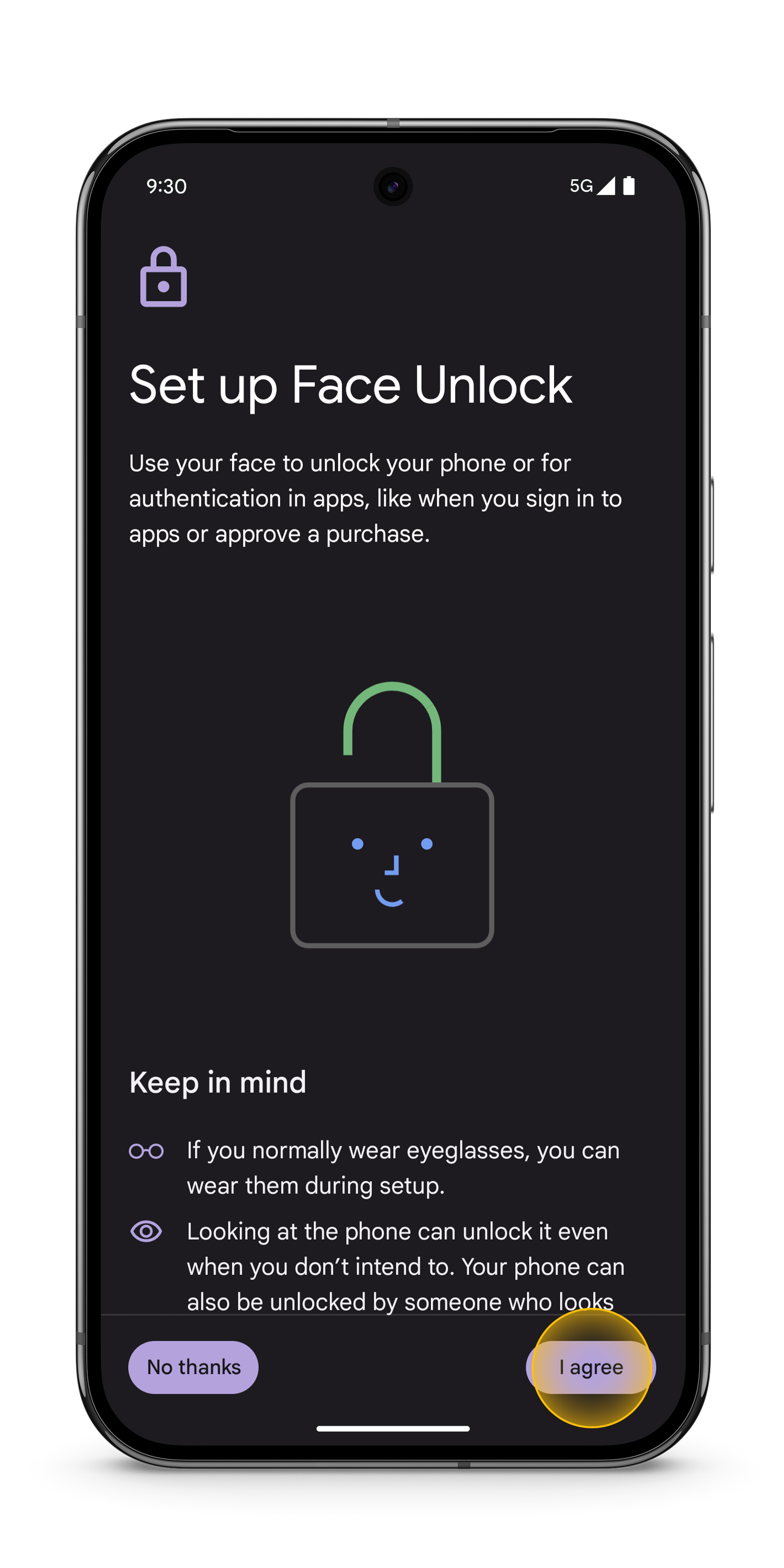
- On the next screen, you’ll be prompted to set up your face unlock. Tap Start.|
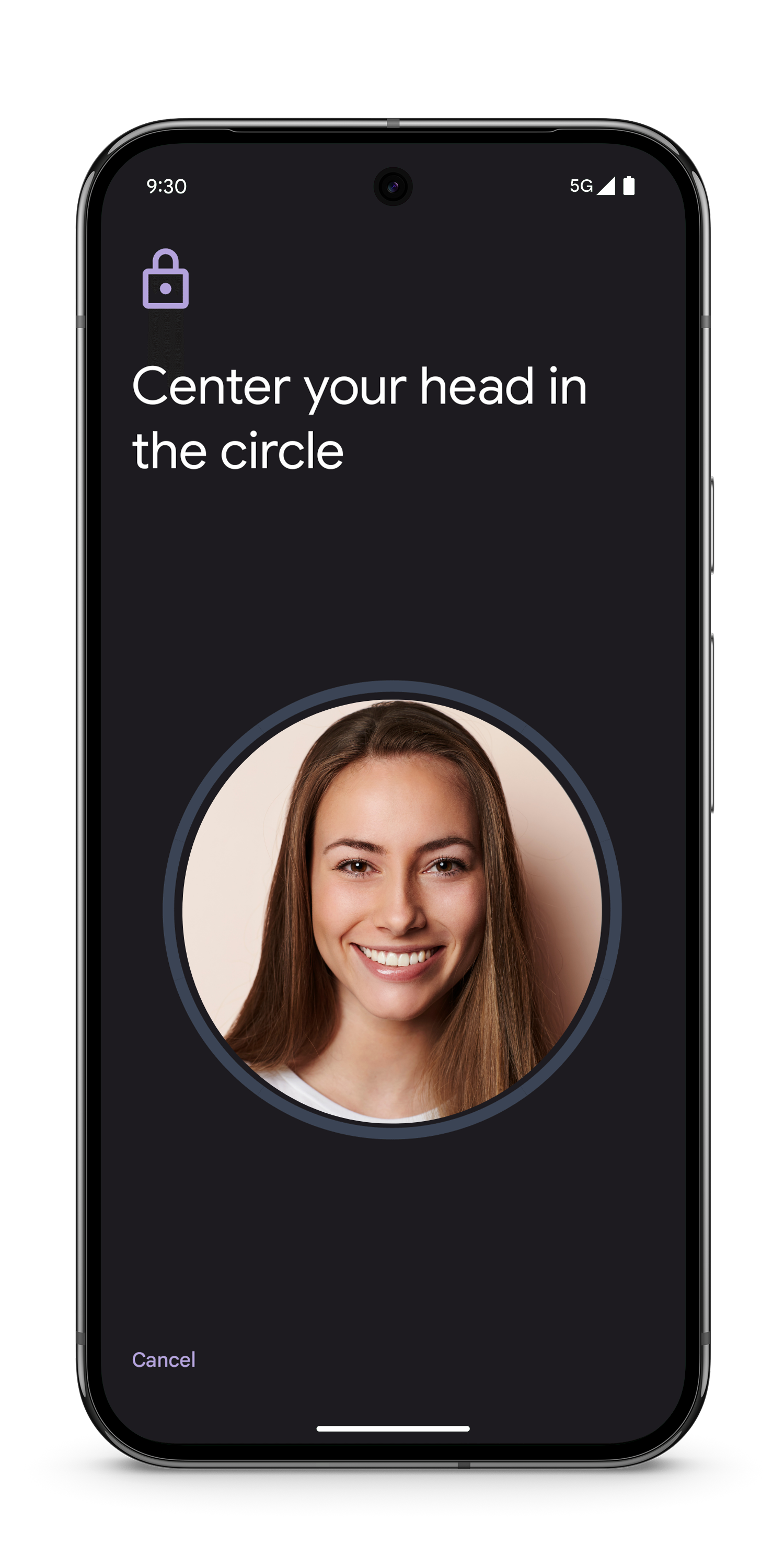
- Follow the on-screen prompts to capture your face image. Note: When setting up Face Unlock, avoid wearing a mask or sunglasses.
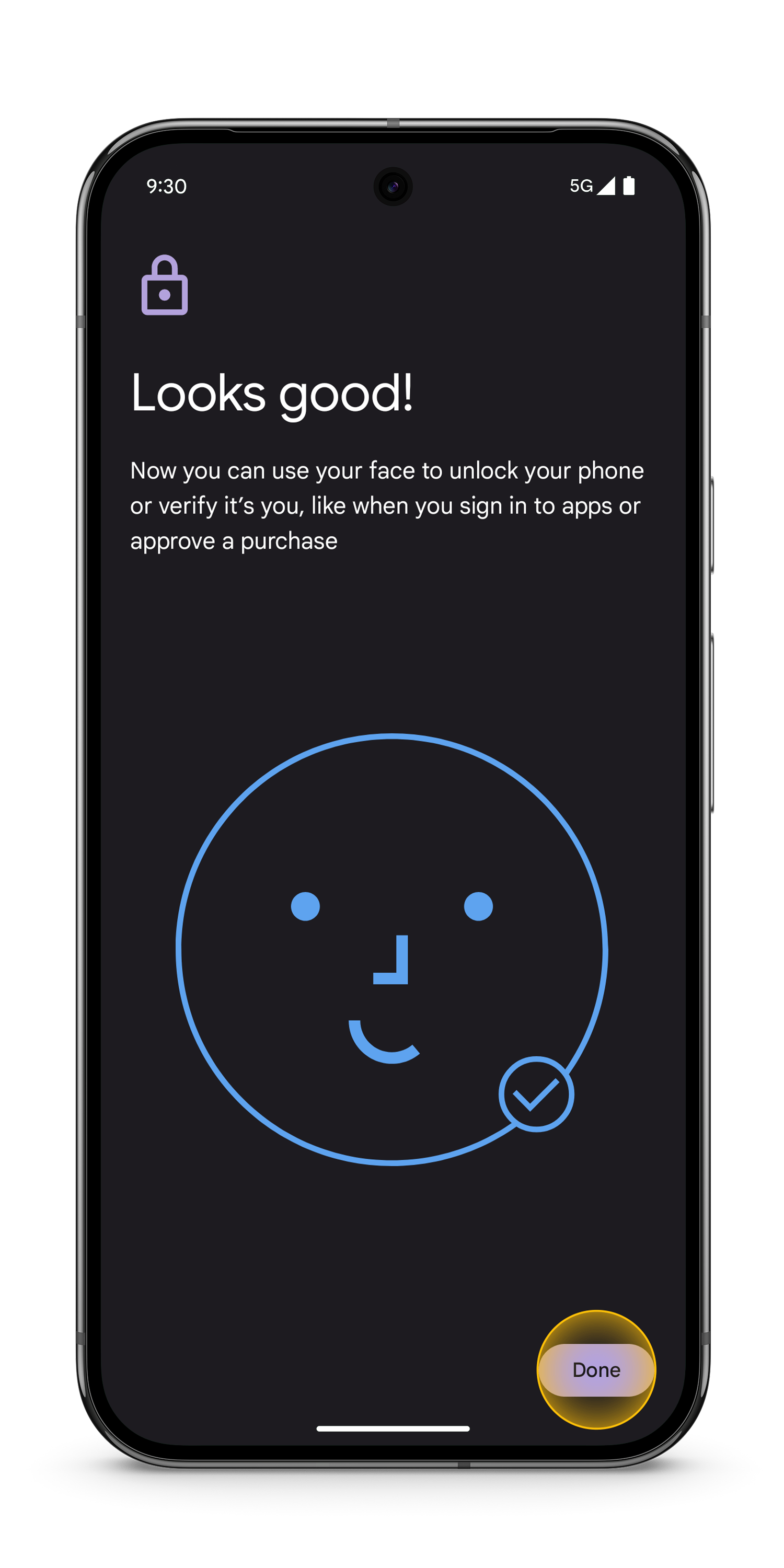
- Once your face is added, tap Done.
- Open the Settings app and select Security & privacy.
Samsung devices
To register your fingerprint:
- Navigate to Settings, then select Security and privacy.
- Tap Lock screen, and then select Fingerprints.
- Enter your lock screen credentials. If you do not have a screen lock set up, you may be prompted to set a secure screen lock (PIN, password, or pattern) at this point. When you're ready, follow the on-screen instructions.
- Tap Continue on the Fingerprints screen, and then use the on-screen prompts to register your fingerprint.
- When registering your fingerprint, ensure that your finger fully covers the fingerprint sensor to prevent intense light from entering the sensor. When you're finished, tap Done.
- Next, ensure that the switch next to 'Fingerprint unlock' is turned on. Note: If the fingerprint sensor on your device is located on the Side button or below it, you can disable the "Fingerprint always on" option to prevent accidental unlocks.
- To unlock your device using your finger, tap the screen or press the Power button or Side button. Then, place your registered finger on the fingerprint scanner, wherever it is located. The device will automatically unlock if it recognizes your fingerprint.
To enable facial recognition:
- From Settings, swipe to and tap Security and privacy, and then select Biometrics.
- Tap Face recognition, and then enter your PIN or password. If you do not already have a secure screen lock, you will need to set one up.
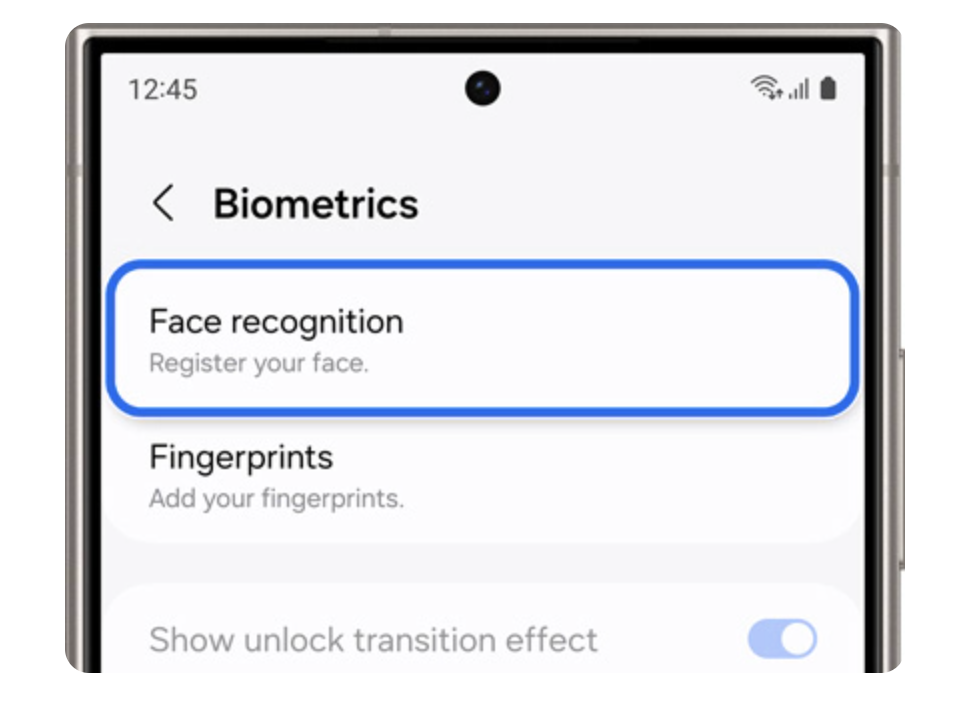
- Select Continue, and then hold the phone 8-20 inches away as you position your face inside the circle. Hold the position until the progress bar reaches 100%. You may be prompted to remove your glasses to finish the process.
- When you're done, adjust your desired settings.
- You can now unlock your phone by just looking at it! However, if you’ve set up a lock screen with Face recognition, your screen may request a PIN, Pattern, or Password under the following conditions:
- At least once every 24 hours.
- If 4 hours have passed without using the device.
- If the device has been restarted.
Enable Touch ID, Face ID, or Fingerprint Unlock for DUO Authentication
- Go to the Duo Central platform. You will be required to authenticate twice.
- Once logged in, click Continue to begin setting up this new functionality.
- Click the Touch ID (or Face ID) option.
- Read the Touch ID information and click Continue.
- The browser prompts you to verify your identity on duosecurity.com when you add a new option. Note: You may be prompted to enter your system’s password instead of tapping Touch ID if you still need to add your fingerprint to Touch ID on your Mac, or if your laptop lid is closed. You can also choose to enter your system password.
- Place your finger on the Touch ID (or enter your system password) to complete Touch ID enrollment.
- When you receive confirmation that you added Touch ID as a verification method, tap Continue.
- You've added Touch ID as your passwordless login method. Click Done. After completing Duo setup, proceed to your application as a logged-in user.
