 University IT
Install Stanford AI Playground Like an App
Enjoy faster, easier access to the Stanford AI Playground by installing it as a Progressive Web App on your computer or mobile device.
A Progressive Web App (PWA) is basically a website built with modern technology that enables you to save it directly to your device’s home screen. Once added, it looks and works just like a regular app, opening in its own window without the browser toolbar or address bar.
Consider installing the Stanford AI Playground as a PWA if you want to:
- Quickly launch the app: Access it directly from your Taskbar, Dock, or home screen.
- Easily locate the app: Eliminate the need to search among many open tabs.
- Use it in a dedicated window or second monitor: Enjoy the flexibility of using the app across multiple screens.
- Enhance mobile access: Seamlessly access the app on your tablet or phone for convenience on the go.
Install the PWA on your laptop or desktop
- Launch your preferred browser: Microsoft Edge, Google Chrome, or Apple Safari.
- Navigate to the Stanford AI Playground website.
- Follow the browser-specific steps shown below to install the Stanford AI Playground PWA version onto your computer.
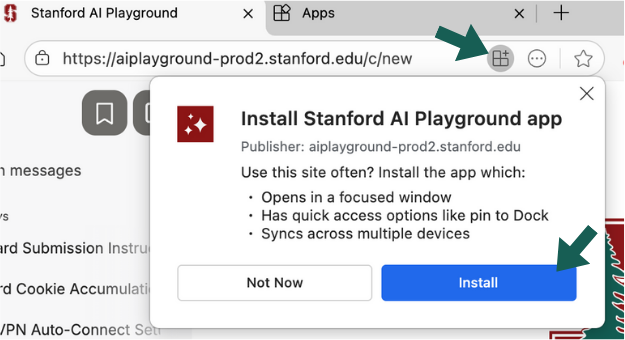
Microsoft Edge
- Click the Install icon (a square with a plus sign) located in the address bar.
Confirm by clicking Install and follow any additional prompts that appear.
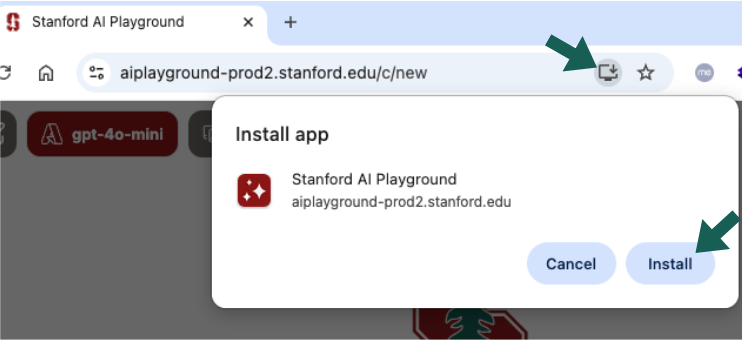
Google Chrome
- Click the Install icon (a monitor with a downward arrow) in the address bar.
Click Install and follow any additional prompts that appear.
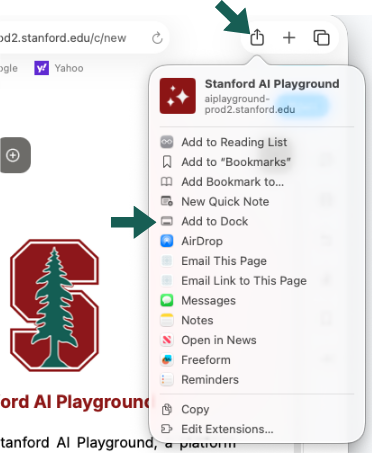
Apple Safari
- Click the Share icon in the top right corner of the window.
From the dropdown menu, select Add to Dock to complete the installation.
Tips for macOS:
To pin the app icon on macOS, drag it to the left side of your Dock's main section. This will make it easily accessible. Alternatively, you can find the app by searching for "Stanford AI Playground" in the app Launchpad.
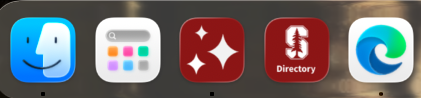
Once installed, move the app icon over to the primary area of your Dock (towards the left) to keep it prominently displayed.
Install the PWA on your tablet or iphone
Installing Stanford AI Playground PWA on your mobile device is just as easy as it is on a laptop.
- Open the Stanford AI Playground website in Apple Safari, Google Chrome, or Microsoft Edge on your mobile device.
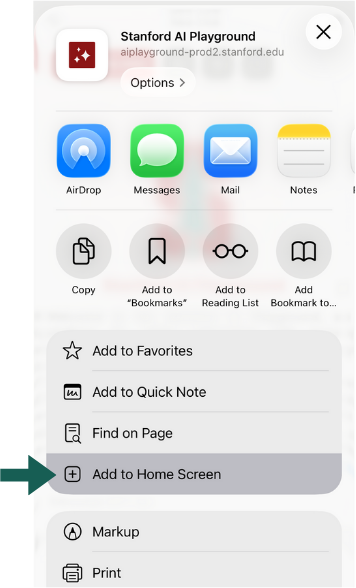
- Use the “Share” function in your browser.
Locate and tap the “Add to Home Screen" option.
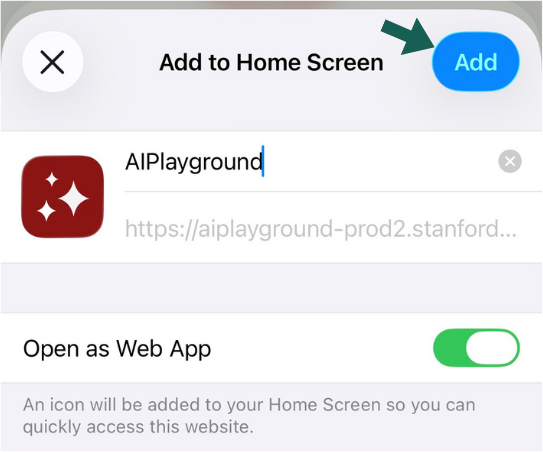
Tap Add in the top right corner. This will place the icon on your phone screen for easy access.
Uninstall the PWA
Note: PWA apps consume as little as 3MBs of disk space.
- On a mobile phone or tablet, deleting the app icon will uninstall the app.
- On a laptop or desktop, you could do the same for a quick removal of the icon. Or follow the additional steps shown below to fully uninstall the app.
Microsoft Edge
- To uninstall apps installed via Microsoft Edge browser, click the three dot menu on the top right corner of the app window.
- Click App Settings.
- In the window that opens, click Uninstall.
Google Chrome
- To uninstall apps installed via Google Chrome browser, click the three dot menu on the top right corner of the app window.
- Select the uninstall option in the menu.
Feedback about this guide? Please share your input with University IT Computer Resource Consulting (CRC).
